
(06.24.01-00) Support for Warehouse Schedule Status in Schedule Search Grid
Reference No: R2-12138
Version No: 06.00.06-00_P03
Details
"Schedule Status" generated for Rental Orders/Sale Orders/Operation Orders can be viewed from Warehouse module > Schedule Search grid.
Change In UI
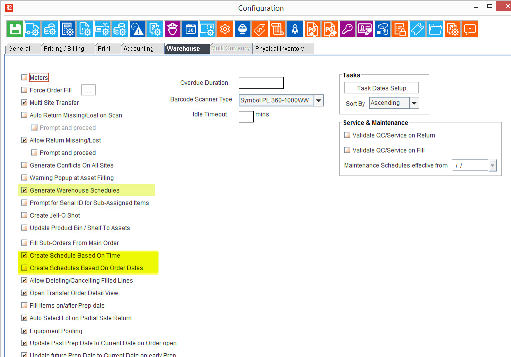
The Warehouse Tab in the configuration Module was as shown in the Figure 1.0 in earlier versions and Figure 2.0 shows in the current version.
Figure 1.0: Old Design Configuration module > Warehouse tab [Up To Ver. 06.00.06-00_P02] | Figure 2.0: New Design - Configuration module > Warehouse tab [Ver. 06.00.06-00_P03 Onwards] |
 Click Image To See Enlarged View | 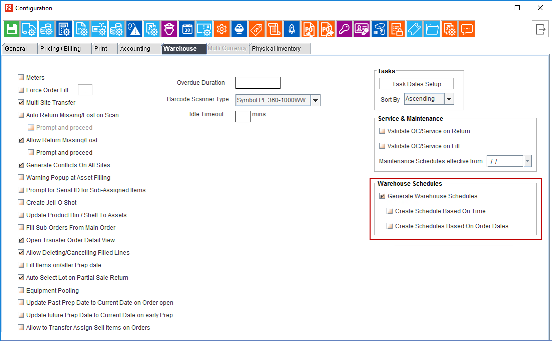 Click Image To See Enlarged View |

The 'Schedule Status’ option does not apply to Purchase and Transfer Orders.
The 'Schedule Status’ option does not apply to Manually Created Schedules, and will always show as blank.
Users will be able to search schedules based on "Schedule Status" column in warehouse main screen grid. The supported status are mentioned in the table below.
Table 1.0: List of Schedule Status
Schedule Status | Description |
Reserved | Creating new order (Default Value) |
Partly Filled | Items are filled partly |
Filled | All the items are filled |
Partly Shipped | Items are shipped partly |
Shipped | All the items are shipped |
Partly Returned | Items are returned partly |
Partially Received | Partially returned in E-pool Operational Order |
Returned | All the items are returned |
Received | All items returned In E-pool Operational Order |
The Schedule Status of the Order Schedules stops at the Highest Meaningful Status for the respective task, as detailed below:
Table 2.0: Schedule Status With Corresponding Stop-Levels Order Status
Order Type | Tasks | Conditions | Notes |
Rental and Sale Orders | Prep | Includes all status up to Filled | None |
Ship | Includes all status up to shipped. | None | |
Pickup | Includes all status up to Returned | This option is not applicable for E-Pool Operations Order. | |
Return | Includes all status up to Returned | This option is not applicable for E-Pool Operations Order. | |
E-Pool Operations Order | Receive | Includes all status up to Returned | This task does not show a Return / Partially returned status. |
For Mapping of Order-Line Status With Warehouse Status, See table below.
Table 3.0: Mapping of Order-Line Status and Schedule Status
Order Line Status | Mapped Schedule Status |
Sub Rent Filled (S-Filled) | Filled |
Reserved | Reserved |
Sub Rent Assigned (S-Assigned) | Reserved |
Transfer Reserved (T-Reserved) | Reserved |
Reserved* | Reserved |
Returned | Returned |
Missing | Returned |
Damaged (Repair) | Returned |
Lost | Returned |
Sub-rent Returned (S-Returned) | Returned |
Sold | Returned |
Overdue | Shipped |
Out | Shipped |
Sub-rent Out (S-out) | Shipped |
Off Rent | Shipped |
If the R2 sessions are closed abruptly, once the order is unlocked or released the 'Schedule Status’ column gets updated automatically.
Warehouse schedule will be regenerated on closing 'Warehouse Task Screen' by the last user for the specific order.
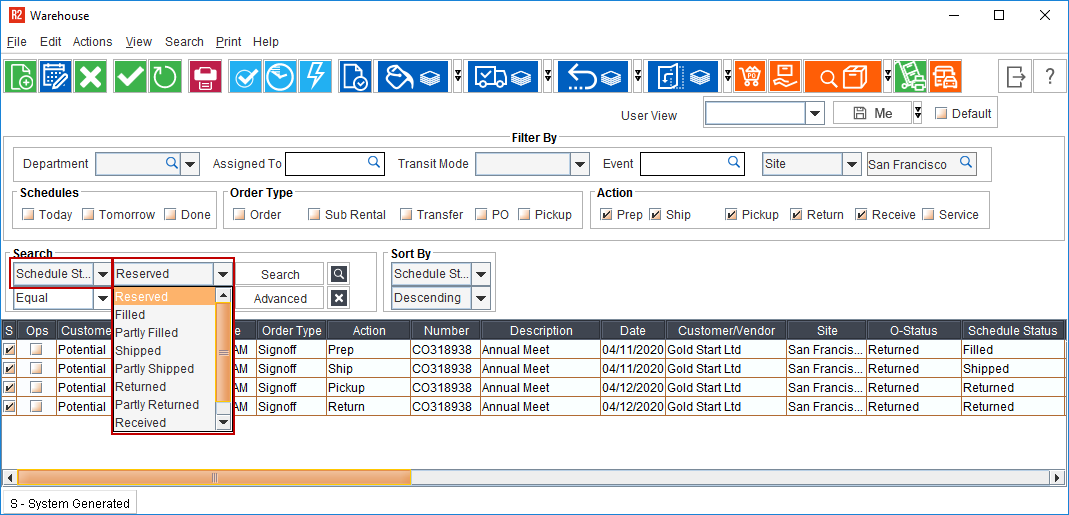
Figure 3.0: Warehouse Status in the Schedule Status Drop-down menu
Prerequisites
Ensure that the selected status of Order-Status flags is set as per following table:
Table 4.0: Mapping of Order-Line Statuses and Warehouse Statuses
Schedule Status Title | Default Status | Prerequisite Status |
Generate Warehouse Schedules | Selected | Selected |
Generate Schedules based on Order dates | As per last known/saved settings | Disabled |
Generate Schedules Based on Time | As per last known/saved settings | Selected |
Sample Workflow:
Go to R2 Launch Pad > Account Module > Search/Select A Company.
Create/Open an Order. Add the Kits, items, and sections to the order (as required).

Ship one quantity of the item in the order.
Return one quantity of the item in the order.

The 'Schedule Status’ will look as in the following table.
