
Table of Contents
Each of the service points that were added to the service ticket can bear a cost, so that you know how much time and, therefore money, was spent in servicing an item. That’s because the service points are actually labor records (as indicated by the Type.) Parts, or components, may also be employed in servicing an item, and parts, too, can have costs.
LABOR
-
After adding the service package you’ll see the several labor records. Enter the amount billed per hour into the Price field.
-
Enter the time worked on this task by typing into the Duration field. 1h is one hour. .5h is half hour. .25h is fifteen minutes.
-
There is no need to modify labor records that do not have a cost. Some service points, such as “No Damage” and a quick, basic inspection may not carry a cost, so you do not have to enter anything into the Price field, though the Duration will still show 1h by default.
PARTS
-
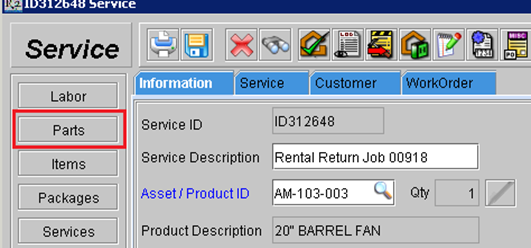
To add parts to a service ticket, click on the Parts button.
-
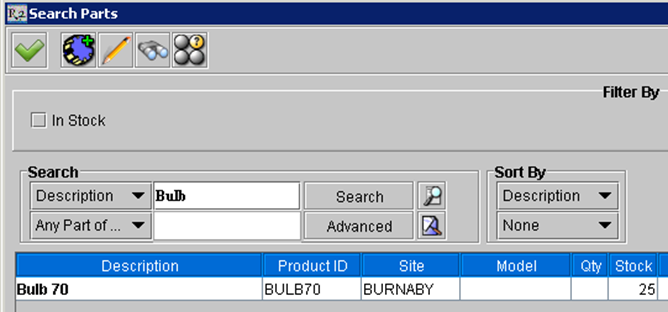
Use the search feature for Description or Product ID to locate a part or parts.
-
Double click on each part you want to add back to the service ticket. As you select each part it will turn blue in color. And you may perform multiple searches and part selections – R2 will remember each part you have selected.
-
Click on the Select icon

-
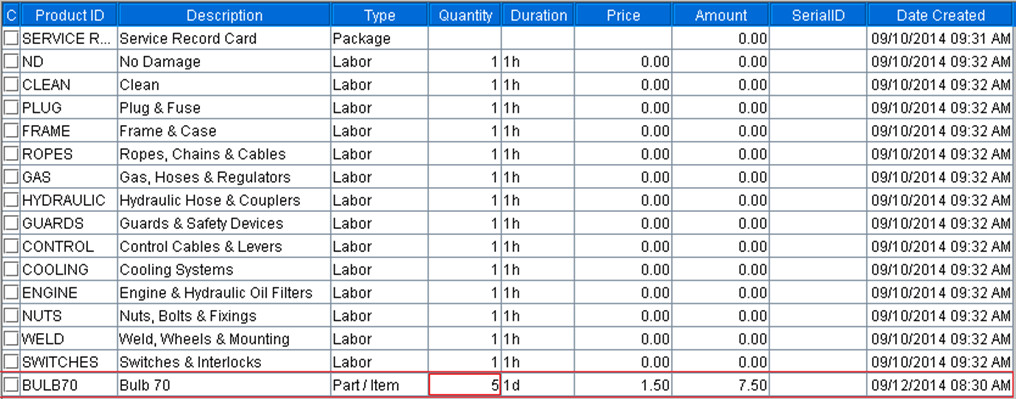
The part’s average cost or replacement cost (depending on your R2 Configuration setting) will be displayed as the cost for each part.
-
Change the Quantity or Price as required.