
In order to assign a schedule based on meters to the item, a meter group and meter settings must be created first. Then, the item must be assigned to the corresponding meter group.
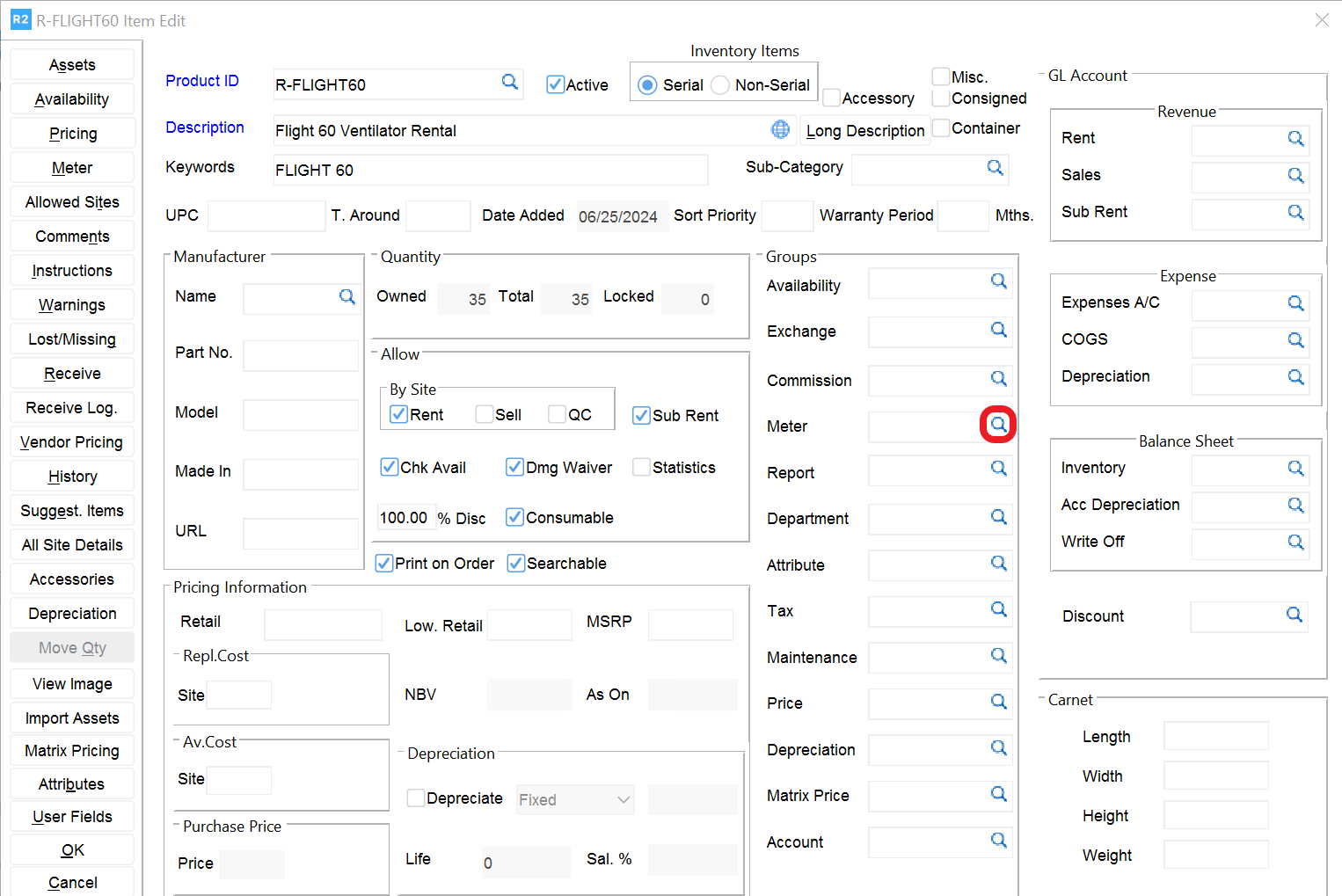
To set up a meter group click on the meter group field in the item edit screen.
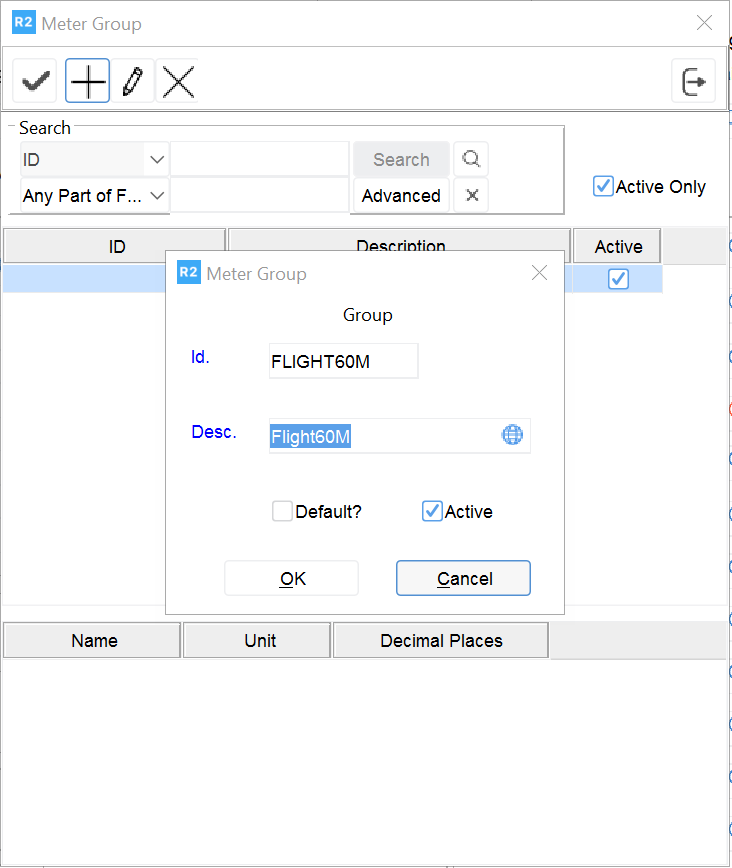
The Meter Group window will be displayed. Click on the Add button and enter the Meter ID and Description to add a new group. Click the OK button when done.
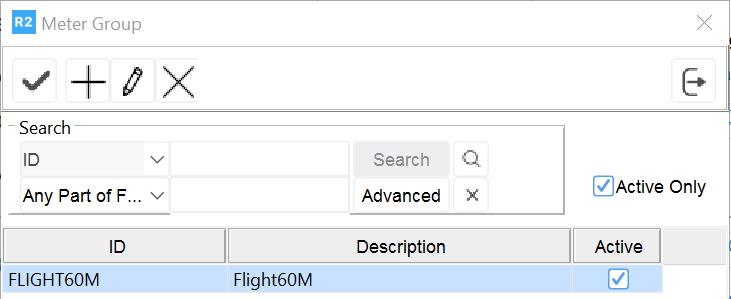
The meter group will be listed. Double click on the group to assign it to the item.
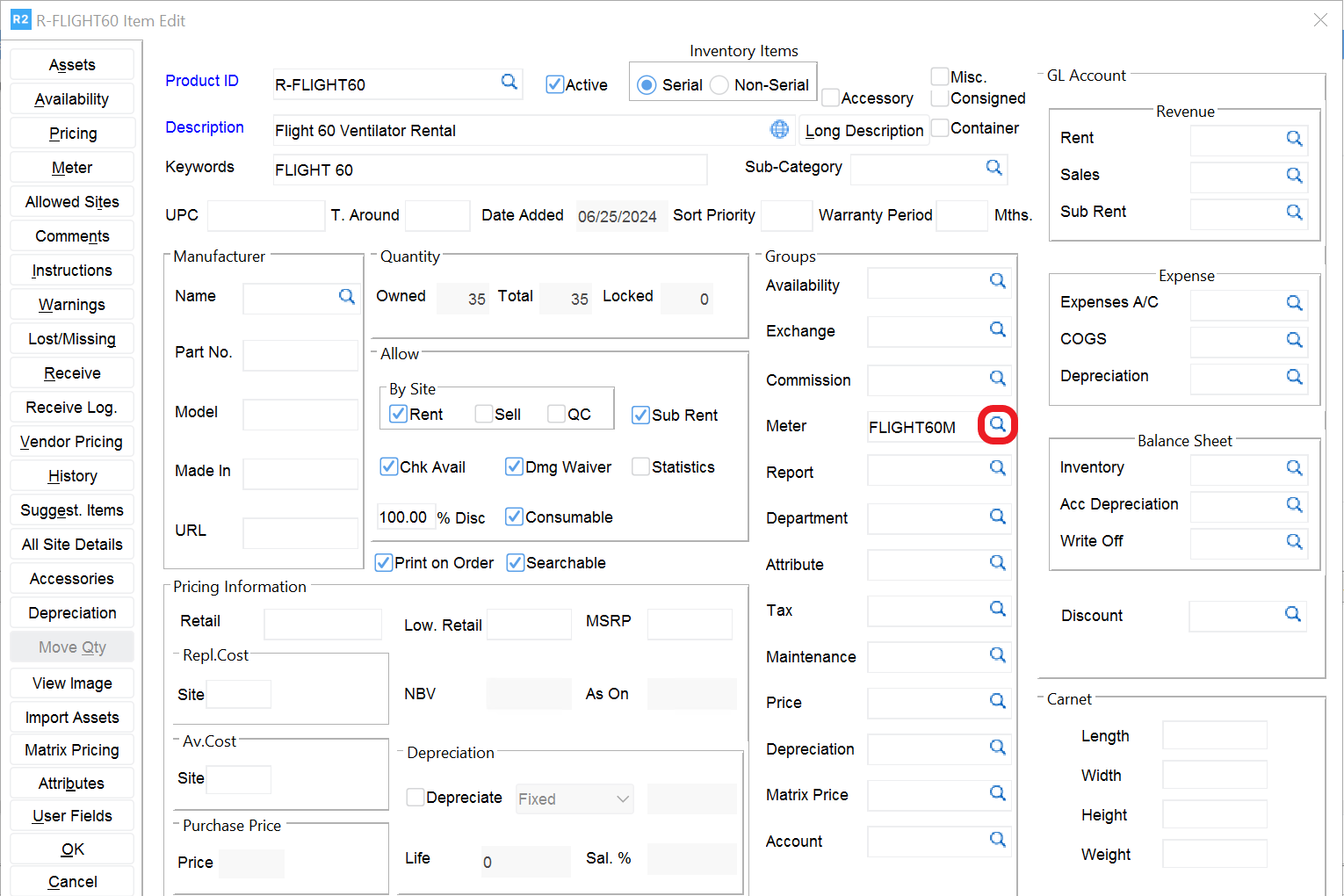
Once the Meter group is assigned, click the Magnify Glass icon next the Meter Group.
Highlight the meter group and click on the Edit button.
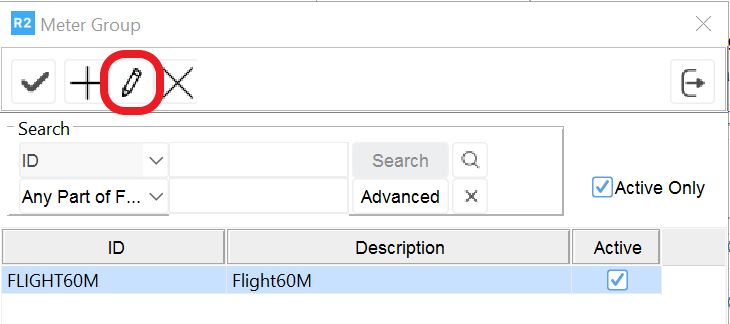
The screen below will open. Click on the List button.
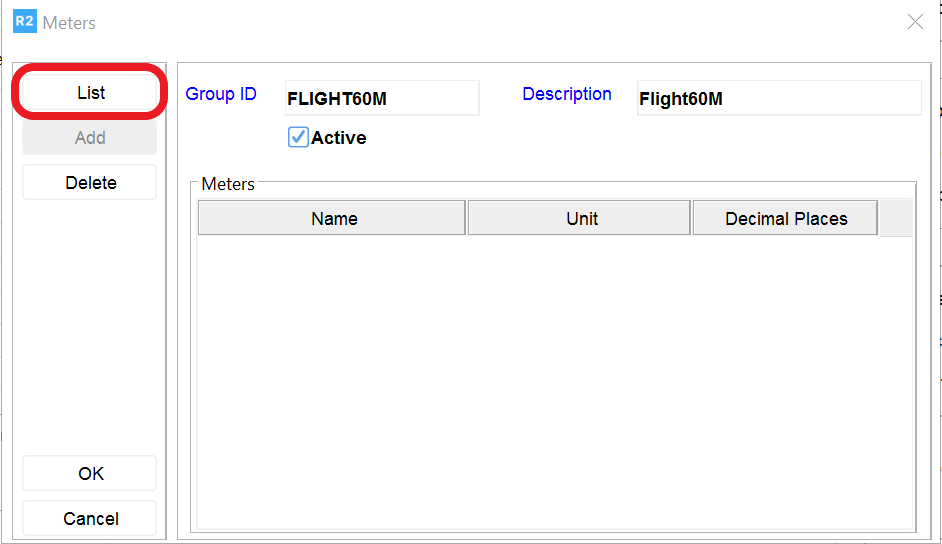
The screen below will open, Click on the Add button.
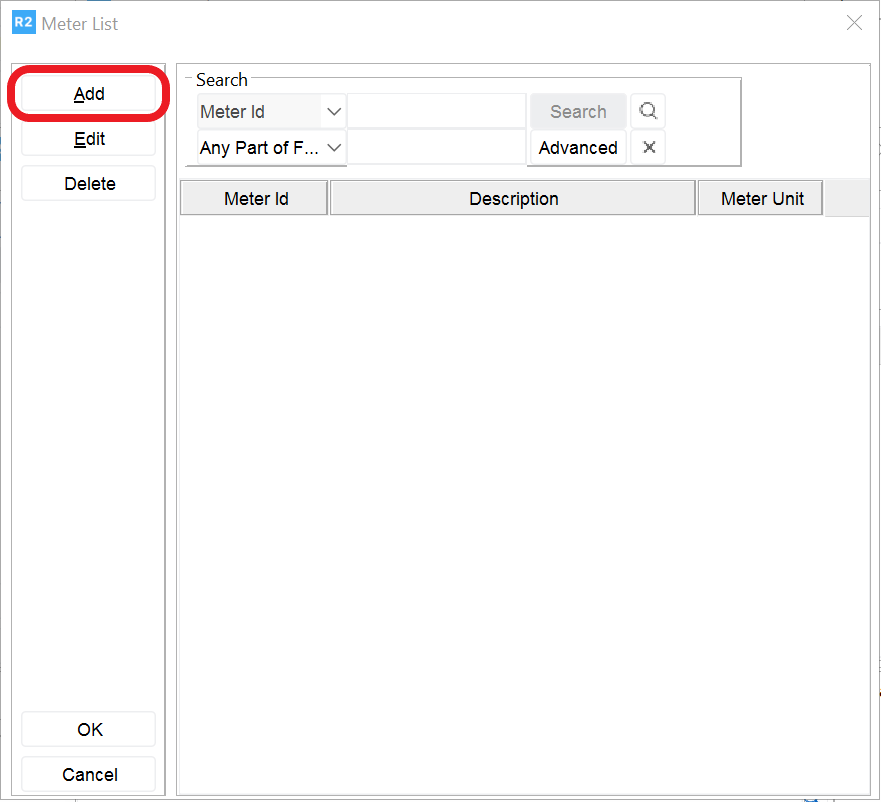
The screen below will open where the user can specify:
-
Meter ID
-
Meter Description
-
Prompt for meter at Rent or/and Return
-
Meter Increases or Decreases
-
Decimal Places
-
Units
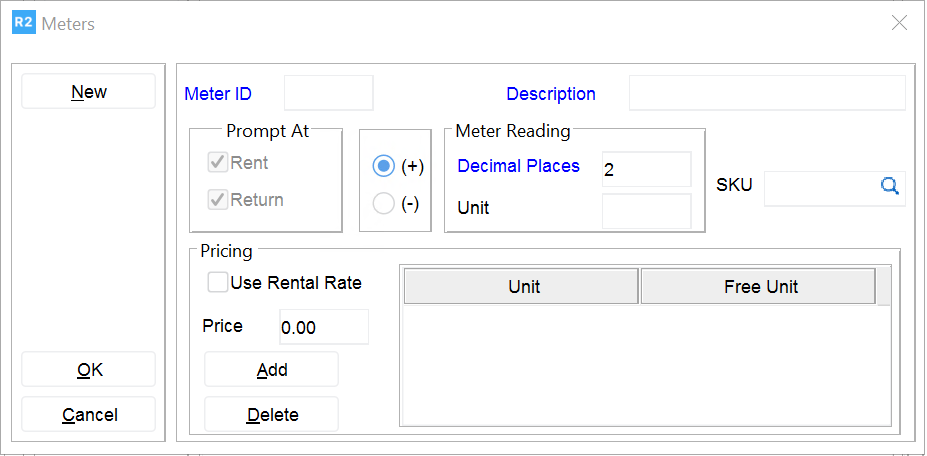
Click the OK button to save the meter.