
A simple method of creating templates that can be used on future orders is to create a quote, detailing the sections and items you wish to build into the template, then use it in the future to import into new orders.
Begin in the Account module and click on the new Quote icon. Describe the quote with a template description that can be used to search for this template in the future:
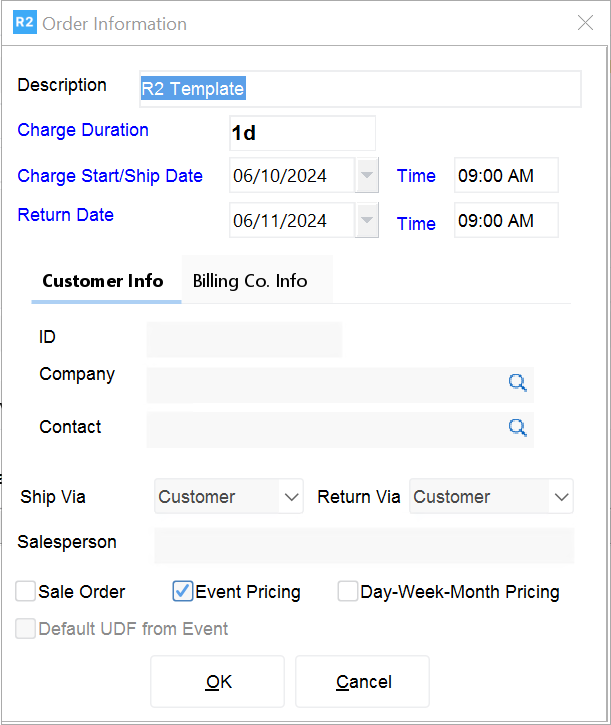
Click on OK to start the Quote template.
Click on Add → Sections.
Select several sections you wish to add to the template and format them with line descriptions as necessary:
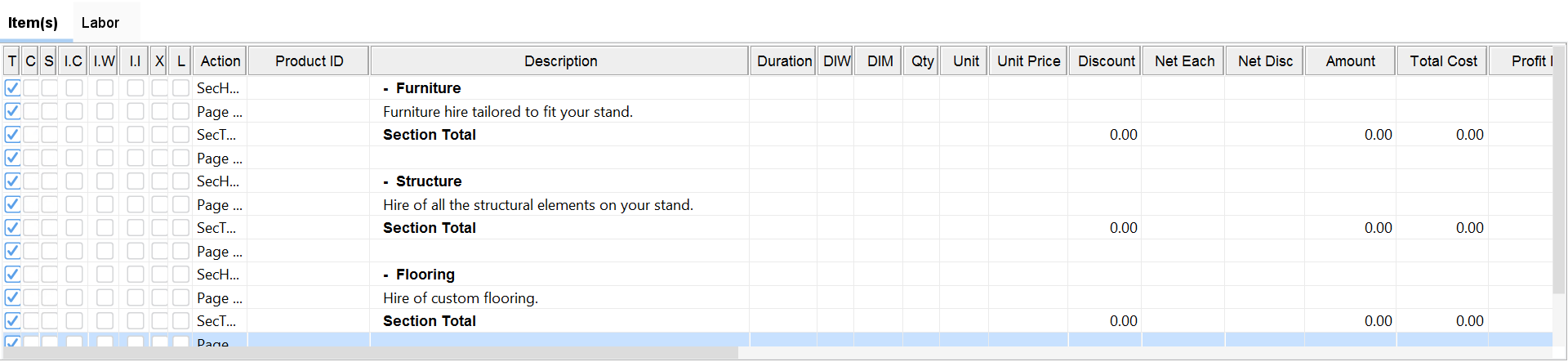
Use the “New” 
Now we can add items to the sections to further define the templates as required.
Highlighting the section total, click on the Search Inventory 
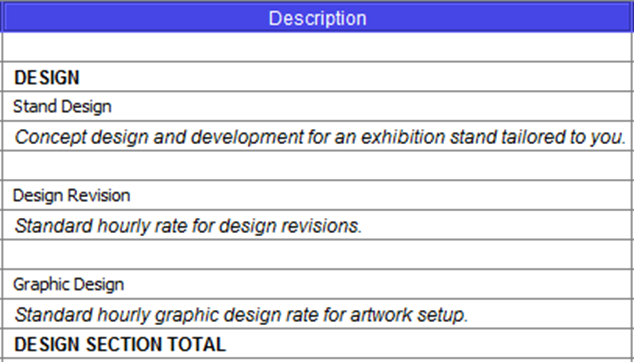
Upon selecting items for that section, and adding them back to the order, they’ll appear in the section:

When you’re finished, close and save the order. You will not use this order for actual order processing, it will only be used for importing into new orders.