
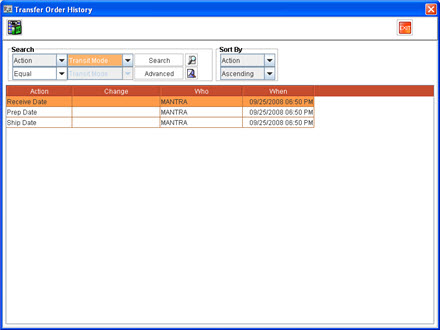
Transfer Order History displays header level and line level history. On Clicking the Transfer Order History icon, R2 displays the Transfer Order History window with the header level change history as shown in Figure 1.0.
Transfer Order History Column Information
-
The Action column will display the field for which the changes have been made.
-
The Change column will display the value before making changes to the corresponding field.
-
The Who column will display the name of the employee who has made the changes.
-
The When column will display the date and time on which the changes have been made.
-
You can also search the change history for a transfer order using the fields Action, Who and When.
-
The header level change history for Transfer Order will be updated based on the changes in the fields given in Table 1.0.
Table 1.0
|
|
Field
|
|
Field
|
|
1 |
Tracking# |
7 |
Receive Date |
|
2 |
Transit mode |
8 |
Return Date |
|
3 |
Ship to |
9 |
Ship Date |
|
4 |
Auto ship/Receive |
|
|
|
5 |
Drop ship |
|
|
|
6 |
Prep Date |
|
|
To View Line Level Change History for Transfer Order
In Transfer Order history dialog box, click on the Line History icon to display Transfer Order Line History dialog box where in line level changes made in the order will be displayed in the Order History Tab and the Warehouse Tasks performed for the Transfer Order lines will be displayed in the Warehouse History Tab.
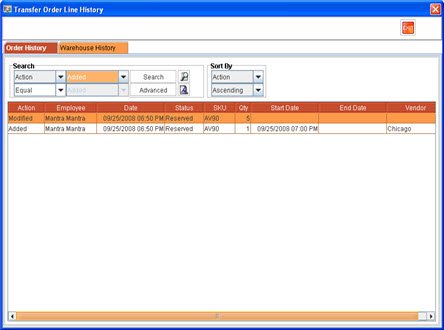
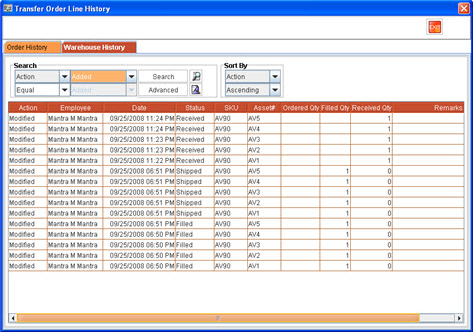
The Transfer Order Line Level columns will be displayed along with the columns Action , Employee and Modified Date.
-
The Action column will display the type of action performed on the line.
-
The Date column will display the date and time on which the changes has been made.
-
The Employee column will display the name of the employee who has made the changes
-
The column values for each action will display the modified value for the line.
The line level change history for Transfer Order will be updated based on the changes in the fields given in Table 1.1.
Table 1.1
Action
|
Display Tab
|
|
Changes made to item quantity |
Order History Tab |
|
Line Level status of item in the order |
Order History Tab |
|
Ware House Process Status |
Warehouse History Tab |
|
Not Available Item - If items are scanned using Item Scan dialog box |
Warehouse History Tab |
|
Warehouse actions on non-serial items done in transfer main window through Filled/Shipped/Received columns |
Order History Tab |
|
Changes done for Prep Date and Return Date of Transfer Order lines as Start Date and End Date respectively |
Order History Tab |
Limitation
When Non-Serial items of multiple quantities are added to the Transfer Order and is partially filled and shipped by keying in the quantity , the action will be displayed as 'Modified' , status will be displayed as 'None' and quantity will be displayed as blank in order Tab of Transfer Order Line History.