
Importing Assets
You can import multiple assets of serial item to another item by using the feature Import Assets available in the Item Edit window (as highlighted below).
Click Import Assets button.
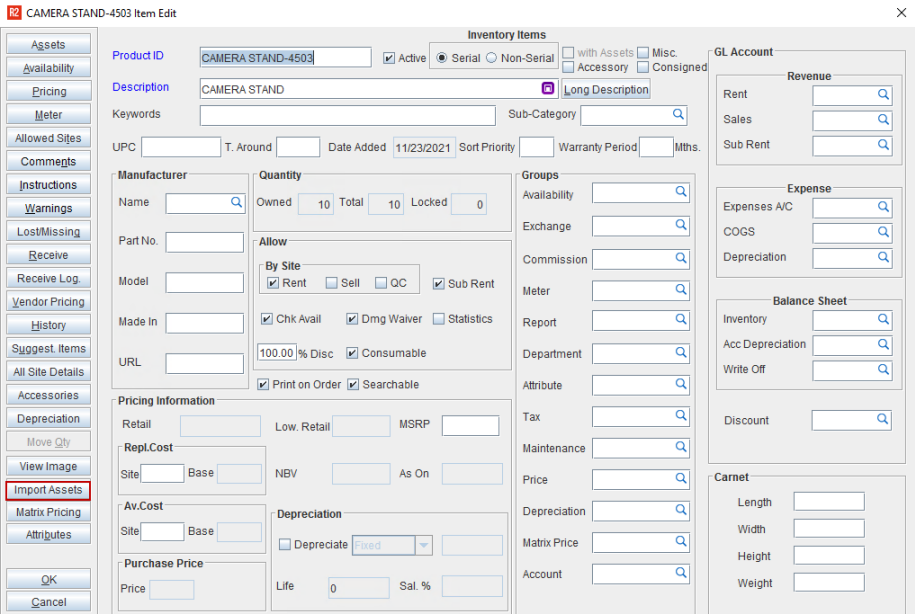
Figure 1.0: Import Assets button
On clicking the Import Assets button of the item edit window of a serial item, system opens the asset search window (as shown on Figure 1.1) wherein on tagging multiple assets with the status as ‘IN’ and clicking on the OK icon will import all the tagged assets to the item opened for edit.
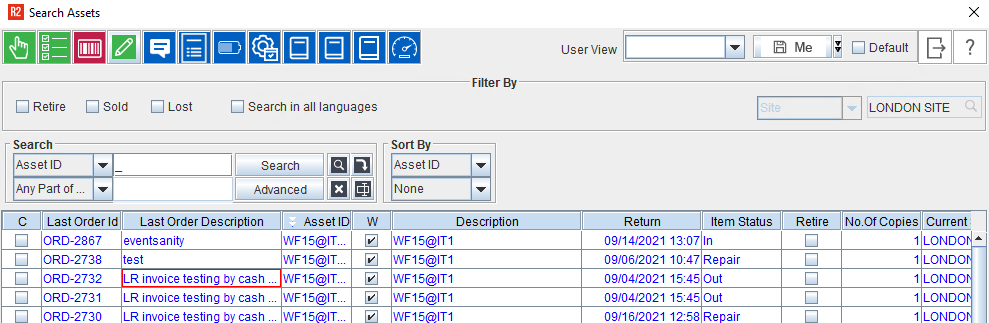
Figure 1.1: Search asset window
Tagged items other then the Status as ‘IN’ will not be imported and will display the Exception Details dialog (as shown below) with the details of the Product Id, Asset Id and the exception of the asset that are not imported.
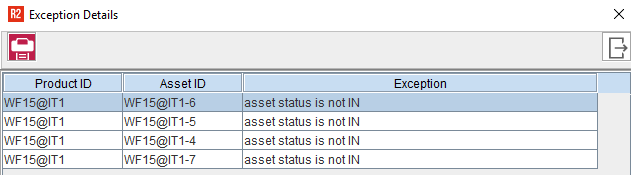
Figure 1.2: Exception details
Exception Details can be printed before clicking the Exit icon as it will not be available after exit. Refer to the Import Exceptions table listed below for more information on message details shown.
Stock Change History of the items from which the assets are imported and to which the assets are imported will be updated.
Assets which are locked to kit or to an asset through asset edit window will not be allowed to import though they are in ‘IN’ status.
Kit Assets will not be allowed to be imported.
If an asset is already reserved on an order then on trying to import, it should import but availability will become negative during the order duration.
‘Import Assets’ button will be disabled for Non serial items.
The user will be able to set security for Import Assets button in Item edit window at field level using the option Maintenance > Items > Items. Also Tag All and Ok buttons in Asset Search window at field level using the option Accounts > Search > Assets.
Import Asset Exceptions |
|---|
|