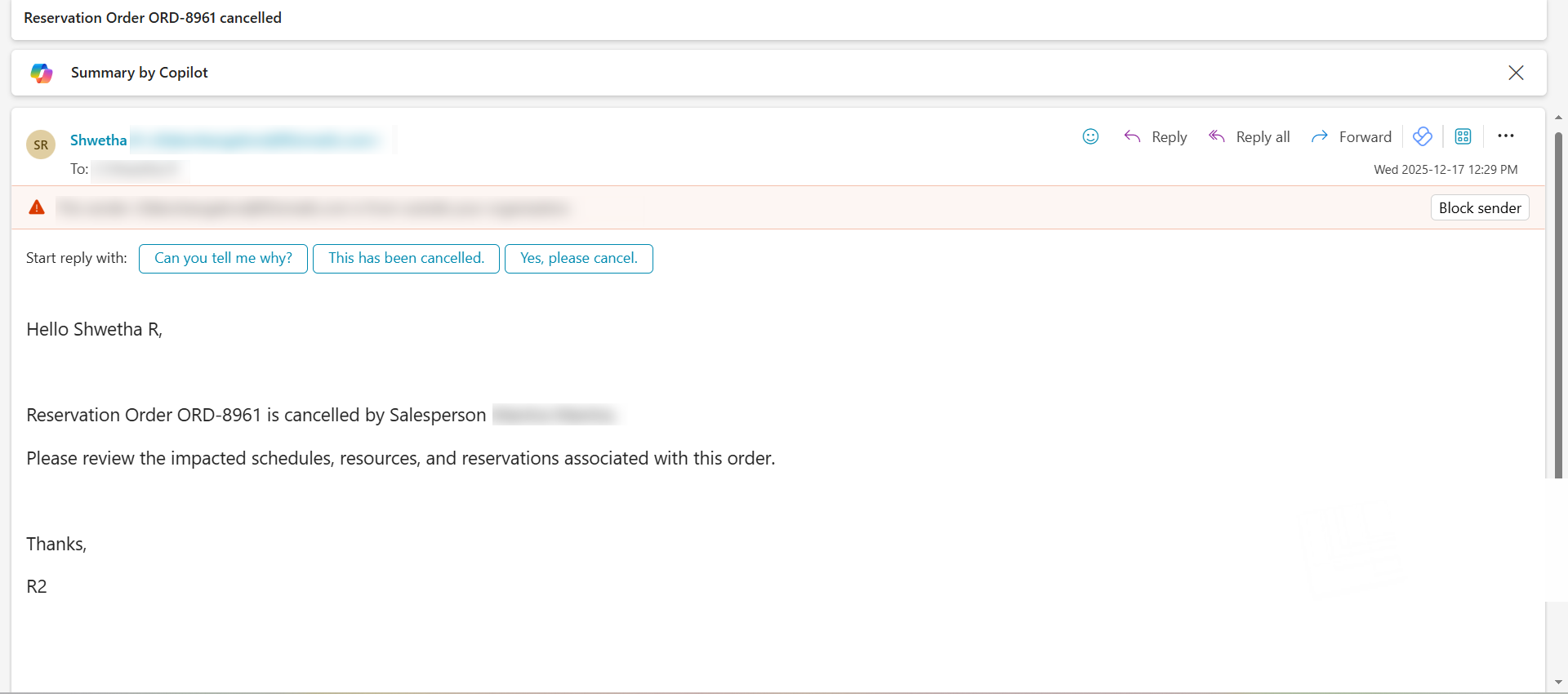
Lets understand a business case on how the Business Rules Engine (BRE) is used to notify the Project Manager when a Reservation Order is cancelled.
Once the rule is configured and activated, the system automatically detects the cancellation event and sends notifications through the Labor Portal and Email, ensuring timely awareness without any manual tracking.
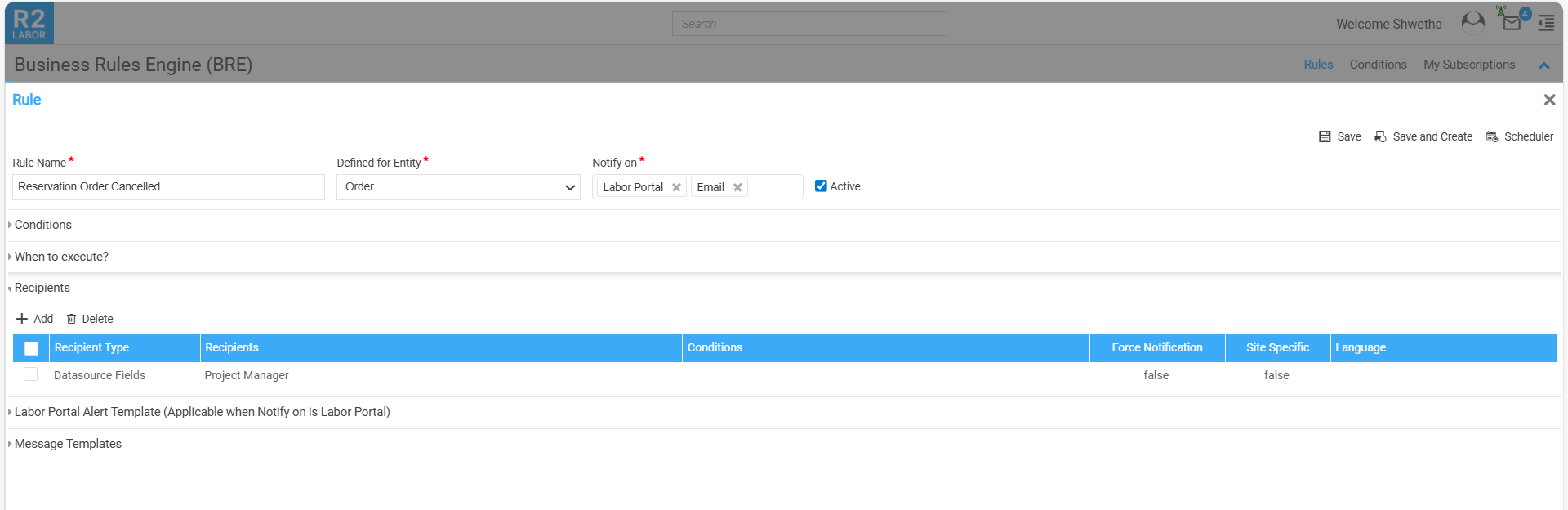
Step 1: Rule Definition
The rule defines what event the system should monitor and how it should respond.
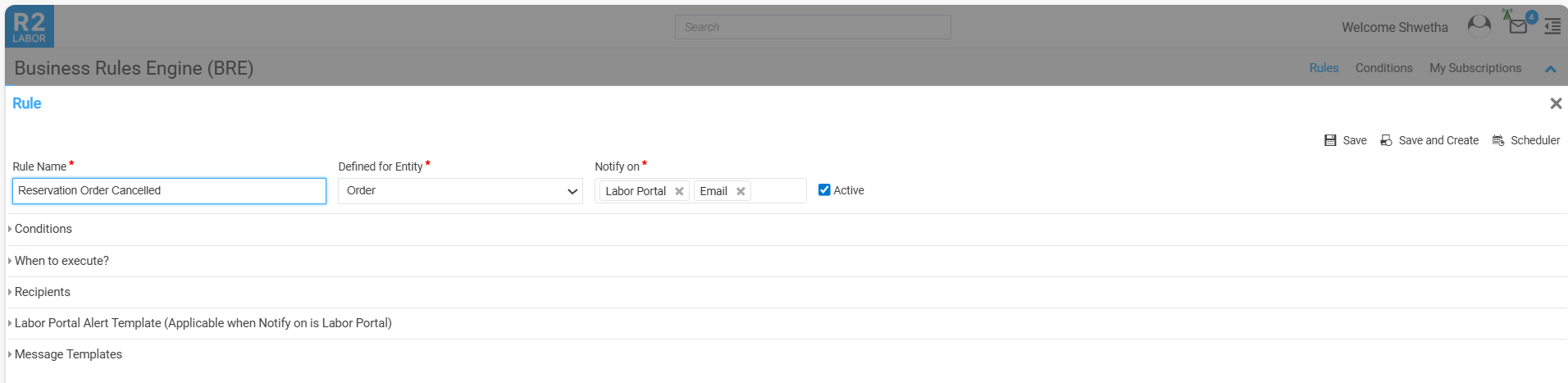
In this case, the rule is created to monitor Reservation Orders and trigger notifications when an order is cancelled.
-
The rule is named “Reservation Order Cancelled” to identify that this rule is related to reservation order cancel.
-
It is defined for the Order entity
-
Notifications are enabled for:
-
Labor Portal
-
Email
-
-
The rule is kept Active, so it is continuously evaluated
Once enabled, the rule remains active in the background and listens for cancellation events.
Step 2: Condition Definition
The condition specifies what exactly the system should check before triggering the rule.
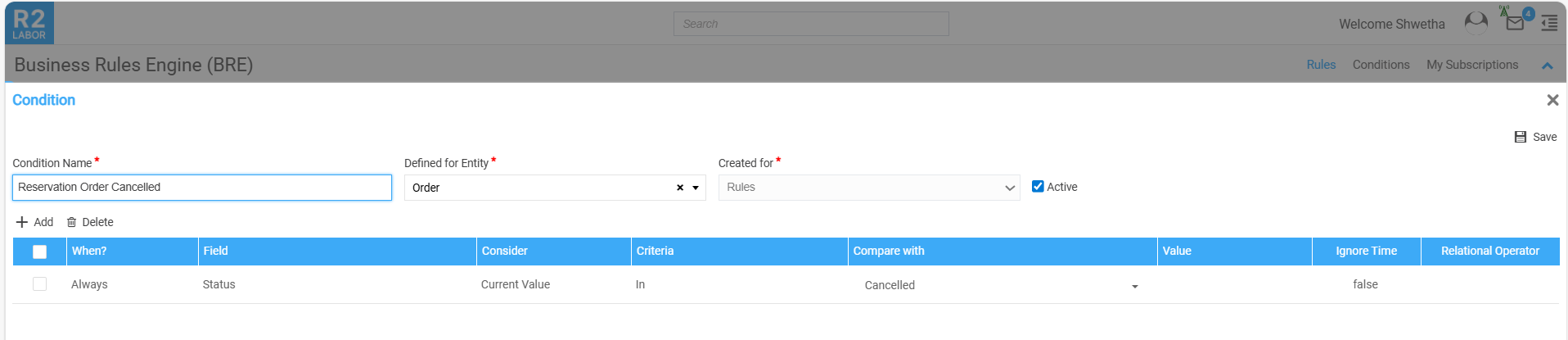
Here, the system evaluates the status of the Reservation Order.
-
The condition checks the current value of the Status field
-
The rule is triggered when the status value is Cancelled
This ensures that notifications are sent only when a Reservation Order is explicitly cancelled.
Step 3: When to Execute
This section defines when the rule should run after the condition is met.
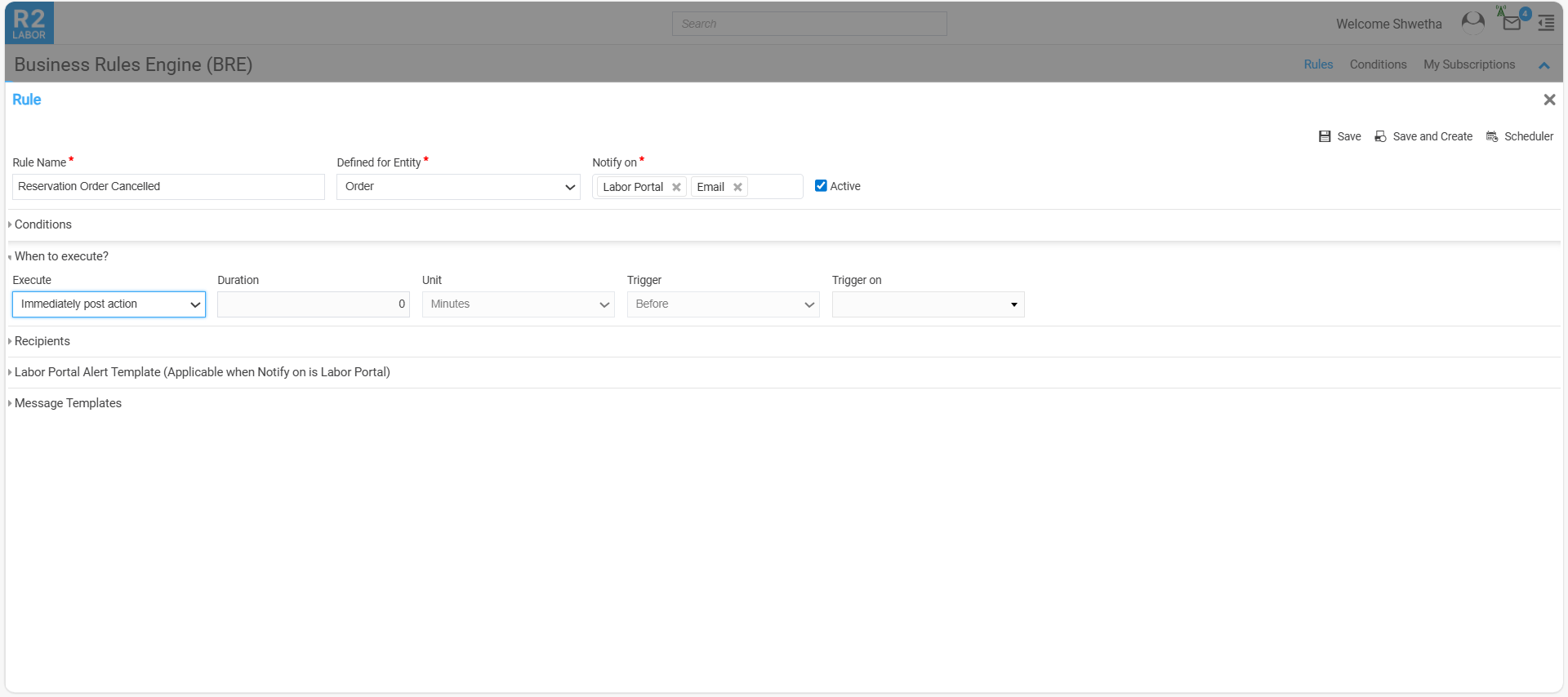
The rule is configured to execute Immediately post action.
This means that as soon as the Reservation Order is cancelled and the change is saved, the rule executes instantly, and notifications are sent without any delay.
Step 4: Recipients
This step defines who receives the notification.
-
The recipient is configured using a Data source Field
-
The selected data source field is Project Manager
With this setup, the system automatically identifies the Project Manager associated with the Reservation Order and sends the notification to the correct person. No manual recipient selection is required.
Step 5: Labor Portal Alert Template
When notifications are enabled for the Labor Portal, the system sends an in-app alert.
Alert Behavior
-
Displayed as a toast / pop-up notification
-
Appears briefly in the bottom-left corner of the screen
-
Automatically disappears after a short time
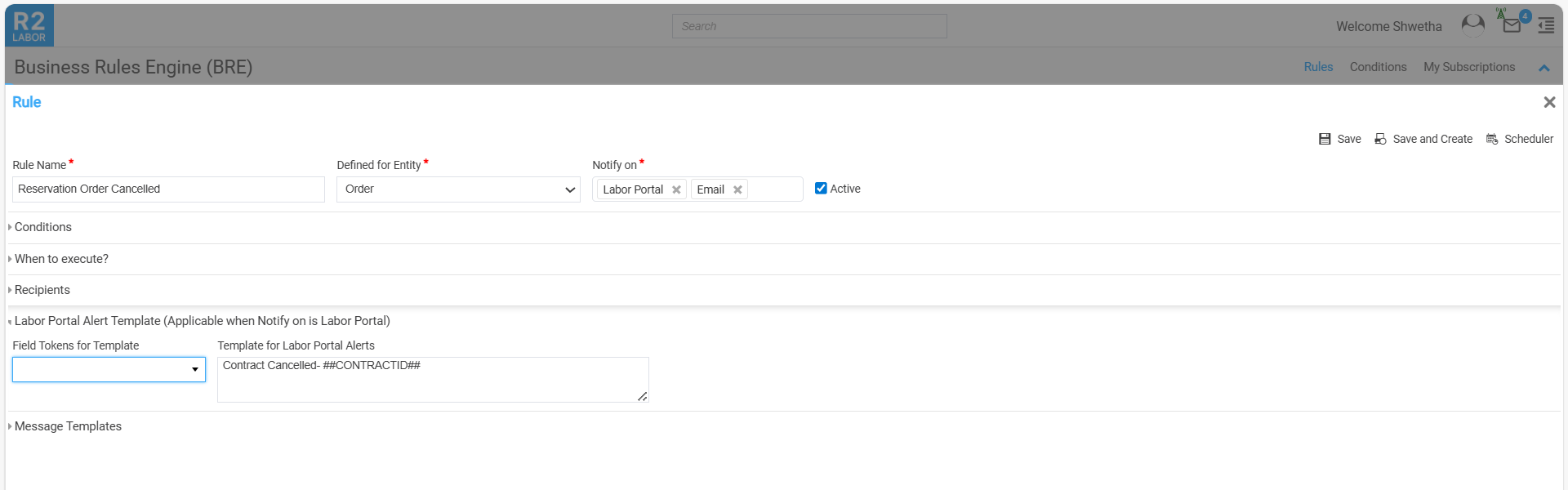
The Contract ID is dynamically populated so the Project Manager can immediately identify which Reservation Order was cancelled.
Step 6: Email Message Template
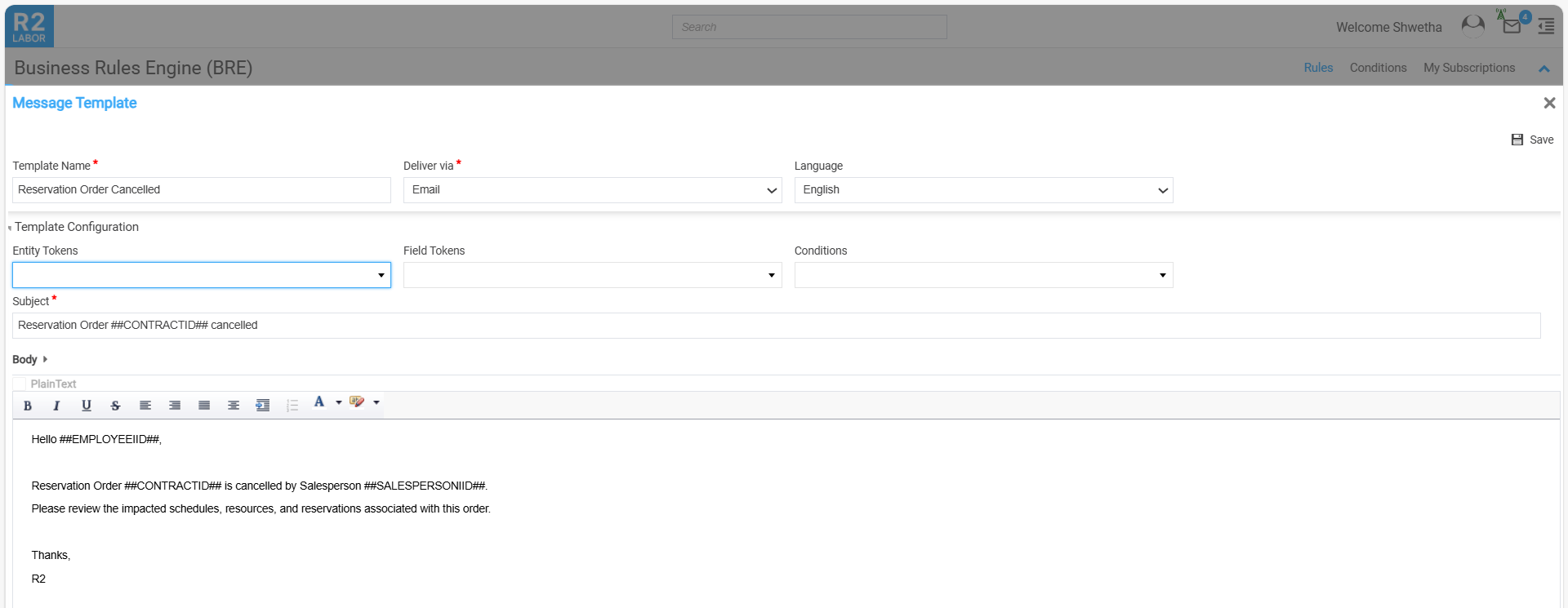
In addition to the in-app alert, an email notification is sent for detailed communication.
This email provides clear information about:
-
Which Reservation Order was cancelled
-
Who performed the cancellation
With this rule in place:
-
Project Manager is notified immediately when a Reservation Order is cancelled
-
Manual follow-ups and status checks are eliminated
-
Communication is consistent across the organization
-
Business teams can react quickly to cancellations and adjust plans accordingly
The BRE ensures that critical reservation changes are never missed and are communicated automatically and reliably.
Email triggered to Project Manager