
You can sync your Outlook account to your R2CRM login.
The below steps are explained for Office 365 integration.
-
Sign-in Into R2CRM Application.
-
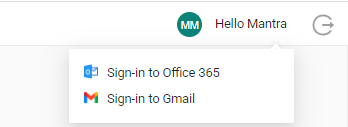
On the top right corner, mouse hover the user initials.
-
Click Sign-in to Office 365.
-
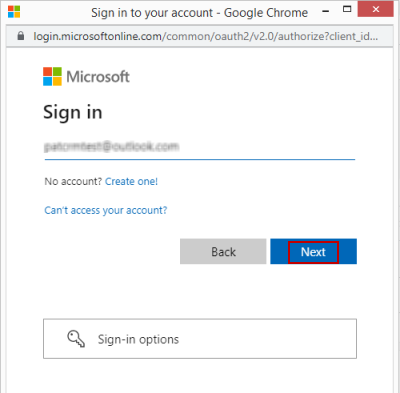
Key in your e-mail address and click the Next button to enter password.
-
Enter your password and click Sign in button.
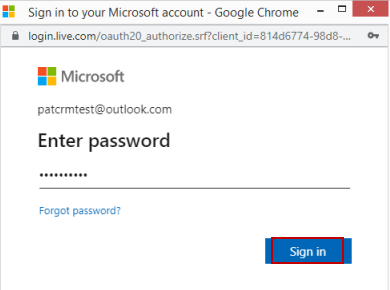
If the popup window does not appear, make sure to allow popup in your browser. Your browser would show an icon (usually beside location bar) if the popup got blocked.
-
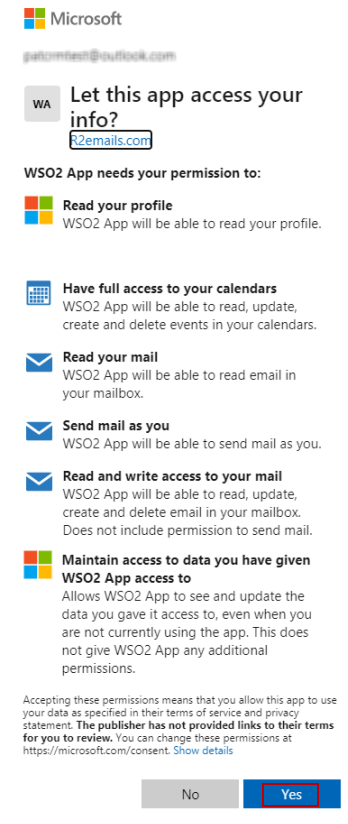
When you login for the first time, you need to enable authorization from your outlook account to CRM to access e-mails.
-
Click Yes in the access info window as shown below to accept the terms and conditions and allow access to your inbox.
-
This essentially means that CRM can now access your inbox.
You have successfully signed into your O365 outlook account.