
When the Booking line/EWT has Timesheet, you will see the Timesheet icon displayed against each Booking Line and EWT indicating its approval status.
It helps you quickly determine whether a Booking Line or EWT is added to a timesheet and whether it is Approved or Paid & Closed, making it easier to spot completed, pending, or Need Info entries without opening each timesheet line.
The icon’s appearance changes based on status:
-

-

Hovering over the Timesheet icon displays a tooltip with the timesheet’s description and status.
Where you’ll see the Timesheet indicator
-
Planning Order > Booking lines
-
Planning Order > Assign Dates
-
Whiteboard
-
Whiteboard > Assign Dates > EWT
Planning Order> Booking line
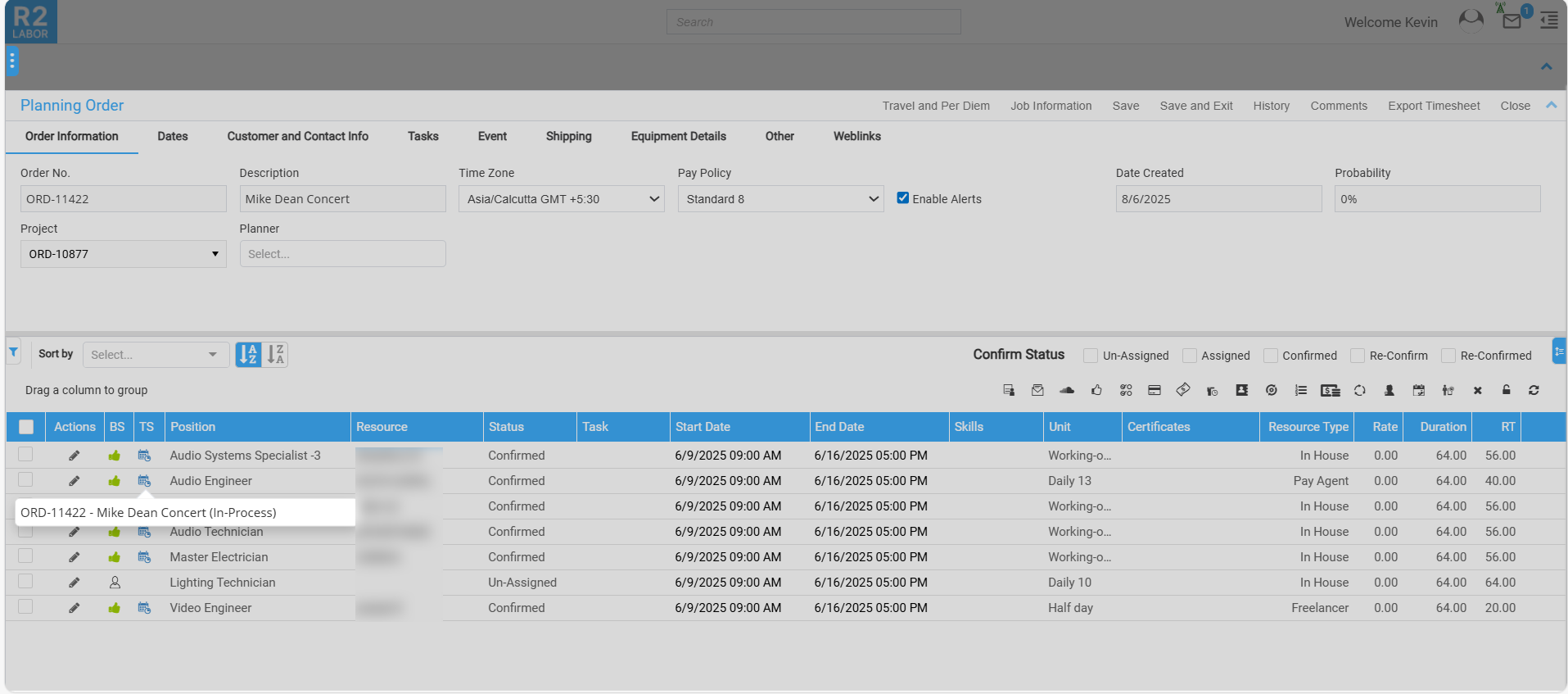
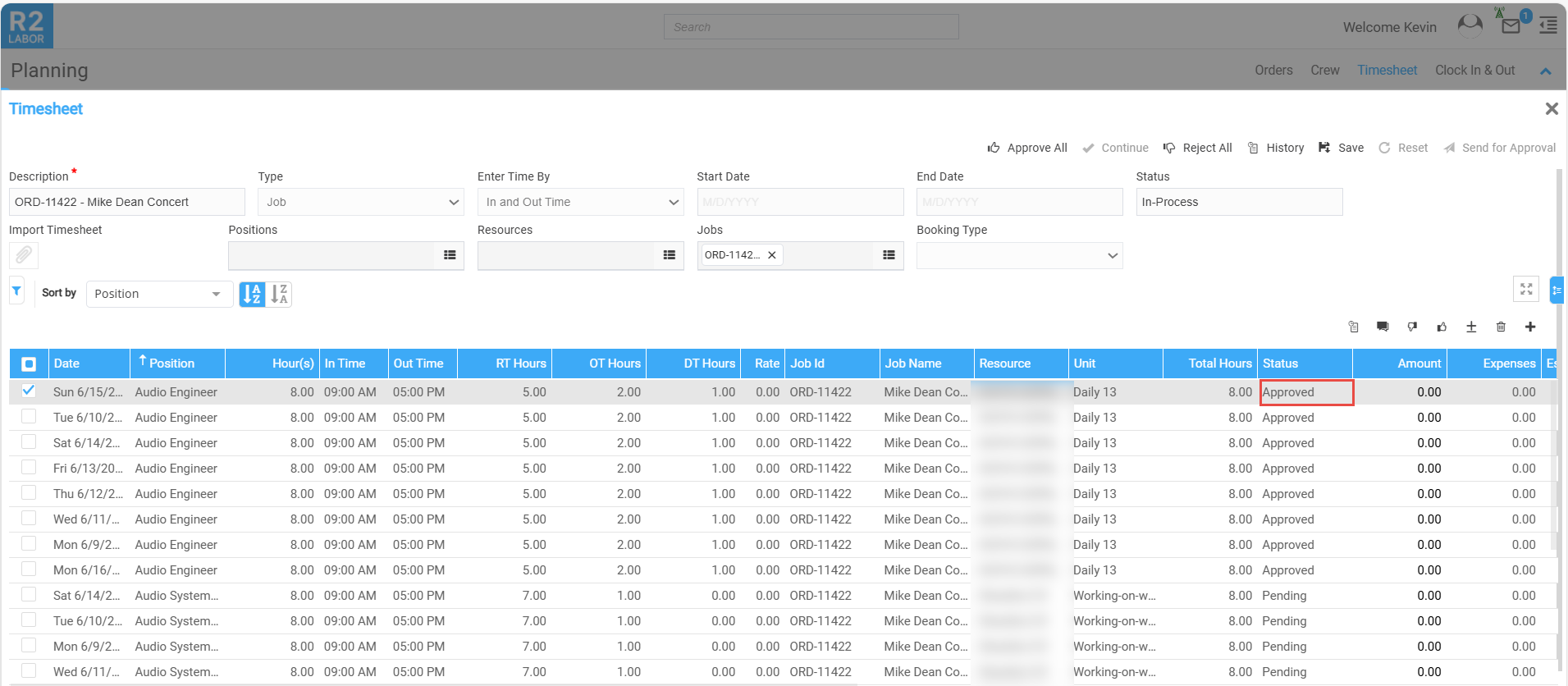
Tooltip status is from Timesheet header
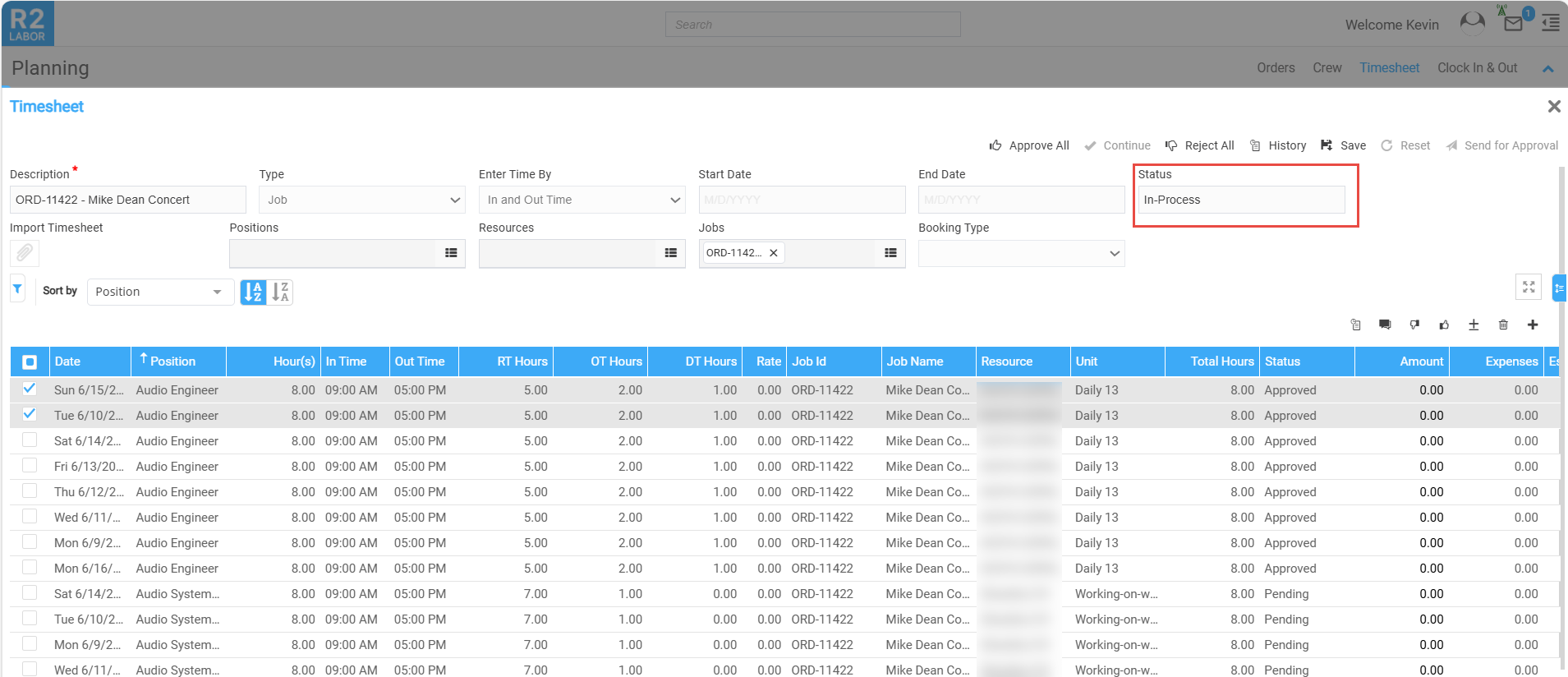
Planning Order> Assign Dates
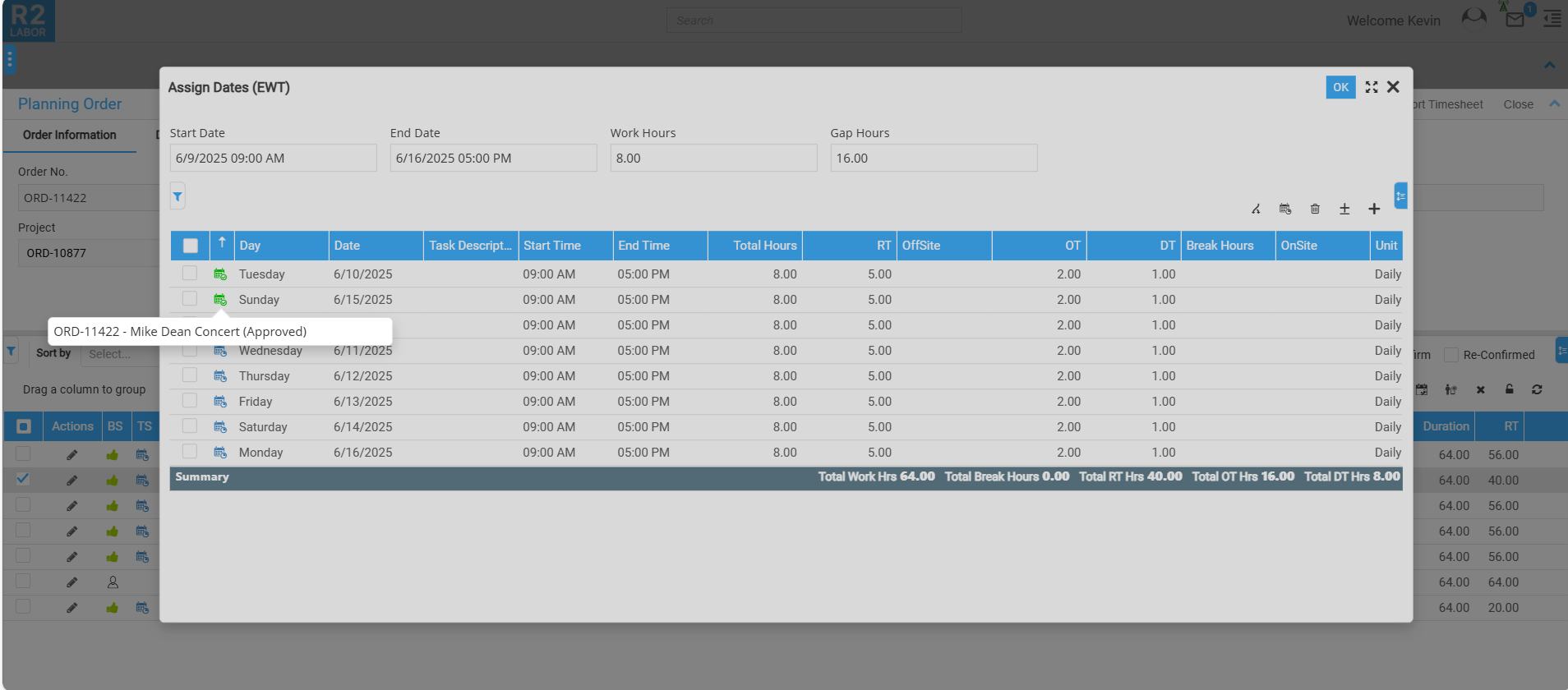
Tooltip status is from Timesheet line status
Whiteboard
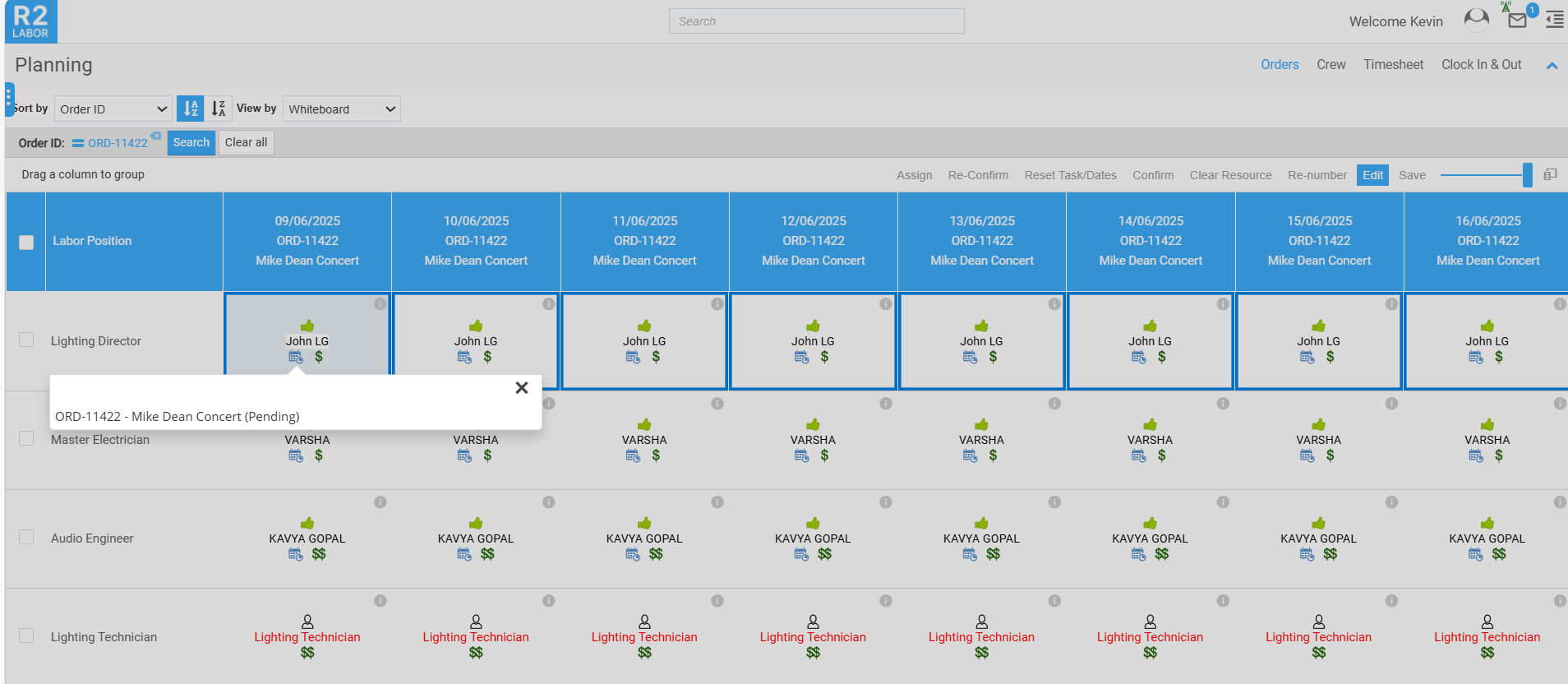
If there are two Timesheets created for a single booking line/single EWT date, then you can see the two timesheet details in the tool tip.
Timesheet Status indicator
|
When |
Timesheet Indicator |
Where You See It |
|---|---|---|
|
All the timesheets of the booking line are in Approved or Paid & Closed status. (i.e., all EWTs are also Approved/Paid & Closed).. |
|
Planning Order> Booking Line
|
|
Individual EWT timesheet is in New, Pending, Need Info, or In Process status. |
|
Planning Order> Assign Dates (EWT)
|
|
Booking line Timesheets have New, Pending, Need Info, or In Process statuses. All timesheets are in a mix of these statuses. Some EWT lines are approved, but new lines have been added to Booking line. Timesheets have a combination of Approved/Paid and other statuses. |
|
Planning Order> Booking Line |
