
Content was last updated in 06.01.04-00
Revision History
Version No.
|
Reference No.
|
Changes
|
|
06.01.04-00 |
R2-14935 |
Send request to multiple resources for multiple booking lines |
|
NA |
RR-1758 |
Sending availability request to resource from Crew Search window |
|
NA |
NA |
Introduction to sending availability request to the resource |
Let's understand 'Availability request' through an example:
You want to plan a weekend road-trip with a group of friends. But before you chalk-out the itinerary, you would want to know for sure, which of all of your buddies are interested in this trip. So, you make send them a message, informing them about your plan and inviting their interest. And then they, individually, based on the own plans for the aforesaid weekend, either would accept or decline the invite.
The communication you send to them, is what we call in R2Labor as Availability Request.
In R2 Labor, you can send the Availability request to the Resource for a specific dates or jobs.
You can also send the availability request to multiple booking lines at one go.
A response confirmation page is displayed when a resource selects an availability response link from the email notification. The response is recorded only after the resource confirms the action. This helps prevent unintended responses caused by automated email security scans.
You can access from:
-
Planning Order > Booking line > Booking line header > Send Availability request
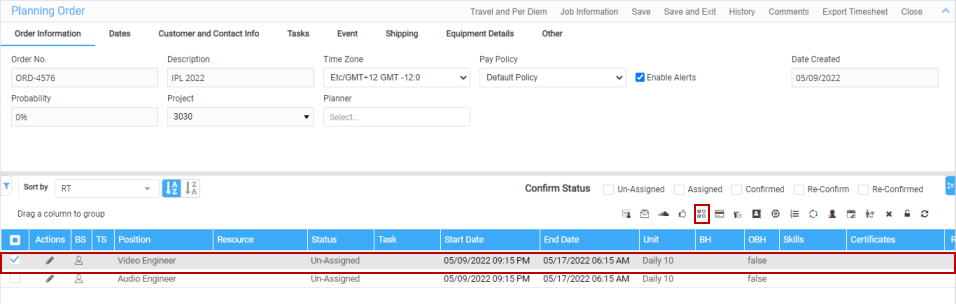
-
Planning Order > Booking line > right click > Send Availability request
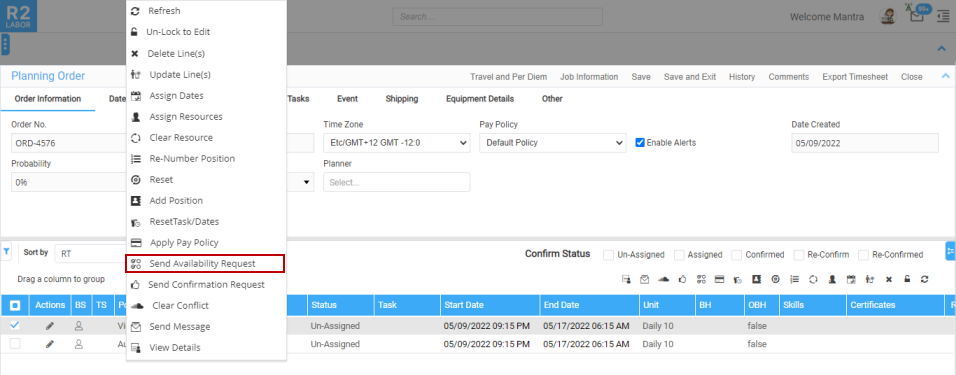
-
Planning Order > Booking line > Actions > Send Availability request
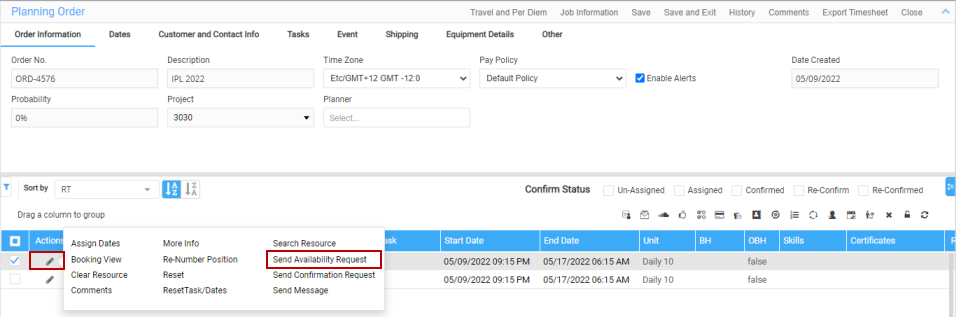
-
Search Order > Communicate > Resource line > Send Availability request
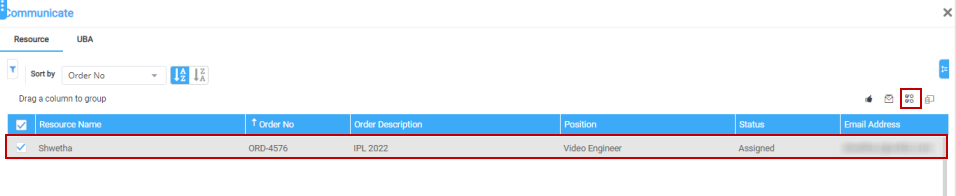
-
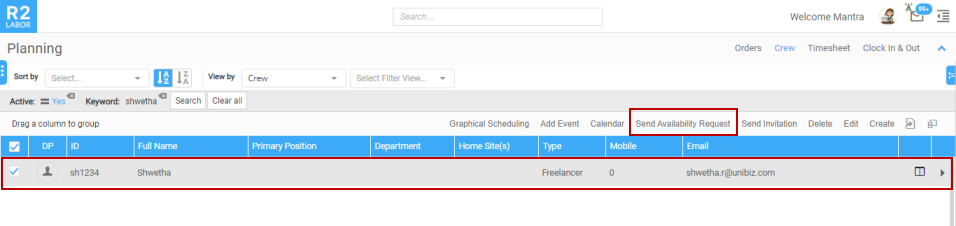
Crew > Crew line > Send Availability request
-
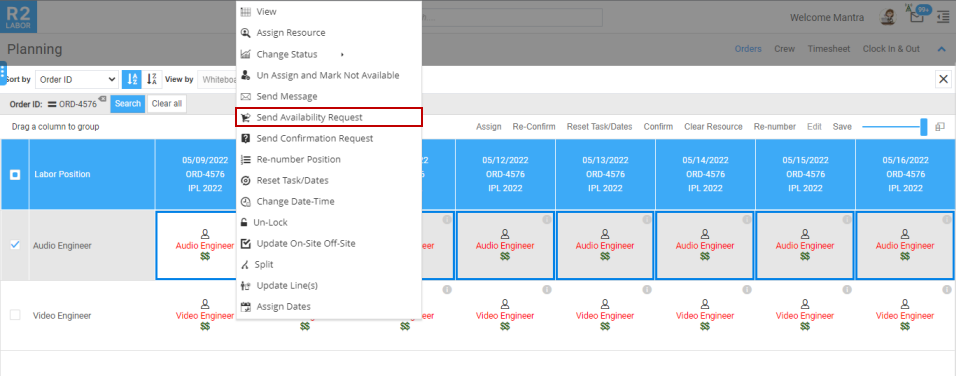
Whiteboard > Booking date > right click > Send availability request
-
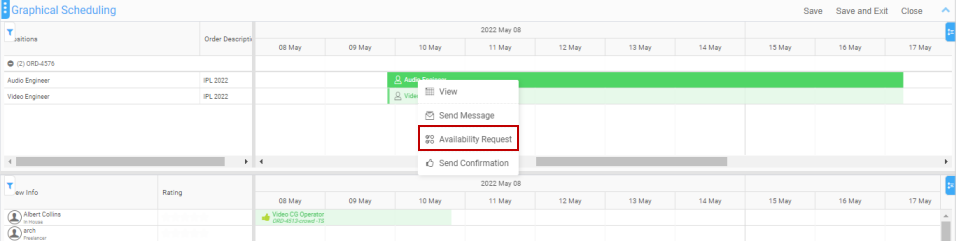
Graphical Scheduler > Order section > Right click > Availability request
How to send availability request to the resource?
Before you begin,
-
Ensure the labor positions are added to the Order.
-
Availability Request to be defined under
-
Settings > Web Labor Settings > Configuration > Email Templates > Resource Availability Request.
-
Create the below Resource Availability Request response template:
-
YES - Yes I am available.
-
NO - No I am Not Available.
When a resource opens the availability request link from the email, R2 Labor displays a response confirmation page. The response is recorded only after the resource clicks Available or Not Available on the confirmation page.
Workflow
-
Open the Order in Planning Order.

-
Select the Booking line and click the Send Availability request icon. You can select multiple booking lines as well.

-
Send Availability window displays.
Click Expand to view the full window.

-
Add the recipient in 'To' field.
You can tag multiple resource also and a preview of the request is displayed

-
Click Send.
-
Then save the order so the request is sent to the recipient.
-
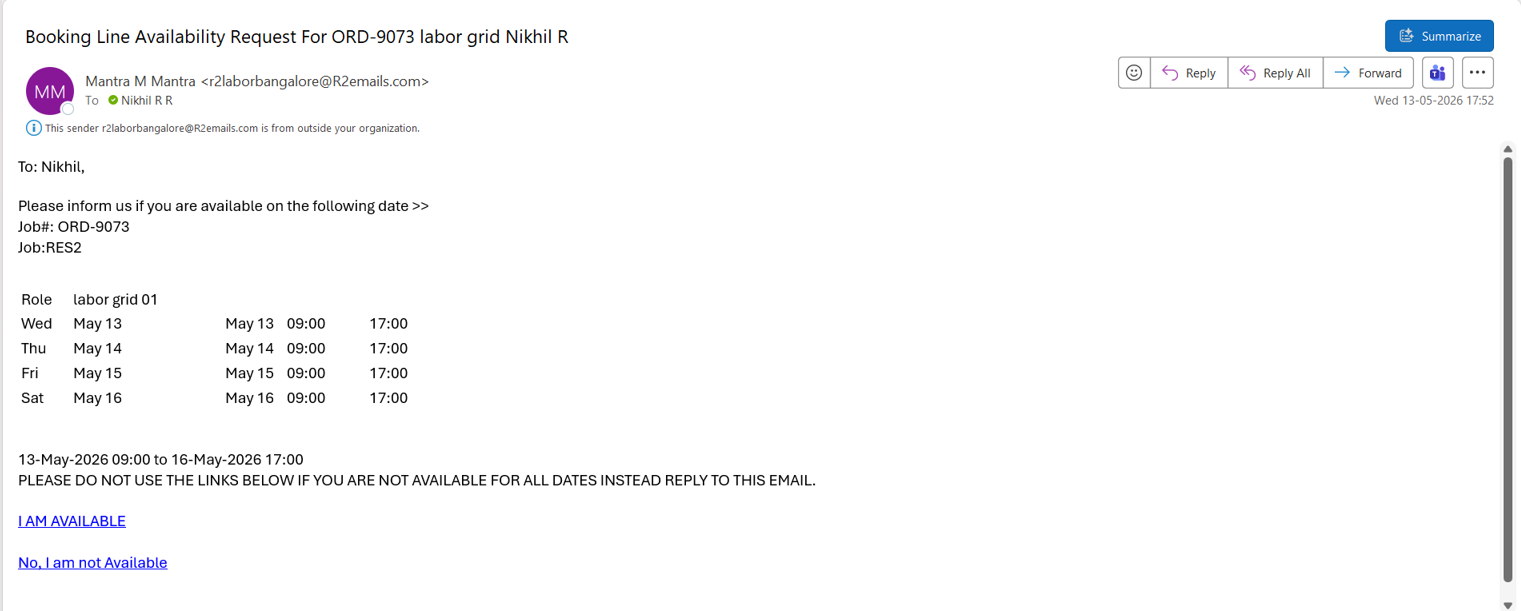
When the recipient selects the availability response link in the email, a response confirmation page opens. The selected response is displayed for review.
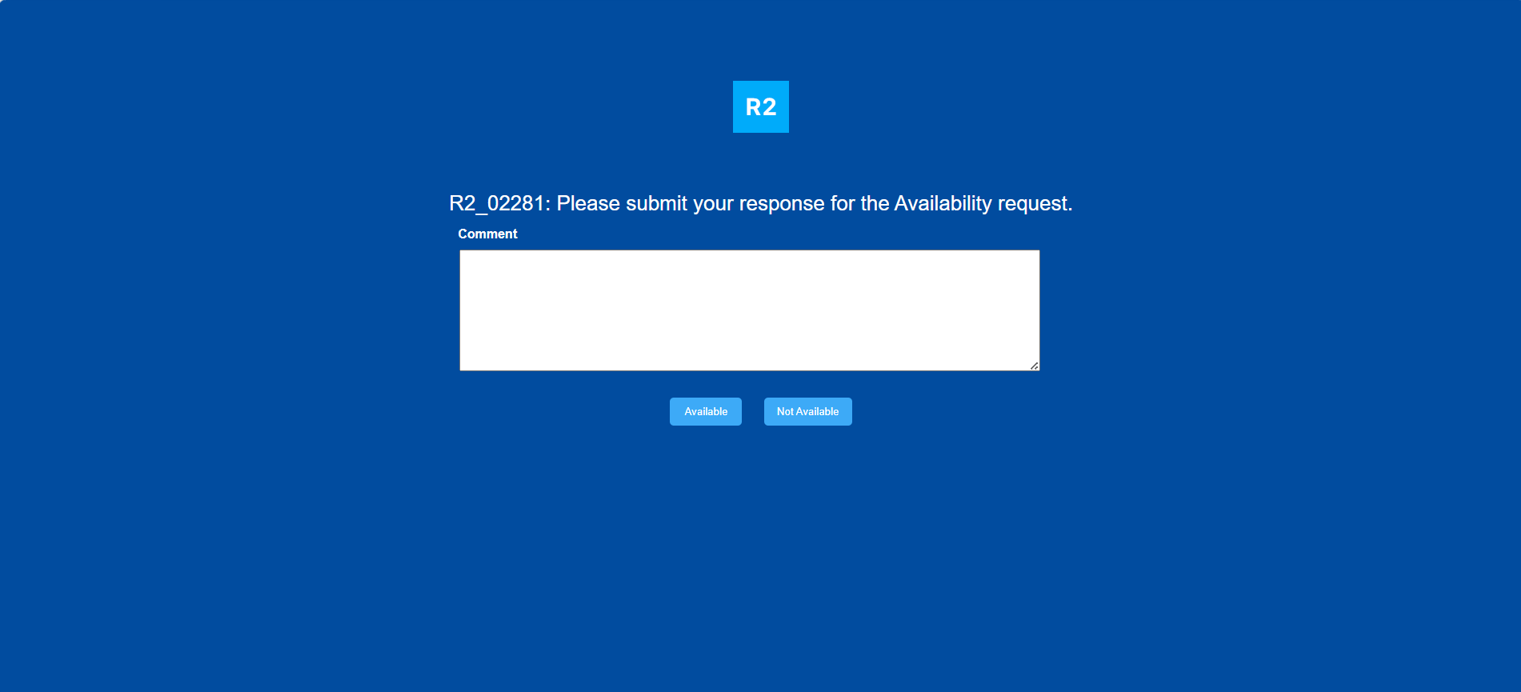
The recipient can optionally enter comments and confirm the response by clicking Available or Not Available.
The response is recorded only after confirmation. Opening the email link alone does not register a response. This helps prevent automated email security scans from unintentionally submitting responses.
An email notification is sent to the selected recipients. After the recipient confirms the response, a response email is received and stored in the application mailbox, as shown below. Based on the response, you can assign the job to the required resource.
Also, the Calendar for the respective resource is marked either with 'Available' or 'Not Available' in time bar based on the response.

The same way, you can send the request from the other access points as well.