
Content was last updated in 06.00.06-00
Revision History
Version No.
|
Reference No.
|
Changes
|
|
06.00.06-00 |
R2-11580 and R2-11554 |
View and generate report for clock-in/ clock-out details entered through CrewPortal App |
View Report For Clock-in/Clock-Out Through Crew Portal App
Generate Report For Clock-in/Clock-Out Through Crew Portal App
Support was provided in Crew Portal App for the Labor to enter Clock-in and Clock-out details, even for past dates. (If the specific labor miss to enter it on the actual working/job planned day).
For the Project Owner, Labor Planner, and Project Manager, feature is enabled as a sub-menu under the Planning Menu to view the same Clock-in and Clock-out details, entered by a labor, for a specific project/assignment.
-
A Project Owner, Labor Planner, and Project Manager is able to view details related one specific Project/Order at a time, which is selected by them, and managed by them.
-
The view and generate feature covers all the EWT entries made for the specific order, irrespective if they were done through the Crew Portal App or otherwise.
Prerequisites
-
The Labor is assigned to a task for a selected order. Has an EWT schedule assigned with specific work hours defined for the task.
-
The concerned Labor has Crew Portal App installed on their mobile device.
Sample Workflow - View Report
-
Open the R2Labor application.
-
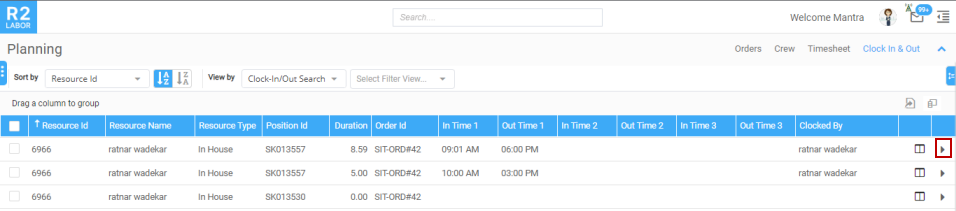
Go to R2Labor Menu > Planning Menu > Clock In & Out option.
-
This shows all the records for Clock In & Out.
-
Here you might need to apply filters to drill-down the list to only relevant set of records.
-
Hover the mouse on menu icon (On the left side of the screen) and use the Smart search to look for a specific order.
-
Click on the specific order to select it. (Now the Clock In & Out records are filtered only for this specific order).
-
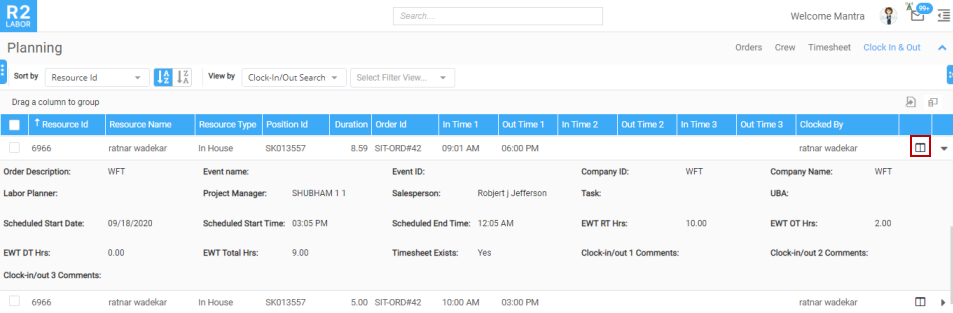
To view the details of a specific row record, click on the button as highlighted.
-
To further view the following details of this record, click on the button as highlighted. To Hide this view, click again on q Icon.
-
Order Details
-
Booking Line Details
-
EWT Details
-
Time Sheet Details
-
Order Event Details
-
Order Company Details
-
The above mentioned 6 category of details are shown in a pop-out window. As show in Figure 3.0

-
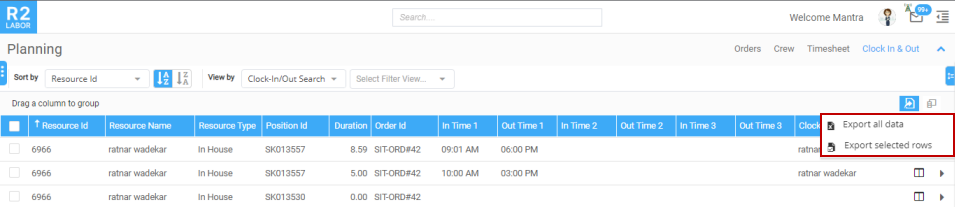
To download or export the details one or selected set of record(s), select the records and click on the button as highlighted.
-
To generate a report for the selected records, Go to Side Bar > My Reports > Labor > Rep_EWTWithClockInOutDetails
Sample Workflow - Create & Configure Report
-
Go to R2 Launch Pad > Configuration Icon > Configure Reports Icon.
-
Use the Report Assistant Configuration window, to specify parameters for the custom report.
-
Go to R2 Launch Pad and Click on Reports icon.
-
Go to File > ReportsWizard.or Custom Reports.
-
Use the wizard to design the report with the following fields.
Table 1.0: List of Fields In The Report Rep_EWTWithClockInOutDetails
|
Column Name |
Column Description |
|
OrderID |
Contract ID. |
|
OrderDescription |
Contract Description. |
|
EventName |
Event Name on the contract. |
|
EventID |
Event ID on the Contract. |
|
CompanyId |
Order Main Company ID. |
|
CompanyName |
Order Main company Name. |
|
LaborPlanner |
Order Labor Planner(s) – Multiple planners are present then it will show comma separated. |
|
ProjectManager |
Order Project Manager(s) – Multiple planners are present then it will show comma separated. |
|
SalesPerson |
Order Salesperson(s) – Multiple planners are present then it will show comma separated. |
|
PositionID |
Booking Line Position ID. |
|
PositionName |
Booking Line Position Name. |
|
ResourceFullName |
Full Name of the Resource assigned on the booking line. |
|
ResourceID |
ID of the Resource assigned on the booking line. |
|
ResourceType |
Resource Type from Booking Line. |
|
Task |
Booking Line Task. |
|
UBA |
Union/Broker/Pay Agent Name, if UBA is assigned on booking line. |
|
ClockedBy |
User Name clocked-in/out data through Crew Portal App is stored. |
|
ScheduledStartDate |
EWT Start Date. |
|
ScheduledEndDate |
EWT End Time. |
|
ClockInTime1 |
Crew portal app clock-in Time 1. |
|
ClockOutTime1 |
Crew portal app clock-out Time 1. |
|
ClockInTime2 |
Crew portal app clock-in Time 2. |
|
ClockOutTime2 |
Crew portal app clock-out Time 2. |
|
ClockInTime3 |
Crew portal app clock-in Time 3. |
|
ClockOutTime3 |
Crew portal app clock-out Time 3. |
|
EWTRTHrs |
EWT RT Hours. |
|
EWTOTHrs |
EWT OT Hours. |
|
EWTDTHrs |
EWT DT Hours. |
|
EWTTotalHrs |
EWT Total Hours. |
|
ClockedDuration |
Total clocked duration through crew portal App. |
|
TimeSheetExists |
‘Yes’, if Time Sheet exists for the EWT entry. ‘No’, if Time Sheet does not exist for the EWT entry. |
|
ClockInOut1Comments |
Comments entered by the Crew Portal App user against first clock-in/out. |
|
ClockInOut2Comments |
Comments entered by the Crew Portal App user against second clock-in/out. |
|
ClockInOut3Comments |
Comments entered by the Crew Portal App user against third clock-in/out. |
|
TimeSheetDescriptions |
Description of the Time Sheets in comma separated which are associated to the specific EWT entry. For Example: On EWT can be associated with more than one time sheet when unit is Fixed. |
-
Save the custom designed report with the name Rep_EWTWithClockInOutDetails.
-
To use the report, Go to R2Labor > Side Bar > My Reports > Labor > Rep_EWTWithClockInOutDetails