
Overview
R2 Labor displays booking details on the crew response page for availability and confirmation requests. Crew members can review job information before submitting a response.
The response page displays:
-
Position
-
Booking dates
-
Request status
-
Order information
Respond to an availability request
-
Open the availability request email.
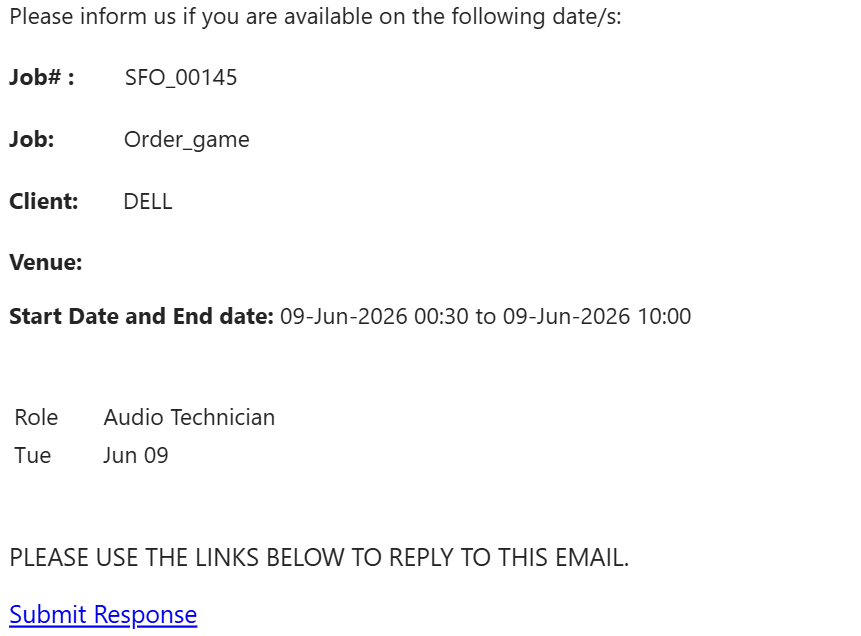
-
Click Submit Response.
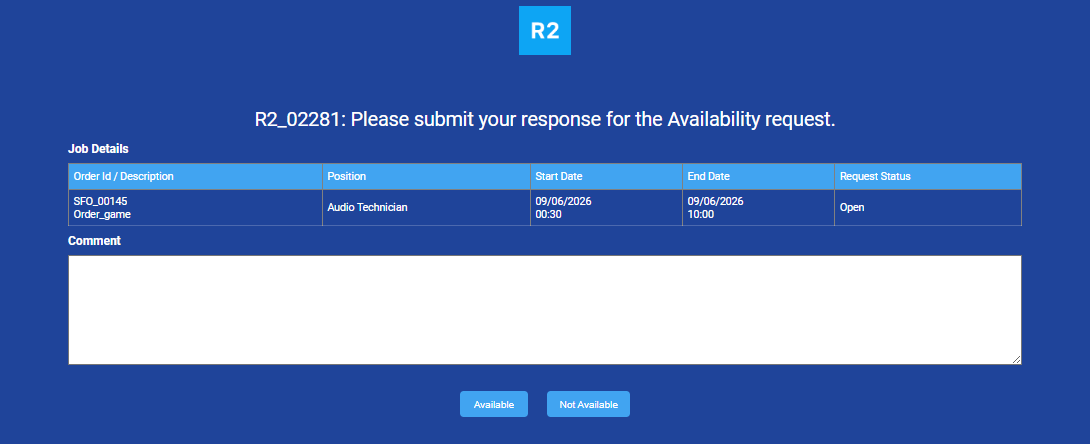
-
Review the booking details.
-
Select a response option.
The response is applied to all jobs included in the request.

Respond to a confirmation request
-
Open the confirmation request email.
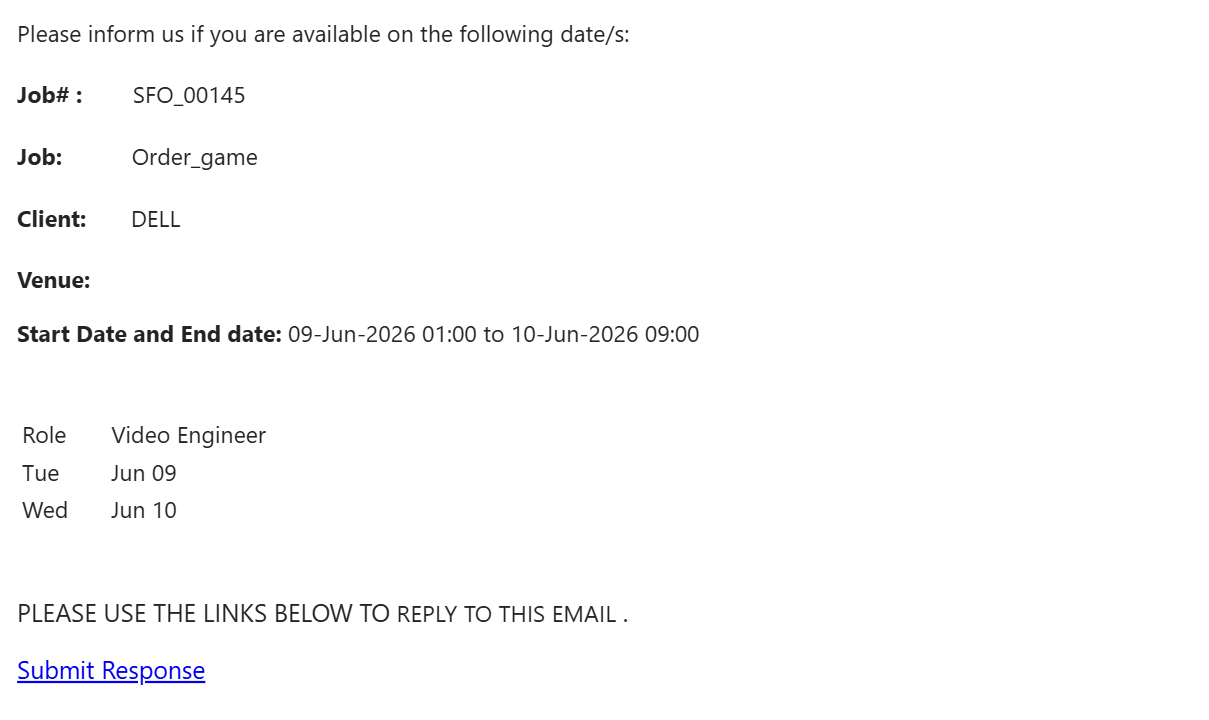
-
Click Submit Response.
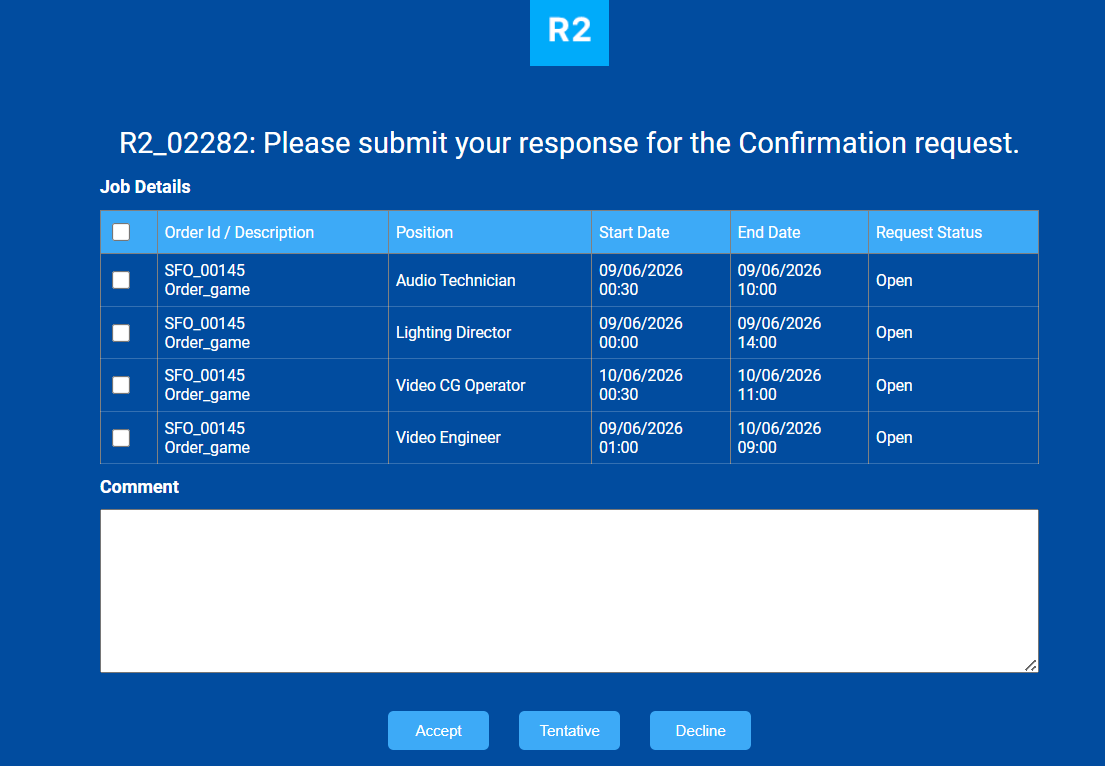
-
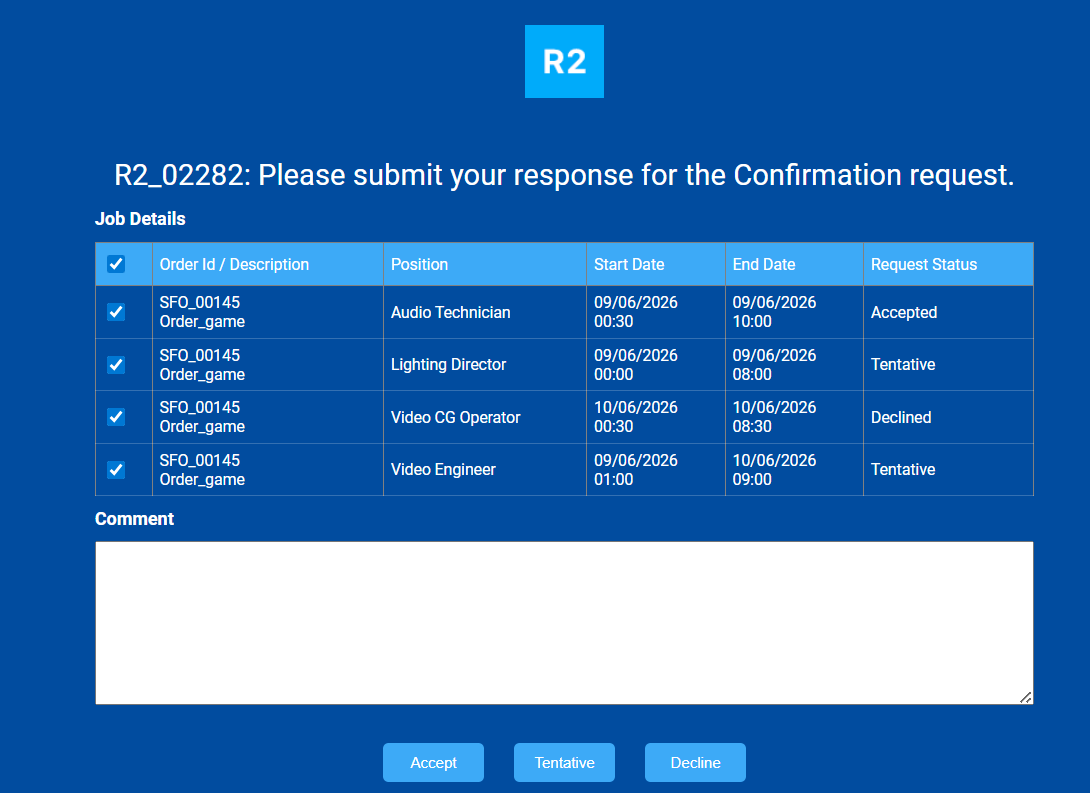
Review the booking details.
-
Select the job or jobs to update.
-
Click Accept, Tentative, or Decline.
The response is applied only to the selected jobs.
Respond to remaining jobs
If some jobs remain unanswered after you submit a response:
-
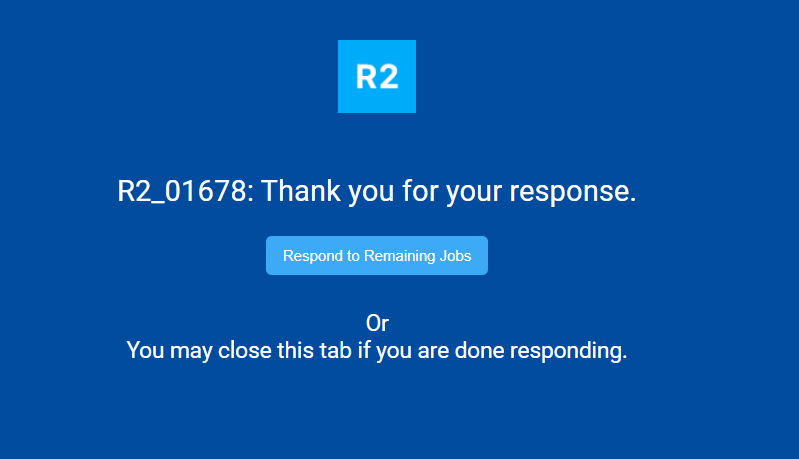
On the Thank You page, click Respond to Remaining Jobs.
-
Review the updated request status.
-
Select the remaining jobs.
-
Submit your response.
Availability request rules
-
Job selection is not available.
-
The response applies to all jobs included in the request.
-
A Thank You message is displayed after the response is submitted.
Confirmation request rules
-
Single-job requests are selected by default.
-
Multiple-job requests support job selection.
-
Invalid or expired jobs cannot be selected.
-
Responses apply only to the selected jobs.
-
Booking dates are displayed using the crew member's browser date format.
-
Comments continue to work as in previous releases.
-
Existing handling for invalid, expired, and cancelled requests remains unchanged.
-
Crew Web Login and email response links open the same response page.