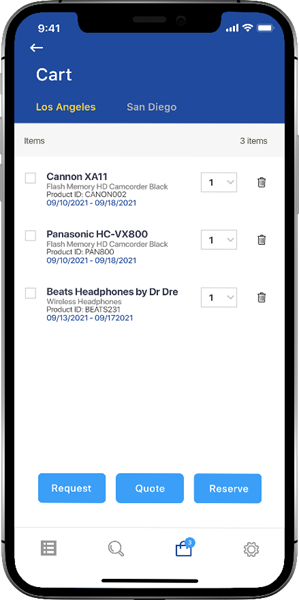
To view the cart, click the Cart icon from the Navbar

The Cart screen appears
1. The Cart Screen Layout
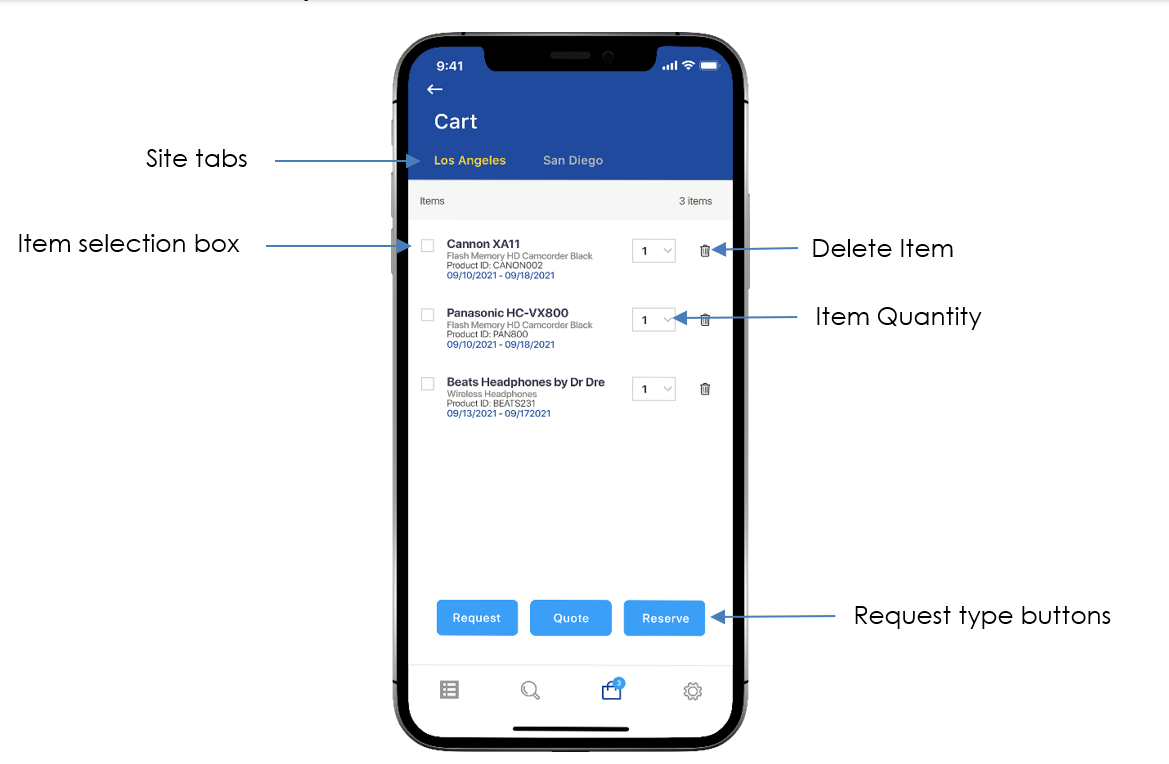
Each site has its own cart page. Use the Tabs to view the cart for other sites
There are three types of checkout types:
|
Type |
Description |
|
Request |
This is a simple request for the item. An email is sent to a designated representative at your organization who will make a request in R2 |
|
Quote |
An email is sent to a designated representative at your organization who will create a quote in R2 |
|
Reserve |
A Reservation for the specified equipment is made in R2 |
-
Delete any items no longer needed
-
Select the item(s) for which you will be sending a request
You can leave items in the cart and send them later
-
Adjust any Quantities if needed
-
Click the Request, Quote or Reserve buttons
2. Request
-
Click the Request Button
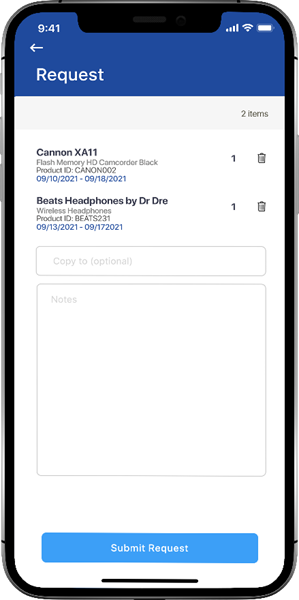
The Request screen appears
-
On this screen, delete any items no longer needed. Specify an optional copy to and add any notes to the message
-
Click the Submit Request button
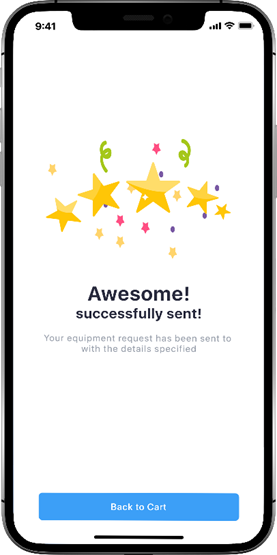
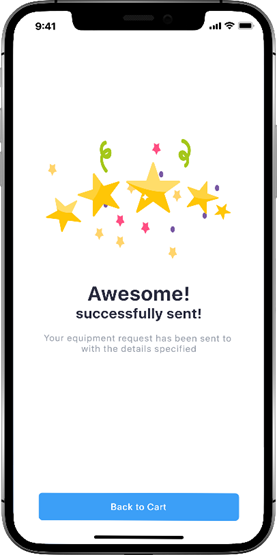
If successfully submitted, a confirmation message appears.
3. Quote
-
From the Cart screen, Click the Quote Button
The Quote submission screen appears
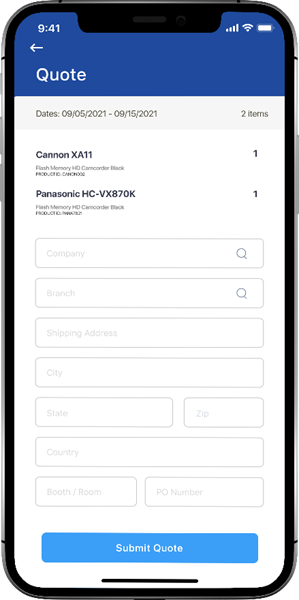
In contrast to the Request submission, the Quote submission contains many more fields that need to be captured.
-
Click the Submit Quote Button
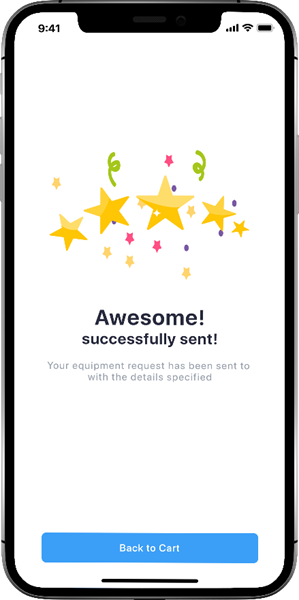
If successfully submitted, a confirmation message appears.
4. Reserve
-
From the Cart screen, Click the Quote Button
The Reserve submission screen appears
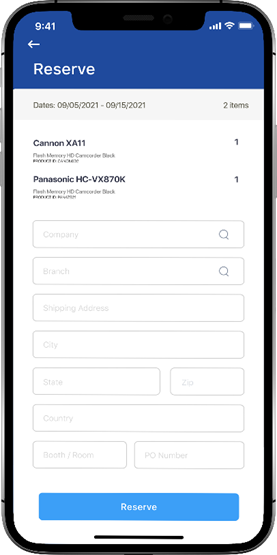
In contrast to the Request submission, the Reserve submission contains many more fields that need to be captured.
-
Click the Reserve Button
If successfully submitted, a confirmation message appears.