Pre-requisites
-
Open Account module.
-
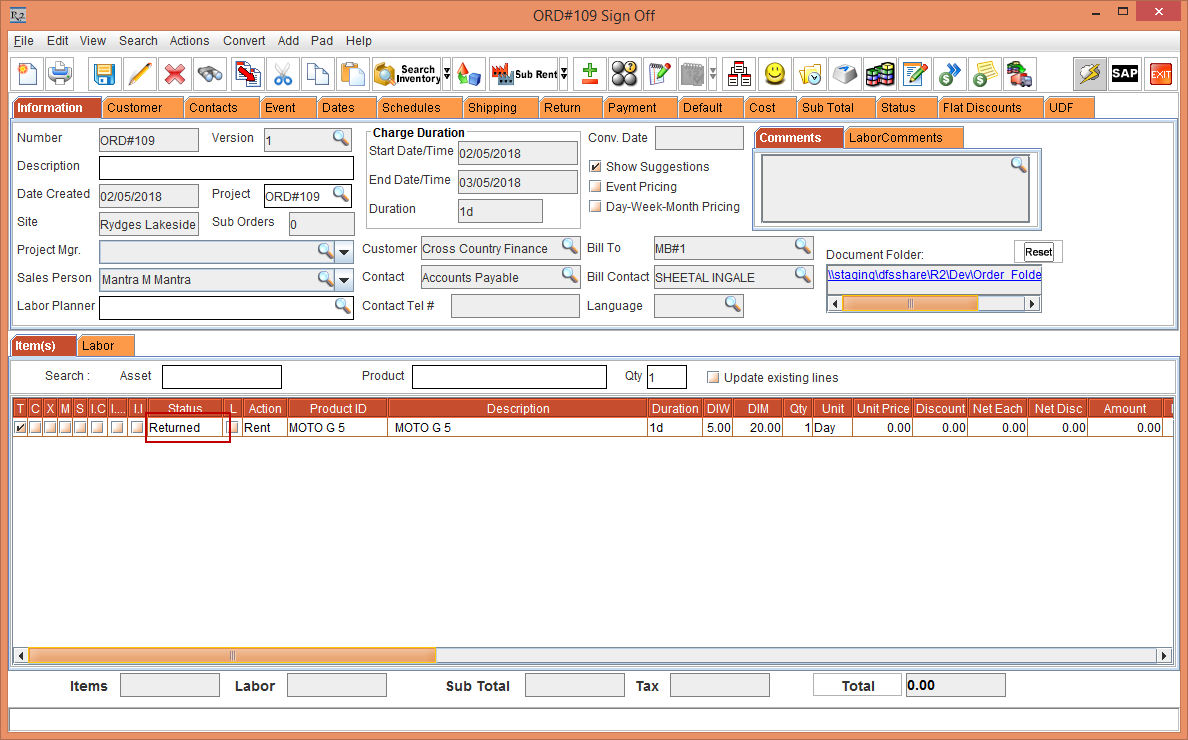
Create an Order [ORD#109], add Item [MOTO G 5] with status as Out as shown in Figure 2.0.
-
Save and exit the Order.
Workflow
-
Login to Asset Manager app.
-
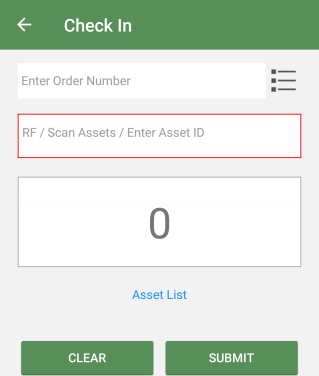
Tap the Check In button.
-
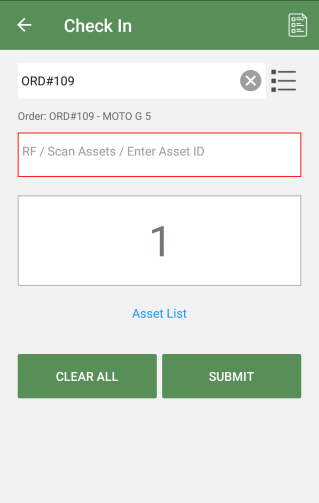
Tap the Order Number and hit enter. Provide the asset ID and hit enter. Then click the Submit button.
You can also select multiple assets to return. Know more?
-
Click the to view generated batch log details.
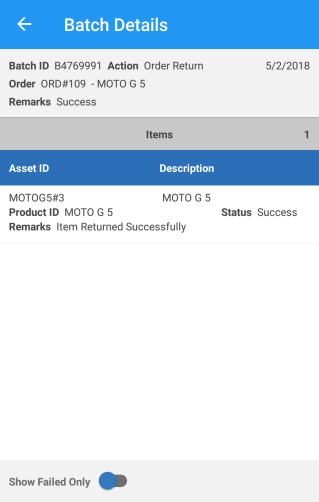
Turn On the Show Failed Only toggle button to see the return failed log details.
-
Exit the Asset Manager app.
-
Open the Order [ORDER#109] > the status of Item [MOTO G 5] gets changed to Returned.