
The Asset Update feature in the PackNShip mobile application allows warehouse operators to quickly update asset information such as Location, Bin, Shelf, and Asset ID. The feature supports barcode and RFID scanning, manual entry, and built-in validation to ensure accurate updates. You can review multiple scanned assets at once and submit changes directly through the app.
Accessing the Asset Update Screen
-
Open the PackNShip mobile app.
-
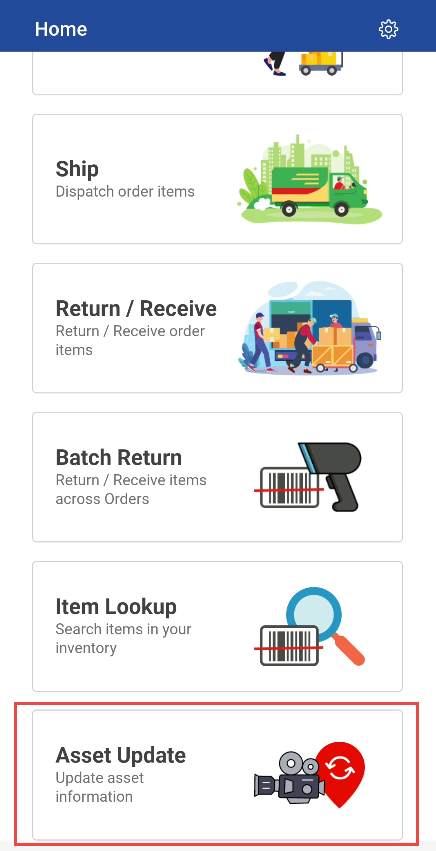
Click Asset Update tile from the dashboard.
-
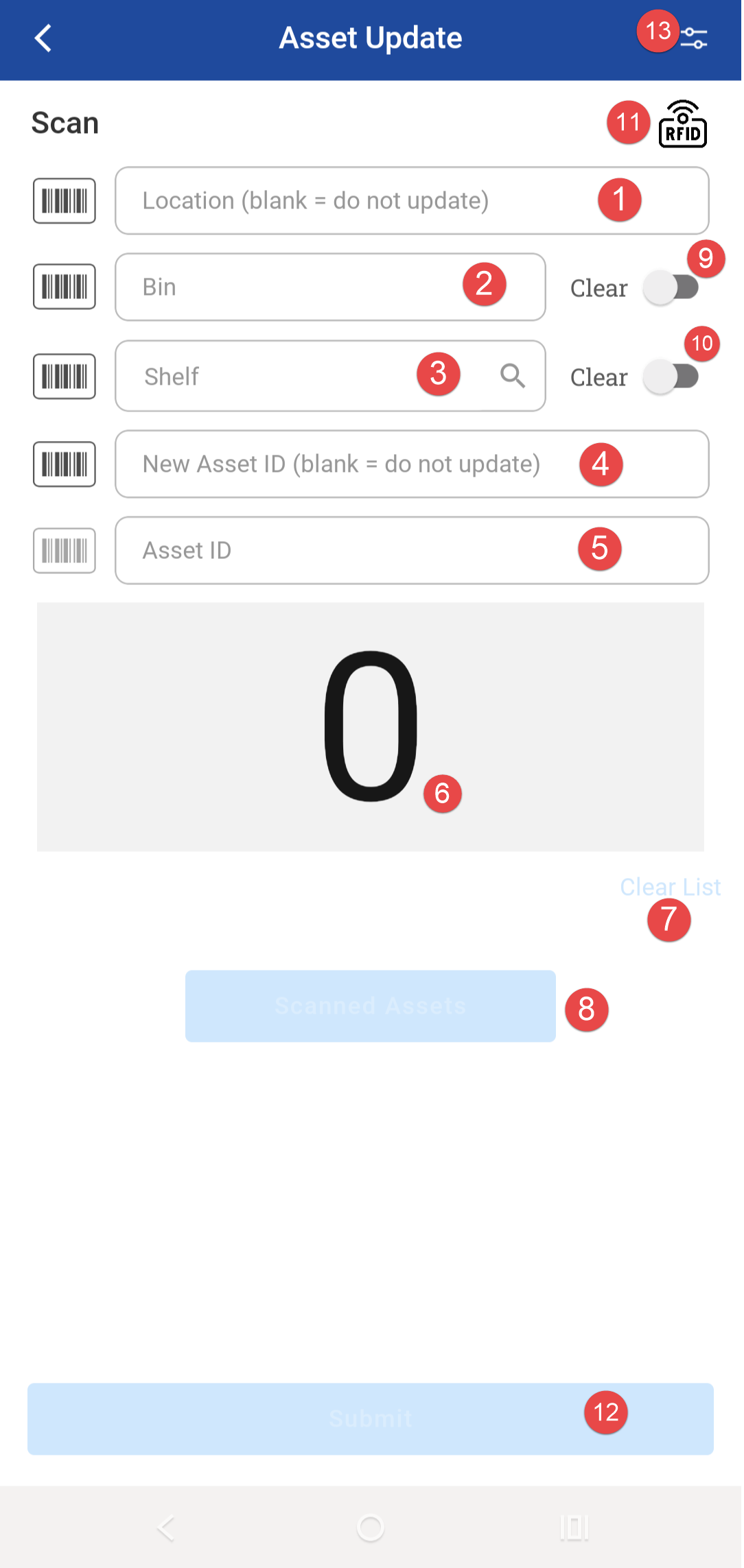
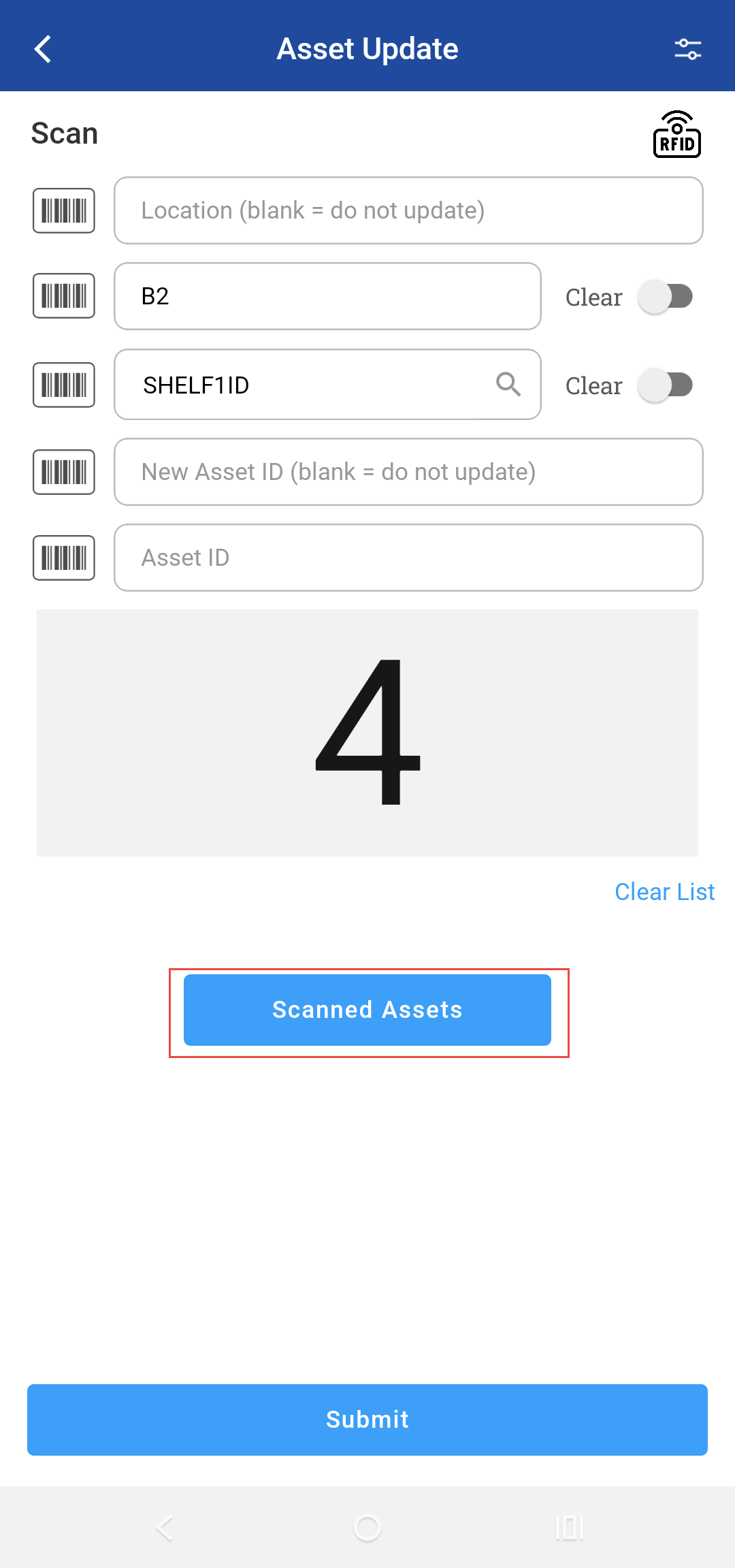
The screen displays:
-
Location: To enter or scan the asset’s location. Leave blank if you do not want to update it.
-
Bin: To enter or scan the bin number.
-
Shelf: To enter, scan, or search for the shelf ID.
-
New Asset ID: To change the asset’s ID. Leave blank if the ID should remain same.
-
Asset ID: To scan or enter the asset you want to update.
-
Count: Displays the number of assets scanned or entered.
-
Clear List (inactive initially): To clear the scanned assets.
-
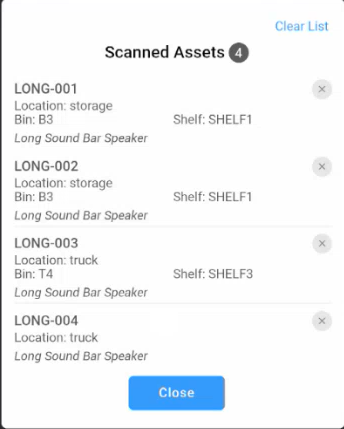
Scanned Assets (inactive initially): Displays the list of all assets you have scanned so you can review and edit them before submitting updates.
-
Clear Bin: To clear the entered Bin number from asset record.
-
Clear Shelf: To clear the entered Shelf number from asset record.
-
RFID: To scan the assets using RFID hub. Know more.
-
Submit (inactive initially): To submit the scanned asset/entered asset.
-
Options: To enable the RFID hub.
Workflow
-
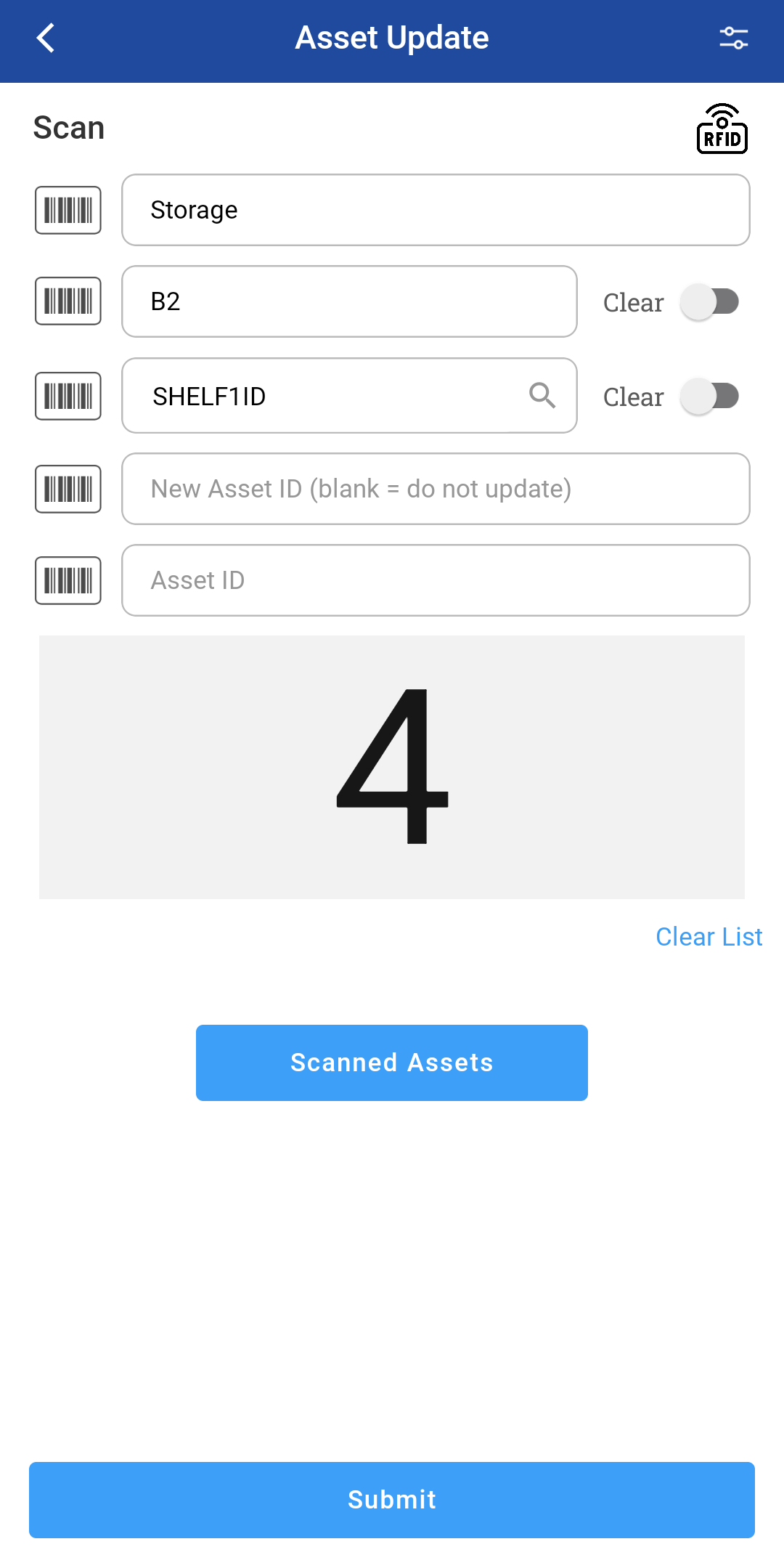
In the Asset Update screen, Enter or Scan

-
If you need to change the Asset ID, type a New Asset ID that is unique.
-
For Shelf search, type at least two characters before tapping the search icon.
-
Every time you scan a valid asset, the app adds 1 to the number displayed as the count of scanned assets.
-
When at least one asset is scanned, the Scanned Assets button is active.
-
If the user enters a New Asset ID while RFID scanning is active, the system restricts scanning to one asset and displays a warning if more than one is detected.
-
If you scan an Additional Asset ID, the system replaces it with the value you enter in the New Asset ID field. If you scan a primary Asset ID, the system updates the primary Asset ID instead.
-
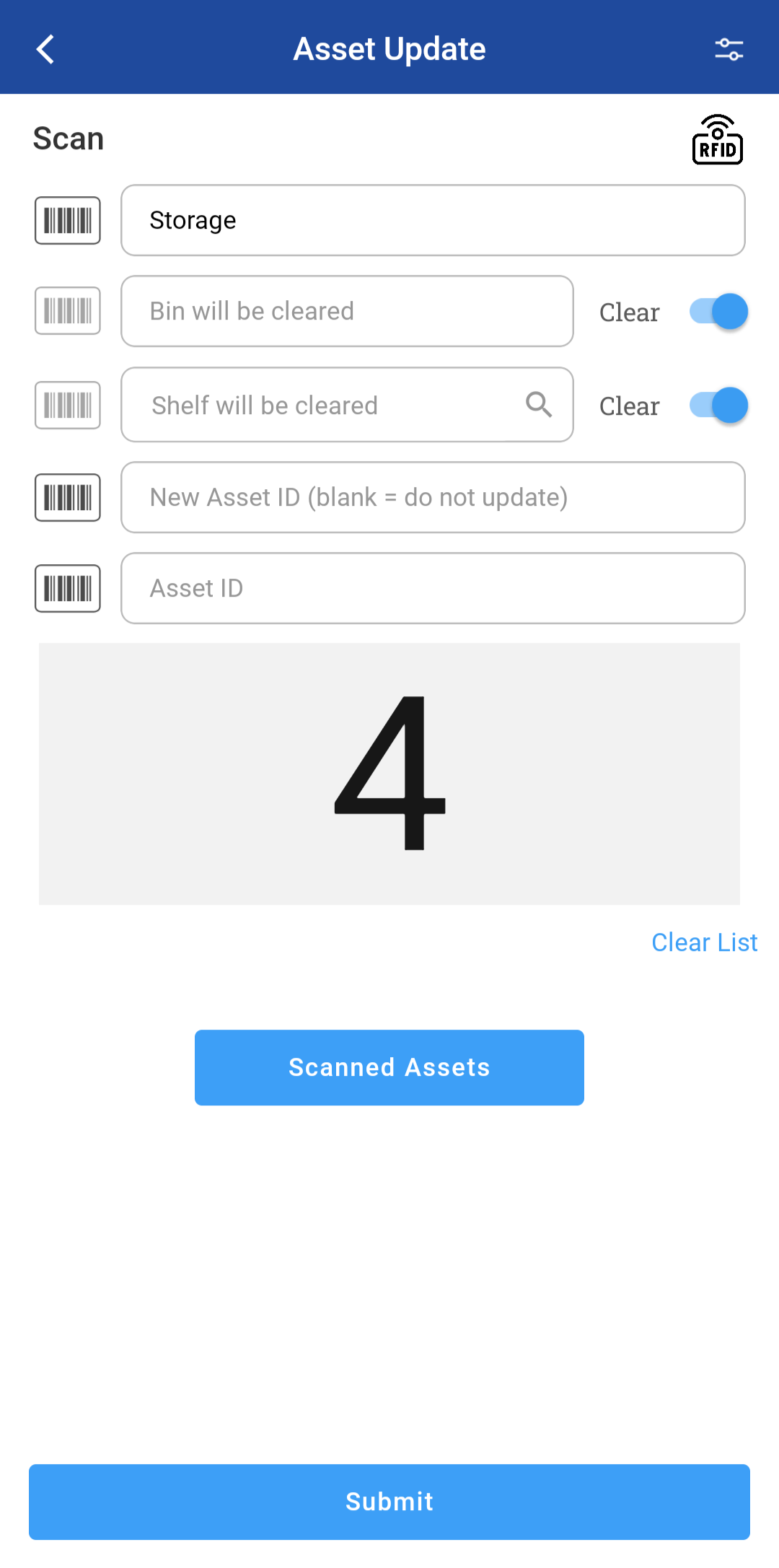
Turn on Clear Bin or Clear Shelf if you want to remove Bin and Shelf from asset record.
-
Click Scanned Assets to review all the assets you scanned. Know more
-
To remove any item click Clear

-
When everything looks correct, click Close.
-
Click Submit.
-
The app checks your entries and shows error if something is incorrect.
-
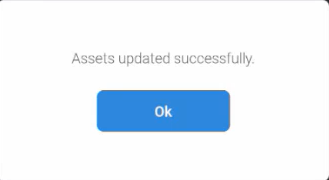
If the update is successful, the app shows a confirmation message.
-
All fields reset, and you can continue updating assets or return to the dashboard.