
Scanned Asset provides you to view, validate, and manage scanned entries.
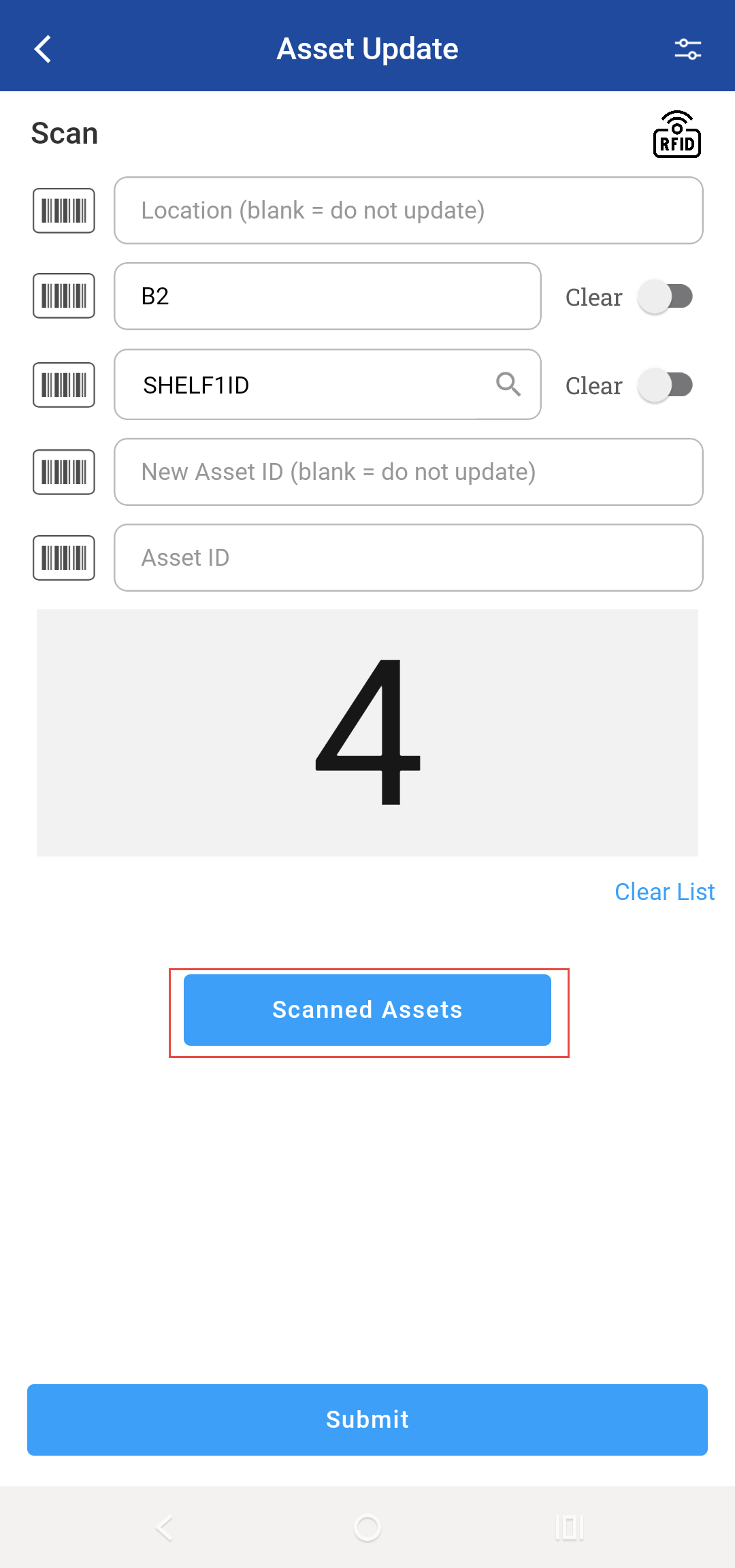
The Scanned Assets button becomes active (clickable) only after at least one asset (via barcode, manual entry or RFID) has been scanned. Before any scan, the button remains disabled.
Accessing the Scanned Asset Pop-up
-
Enter or Scan
-
Enter the Asset ID.
-
Click Scanned Assets button on the screen.
-
A pop-up window appears, listing all scanned items.
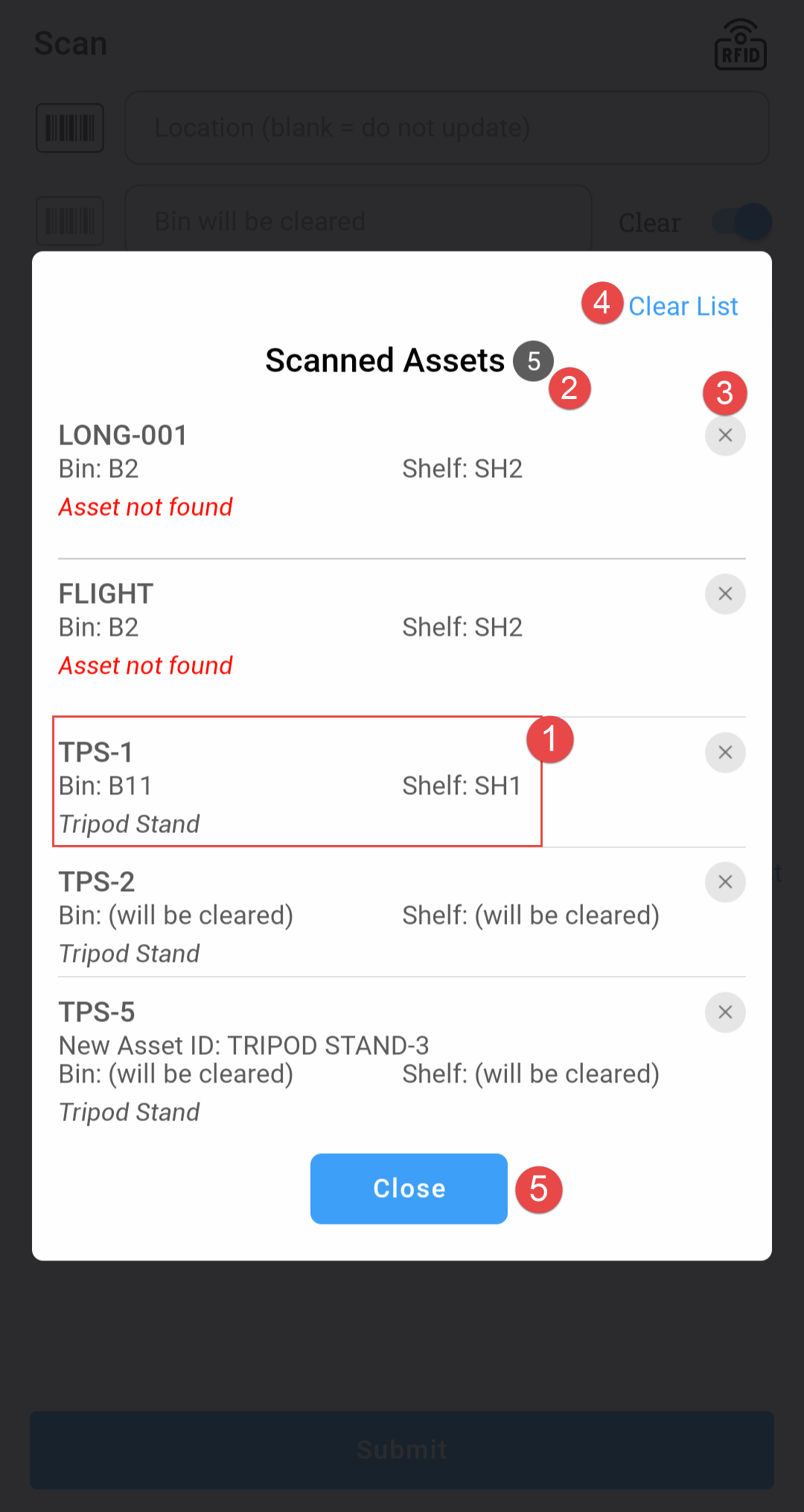
Each scanned entry in the pop-up displays the following information:
-
Asset Details: Displays the Asset ID, Description, Bin number and Shelf ID.
-
Scanned Asset count: Displays the total count of the scanned assets.
-
Clear: To remove the asset from the scanned list.
-
Clear list: To remove all the assets which are scanned.
-
Close: To close the ‘Scanned Assets’ pop-up.
Invalid Item Handling
If the scanned asset is not valid: Displays “Asset not found” as shown in figure above.