Dispatch is also a reference on how shipping happens in R2. In a real -case business scenario, this would refer to shipping the items, kits, assets required on the order to destination.
-
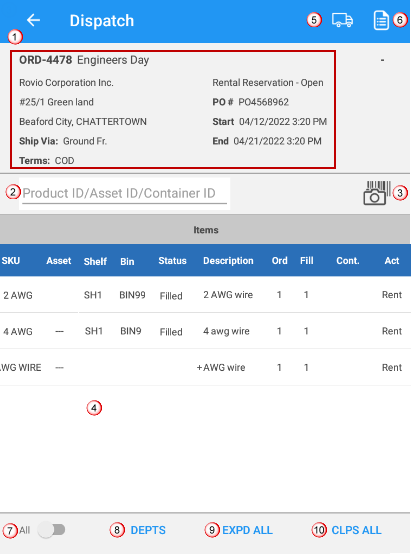
Order details: Displays the order header detail like Order no., description, Payment terms, Start and end date etc.,
-
Product ID/ Asset ID/Container ID: Enter the product id/ asset id/Container ID to ship the item to destination.
-
Scan the product/asset/container: Scans the barcode of the product/asset/container number using the device camera.
-
Item list: Displays the item list which need to shipped.
-
Ship all: To ship all the items listed on the order.
-
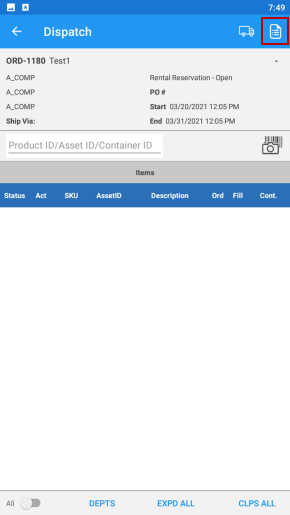
Delivery receipt: To retrieve the delivery receipt.
-
All:
-
Departments: Displays the department list.
-
Expand all: Expands the kits, packages.
-
Collapse all: Collapses the kit children, packages etc.,
How to dispatch items?
-
Login to Warehouse app.
-
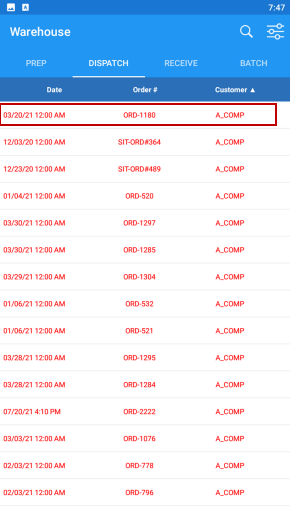
Select the Dispatch option . The following screen appears as shown in Figure 2.0.
-
The window shows all Orders on which conducting an Asset Dispatch operation is possible.
-
The list of Orders can be sorted on basis of either of the 3 parameters — Order Date, Order# and Customer Name.
-
-
Double click to select the Order, for which you want to perform the Dispatch operation.
-
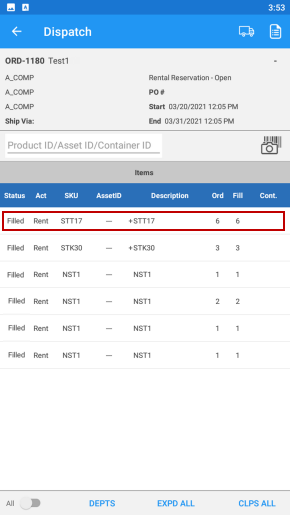
The Dispatch operation window displays the Asset Lists (Serial Item) already added to the order.
-
The window header displays the following information
-
Order ID
-
Order Description
-
Customer's Name and Address Details
-
Order's PO Number
-
Order's Start and End dates
-
-
You can use the Camera/Barcode scanner button to scan and include any Asset to the Order.
-
Else you can type-in the SKU ID of the item in the text box.
-
-
-
To expand an Asset, click on it to see the part details.
-
The list of items on any Order, can also be sorted on any of the columns in the grid — Status, Action, SKU ID, Asset ID, Shipped and/or Returned Count.
-
-
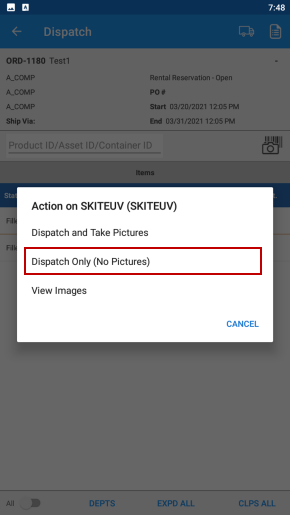
To Dispatch any item from the list, tap the asset line.
-
The next window shows the possible options while dispatch the filled item.
-
Directly dispatch an item
-
Dispatch an item and capture it's picture
-
View the item's picture. (No dispatch is performed).
-
-
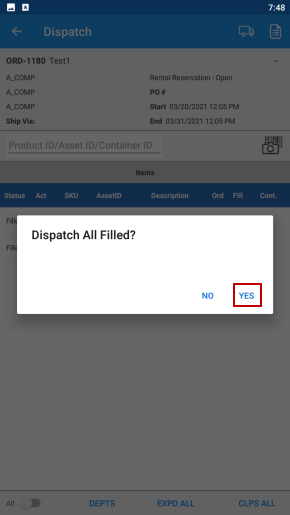
You can dispatch all items in a single step, by taping on the Dispatch All button.
-
To dispatch the selected item, perform one of above two steps, and then tap. Yes.
-
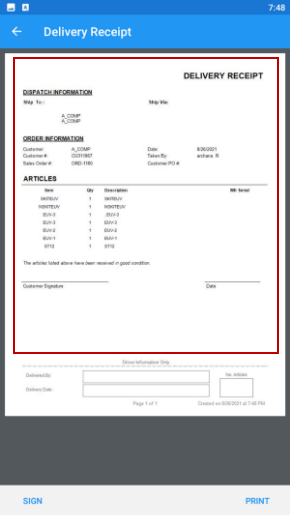
To open and read the Delivery Receipt, tap the document button.
-
The Delivery Receipt is displayed in document format.
-
You can print it directly from the app (if your phone has a compatible printer configured).
-
Depending on the type of printer used, the document can be printed physically or digitally (as a PDF).
-
-
You can also sign the document digitally through your device's touch screen.
-
Once you sign the document and tap on save, the signature appear on the document.
-
-