Pre requisites
-
Login to Site-B > Select the Account module.
-
Open the Transfer (T-IN) Order [T-TO159] in the figure below.
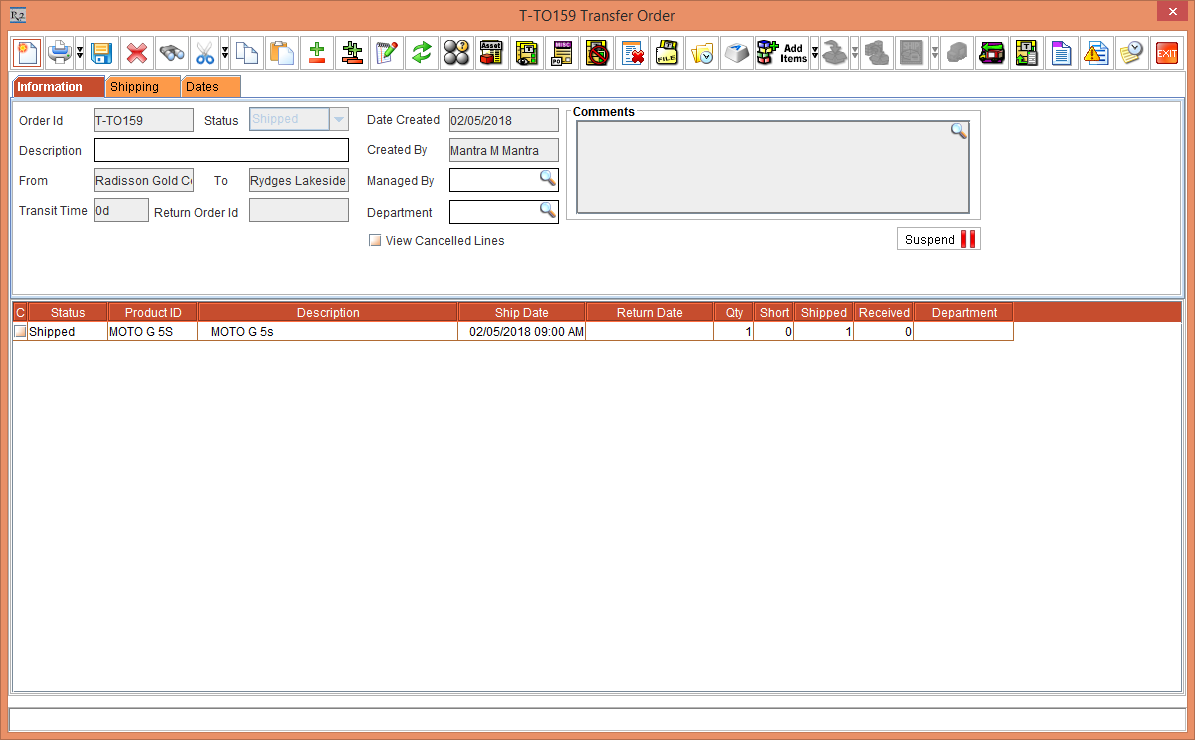
-
Save and exit the Order.
Workflow:
-
Login to Asset Manager app.
-
Tap the Transfer In button.
Figure 2.1: Transfer In window

-
Enter the Order Number > enter asset ID > and click the Submit button.
You can also select multiple assets to receive. Know more?
Figure 2.2: Entering Order Details and Asset ID

-
Click the to view generated batch log details.
Figure 2.3: Batch details window

Turn On the Show Failed Only toggle button to see the return failed log details.
-
Exit the Asset Manager App.
-
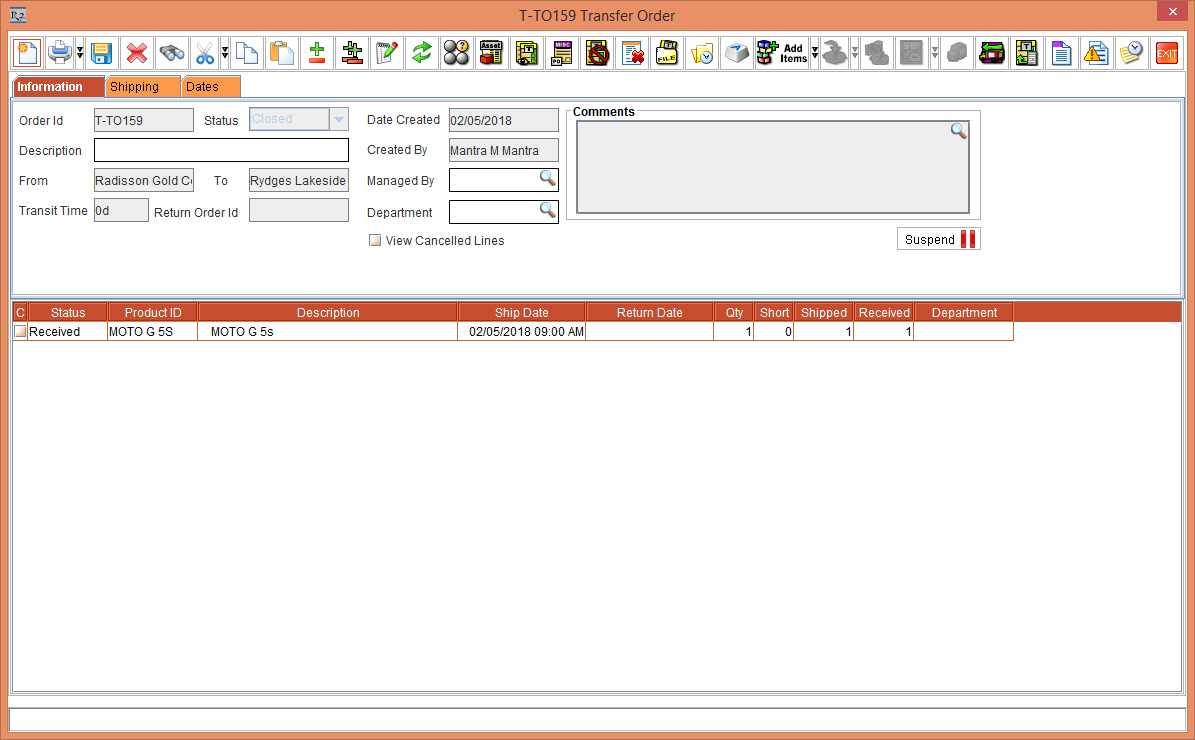
Open the Order [T-TO159] > the Status of Item [MOTO G 5S] gets changed to Received as shown in Figure 2.4.
Figure 2.4: Order with changed status