
Use the Search feature to find specific orders in the warehouse task or schedule screens.
You can search by:
-
Order ID
-
Customer
-
Description
-
Event
-
Project
You can also apply filters to narrow the results.
Open the Search screen
-
Go to one of the following warehouse operation screens:
-
Prep/Fill
-
Ship
-
Return/Receive
-
-
Select Search.
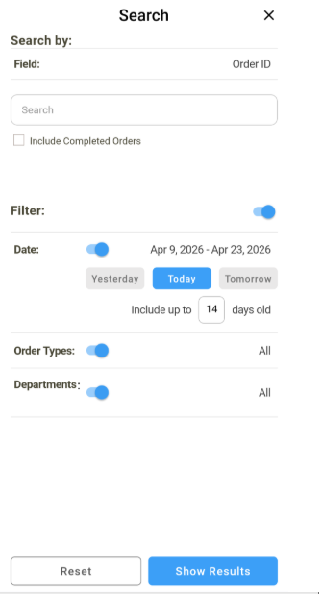
The Search screen appears.
Search for an order
-
In Search by, select one of the following:
-
Order ID
-
Customer
-
Description
-
Event
-
Project
-
-
Enter the search text.
-
To include completed orders, select Include completed orders.
-
Select Search.
The system displays matching tasks or schedules based on the filters applied.
Filter search results
Use the Filter panel switch to control whether filters are applied.
To apply filters
-
Turn the Filter panel switch to On.
-
Set one or more of the following filters:
Date
-
Yesterday — Shows tasks dated yesterday or earlier
-
Today — Shows tasks within a configurable date range up to the current date
-
Configure the “Today” Filter
When you select the Today filter, you can limit results to a specific number of past days. This setting is retained across the Prep, Ship, and Return/Receive screens.
-
Select Today from the date filter options.
-
In the Include up to [X] days old field, enter a value from 0 through 365. The default value is 14, which displays tasks from the previous 14 days and the current day.
-
Example (7): Displays tasks from the previous seven days and the current day.
-
Example (0): Displays only today's tasks.
-
Example (365): Displays tasks from the previous year and the current day.
-
-
Select Search.
-
-
-
Tomorrow — Shows tasks dated tomorrow or later
-
Other filters
-
Department: Select a specific department, such as Audio or Video, or select All.
-
Order type: Select an order type, such as Rental, Sales, or Transfer.
By default, all order types are selected. To limit results, clear the check boxes for the types you do not want to see.
After you define your filter criteria, select Search. Matching orders appear in the Schedule list.
To search without filters
-
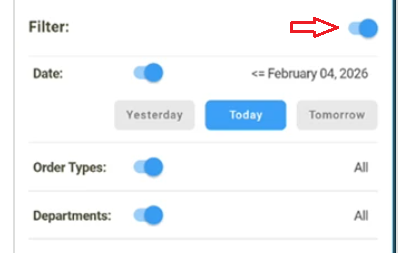
Turn the Filter panel switch to Off.
-
Enter the search criteria.
-
Select Search.
The system ignores Date, Department, and Order type filters.
You can also turn off specific filters among Date, Department, and Order Type filters using individual toggle buttons against the filter as needed.
Saved filter settings
The system saves the most recent state of the Filter panel On/Off toggle button.
When you reopen the Schedule Search screen, the previous toggle state is automatically restored.
The saved toggle setting is specific to each Schedule Search screen:
-
Prep
-
Ship
-
Return/Receive
Filter values are applied based on the settings defined in Settings > Preferences.
These filter values are shared across the Prep, Ship, and Return/Receive Schedule Search screens.
If no orders match the specified criteria, the system displays an error message.