
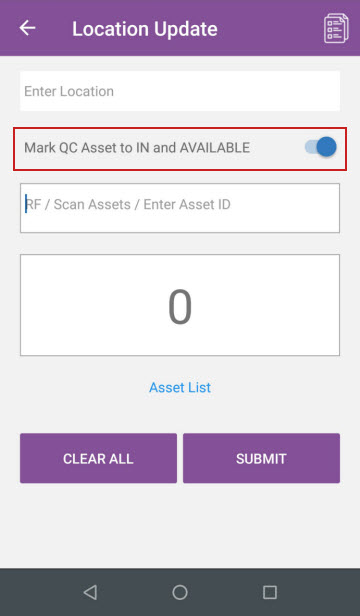
You can use the Mark QC Asset to IN and Available option in the Location Update section to tag assets as Quality Checked and ready for delivery.
The option slider when selected, enables you to mark the QC Assets to In and Available.
Figure 1.0 Mark QC Asset to IN and Available option in Location Update section
The below Sample Workflow explains the above functionality:
Sample Workflow
Prerequisites
-
In the R2 application, open the Serial Item [JBL LIVE] Asset [JBL LIVE #01] that is in QC, Available check box cleared, in the Site [SF], as shown in Figure 2.0.
Figure 2.0 Asset [JBL LIVE #01] that is in QC, Available check box cleared, in the Site [SF]

-
In the Serial Item [JBL LIVE] Edit window, click the Availability button > March 1 > March 1 Availability window > N.Avail link > Item Not Available window is displayed with the Asset [JBL LIVE #01] in QC-Notavailable Status, as shown in Figure 3.0.
Figure 3.0 Availability of the Asset [JBL LIVE #01] in QC-Notavailable Status

Scenario
-
Log in to Asset Manager app.
-
Select the LOC UPDATE button. The Location Update screen is displayed with the Mark QC Asset to IN and Available option, as shown in Figure 4.0.
Figure 4.0 Mark QC Asset to IN and Available option in Location Update section
-
In the Enter Location field, enter the Location [CALIFORNIA].
-
Select the Mark QC Asset to IN and Available option.
-
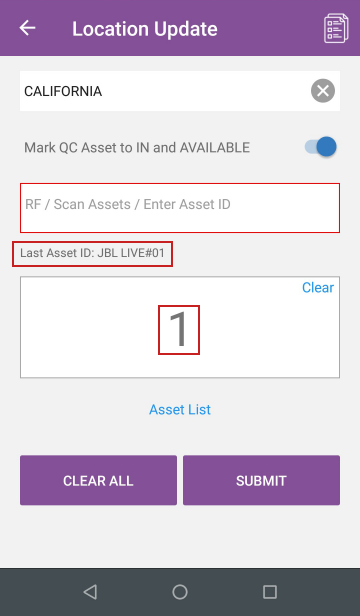
In the RF/ Scan Assets / Enter Asset ID field, enter the Asset ID [JBL LIVE#01], as shown in Figure 5.0.
Figure 5.0 Location Update screen with the Location and Asset details

-
Scan the Asset by clicking the button from the mobile. The Asset ID [JBL LIVE#01] gets updated with the count as [1], as shown in Figure 6.0.
Figure 6.0 Updated Asset Details
-
Click the SUBMIT button.
-
Click the button to view the generated Batch Log and the batch details, as shown in Figure 7.0.
Figure 7.0 Batch Details window displaying the Status of the Asset updates

-
Exit the Asset Manager App.
-
Select the Maintenance module > search and edit the Serial Item [JBL LIVE] Asset [JBL LIVE #01].
-
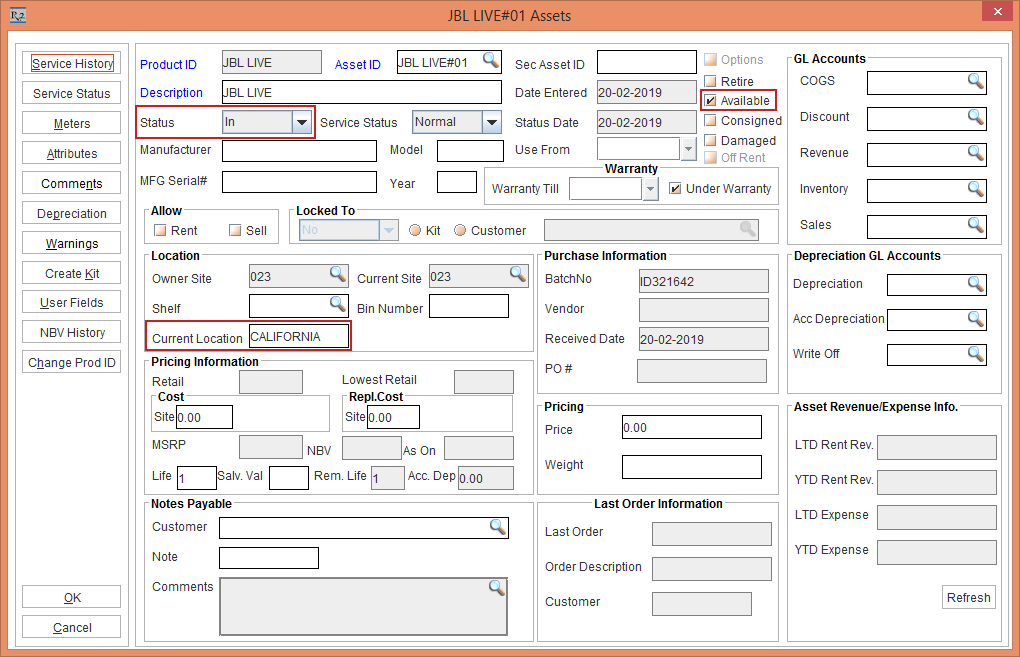
The Asset Status is modified to [In], Current Location updated to [CALIFORNIA], with the Available check box selected, as shown in Figure 8.0.
Figure 8.0 Asset [JBL LIVE #01] Edit window displaying the updated Asset Details
-
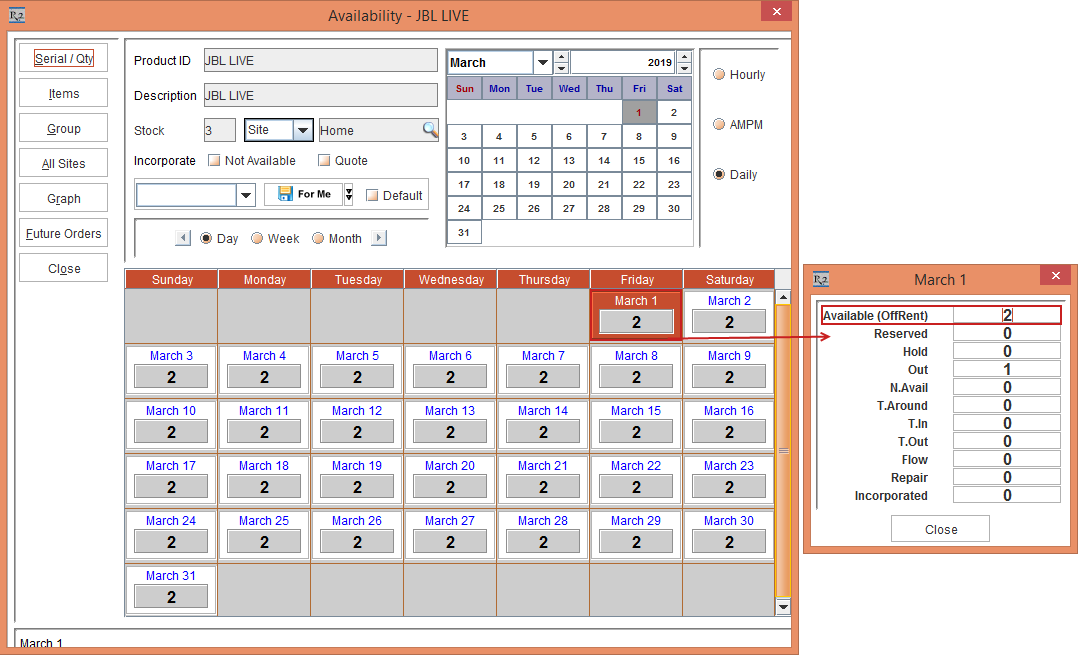
In the Serial Item [JBL LIVE] Edit window, click the Availability button > March 1 > March 1 Availability window displaying the Available (OffRent) with increased Qty as [2], as shown in Figure 9.0.
Figure 9.0 Available (OffRent) Qty increased to [2]
Click the "Support for Mark As Not Available check box in the Maintenance Schedules Edit Window" to view the changes in the R2 application.