
The basic workflow can be split into three steps:
-
Search for the product and check availability.
-
Add product to cart from across locations and dates.
-
Send product requests/ quote request/ Reserve product in R2.
Workflow
-
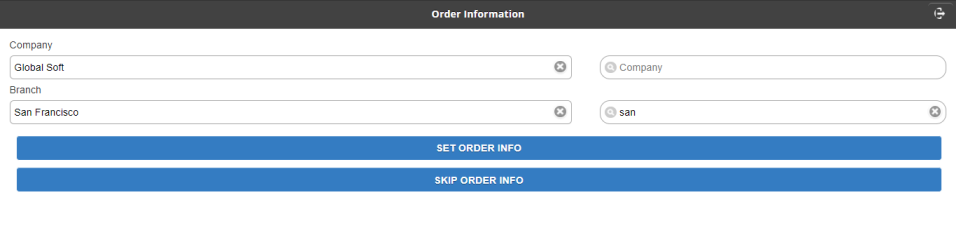
Login to app and you will be directed to Order information window.
-
In this window, you can either set the Order info or can skip this step and move on. However, without the company / branch prices won’t be customer-specific and may change after a customer is selected when you are submitting the Order at the end.
-
To set the Order information: Select the Company and Branch (Site) for which you are requesting the products and then click Set Order Info button.
-
To skip the Order information: Simply, click Skip Order Info button.
-
-
The next is to select the date range for availability request. Select the dates and click Continue.

-
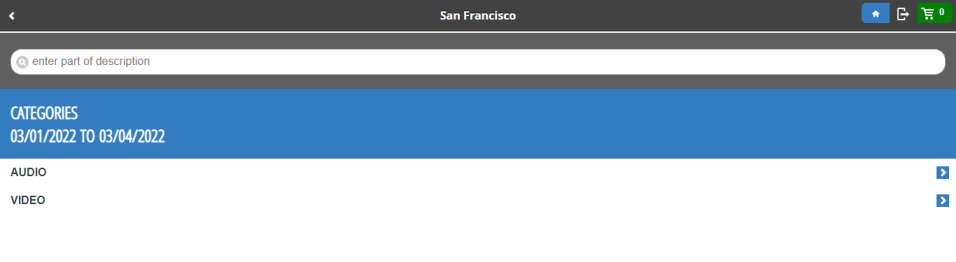
Now, you can select the category from the list.
Either enter the part of the product description in the search bar or select the category from the list.
-
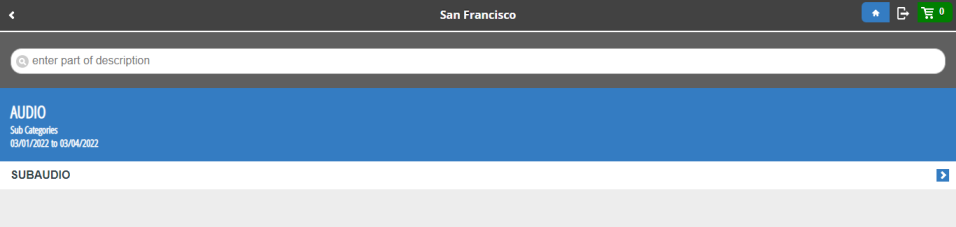
After selecting a category, the sub category list displays for that category.
Either enter the part of the product description in the search bar (the search is within the selected category) or select the sub category from the list.
-
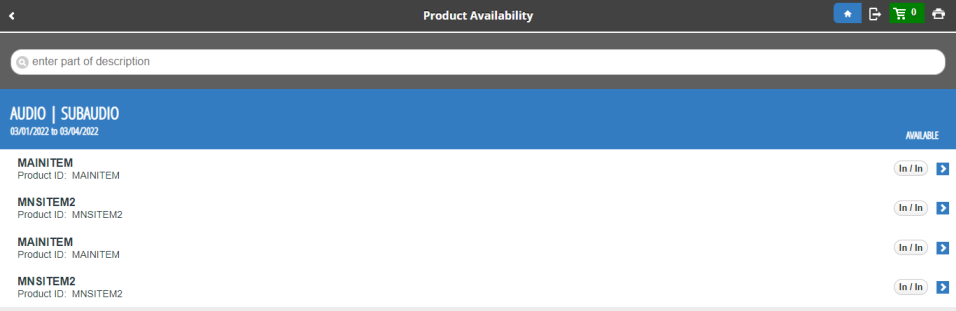
All the product list of the selected sub category displays. Select the required item to view the item availability.
-
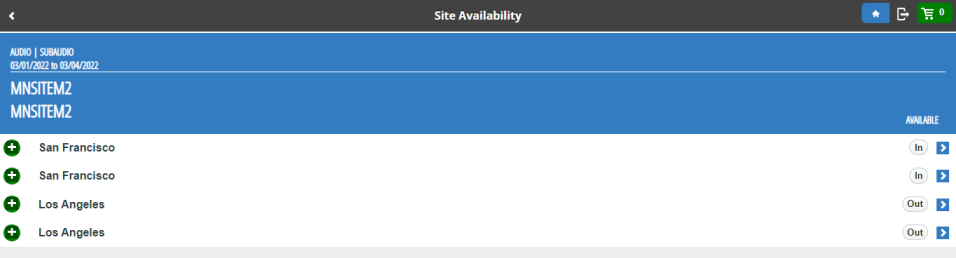
Click Add icon to choose the item from the site based on the item availability.
-
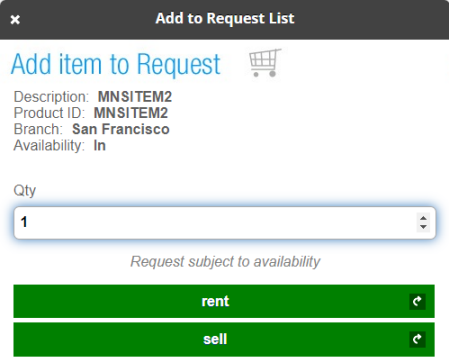
Key in the required quantity, and select the type either as Rent or Sell.
-
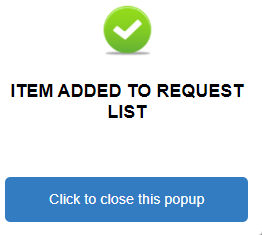
A success message pop-up displays for adding the item. Click 'Click to close the pop-up' button.
-
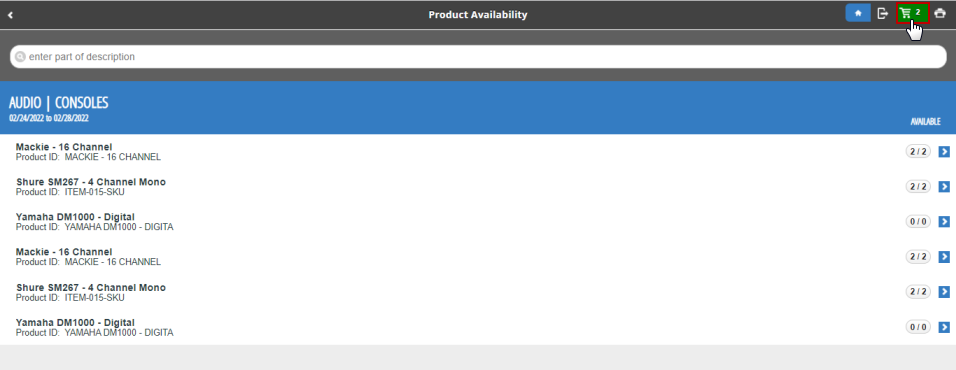
After closing the pop-up, you will be directed to Product availability window. Click Cart button in right top corner as shown below.
-
Click the appropriate option to request the item..
-
Send Request: To send the request for item availability.
-
Hold: To hold the request.
-
Quote: To quote the selected items.
-
Reservation: To reserve the selected items.
-

-
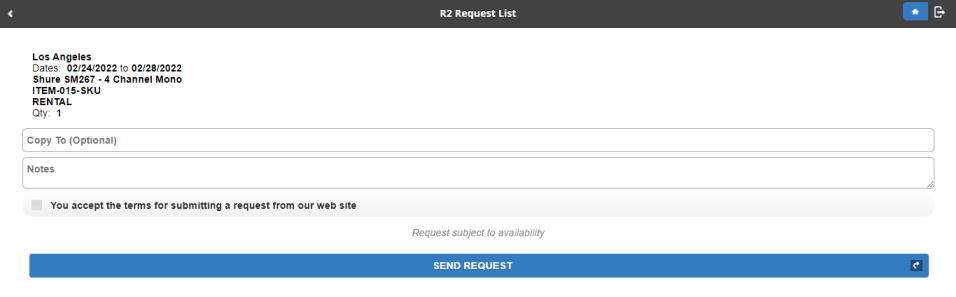
If sending the request, you can mark an employee to keep posted on the request and also mention any notes related to the item request. The notes will be carried in the e-mail notification as well.
Select the checkbox to accept the terms for submitting the request and then click Send request.
-
If sending the quote/ hold/reservation request, provide the shipping address details, notes (if required).
Select the checkbox to accept the terms for submitting the request and then click Send request.
