
Overview
The Remediation (Exception) screen displays the Item Description or Asset Description. This helps you identify items or assets more efficiently when an exception occurs during processing.
Sample Workflow – View Item or Asset Description
You can view these descriptions across various tasks in the PackNShip mobile app.
-
Open the PackNShip app.
-
Navigate to a task, such as Prep, Ship, Return, or Batch / Asset Update.
-
Search for and select an order.
-
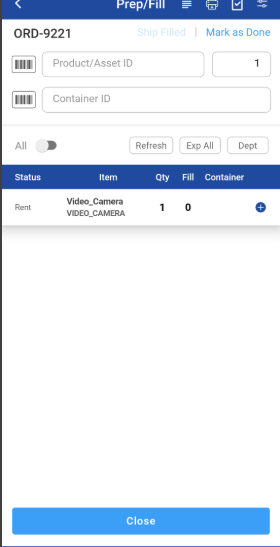
Enter the Product ID or Asset ID, and then press Enter.
The Order ID screen is displayed.
-
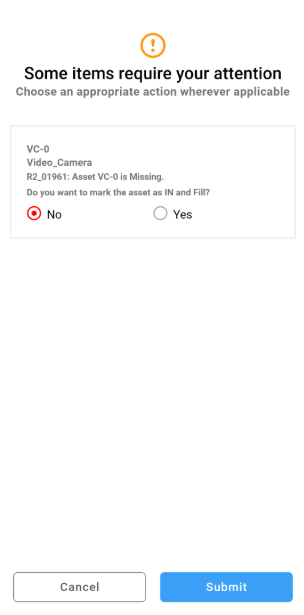
If an exception occurs, the Remediation screen is displayed.
-
View the item details, which now include:
-
Item / Asset ID
-
Item / Asset Description
-
Supported scenarios and order types
The description is available on the Remediation screen for the following:
-
Task types: Fill (Prep), Ship, Return, and Batch / Asset Update operations.
-
Order types: Rental, Sale, and Transfer orders.
-
RFID scanning: When you scan items using RFID, the description is displayed alongside the scanned ID to reduce identification errors.