
Viewing Multi-Currency Information
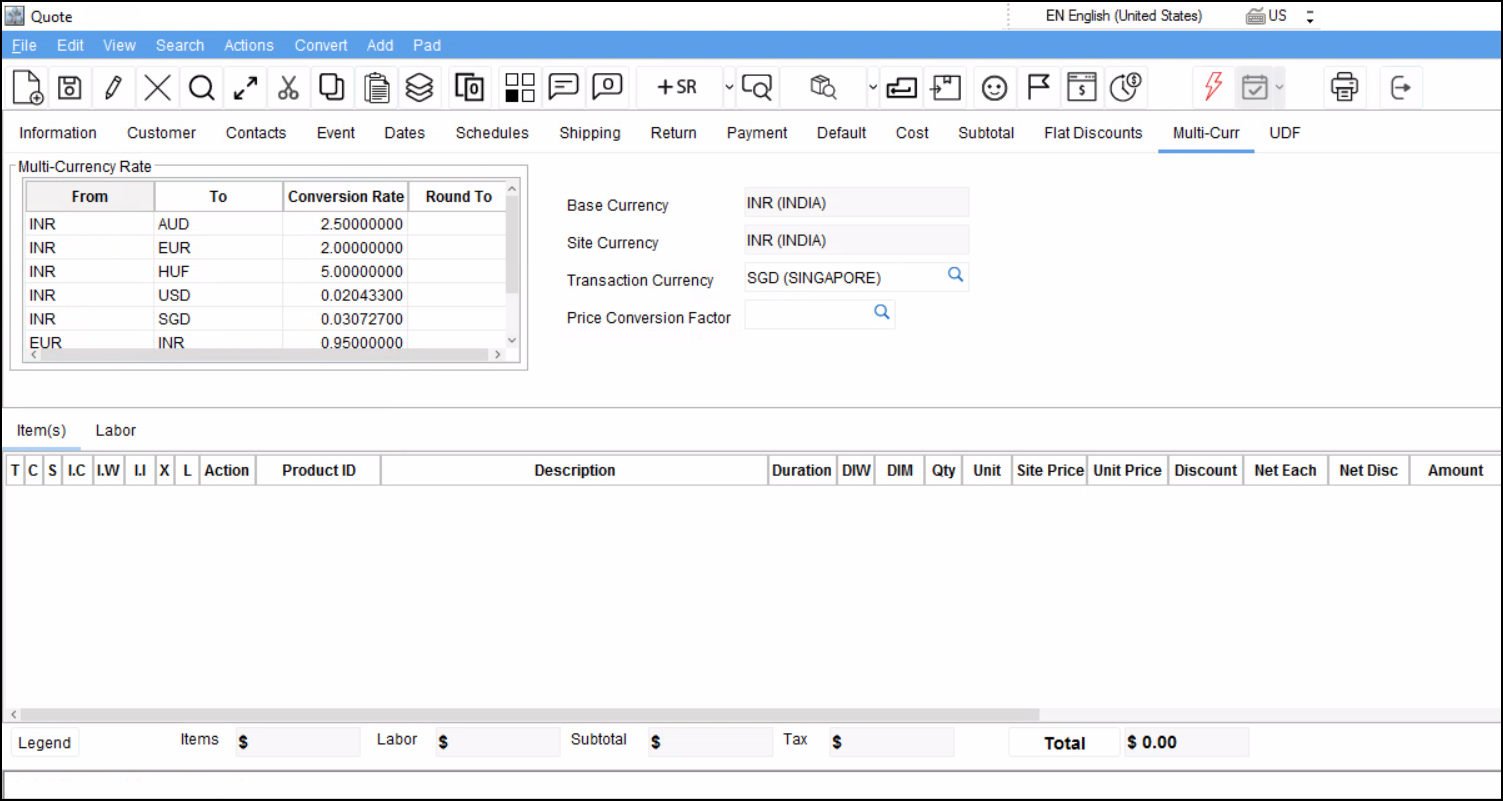
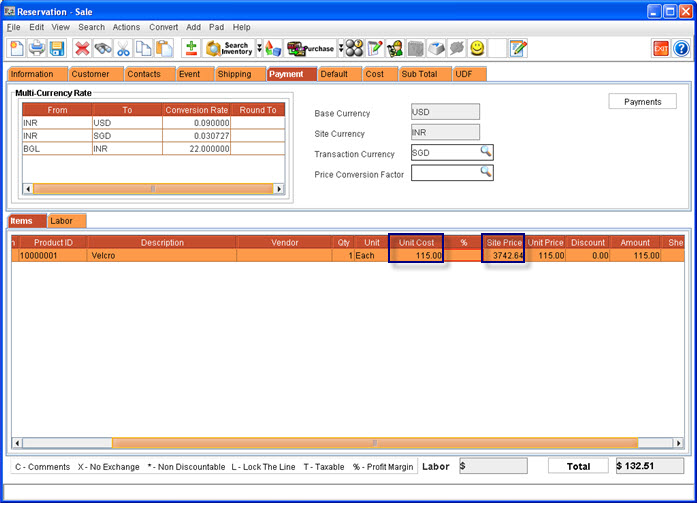
The Multi-currency information for the order will be displayed in the Payment Tab, which will display the Conversion rate, Base Currency, Site Currency and Transaction Currency. By default the payment tab will display the payment information for the order, which will display the Multi-Currency settings for the order on clicking the Multi-Currency Button. The Multi-Currency button acts as toggle button (Multi-Currency / Payments) and will be displayed only if the option "Apply Multi Currency" is selected in the configuration. Illustration
While creating an order, the Base Currency selected in the configuration will be displayed as the Base Currency in the Order, Order Site Currency will be displayed as the Site Currency and the Customer Currency selected will be displayed as the Transaction currency.
The user can change the Transaction currency, on which R2 will reset pricing defined for the item(s) in the order.
-
The currency selected for the Customer will be displayed as the Transaction Currency . If currency is not selected for the customer, R2 will display the Site currency as the Transaction Currency. If Site Currency is not selected , then Base Currency will be displayed as the Transaction Currency and Site Currency.
-
If currency is not defined for the site, then the base currency selected will be considered as the Site Currency.
-
The Multi-Currency Rate definitions will display all the Currency Conversions having the Site Currency in either From Currency or To Currency in the Multi-Currency table defined in the configuration.
-
The user can also modify the Conversion Rate for the order, but it will be applied only to the items which are added after updation of the conversion rate.
-
You can also select Price Rounding Definitions as Price Conversion Factor to avoid penny pricing calculations. The Price Conversion Factor will be applied only after the conversion of price and will be applied only to Transaction Currency based price.
-
The Total amount for Labor and Items on the order will be displayed with prefix of Currency Symbol selected for the Transaction Currency.
-
On duplicating an order, system will update the order site currency with the currency of the site to which the order is duplicated.
-
On duplicating an order, the transaction amount will be defaulted to the duplicated order and site price will be calculated based on the site on which the duplicated order is present.
-
On converting Quote to Reservation , the conversion rates present in the quote will be defaulted to the reservation order.
-
On using the feature 'Copy from Order " with the option price selected, then system will copy the Base Price from the original order and the Site Price and Transaction Price will be calculated accordingly. If Price option is not selected, then item pricing defined will be considered.
-
On changing the Order Site, the site currency on the order will be updated with the currency of the updated order site and the Multi-Currency Conversion Rates will be updated accordingly.
Multi-Currency for Items added to the Order
-
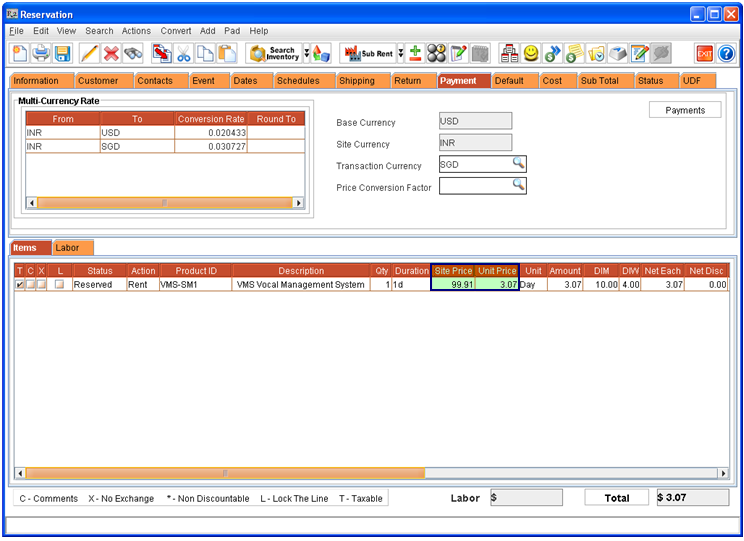
When an item is added, if Transaction Item Pricing is defined for item, then the transaction item price will be updated to the Unit price on the order and the site price for the item will be calculated based on the conversion rate .
-
If Transaction Item Pricing is not defined for the Item, but if the Site Pricing is defined , then R2 will update the site price to the item on the order and will calculate the unit price based on the conversion rate .
-
If no conversion rate definition is available for Site Currency DTransaction Currency , then the Site Price and Transaction price defined for the item will be updated to the item line without any changes.
-
On modifying the Item site price in the order, the unit price will be automatically re-calculated based on the currency conversion table defined. The Site Price will not be changed when the unit price for item is changed.
Multi-Currency for Serial/Non-Serial Kits added to the Order
-
On adding Serial/Non-Serial kit with Detail Pricing in an order, the kit header Site Price will display the sum of site price of all child items and the kit header Unit Price will display the sum of site price of all child items.
-
On adding Serial/Non-Serial kit with Package Pricing in an order, the kit header Site Price will display the site price defined for the kit and the Unit Price will display the Transaction Pricing defined for the kit.
Multi Currency for Misc.Charges added to the Order
While adding a Misc.Charge to the order, the Retail pricing defined for Misc.Charges will be considered as the Site Currency based Pricing (Site Price) and will be updated as the Site Price while adding the Misc.Charge to the order . The Unit Price for Misc.Charge will be then calculated accordingly based on the conversion rate from Site Currency to Transaction Currency present in the order.
Applying Grid Pricing for Multi-Currency Enabled Orders
In the Orders the user can customize pricing or amount for items in rental orders with Grid Pricing Method . Using Grid Pricing, you can define pricing for fixed days, all days of the week or monthly. Based upon the business requirements, Grid Pricing can be set to either fixed rate or percentage of a rental price.
Currently Multi-Currency feature is not support for Grid Mode set as "Rate".
When Grid Mode is selected as Percentage and the item is added to the order, system will first identify the item pricing to be applied based on the different currencies set on the order, and the base amount (calculated based on base price of the item) , site amount (calculated based on site price of the item) and transaction amount (calculated based on transaction price of the item) will be calculated as per the applicable percentage of the Grid Pricing Definition.
Illustration 1
Grid Pricing Definition with Percent - Cumulative
|
Grid Mode |
Mode Type |
Loop To |
|
Percent |
Cumulative |
Last |
Grid Values Set
|
Duration |
Value |
Unit |
|
1 |
30 |
Day |
|
2 |
20 |
Day |
|
3 |
10 |
Day |
For an Order in which Grid Pricing as per the above definition is applied, the Base, Site and Transaction Currency based amounts will be calculated as follows:
|
Order Duration |
Base Amount |
Site Amount |
Transaction Amount |
|
1 |
30 % of Base Price of the Item. |
30 % of Site Price of the Item. |
30 % of Transaction Price of the Item. |
|
2 |
30 % of Base Price of the Item +20 % of Base Price of the Item. |
30 % of Site Price of the Item +20 % of Site Price of the Item. |
30 % of Transaction Price of the Item +20 % of Transaction Price of the Item. |
|
3 |
30 % of Base Price of the Item +20 %of Base Price of the Item +10 % of Base Price of the Item. |
30 % of Site Price of the Item +20 % of Site Price of the Item +10 % of Site Price of the Item. |
30 % of Transaction Price of the Item +20 % of Transaction Price of the Item + 10 % of Transaction Price of the Item . |
|
4 |
30 % of Base Price of the Item +20 %of Base Price of the Item +10 % of Base Price of the Item+10 % of Base Price of the Item |
30 % of Site Price of the Item +20 % of Site Price of the Item +10 % of Site Price of the Item+10 % of Site Price of the Item |
30 % of Transaction Price of the Item +20 % of Transaction Price of the Item + 10 % of Transaction Price of the Item + 10 % of Transaction Price of the Item. |
Illustration 2
Grid Pricing Definition with Percent - Fixed
|
Grid Mode |
Mode Type |
Loop To |
|
Percent |
Fixed |
Last |
Grid Values Set :
|
Duration |
Value |
Unit |
|
1 |
30 |
Day |
|
2 |
20 |
Day |
|
3 |
10 |
Day |
For an Order in which Grid Pricing as per the above definition is applied, the Base, Site and Transaction Currency based amounts will be calculated as follows:
|
Order Duration |
Base Amount |
Site Amount |
Transaction Amount |
|
1 |
30 % of Base Price of the Item. |
30 % of Site Price of the Item. |
30 % of Transaction Price of the Item. |
|
2 |
20 % of Base Price of the Item. |
20 % of Site Price of the Item. |
20 % of Transaction Price of the Item. |
|
3 |
10 % of Base Price of the Item. |
10 % of Site Price of the Item. |
10 % of Transaction Price of the Item. |
|
4 |
10 % of Base Price of the Item. |
10 % of Site Price of the Item. |
10 % of Transaction Price of the Item. |
Multi Currency in Order Cost Tab
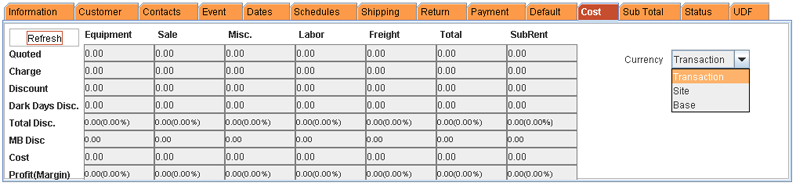
In Cost Tab of the Order window the user can view the Cost, Revenue and Profit s based on either Transaction Currency, Base Currency or Site Currency. To view cost information based on a specific currency, select the desired option from the drop list and click on Refresh button.
Multi Currency in Sub Total Tab
Multi Currency for Damage Waiver /Service Charge and Consumables of type Fixed
-
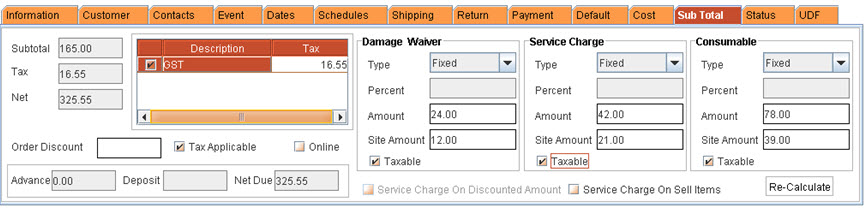
In the Sub Total tab of the order, the user will be able to define Site Amount (Site Currency based amount) for Damage Waiver, Service Charge and Consumable.
-
By default the Service Charge and Consumable Site Amount fields will be updated with the respective amounts defined in the order site, if any.
-
On modifying the Site amount for Damage Waiver, Service Charge and Consumable , system will automatically re-calculate the Amount (Transaction Currency based amount) based on the currency conversion rate available in the order.
-
On modifying the Amount for Damage Waiver, Service Charge and Consumable the Site Amount will not be re-calculated.
Multi Currency for Damage Waiver/Service Charge and Consumables of type Percentage
-
On setting Damage Waiver /Service Charge and Consumables as type percentage, the Amount (Transaction currency amount) will be calculated as the percentage (percentage defined ) of the total order amount and the Site amount will be calculated accordingly based on the conversion rates.
-
All the fields apart from the Site Amount field will be always considered as in Transaction currency.
Multi Currency in Order Prints
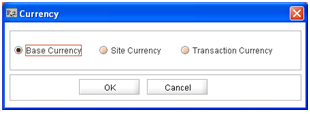
While printing orders the user can select a currency ,based on which the order will be printed. On clicking on the Print icon in the Form Type options, while printing orders R2 will display currency dialog box (as shown below) wherein the user can select the desired currency from the available options Base Currency, Site Currency or Transaction Currency. On clicking on OK the order will be printed based on the currency selected.
Multi Currency in Advance Payment For Order
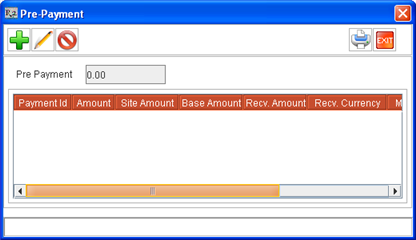
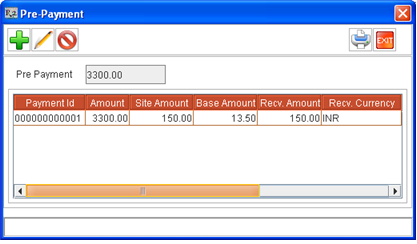
While receiving advance payment for an order, the user can select the currency by which the payment is made. On making an advance payment, the payment details will be displayed in the pre-payment dialog with the amount received converted using Transaction Currency, Base Currency and Transaction Currency along with the Currency code by which the payment has been made.
To Receive Advance Payment
-
Click on the Pay-Advance icon . R2 will display the Pre-Payment dialog.
-
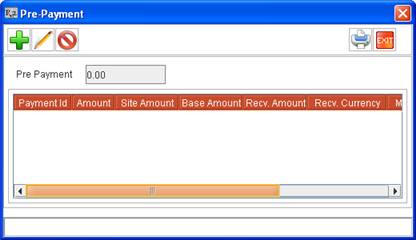
Click on Add Icon .to create the payment transaction record. The Payment Details dialog will be displayed with the Payment ID automatically generated by R2.
-
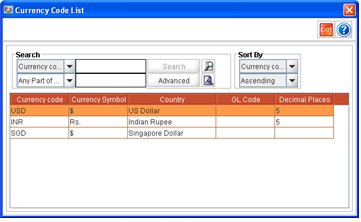
Click on the import button in the Currency field to select a currency by which the payment is to received. (Currency Code List window will be displayed listing the Currency codes already selected as the Base, Transaction and Site Currency for the order).
-
Enter the Amount.
-
Select the date of payment . By default R2 will display system date as the date of payment.
-
Select the mode of payment (MOP)from the available options in the drop down menu.
-
Click OK. R2 will display the new transaction details in the Pre-Payment dialog.
Multi Currency in Pay Due Deposit For Order
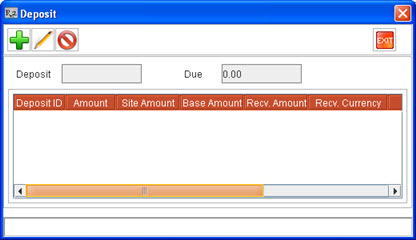
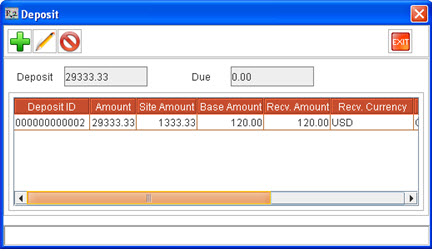
While making receiving Due Deposit for the order, the user can select the currency by which the payment is made. On making an deposit payment, the payment details will be displayed in the Deposit dialog with the amount received converted using Transaction Currency, Base Currency and Transaction Currency along with the Currency code by which the payment has been made.
To Receive Due Deposit
-
Click on the Pay-Due Deposit icon. R2 will display the Deposit dialog.
-
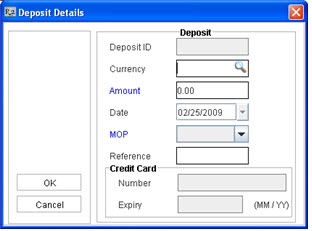
Click on Add Icon to create the payment transaction record. The Deposit Details dialog will be displayed.
-
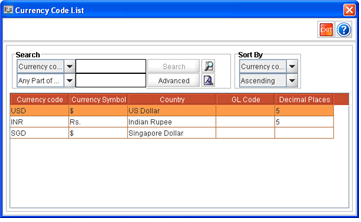
Click on the import button in the Currency field to select a currency by which the payment is to received. (Currency Code List window will be displayed listing the Currency codes already selected as the Base, Transaction and Site Currency for the order). R2 will automatically generate the Deposit ID for the current deposit payment.
-
Enter the amount.
-
Select the date of payment . By default R2 will display system date as the date of payment.
-
Select the mode of payment (MOP)from the available options in the drop down menu.
-
Click OK. R2 will display the new transaction details in the Deposit dialog.
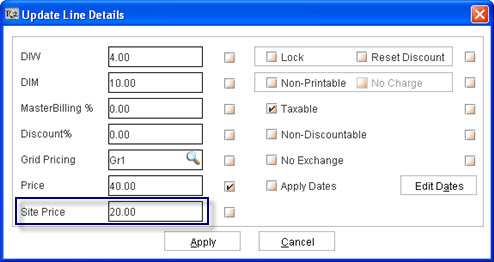
Multi Currency in Update line Details
In Update Line Details window, on modifying the Site Price for an item, the item price will be re-calculated accordingly with the conversion rate. However, modifying the item price will not change the site price of the item.
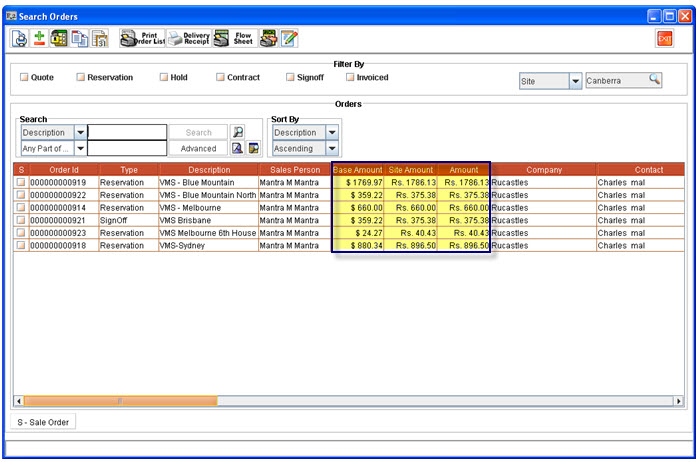
Multi-Currency in Order Search Window
In Order search window, order amount will be displayed base currency (total of Base Currency based Amount of all lines present in the order), Site Currency (total of Site Currency based Amount of all lines present in the order) and Transaction Currency (total of Transaction Currency based Amount of all lines present in the order) with the respective currency symbol.
Multi Currency in Sale Orders
In Sale Order, the Unit Cost of the item will be considered as in Transaction Currency and will be calculated by converting Average Site Cost of the Item to the Transaction Currency.
For more details on Multi-Currency feature in R2 click here.