
Table of Contents
-
Begin at the default dialog.
-
Click on the system defaults.
-
Click on the Edit button.
There are five tabs:
-
General (1.10.4)
-
Account (1.10.5)
-
Warehouse (1.10.6)
-
Maintenance (1.10.7)
-
Service (1.10.8)
General Tab
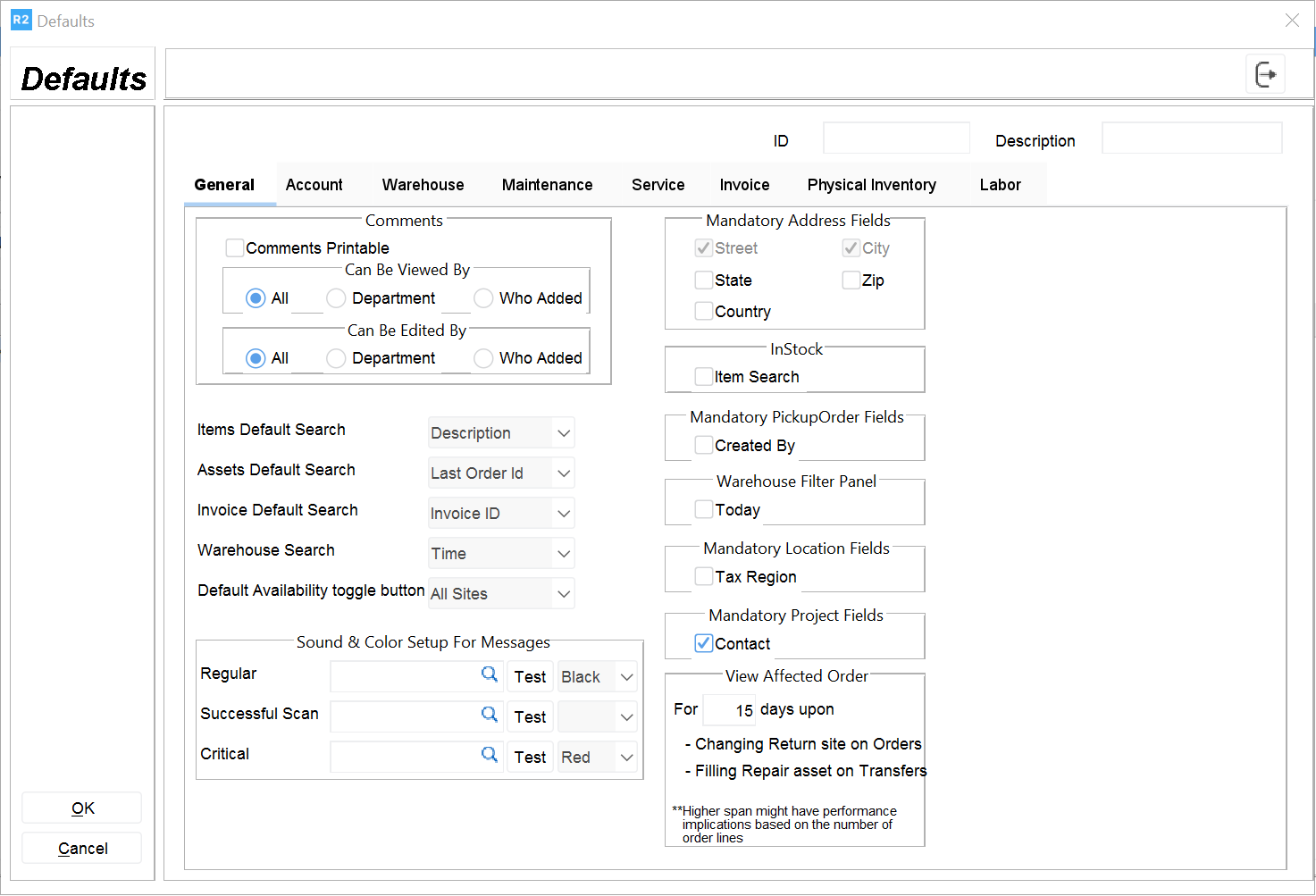
Comments Printable:
this setting allows the user to set a default to have comments printable or not as they are added.
Can be Viewed with:
this setting controls who can view comments. The choices are
All
Department
Who added
Items Default Search:
these settings allow the user to specify the default search option. The choices are:
Description
Productid
Model
Stock
Manufacturer
UPC
Available group
Exchange group
Commission group
Report group
Department
Attribute group
Tax group
Assets Default Search:
These settings allow the user to specify the default search option. The choices are:
Productid
Assetid
Description
Item status
Siteid
Sitename
Lastorderid
Mfg serial#
Option count
Sec assetid
Invoice Default Search:
these settings allow the user to specify the default search option. The choices are:
Invoiceid
Contracted
Billdate
Company
Terms
Amount
Tax
Type
Parent invoice
Po number
Posted
Site name.
Warehouse Search:
these settings allow the user to specify the default search option. The choices are:
Time
Number
Description
Date
Customer/vendor
Site.
Beep Category Fields:
These functions are meant for the warehouse module. It gives the user an auditory signal to verify that what they are scanning.
Regular:
future implementation.
Successful Scan:
good scan
Critical
indicates a problem: was misread or mistyped or it is not in the order.
Mandatory Address Fields:
These fields control the defaults used when adding customers or companies. They are:
State
Zip Country
In Stock:
In a multi-site environment, this feature can be used to allow a site to search only for the items they currently stock.
Item search:
Set this to Yes to search for items in stock only.
Mandatory Pickup
Order Field:
This field is used to require a user name for a pickup order.
Mandatory Order Fields:
These fields control defaults when adding orders.
Description
Project
Profit
Center
Shipping Address
Ship to Location
Warehouse Filter Panel:
The following choice is available:
Today: check this field if you want the warehouse personnel to display their tasks for the current date.
Account Tab
There two tabs: General and Orders
Account > General Tab
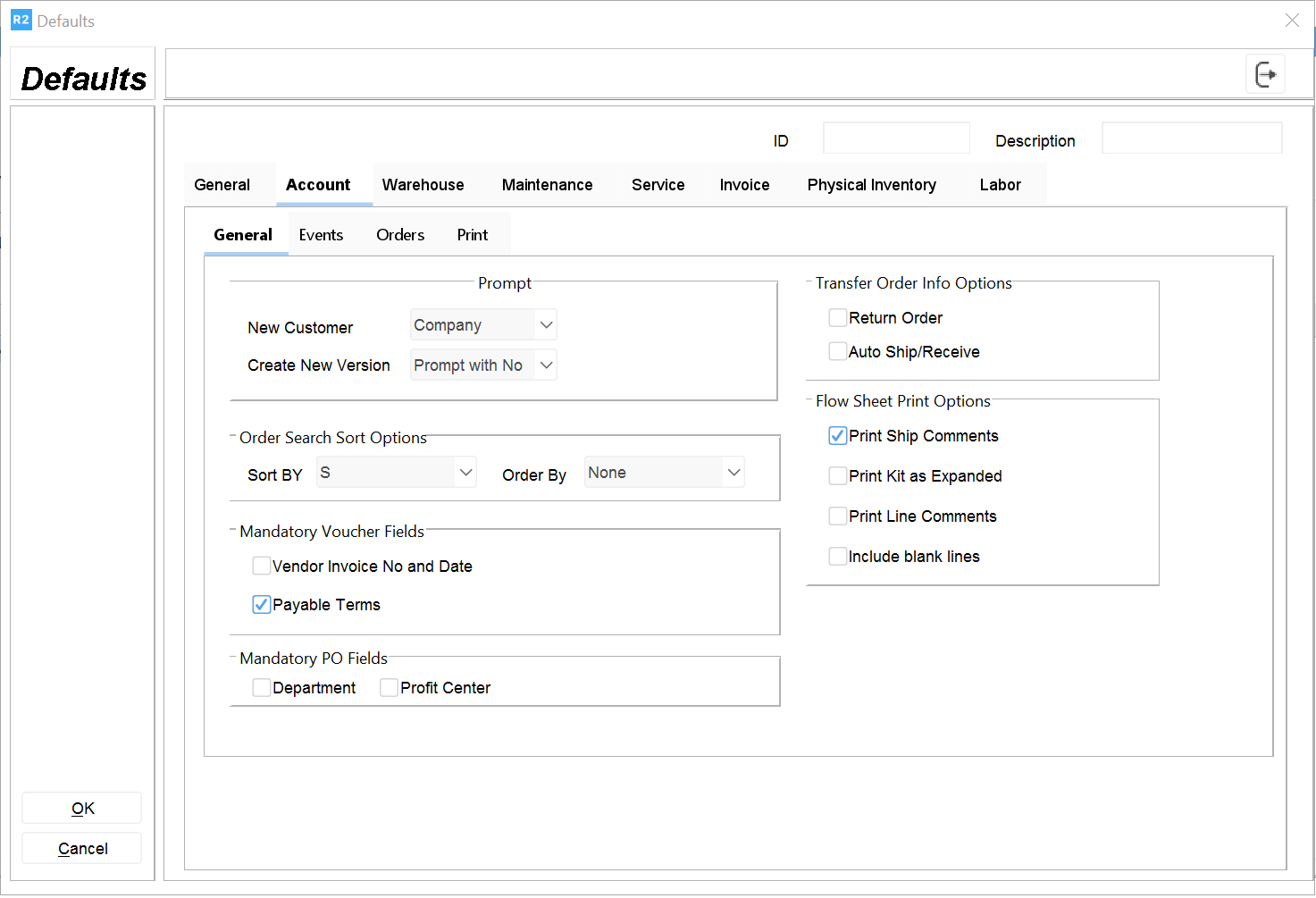
New Customer:
This setting is used to default the type of customer when adding the record from the account screen. The choices are:
Individual
Company
Default individual:
When clicking on the new customer button in the account screen, this selection will pop a dialog box where the user can specify between two types (individual and company) with the individual radio button clicked.
Default company:
When clicking on the new customer button in the account screen, this selection will pop a dialog box where the user can specify between two types (individual and company) with the company radio button clicked.
Create New version:
Each time an existing order is opened, the system can prompt the user if a new version should be created.
prompt with yes:
prompt with no
no prompt: this option will not show any question and will not cre- ate new version automatically.
Order Search Sort Options
Sort by:
OrderID
Status
Description
Company Site
Customerid
Start date
End date Contact
Sales person
Assigned to
PO number.
Order By:
None
Ascending
Descending.
Mandatory Voucher Fields
Vendor Invoice No and Date. If vouchers for purchase orders are created, this field should be checked so that the invoice number and date can be included in the export file when posting batches.
Transfer Order Info Options
Return Order This option creates automatically a second transfer for a return.
Account > Orders Tab
There are five tabs: General, Payment, Subtotal, Dates and Print.
Account > Orders > General tab
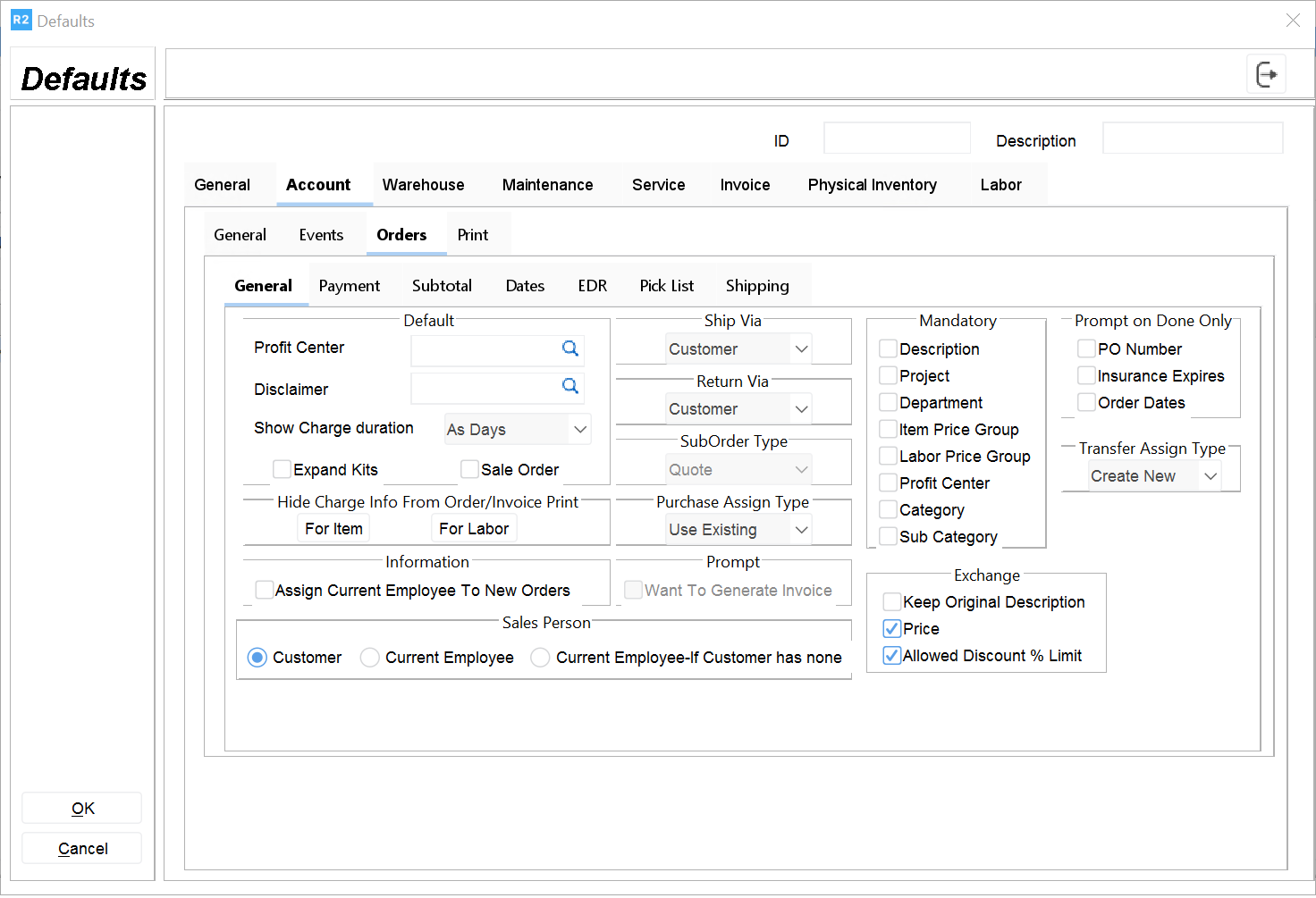
Profit Center:
Set a default profit center
Disclaimer:
Set a default disclaimer. This is an rtf file located in the c:\program files\mantra\disclaimers folder.
Expand Kits:
Kits can be shown as expanded or collapsed when added to the order. The user can still manually set them one way or another.
Show Charge Duration:
As days Based on unit.
Assign Current Employee To New Orders
Sales Person group box:
These options allow defaults for the salesperson on the order Customer: order will obtain the salesperson assigned to the customer or company record.
Current Employee:
The order will obtain the salesperson from the logged in user.
Current Employee - If customer has none:
The order will obtain the salesperson from the logged in user, only if the customer or company record has no sales person assigned.
Ship Via:
Select a ship via method for the order added through configuration.
Return Via:
Select a return via method for the order added through configuration.
SubOrder Type:
for future implementation.
Purchase Assign Type:
This setting is used to default the type of purchase order when it is first cut. Options are: Use Existing PO
Create New PO
Prompt:
For future implementation.
Account > Orders > Payment tab
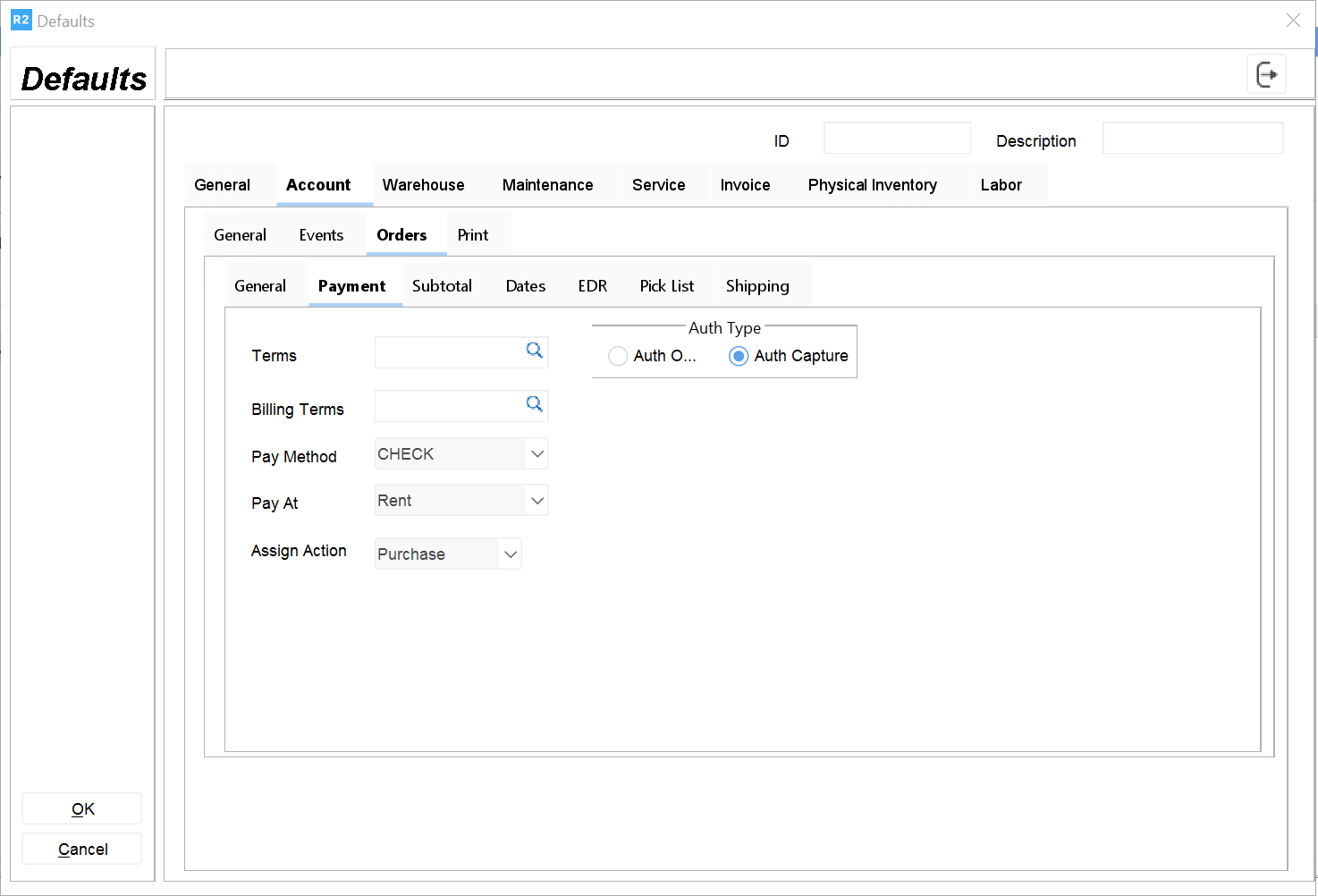
Terms
Billing Terms Pay Method Pay At:
Select one of the pre-defined methods:
Rent
Return
Periodic Billing
No charge
Custom
Assign Action:
Select one of the pre-defined methods:
Purchase
Sub-Rent
Transfer
Exchange
Quick Turnaround
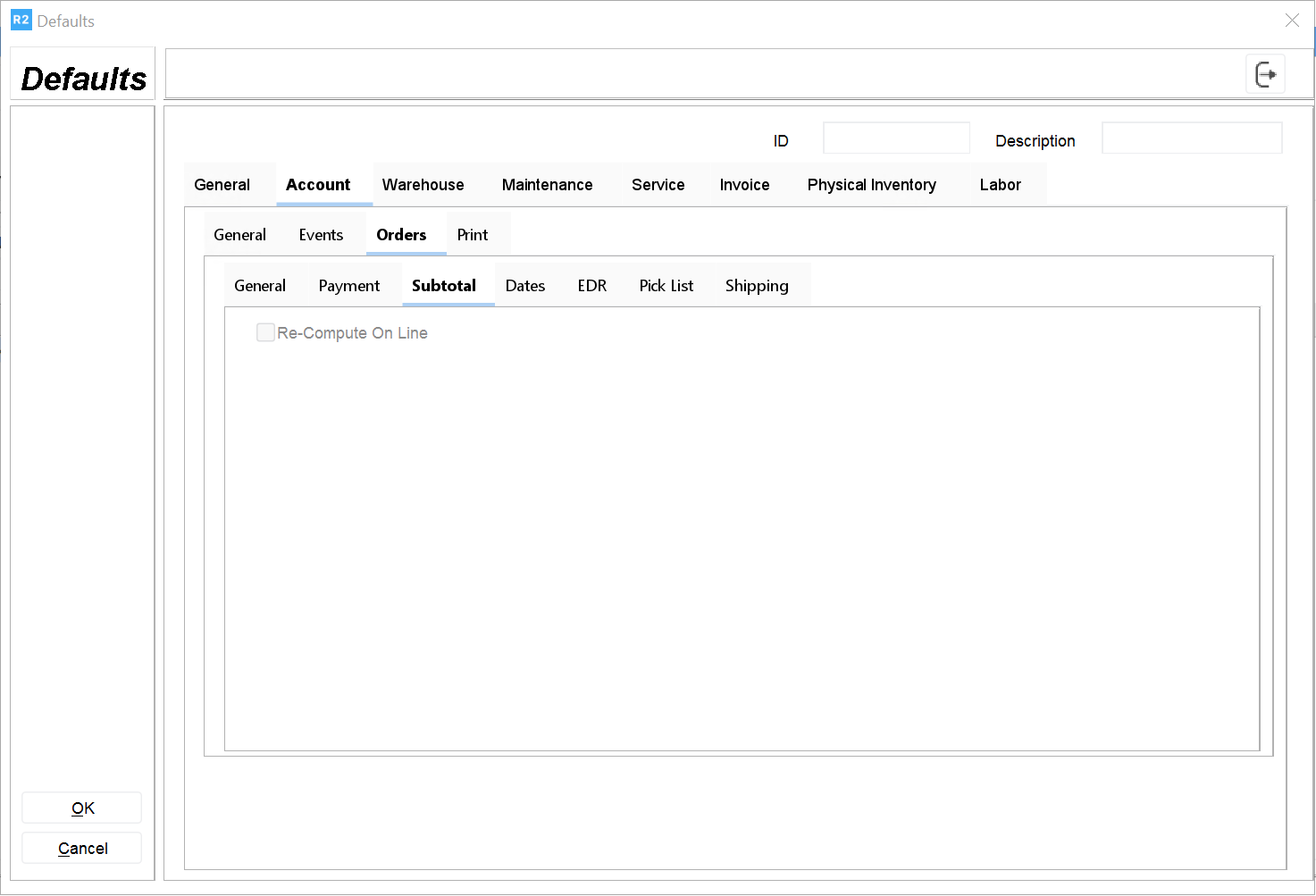
Account > Orders > Subtotal tab
Account > Orders > Dates tab
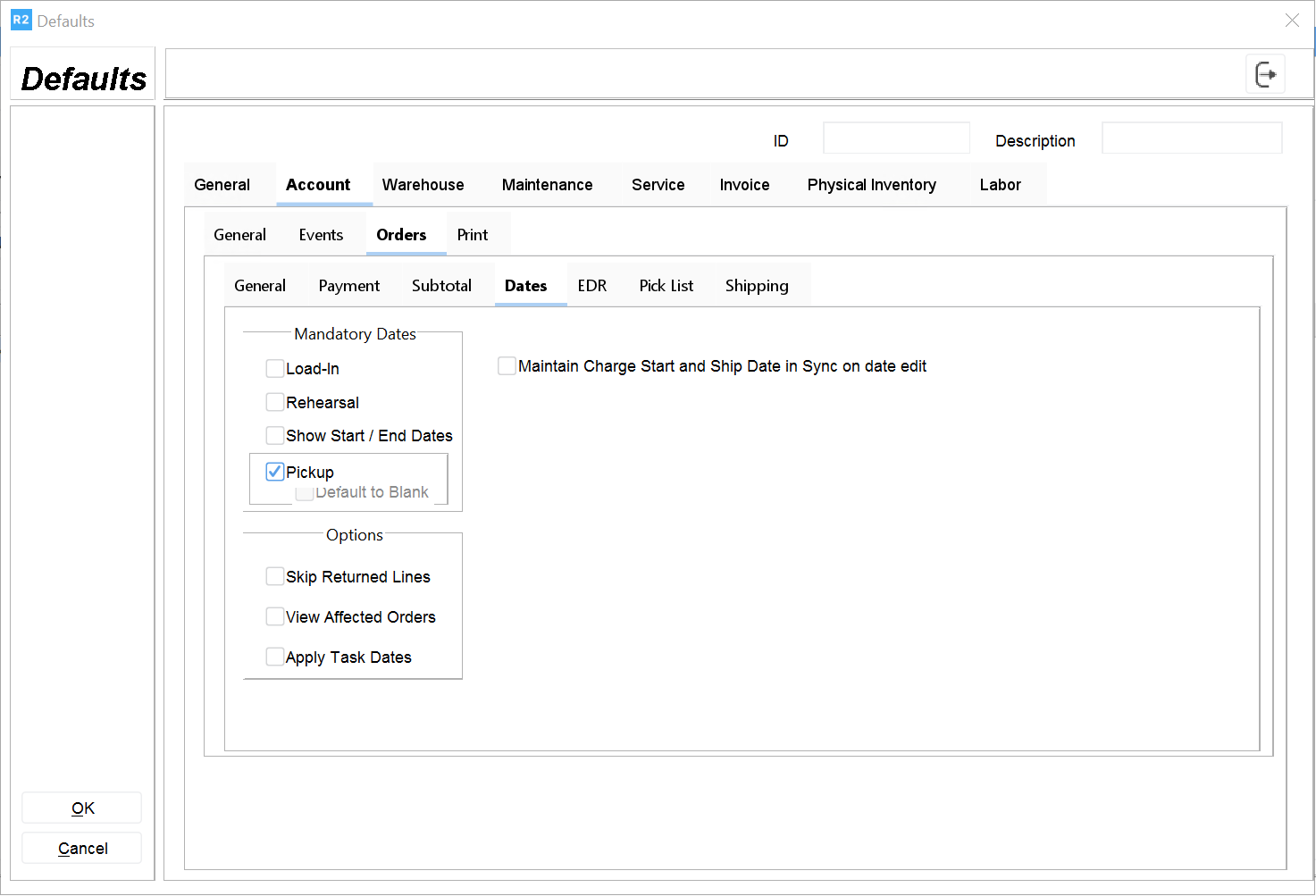
The following mandatory dates can be set Load-In Date
Rehearsal Date Show Start End Dates
Account > Orders > EDR tab
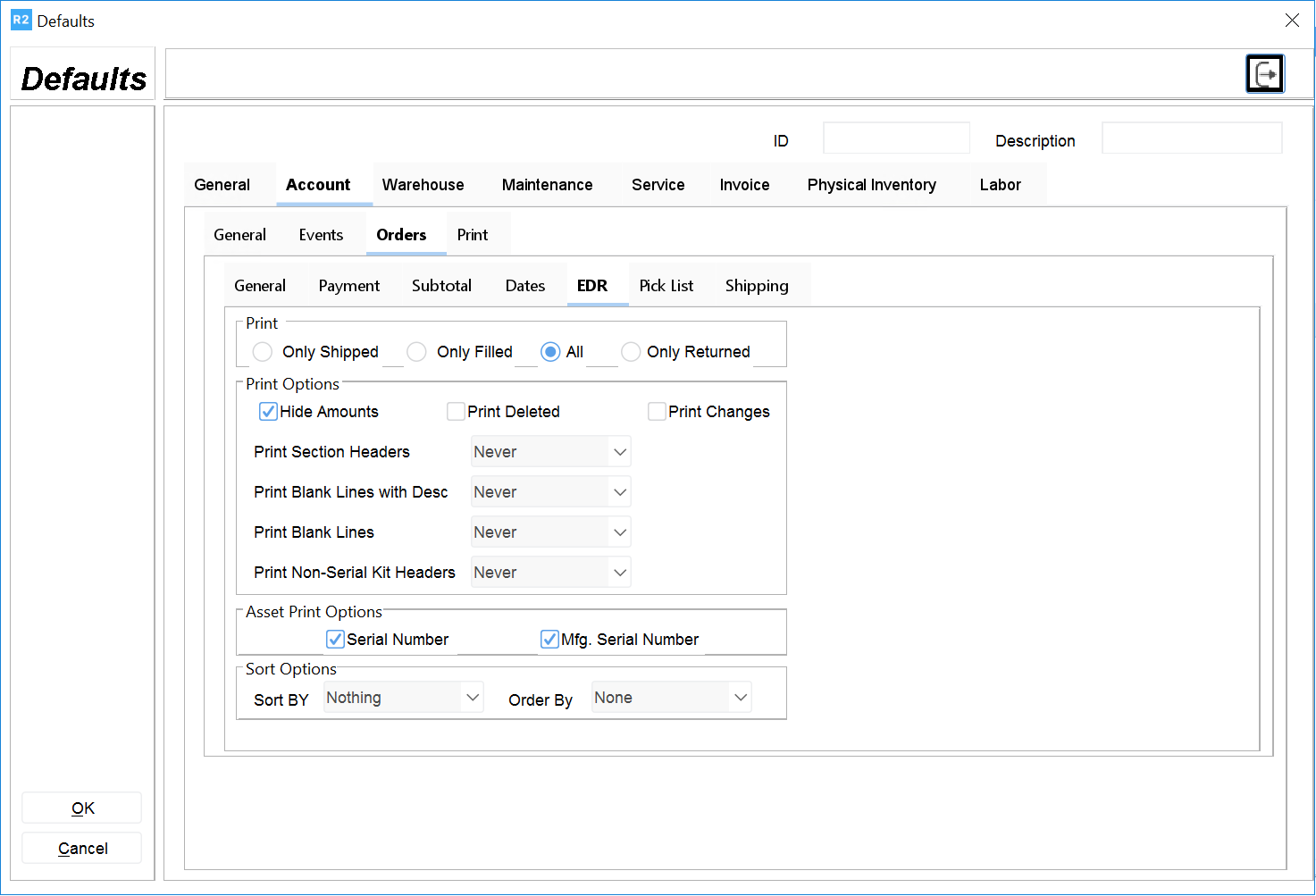
The selections below are used for defaults used on the delivery receipt.
Only Dispatched
Only Filled All
Hide Amounts
Print Deleted
Print changes
Serial Number
Mfg. Serial Number
Sort Options group box
Sort By offers the following defaults
Nothing
Product ID
Description
Department
Container
Priority
Order By with the following defaults
None
Ascending
Descending
Warehouse Tab
There are three tabs: Order Fill, Return Order and Dispatch.
Order Fill Tab
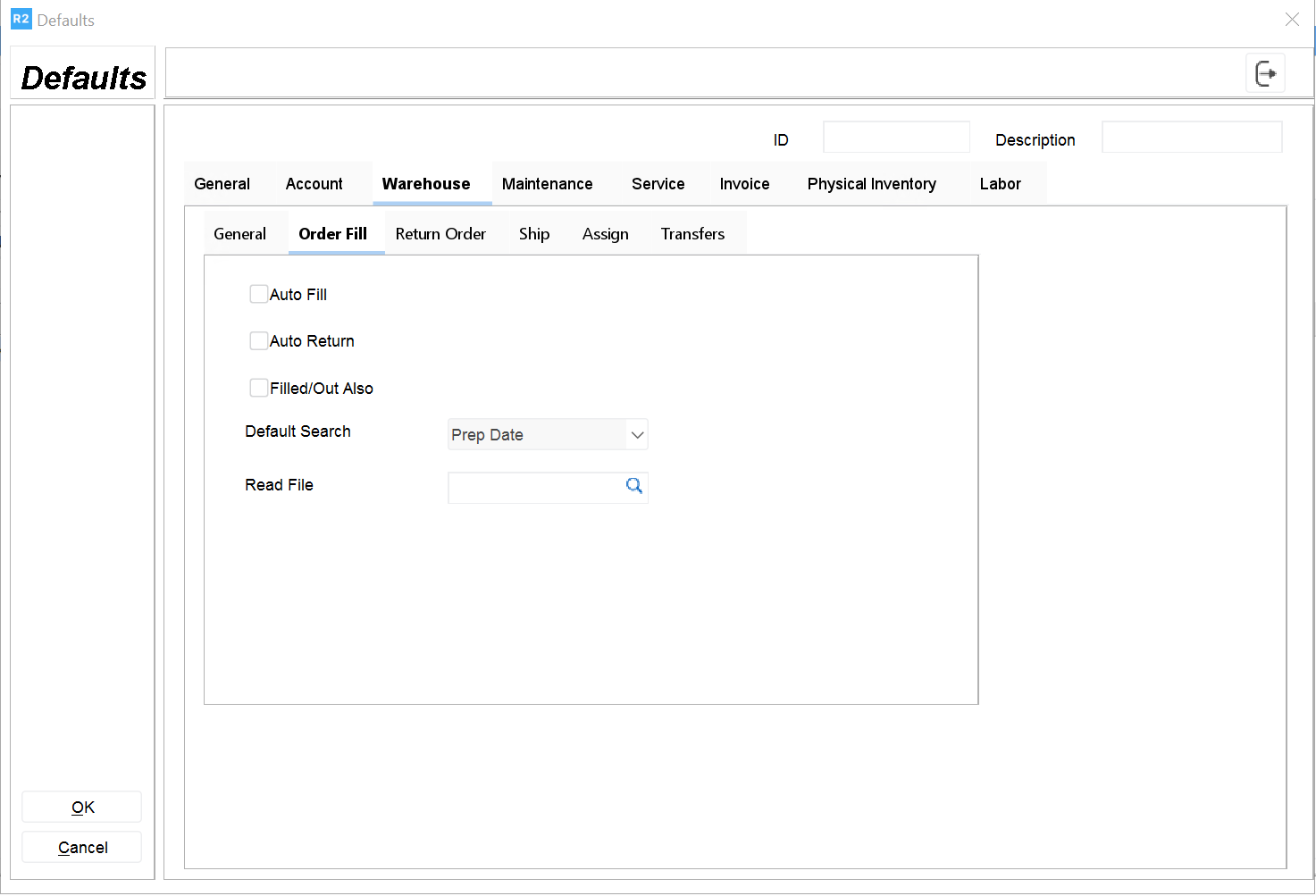
Auto Fill
Auto Return
Filled/Out Also
Default Search including the following choices:
Prep Date
Contract ID
Description
Site
Return Order Tab
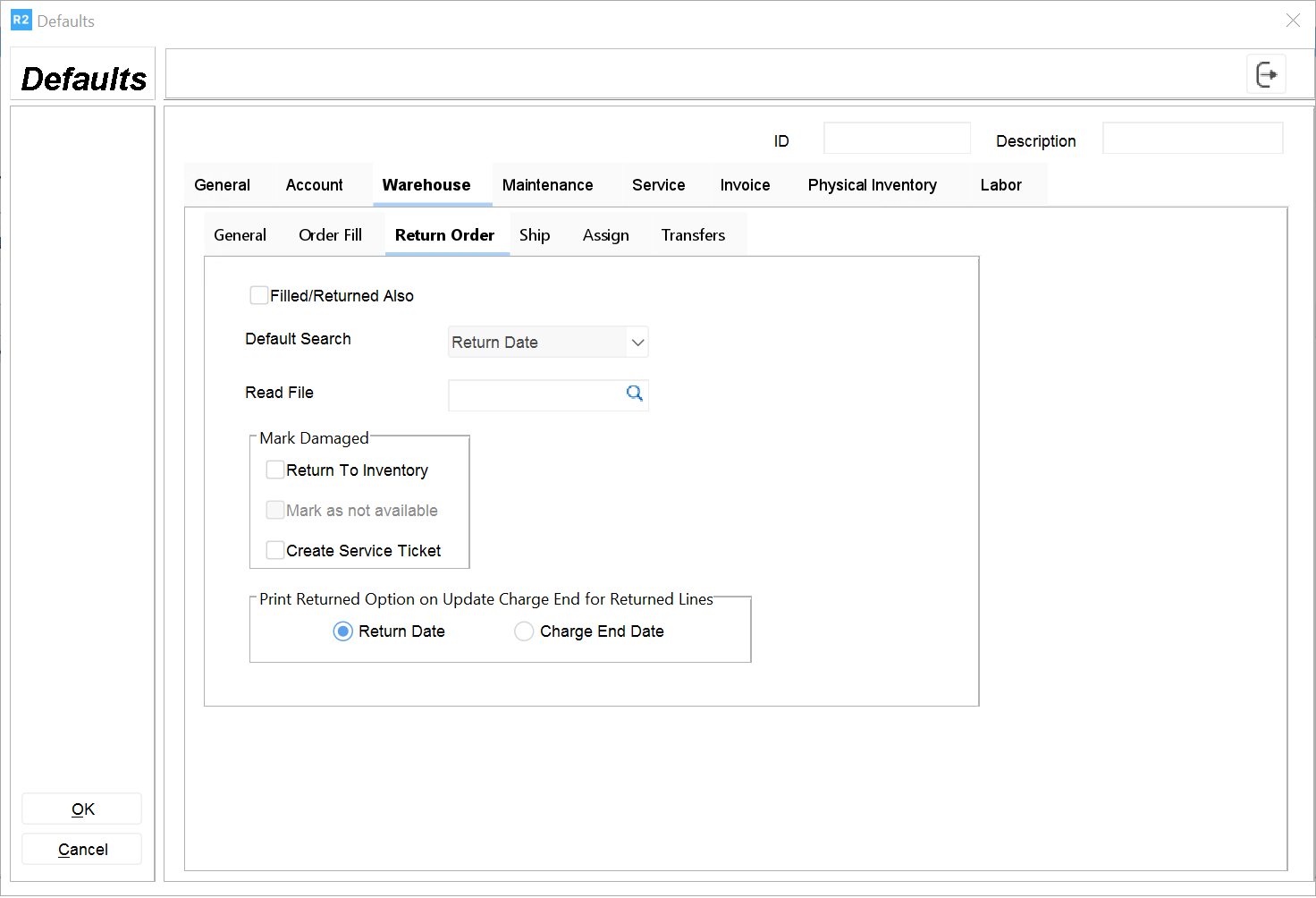
Filled/Returned Also
Default Search including the following choices:
Description
Contract ID
Pickup Date
Return Date
Ship Tab
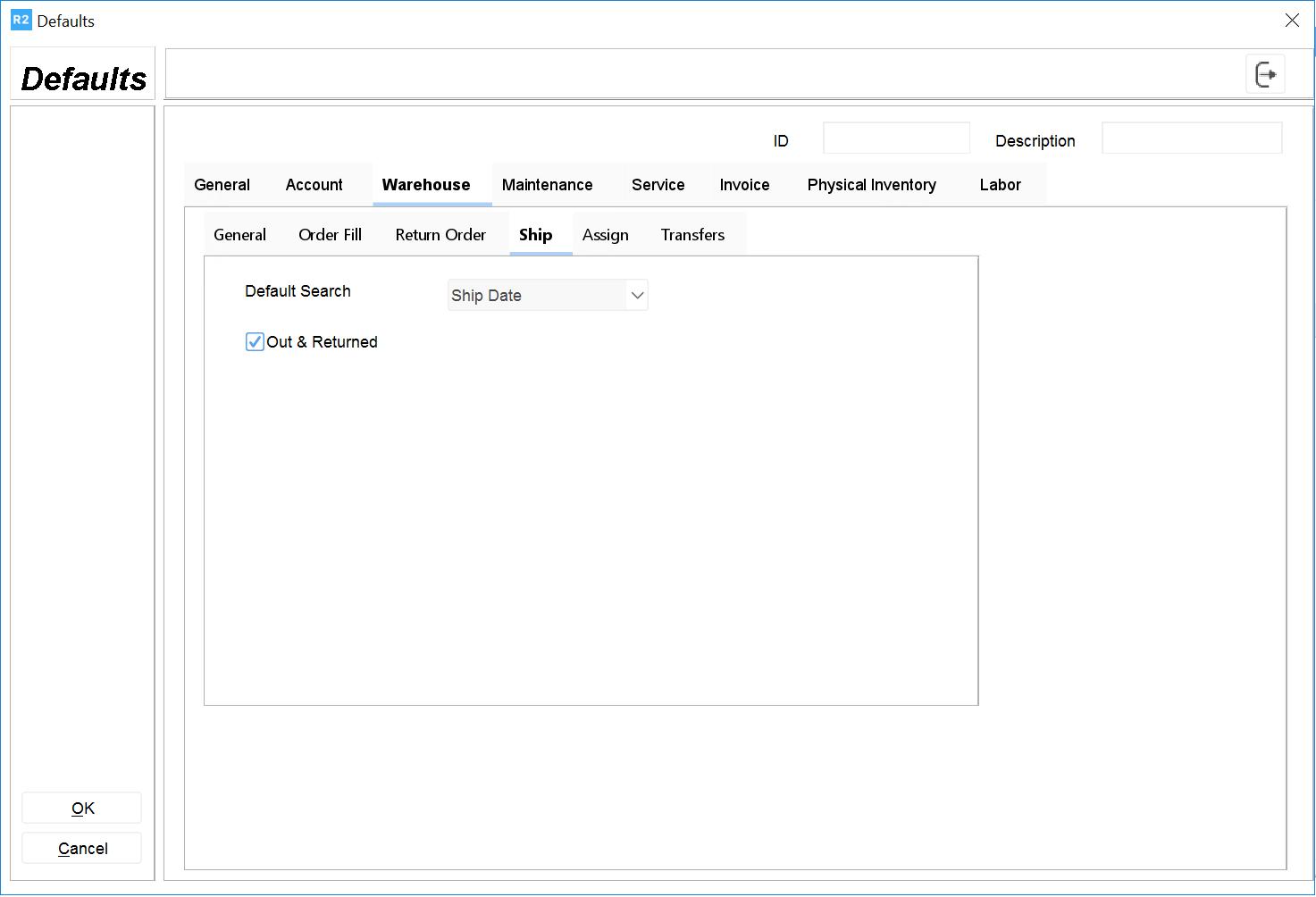
Default Search including the following choices:
Contract ID
Description
Ship Date
Pickup Date
Maintenance Tab
There are two tabs: Inventory and customer.
Inventory Tab
There are four tabs: Items, Packages, Misc and Labor
Maintenance > Inventory > Items Tab
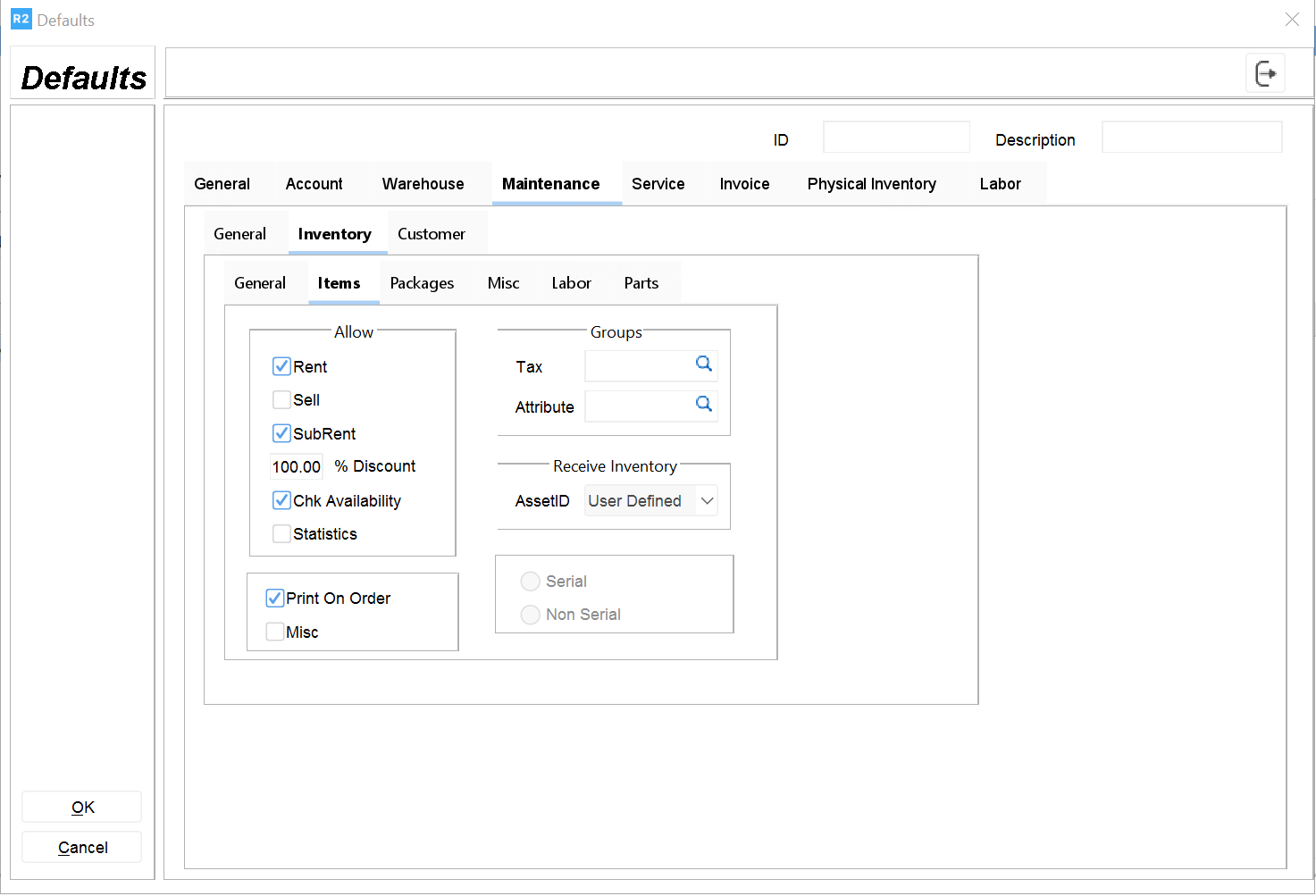
The allow group box offers the following default settings:
Rent
Sell
SubRent D
iscount
Chk Availability
Print On Order Misc
Tax
Attribute
Receive Inventory for Asset ID settings include
Auto
User Defined
Auto Seed
Serial:
not implemented
Non serial:
not implemented
Maintenance > Inventory > Packages Tab
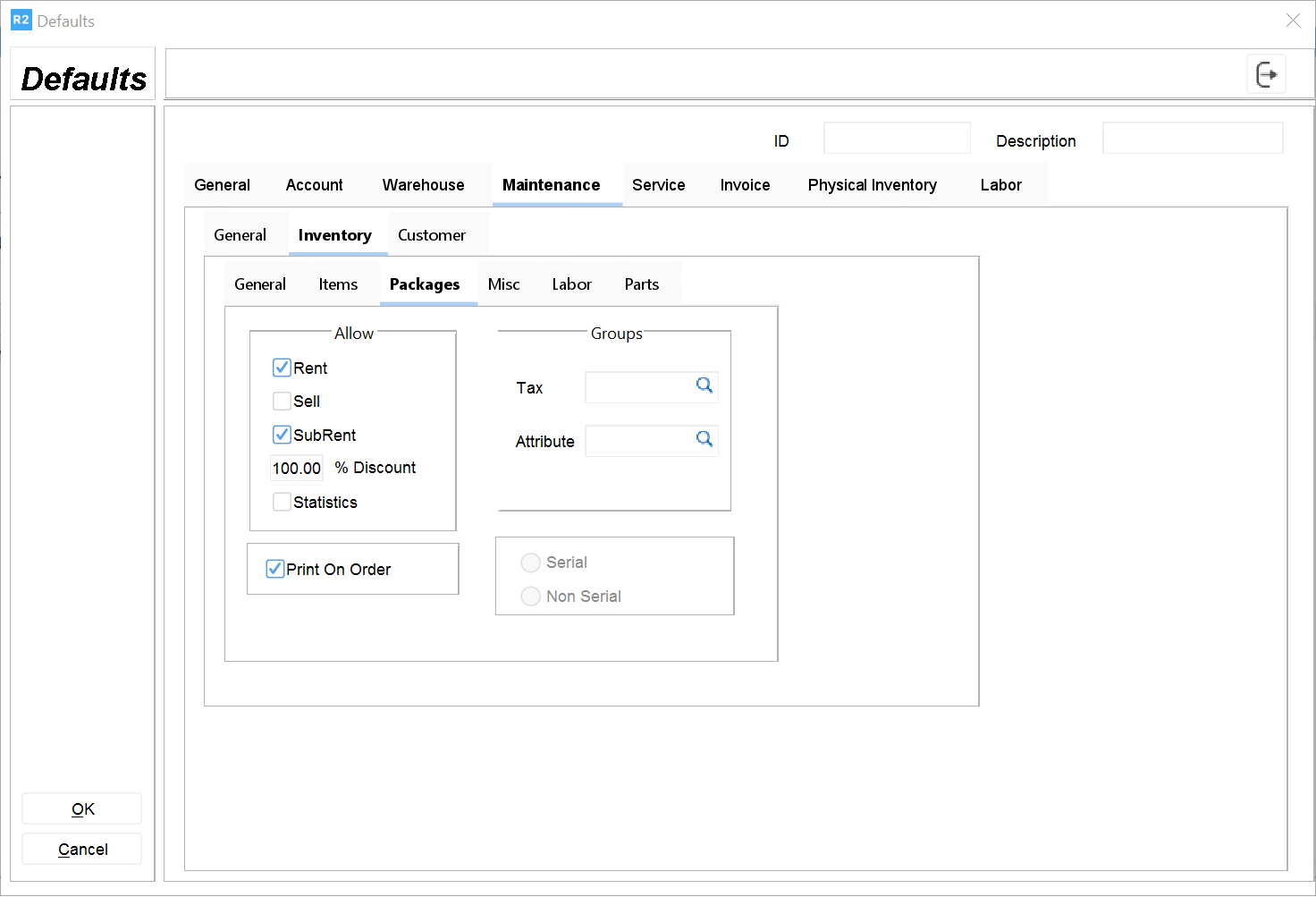
Defaults that set the allow fields are:
Rent
Sell
SubRent
Discount
Chk Availability
Print On Order
Tax
Attribute
Receive Inventory for Asset ID settings include
Auto
User Defined
Auto Seed
Serial:
not implemented
Non serial:
not implemented
Maintenance > Inventory > Misc Tab
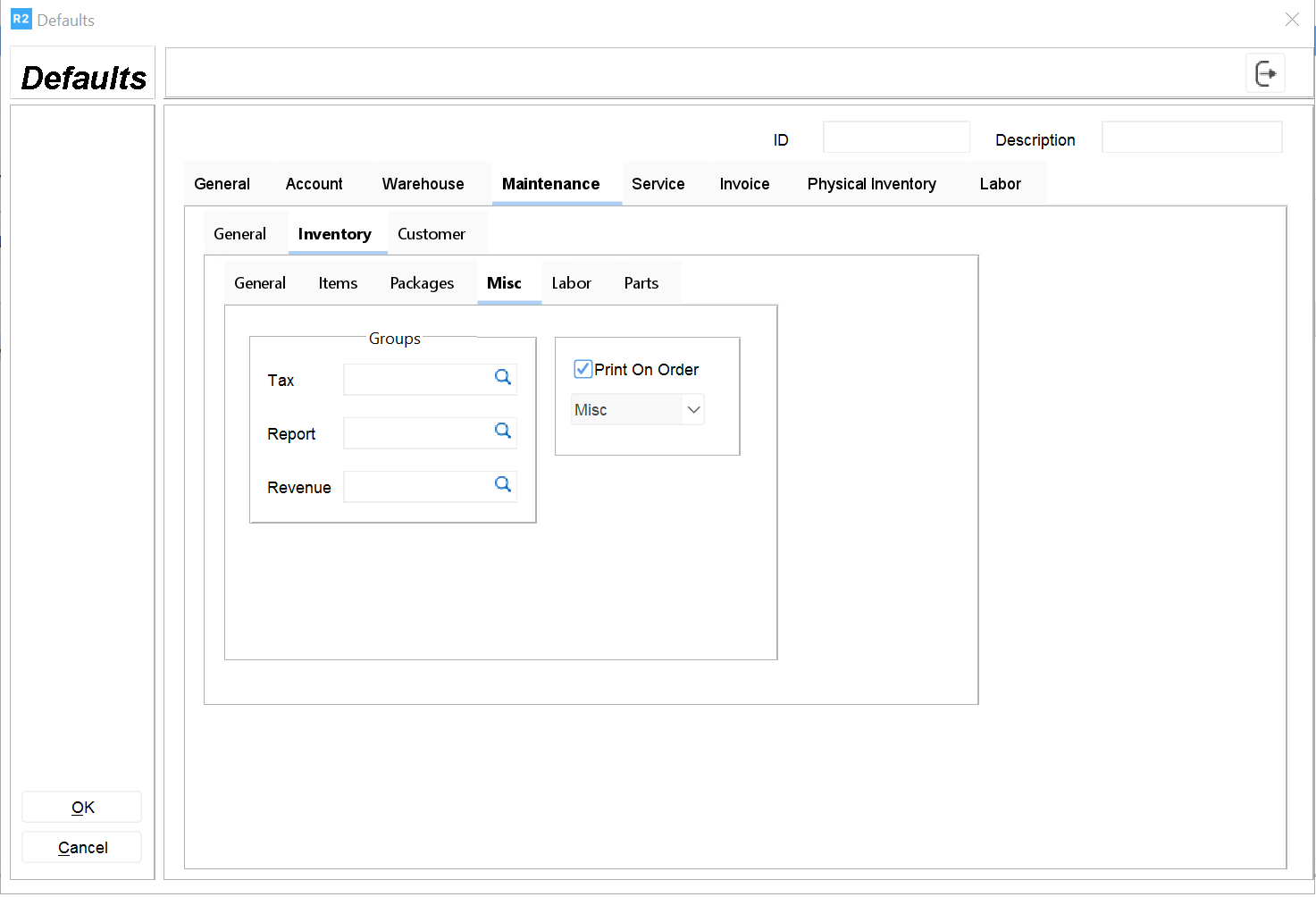
These defaults affect the miscellaneous charges
Tax
Report
Revenue
Print On Order
Freight
Maintenance > Inventory > Labor Tab
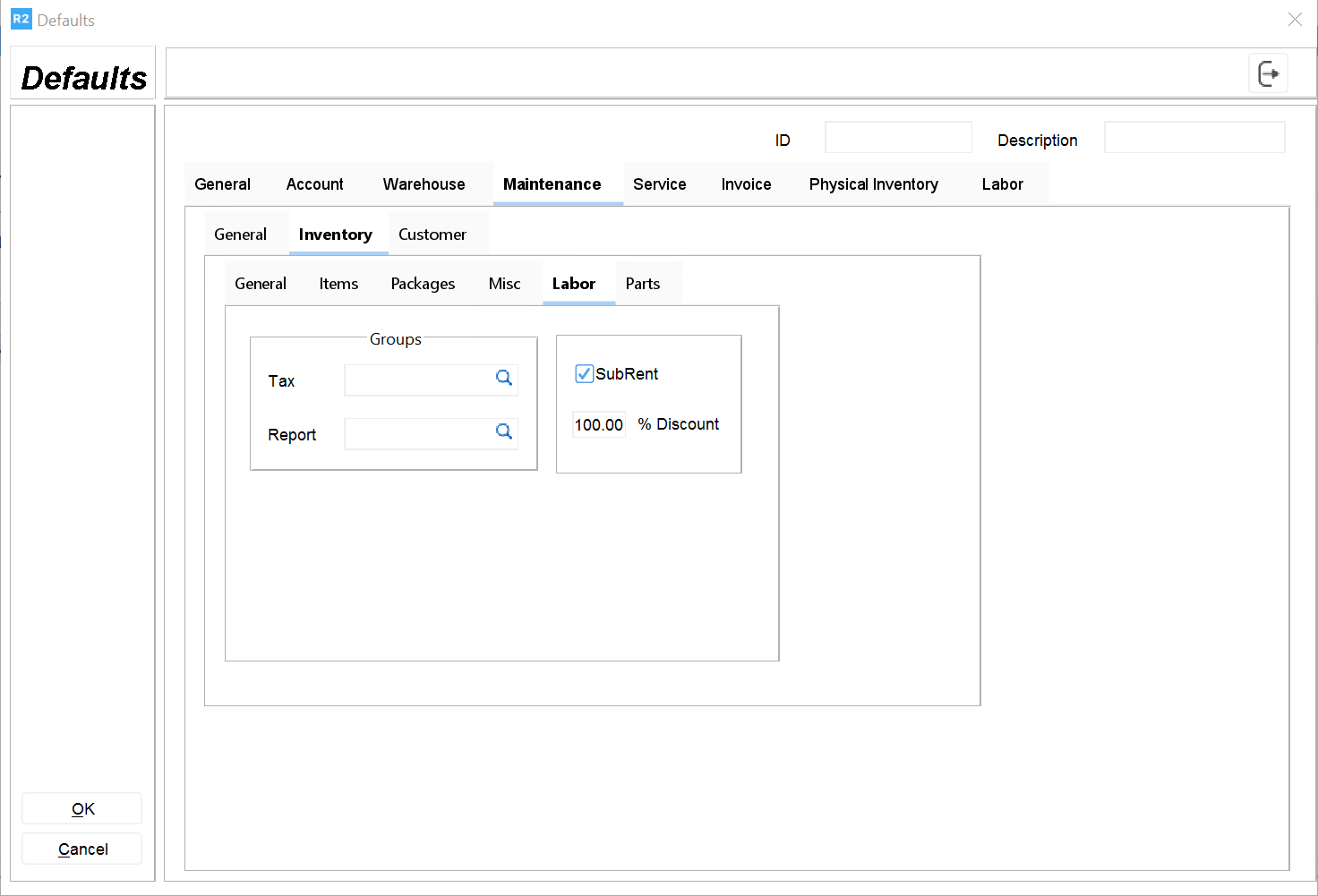
These are defaults for labor items.
Tax
Report
Revenue
SubRent
Discount
Customer Tab
There are three tabs: Individual, Customer and Company Maintenance > Customer > Individual Tab
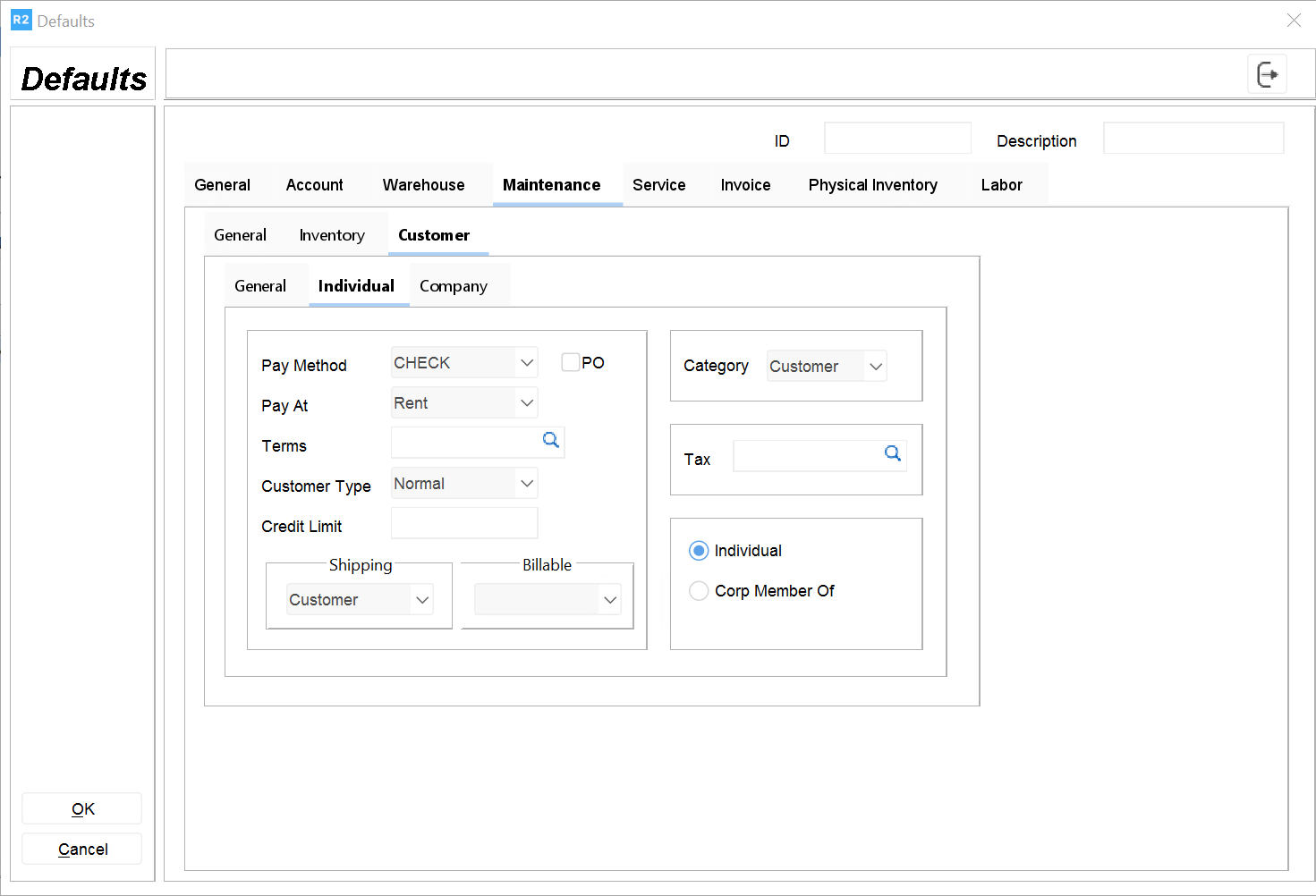
These are defaults for individual type customers.
Pay Method
Pay At
Billing Terms
Terms
Marketing group
Shipping method
PO
Billable
Vendor
Type including normal or privileged.
Tax
Master Bill
Corporate
Corp Member Of
Maintenance > Customer > Company Tab
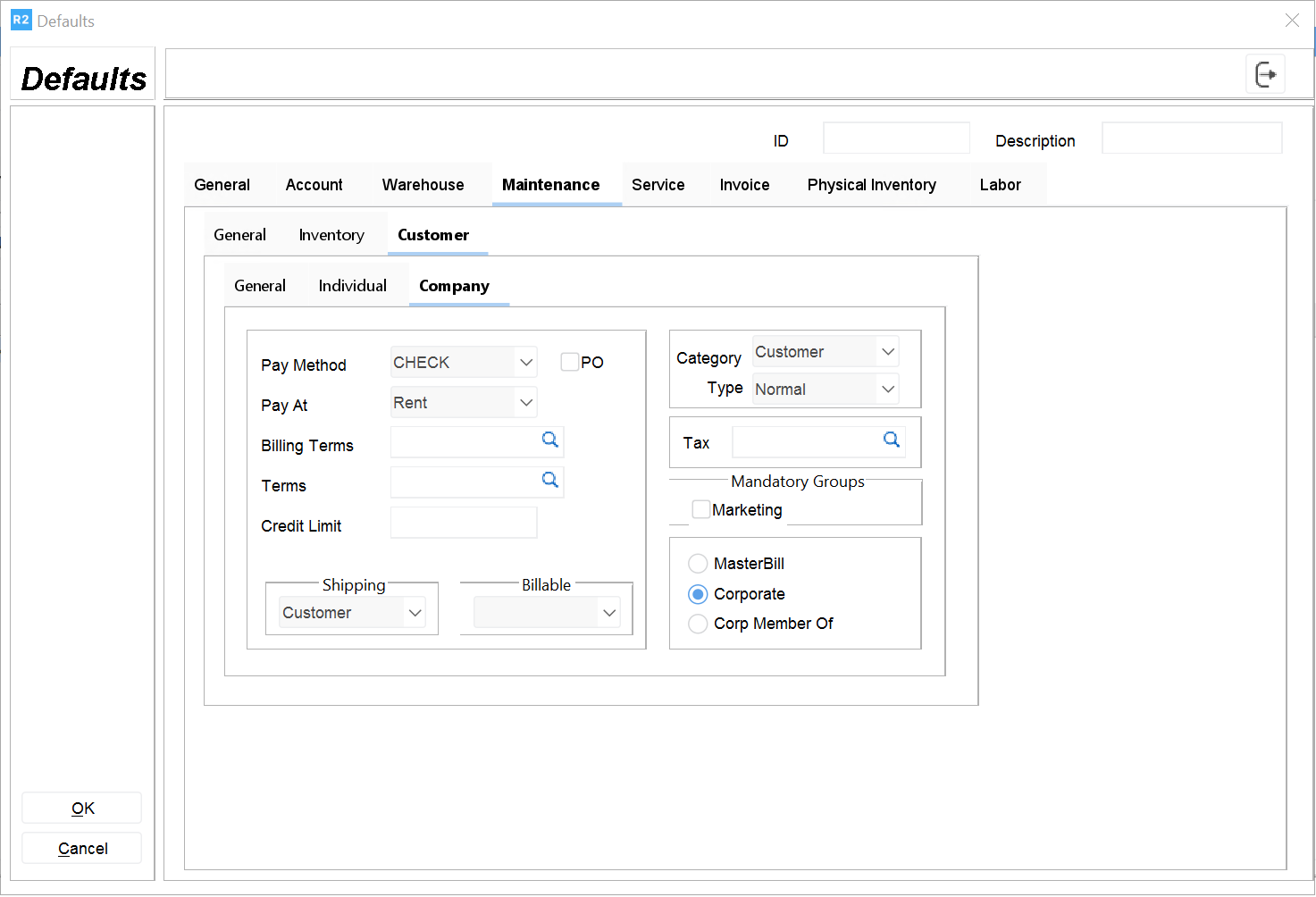
These defaults are for company type customers.
Pay Method
Pay At
Terms
Customer Type including normal or privileged
Shipping method
PO
Billable Vendor
Tax (ellipse) Individual
Corp Member Of
Maintenance > Customer > General Tab
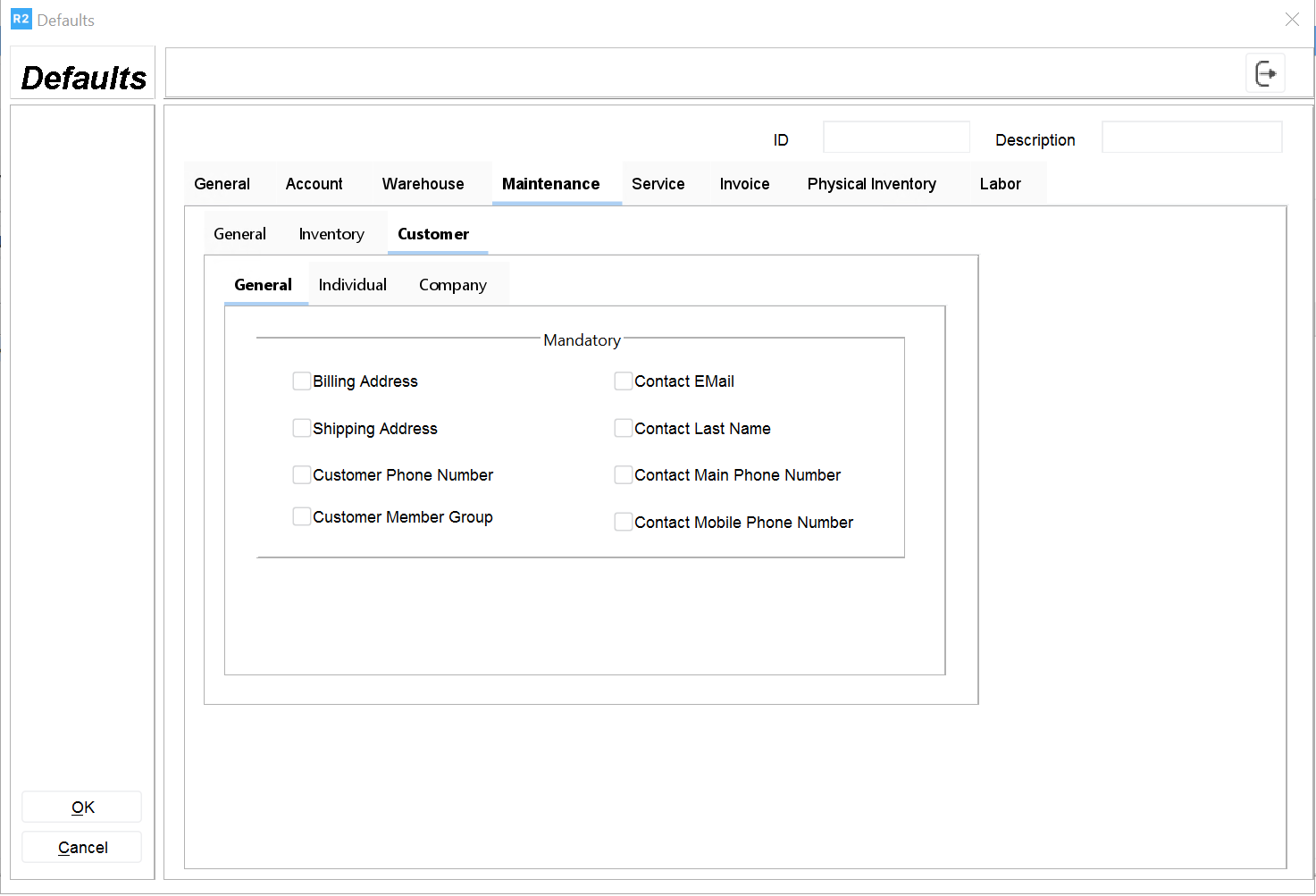
These defaults are common for both the individual and company type customers. Mandatory Addresses include
Billing Shipping
Mandatory Names include Contact, Last Name, Mandatory Phone Numbers, Customer Phone Numbers
Service Tab
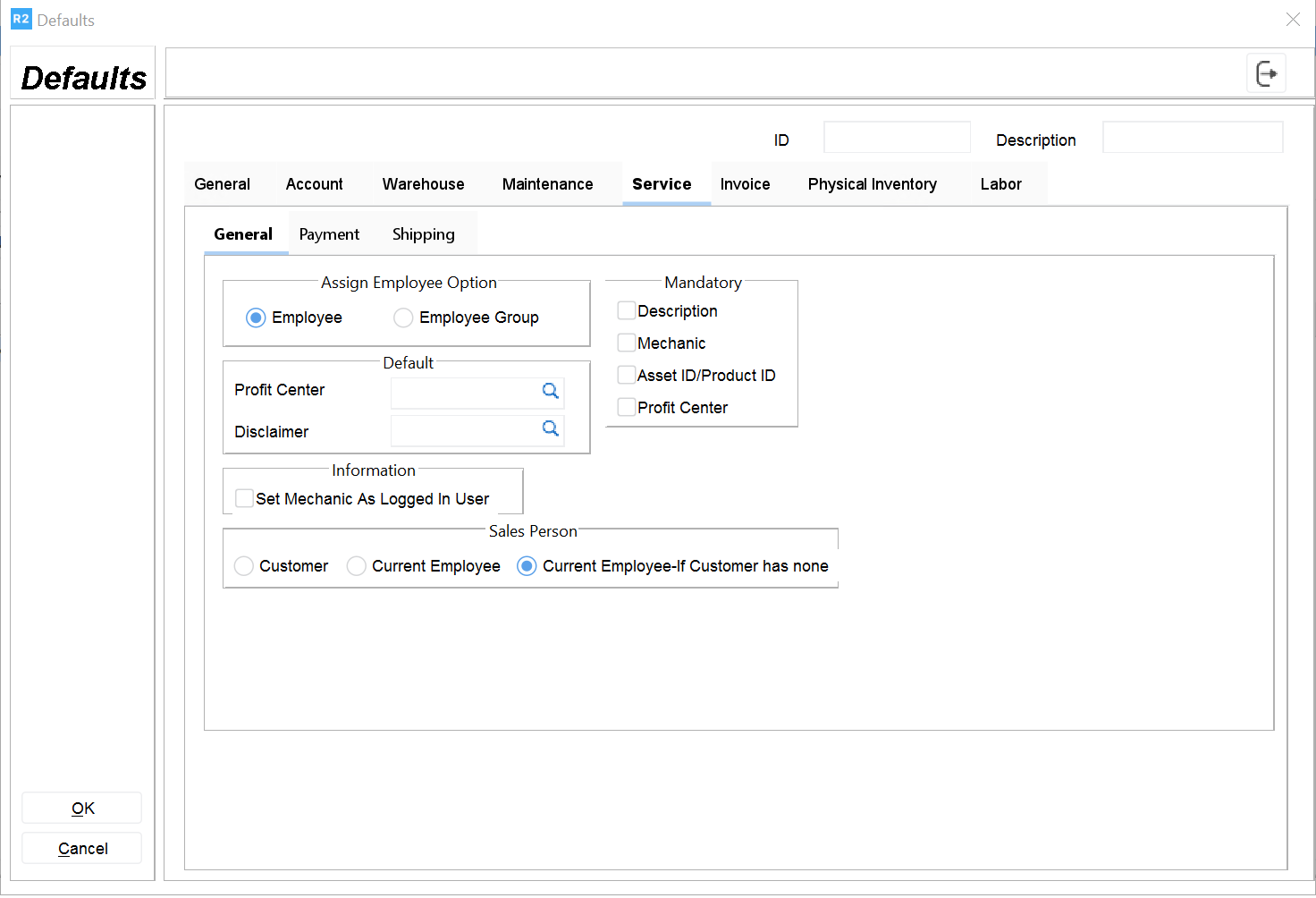
Assign Employee Option Group box
Employee
Employee Group