
Reference No: 29215
Details
Support for Split Labor lines per Qty and Updating the RT Hours in Order on adding Estimated Work Time / Assign Dates.
The details are explained in the sample workflow given below:
Sample Workflow
-
Select the Configuration module.
-
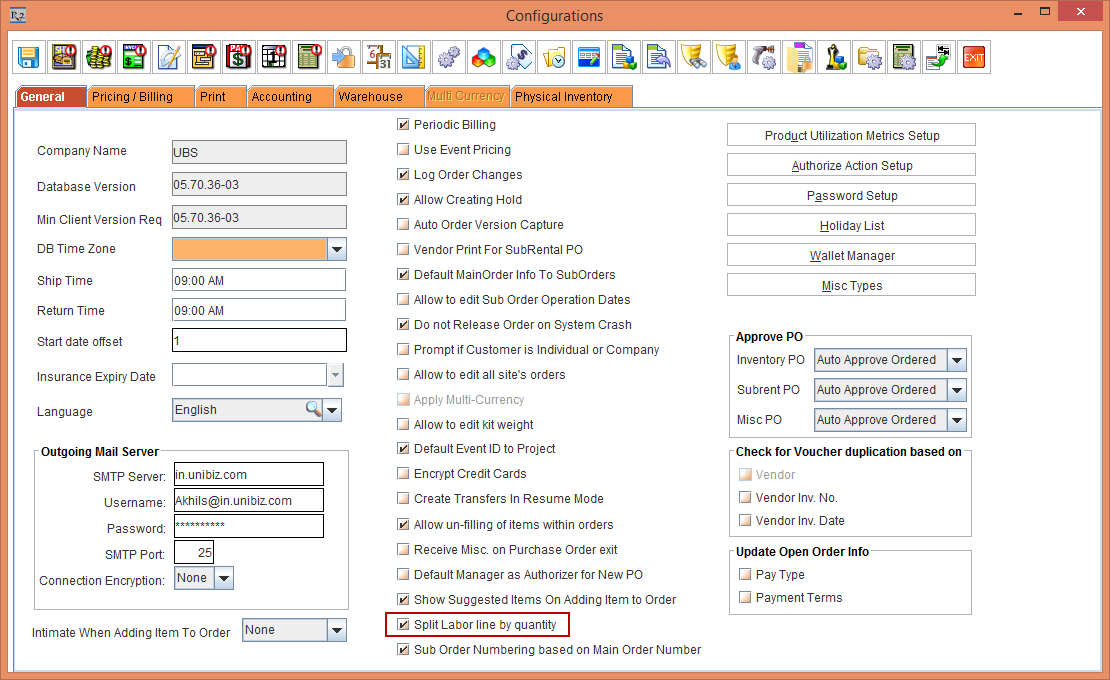
Select the Split Labor line by quantity check-box as shown in Figure 1.0.
-
Save and exit the Configuration module.
-
Select the Account module.
-
Create an Order [ORD-098].
-
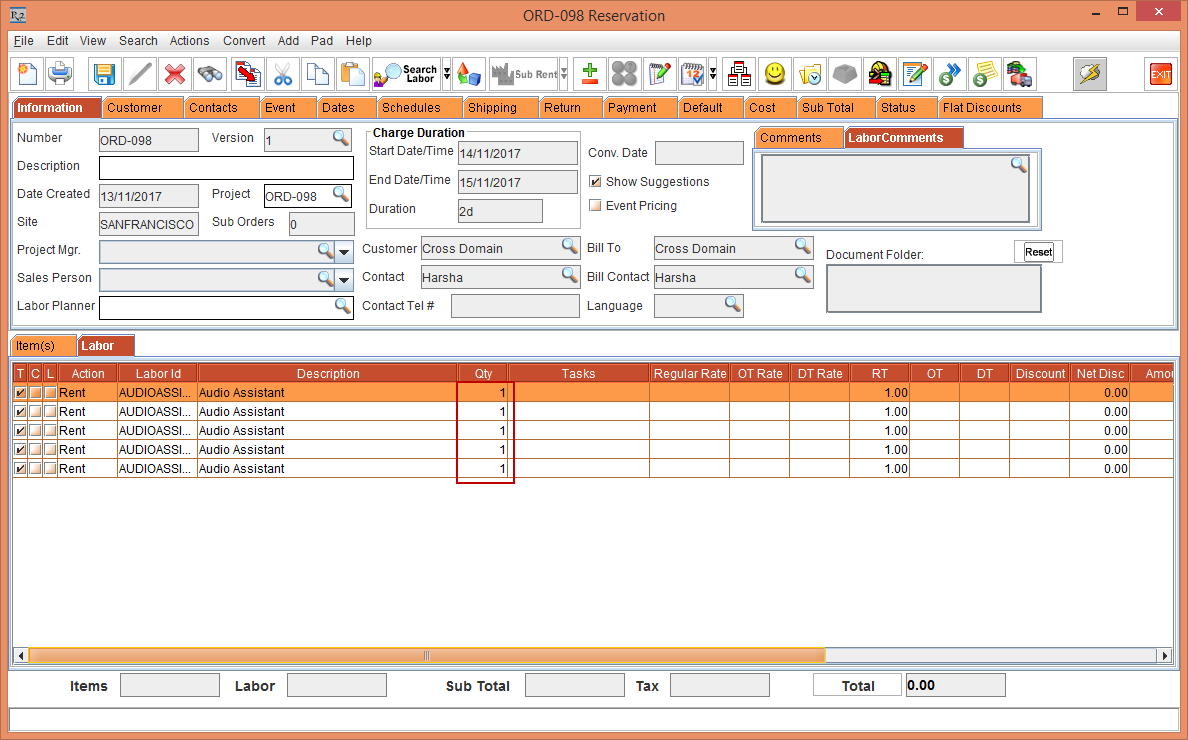
Add an Labor [AUDIOASSIST] with 5 Qty. Each Qty for selected Labor [AUDIOASSIST] will appear in separate line as shown in Figure 1.1.
NOTE: If Split Labor line by quantity check-box is clear in Configuration module then complete Qty for Labor will appear in single line.
-
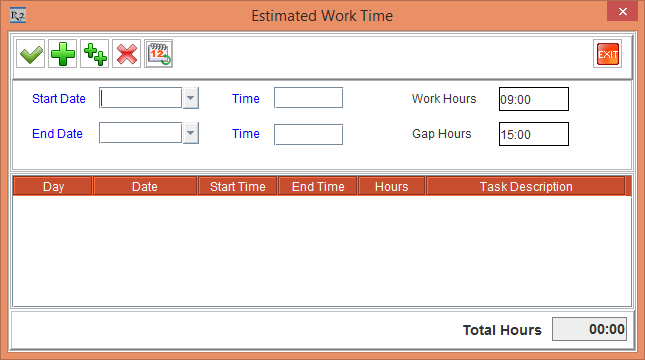
Select a Labor Line > click the Assign Dates button > the Estimated Work Time window is displayed as shown in Figure 1.2.
-
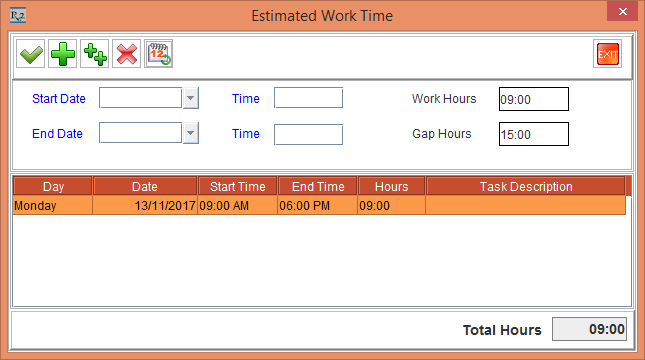
Click the Add New Line button as shown Figure 1.3.
-
Click the OK button.
-
The RT Hours added in Estimated Work Time is added to selected Labor line as shown in Figure 1.4.
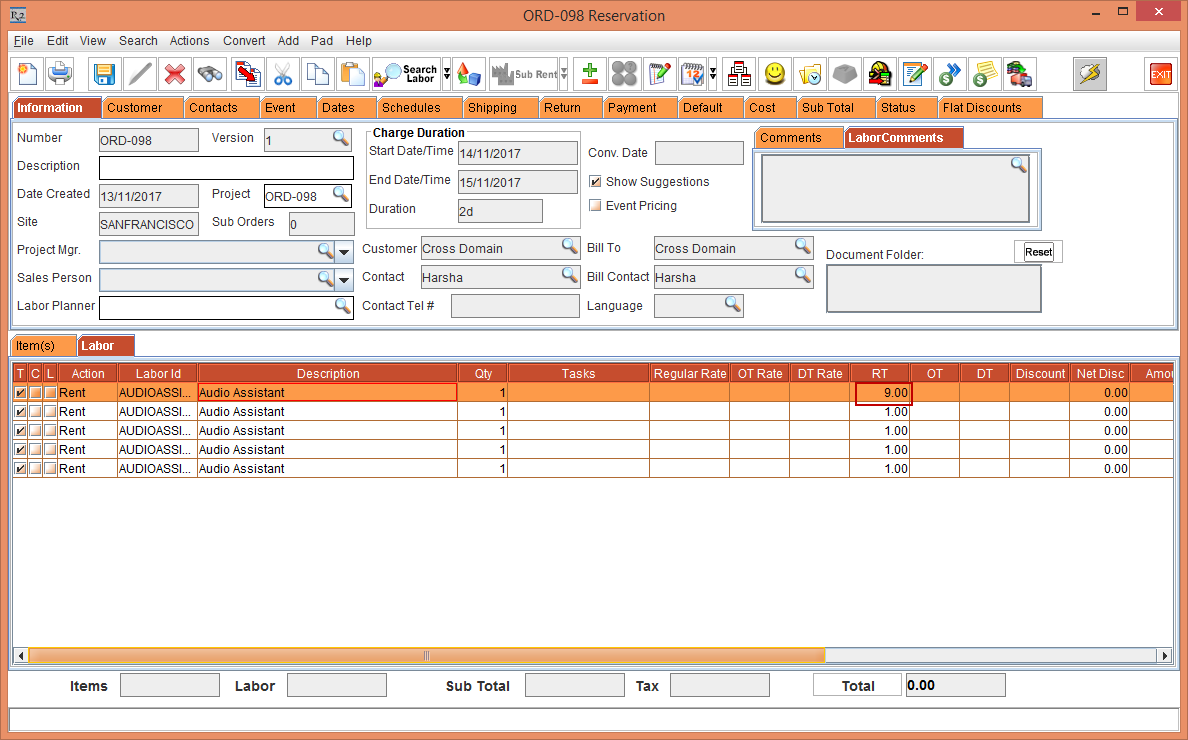
RT Hours can be updated by adding a Schedule from Schedules tab and by right-clicking the Labor line and selecting Assign Dates.