Table of Contents
Logging In: Using Microsoft Remote Desktop
Logging In
How to access the R2 Server via Remote Desktop (RDP)
Each user will be provided with a unique username and password to login into the application server from where you can access R2.
Click on the Start button and open Remote Desktop Connection.
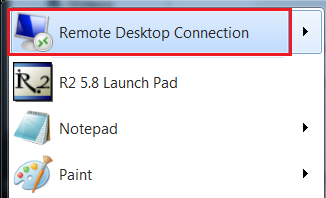
In the Computer field, enter the computer name provided by your R2 project manager or system administrator. Click on the Connect button.
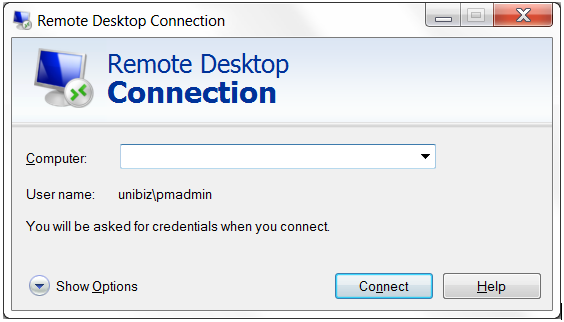
Logon with the user name provided by your R2 project manager or administrator.
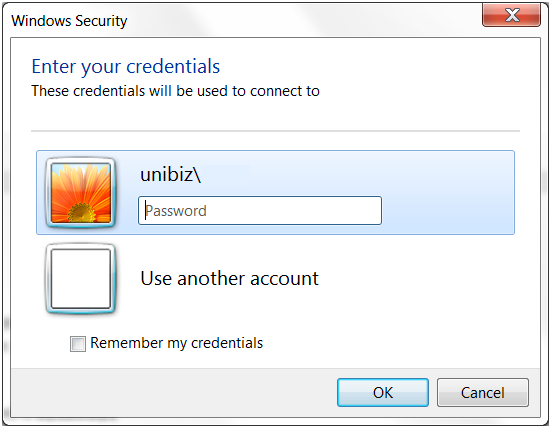
-
Enter the provided Password and click Ok
Log into R2
After connecting to the Application server, you will be at the Application server desktop. You will see two R2 icons on the desktop. The two instances of R2 (schemas) have separate databases and are not linked. All instructions in this manual, apply to both R2 instances.
|
Icon |
What it does |
|---|---|

|
This logs you into the Test system of R2 |

|
This logs you into the production system of R2 |
-
Double click the R2 icon of the system you wish to log into
-
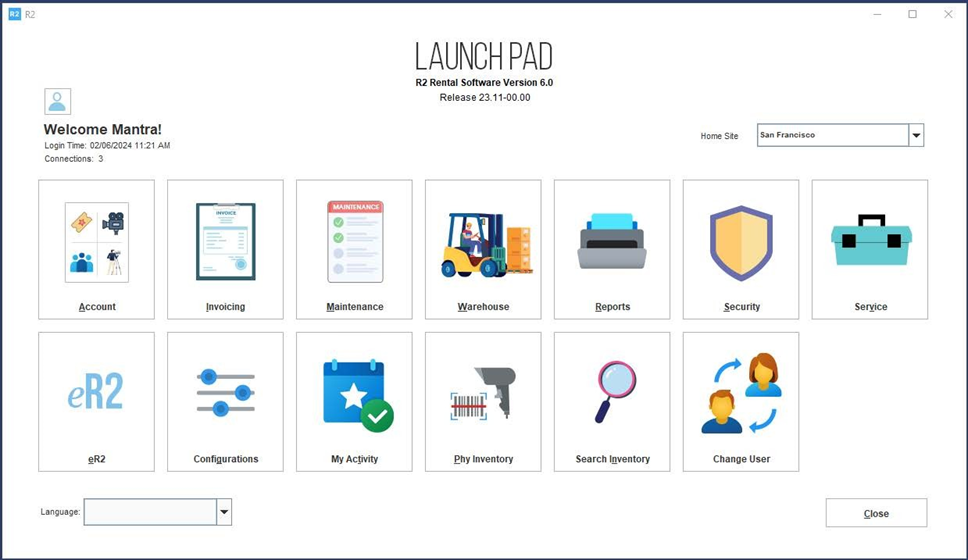
The Launch Pad appears
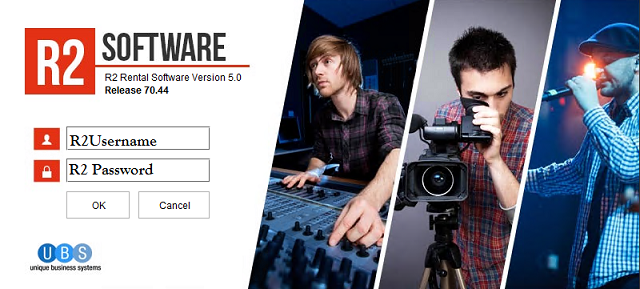
-
Enter the R2 Username as provided by the R2 administrator
-
Enter the R2 password as provided by the R2 administrator
Upon the first-time login, R2 may prompt you to change the R2 password. Enter the default password and then your new password of choice. Please see your R2 administrator if you experience difficulties logging into R2
The R2 Launch Pad now appears (indicating you have successfully logged into R2)