
Table of Contents
QuickBooks Integration Steps
Exporting Invoices from R2 To QuickBooks
This process is done from the invoicing module in the receivables tab.
-
Create a new batch and add invoices to be posted
-
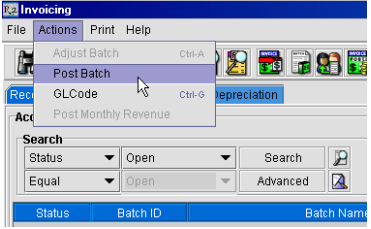
In the Invoicing Module go to Actions > Post Batch
-
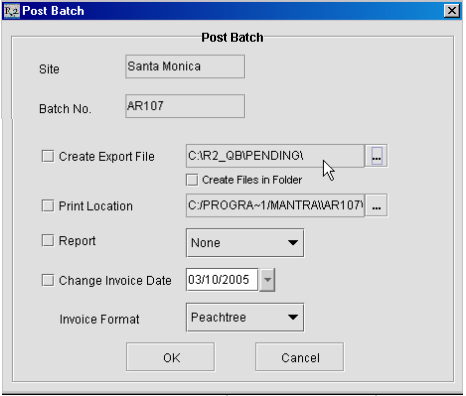
The Post Batch dialog box will open. Select the path to the Pending folder where the export files will be saved and select Peachtree for Invoice Format. (Although this is QuickBooks integration, the Peachtree files are QuickBooks compatible)
-
The export files R2 will create are Customer.csv and Sales.csv
Integration
-
Run the R2QB2.exe
-
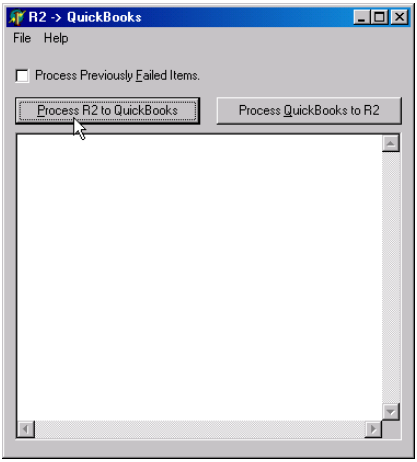
The following window will open
-
Click the Process R2 to QuickBooks button.
The QuickBooks integration will run. It will process the Customer.csv and Sales.csv files. If the integration is successful it will move the files to the Processed folder. If the integration fails it will move the files to the Failed folder.
When the integration finishes successfully you will be able to see the invoices in QuickBooks.
Exporting Payments from R2 to QuickBooks
Step #1
-
This process is done from the invoicing module, in the payments tab.
-
Create a batch and add payments to be posted.
-
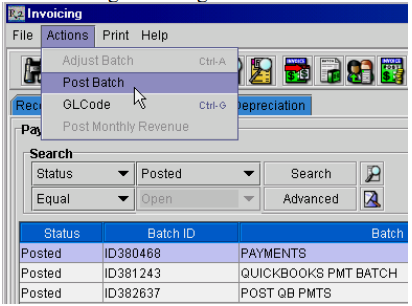
In the Invoicing Module go to Actions > Post Batch
-
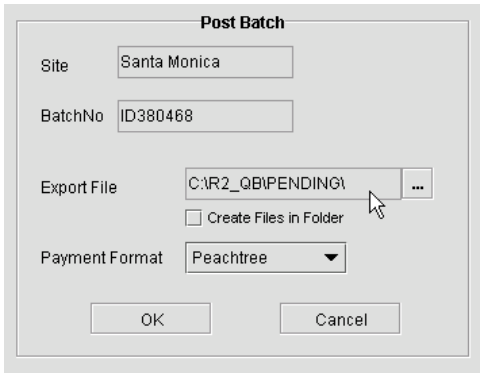
The Post Batch dialog box will open. Select the path to the Pending folder where the export files will be saved and select Peachtree for Payment Format. (Although this is QuickBooks integration, the Peachtree files are QuickBooks compatible)
-
The export file R2 will create is payments.txt
Step #2
-
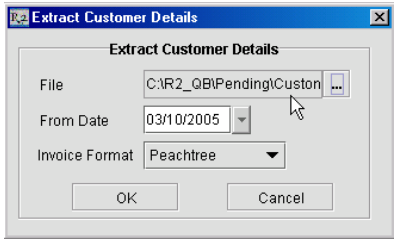
This process is done from the invoicing module by clicking on the Extract Customer Details icon

-
The Post Batch dialog box will open. Select the path to the Pending folder where the export files will be saved and select Peachtree for Invoice Format. (Although this is QuickBooks integration, the Peachtree files are QuickBooks compatible)
-
R2 will create the export file Customer.csv
Integration
-
Go to the Pending folder
-
Open the Customer folder
-
Copy the Customer.csv file to the Pending folder
-
Run R2QB2.exe

-
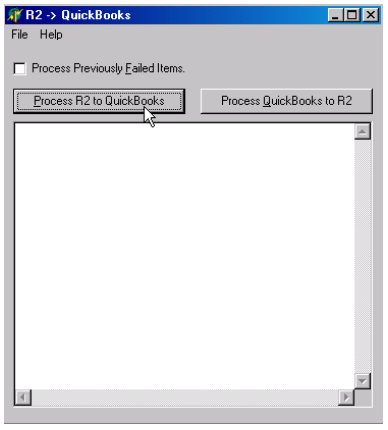
The following window will open:
-
Click the Process R2 to QuickBooks button.
The QuickBooks integration will run. It will process the Customer.csv and Sales.csv files. If the integration is successful it will move the files to the Processed folder. If the integration fails it will move the files to the Failed folder.
When the integration finishes you will be able to see the payments in QuickBooks.
Exporting Invoice Payments from QuickBooks to R2
-
After applying payments in QuickBooks run R2QB2.exe

-
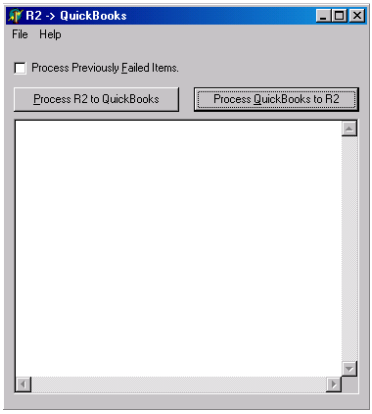
The following window will open
-
Click on Process QuickBooks to R2
-
An Export1 and Export2 file will be created in the location you set when setting up the R2QB2.exe
-
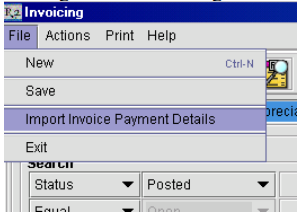
In R2 go to the Invoicing Module>File>Import Invoice Payment Details
-
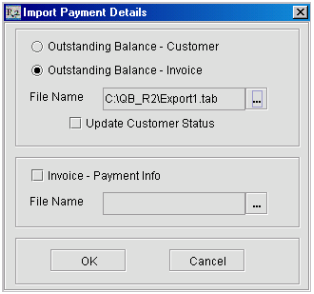
Select the location of Export1
-
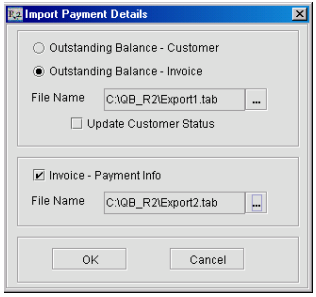
Select the location of Export 2
-
Click OK
-
The payments will be applied to the invoices in R2 and the customer balance due will be updated.