
This section covers the process that will help you return items when you do not know which order they were rented from.
From the R2 Launch Pad click on the Warehouse button.
From the Account screen, click on Search → Items.
Using the search criteria of Product ID or Description to locate the item.
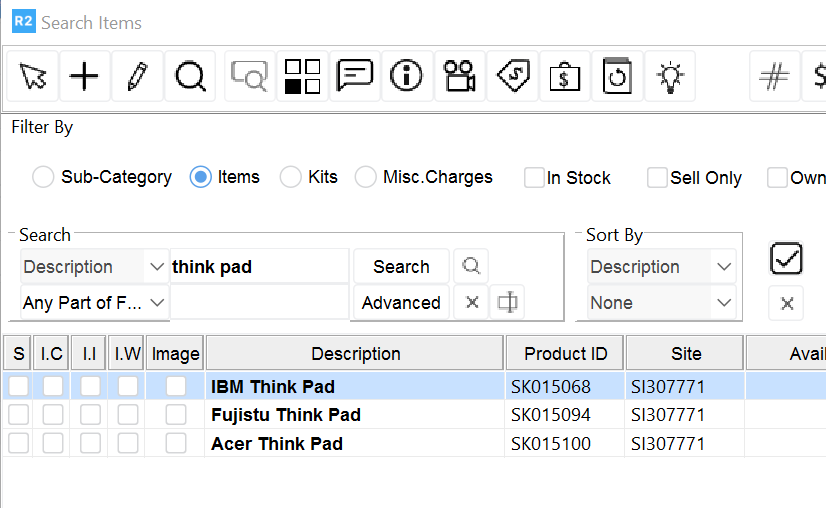
Highlight the product you wish to return and click on the Availability 
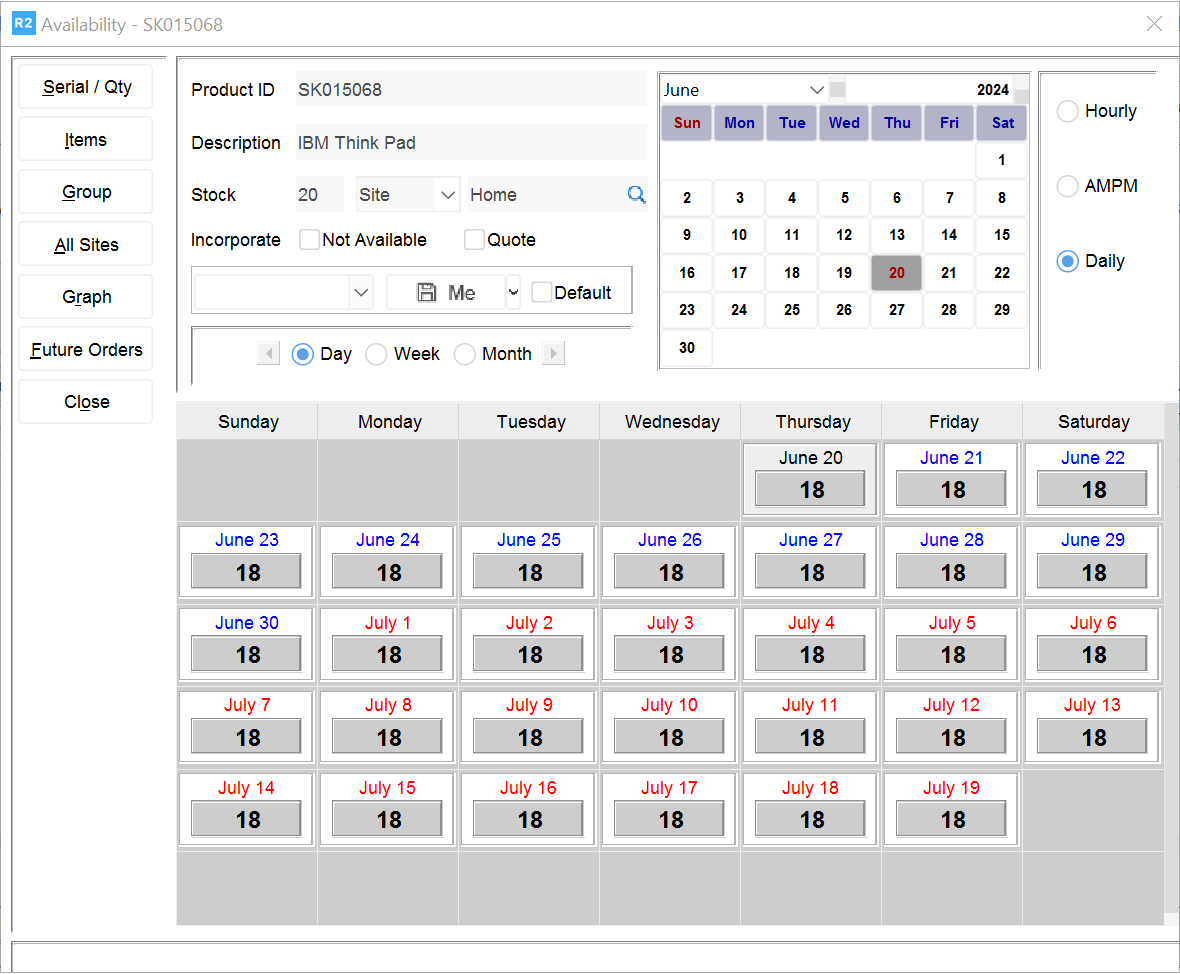
Click on the date button for today’s date.
Next click on the “Out” button:
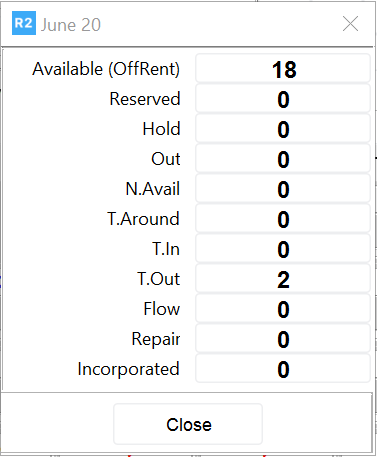
You will see the order(s) that item is out on:

Exit back to the main Warehouse screen and search for the Return order:

Open the Return task and return the item.