
Overview
R2 calculates product average cost using the Perpetual Moving Average Cost (MAC) method, commonly referred to as Perpetual Weighted Average Cost or Running Average Cost.
Average Cost for an item is maintained at the Site level, ensuring that inventory cost is tracked independently for each site.
The Owned Quantity and Average Cost calculation in R2 is designed to ensure consistent and reliable inventory valuation across all inventory operations:
-
Owned Quantity is maintained as a stored value
-
Average Cost is maintained directly instead of being derived
-
A consistent calculation method is applied across all inventory transactions
The updated logic is applicable across:
-
R2 UI
-
R2 API
-
PackNShip
-
Warehouse and related modules
-
Data Conversions
Average Cost Calculation
For all cost-impacting receive scenarios, the system calculates Average Cost using the moving average cost formula:
|
Average Cost = (Old Owned Quantity × Old Average Cost + Incoming Quantity × Incoming Cost) / (Old Owned Quantity + Incoming Quantity) |
|---|
Average Cost Update Behavior
Average Cost is updated for specific scenarios:
-
New Stock Receive (Purchase Order / Physical Inventory / Receive Batch / Item Edit etc.) → Recalculated
-
Inventory Transfer In → Recalculated
-
Manual Edit → Average Cost Overridden
Average Cost remains unchanged for:
-
Sale / Issue
-
Retire / Lost
-
Return Sold
Owned Quantity Update Behavior
Owned Quantity is updated based on inventory actions:
-
Receive → Increase
-
Transfer In → Increase
-
Transfer Out → Decrease
-
Sale / Retire / Lost → Decrease
-
Return Sold → Increase
Owned Quantity remains unchanged for:
-
Missing
-
Normal / Jell-o-shot Transfers
System Behavior
-
Total Cost is derived with the formula: Total Cost = Average Cost × Owned Quantity
-
Ensures consistency across all modules and transactions
-
Prevents negative or inconsistent cost values
Sample Workflow – Stock Receive
This sample workflow explains how new stock receipt affects the Owned Quantity and Average Cost.
-
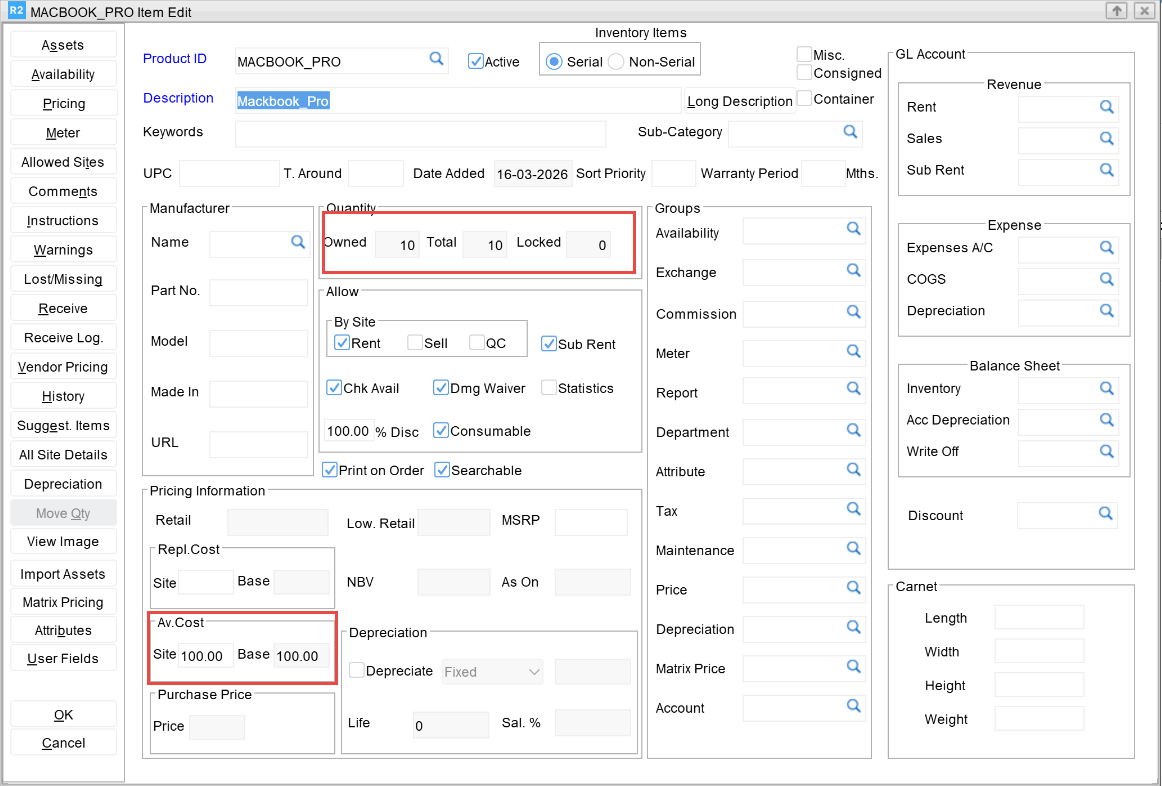
Open the Item Edit screen.
-
Initially, the Owned Quantity and Total Quantity is 10 and Average Cost is 100.
-
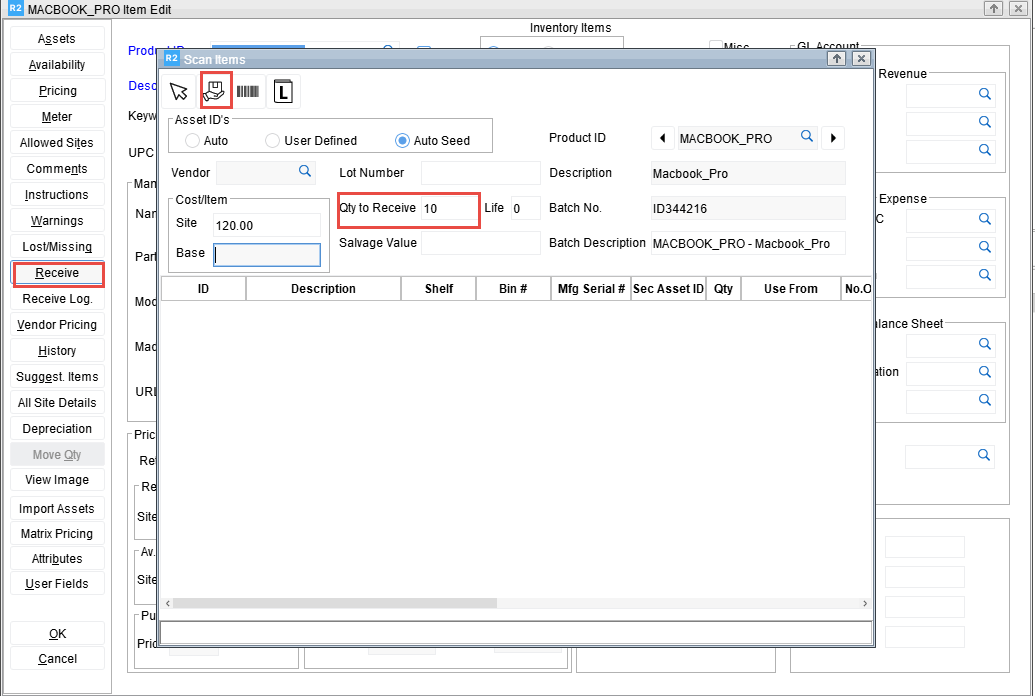
Click the Receive button.
-
Enter the Quantity as 10.
-
Enter the Cost/Qty as 120 of the received item.
-
Click the Receive icon.
-
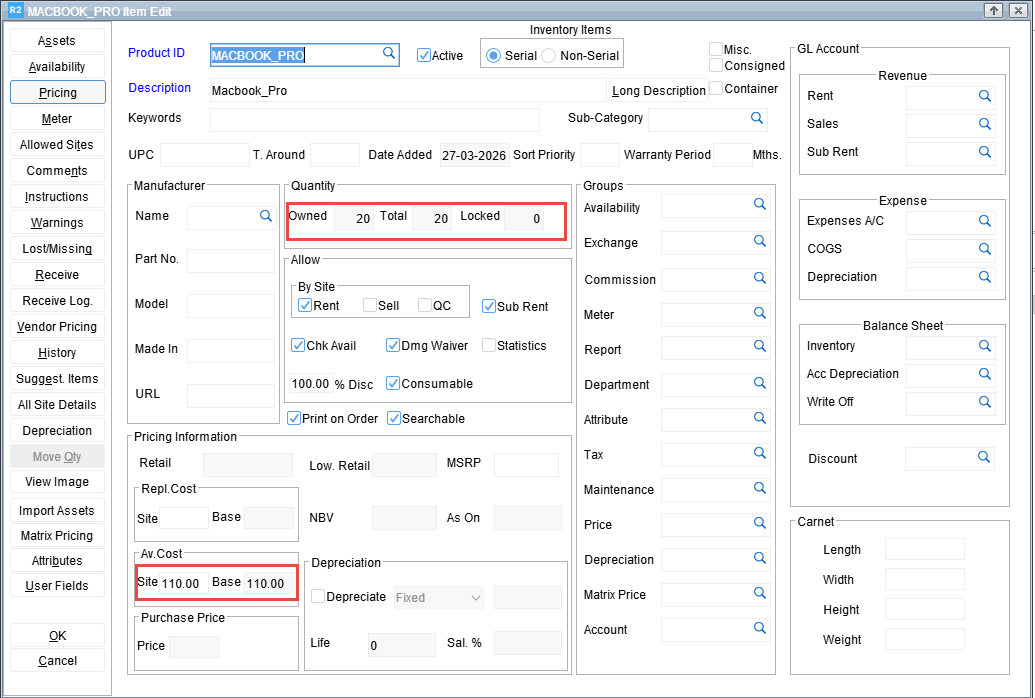
The system increases the Owned Quantity.
-
The system recalculates the Average Cost using the moving average formula.
-
If multicurrency is enabled, the system converts the Average Cost to Base Average Cost.
-
The system updates the inventory records.
Sample Workflow – Inventory Transfer
The average cost for an item is maintained at the Site level. This sample workflow of permanent transfer of stock through Inventory type of Transfer Order explains how it affects Owned Quantity and Average cost.
-
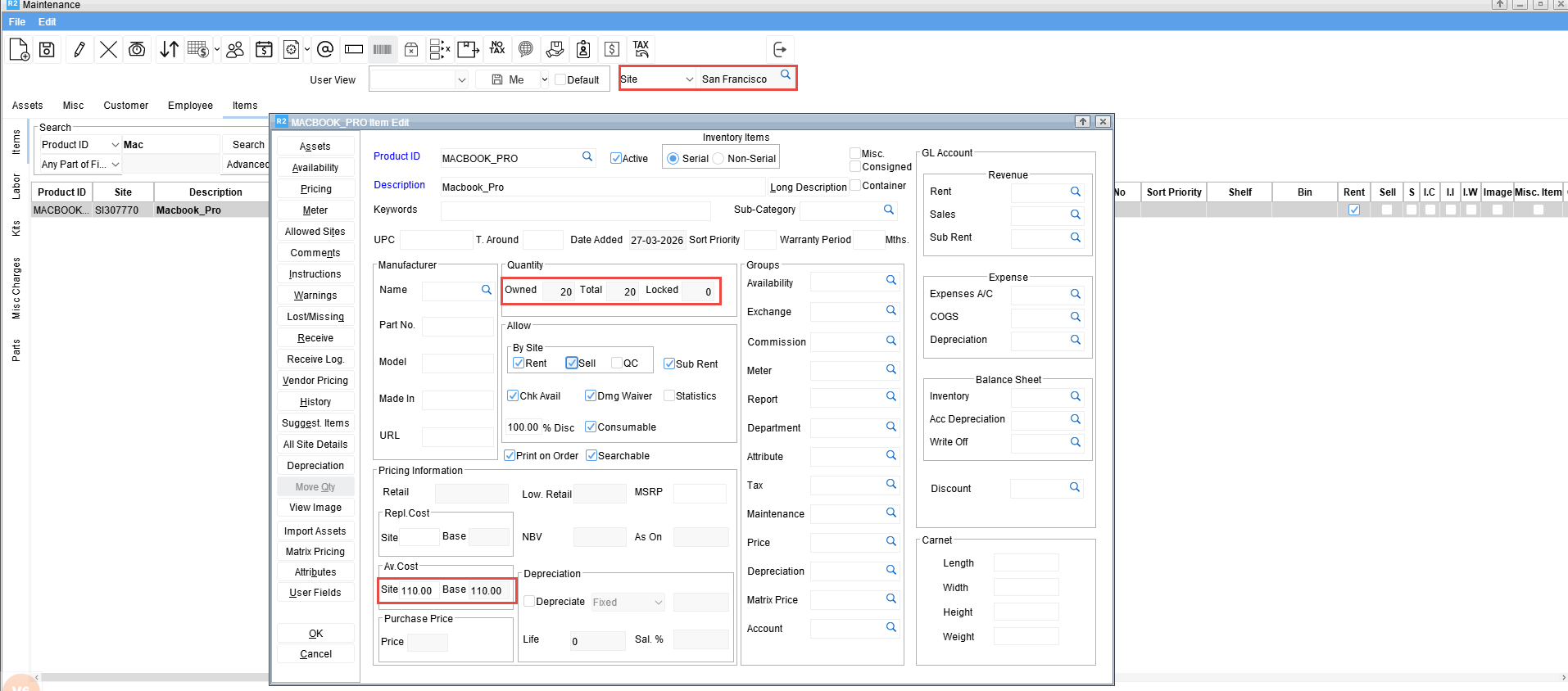
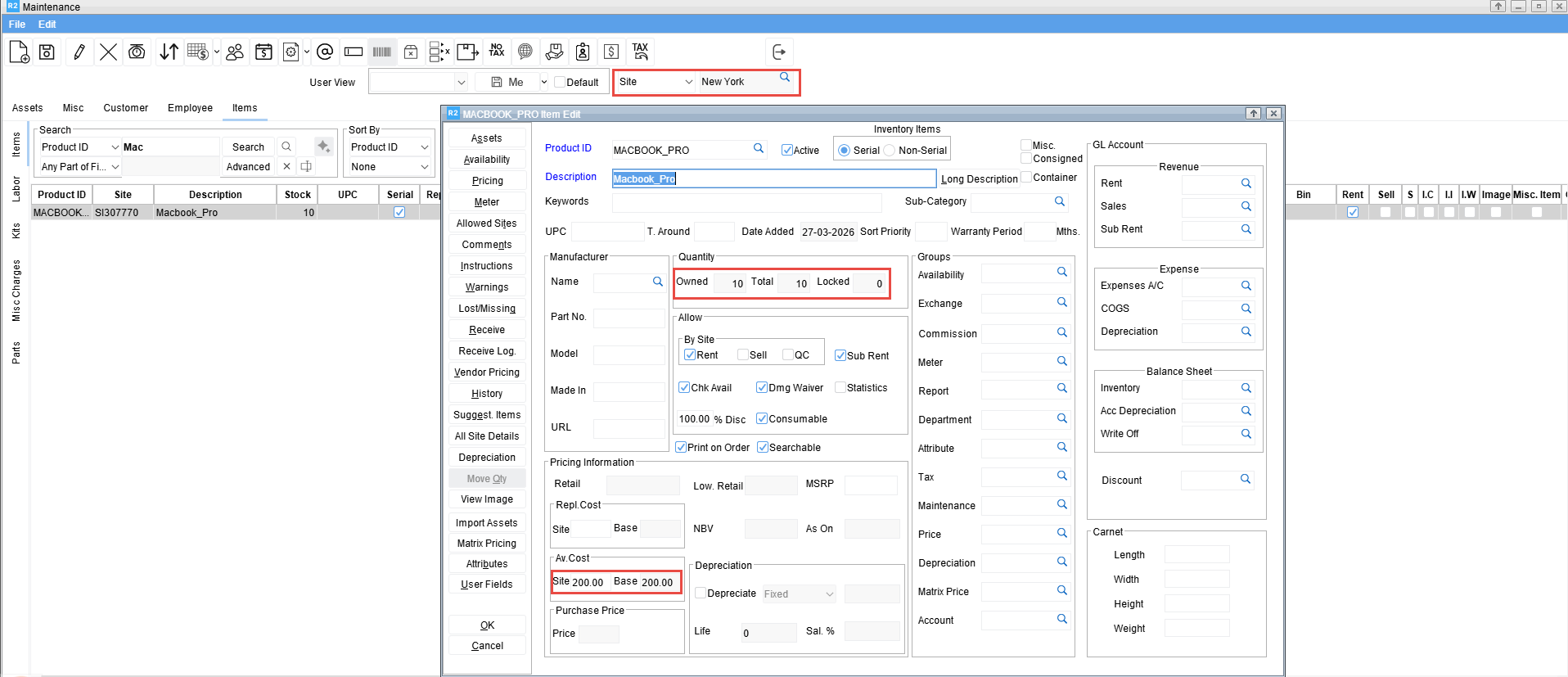
Open the Maintenance window and search for the Item to transfer from Site A [San Francisco] to Site B [New York].
-
Double-click the item to be transferred.
-
The Item edit screen is displayed.
-
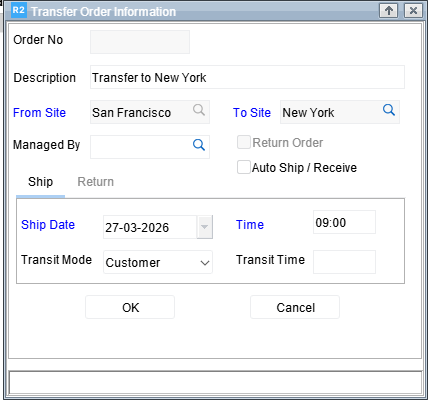
Create a Inventory Transfer Order.
-
Enter the Description and To site.
-
Click OK.
-
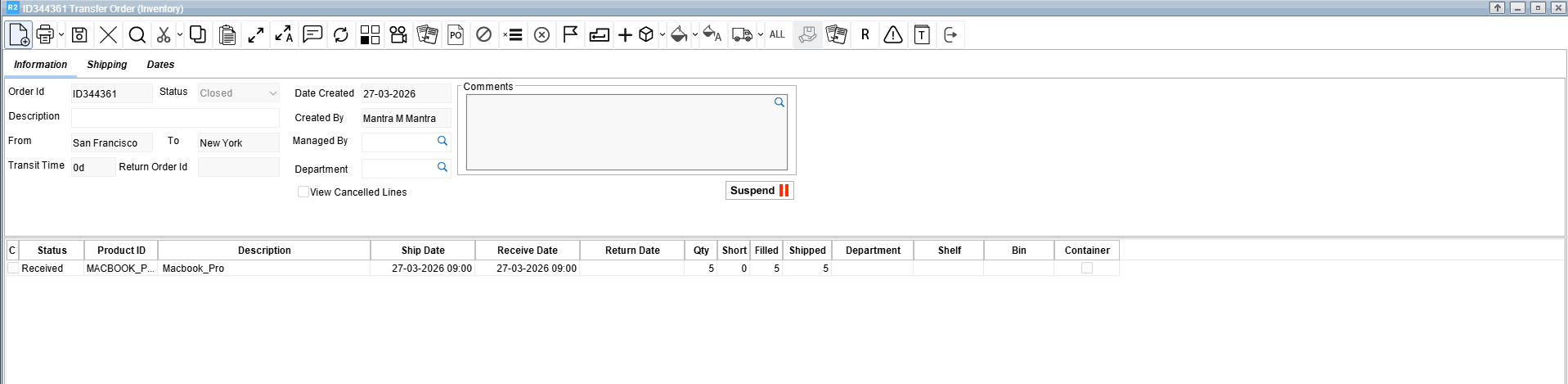
The Transfer Order dialog Opens.
-
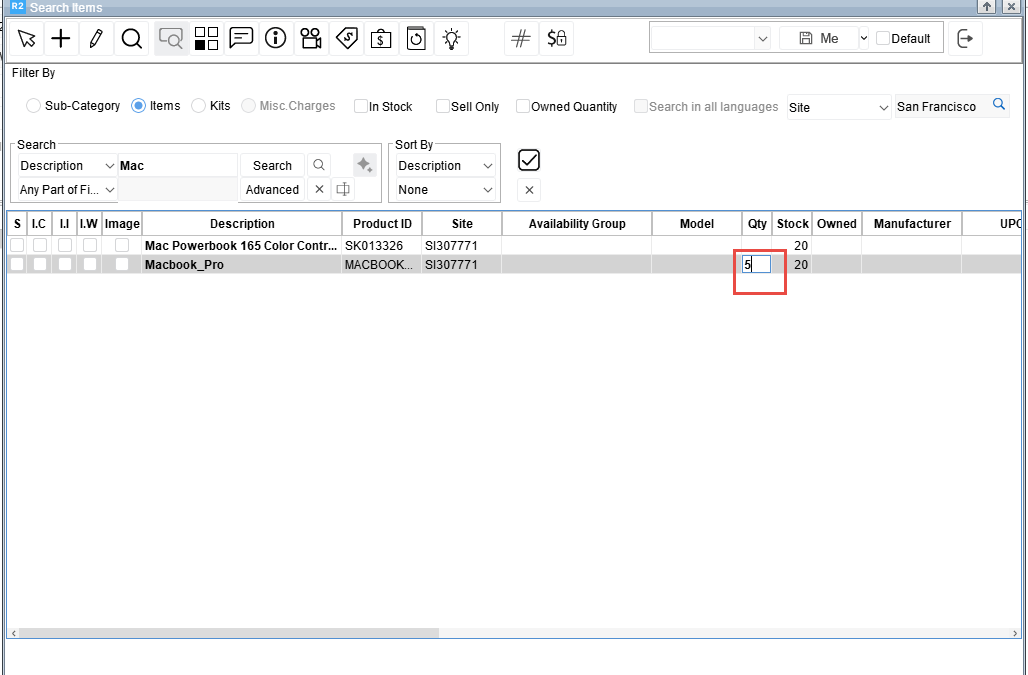
Enter the Item and Quantity to transfer from Site A [San Francisco] to Site B [New York].
-
Perform Fill and Ship all 5 quantities from the source site i.e., Site A [San Francisco].
-
Receive 5 quantities on the transfer at the destination site i.e., Site B [New York].
-
The system decreases the Owned Quantity at the source site i.e., Site A [San Francisco] and Average Cost remains unchanged.
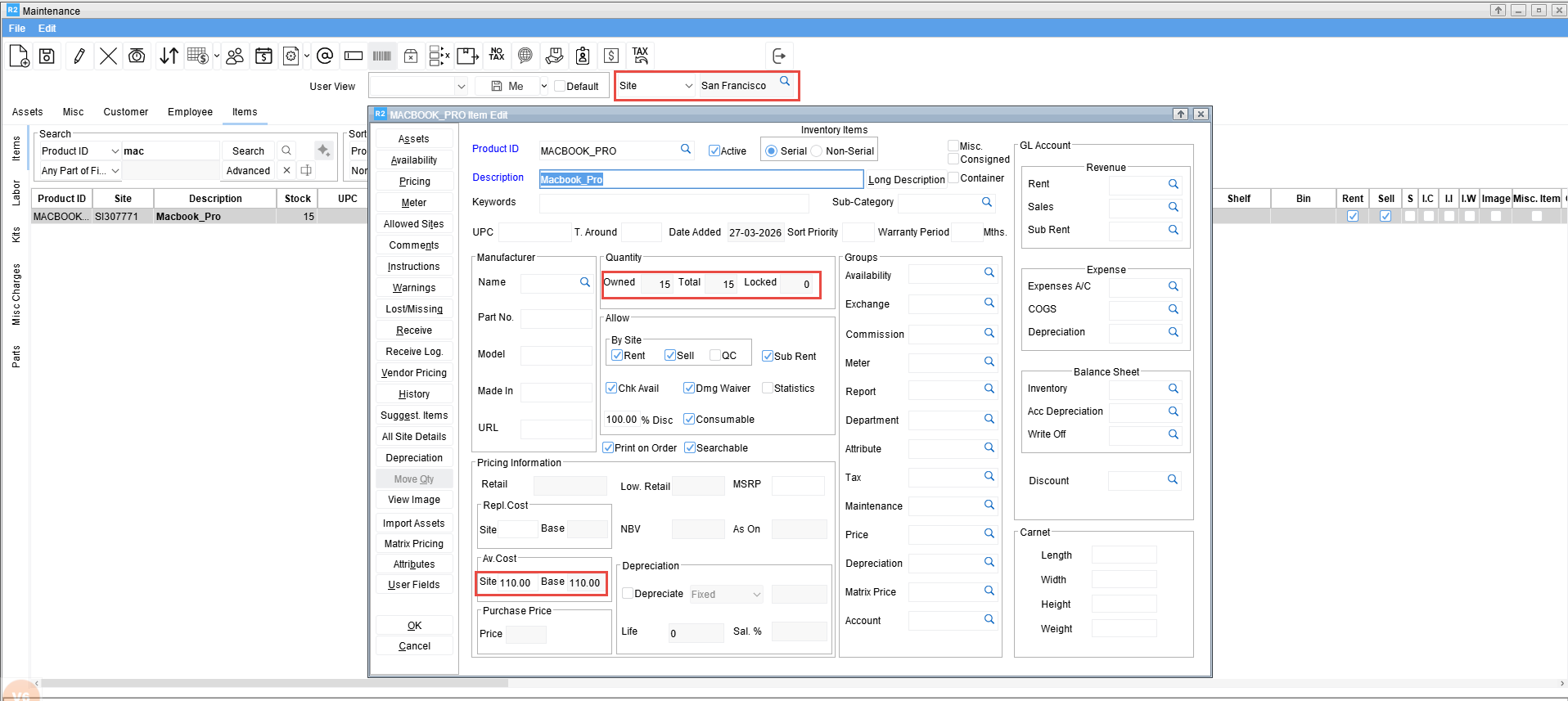
-
The system increases the Owned Quantity at the destination site i.e., Site B [New York] and Average Cost is recalculated.
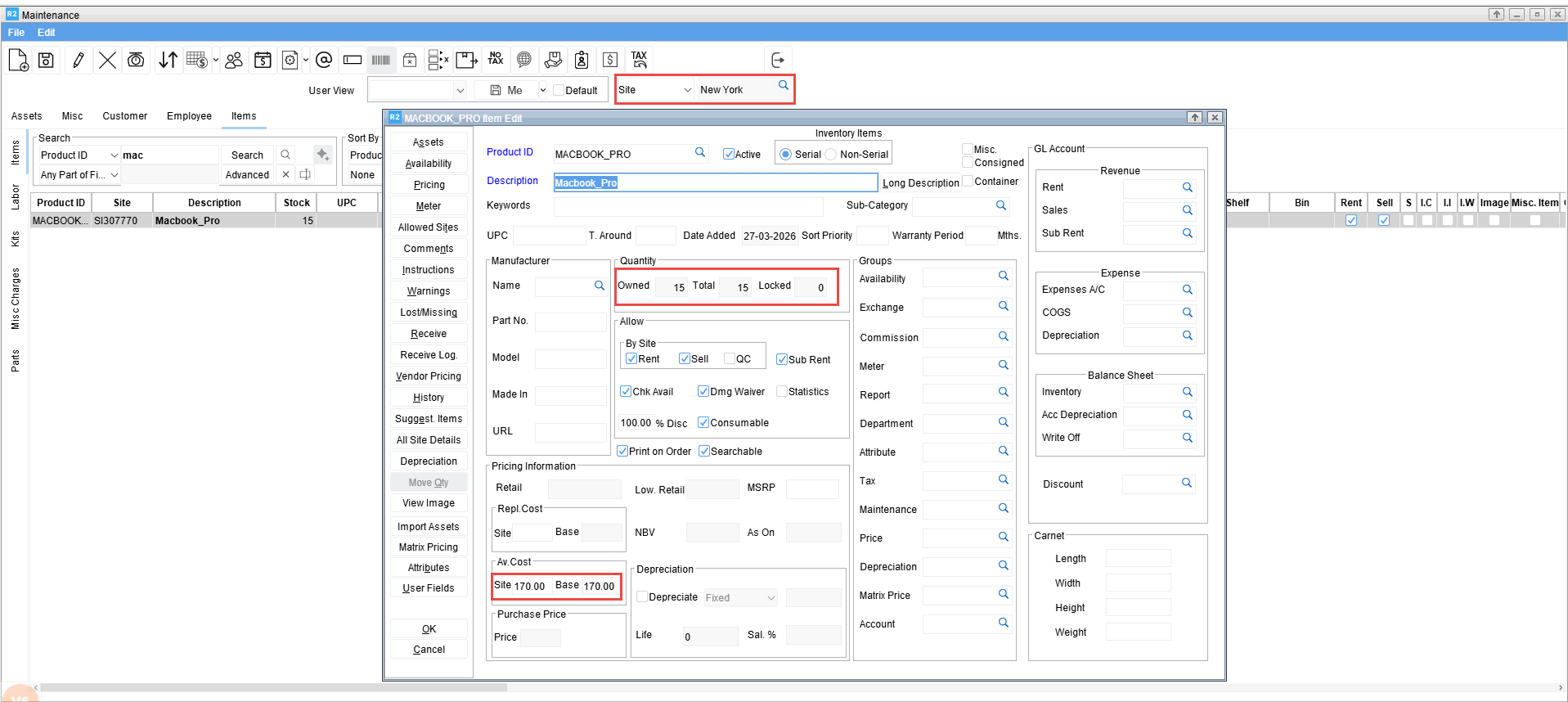
Sample Workflow – Sale or Issue
-
Create a Sales Order.
-
Add the required Item or Asset.
-
Perform Fill and Ship.
-
The system reduces the Owned Quantity.
-
The system does not update the Average Cost.
Sample Workflow – Mark Item as Lost or Retired
-
Open the Item Edit or Asset Edit screen.
-
Select the required Item or Asset.
-
Change the status to Lost or Retired.
-
Save the changes.
-
The system reduces the Owned Quantity.
-
The system does not update the Average Cost.
Sample Workflow – Return Sold Item
-
Open the Return Order screen.
-
Enter the Item or Asset to return.
-
Process the return.
-
The system increases the Owned Quantity.
-
The system does not update the Average Cost.
Sample Workflow – Manual Update of Average Cost
-
Open the Item Edit screen.
-
Select the required Item.
-
Enter the new value in the Average Cost field.
-
Save the record.
-
The system overrides the existing Average Cost.
Behavior When Owned Quantity ≤ 0
In case of non-serial items, Owned Quantity may become zero or negative when stock transferred through a Normal Transfer Order is sold, retired, or marked as lost at the destination site. Since the system does not track the origin of non-serial stock at site level, such reductions are applied at the current site, which can result in negative Owned Quantity.
The system handles Average Cost behavior in such scenarios as follows:
-
When OldOwnedQty is negative, it is treated as 0 for the purpose of Average Cost re-computation
-
When new stock is received:
-
If the resulting Owned Quantity becomes positive, Average Cost is recomputed using the incoming stock cost
-
If the resulting Owned Quantity remains zero or negative, the existing Average Cost is retained
-
This behavior can be summarized as:
If (OldOwnedQty + IncomingQty) ≤ 0 → retain OldAverageCost
If (OldOwnedQty + IncomingQty) > 0 → recompute Average Cost using incoming stock
Negative Owned Quantity is treated as a temporary operational state and is excluded from Average Cost calculations to ensure stability and prevent distortion of cost values.
Scenarios Reference Table
Here are some of the scenarios indicating how it affects the average cost and owned quantity. In all these scenarios wherever Total Stock (Total in Item edit) and Locked Quantity (Locked Qty in Item edit) should also continue to work the way it is and it should be.
This table is a behavioral reference only.
All implementations must follow the defined calculation and precision rules.
|
Action |
Owned Qty |
Site Average Cost / Base Average Cost |
|---|---|---|
|
Receive new stock |
Increased |
Re-calculated |
|
Average cost modified from item edit |
No change |
Updated |
|
Inventory transfer fill, ship & receive |
Reduced in sending site and increased in receiving site |
No change in sending site, re-calculated in receiving site |
|
Retire |
Reduced |
No change |
|
Lost |
Reduced |
No change |
|
Missing |
No change Locked Qty should increase |
No change |
|
Damaged |
No change |
No change |
|
Sold |
Reduced |
No change |
|
Asset edit change owned site |
Reduced in previous site and increased in new site |
No change in previous site, re-calculated in new site |
|
Asset edit change current site |
No change Total Stock should reduce in previous site and increased in new site |
No change |
|
Return to other site |
No change Note: Total Stock should reduce in previous site and increased in new site |
No change |
|
Inventory PO receive |
Increased |
Re-calculated |
|
Un-retire |
Increased |
No change |
|
Return the sold |
Increased |
No change |
|
Lost is found/returned/marked as In |
Increased |
No change |
|
Missing found/returned/marked as In |
No change Locked Qty should increase |
No change |
|
Damaged to Not Damaged |
No change |
No change |
|
Delete receive lines |
Reduced |
No change |
|
Revert qty from stock change history (applicable for non-serial items only) |
For Lost - Increased For Missing - No change, but Locked Qty should reduce Retired - Increased |
No Change |
|
Normal/Jell-o-shot transfer |
No change Total Stock should reduce in previous site and increased in new site |
No change |
|
Available to false |
No change Locked Qty should increase |
No change |
|
Available to true |
No change Locked Qty should increase |
No change |
|
Import Assets |
Reduce from previous product and increase in new product |
Re-calculated for new product and retained for previous product |
|
Asset edit change product id |
Reduce from previous product and increase in new product |
Re-calculated for new product and retained for previous product |
|
Non-serial Item edit Move Qty |
Reduce from previous product and increase in new product |
Re-calculated for new product and retained for previous product |
|
Lock to Serial Kit |
No change for the product locked. Increased for the Serial Kit. Locked Qty should increase for the item |
No change for both product and kit |
|
Asset Edit > Create Kit > Attach Assets/Attach Items |
No change for locked asset/item and parent asset’s product. Locked Qty should increase for the item |
No change for both product and kit |
|
Break Kit Asset |
No change for the locked product. Reduced for the Serial Kit. Locked Qty should increase for the item |
No change for both product and kit |
|
Asset Edit > Create Kit > Detach |
No change for locked asset/item and parent asset’s product. Locked Qty should increase for the item |
No change for both product and kit |