
Overview
You can copy item and labor lines from a previous version of an order and paste them into the latest version of the same order or into a different order. You can also paste this data into external applications like Microsoft Excel or Notepad. This feature reduces manual data entry and lets you reuse existing data without replacing an entire order version.
-
The source order must have at least one saved previous version.
-
The target order must be in a modifiable state. (does not include done, locked or cancelled).
-
You must have the appropriate security permissions to access and modify orders.
-
This feature is available for all supported order categories (rental, sales, billing order etc.) in different types (quote, hold, reservation etc.) across RD Web, RDP, and Web platforms except eR2 orders.
Copy and paste lines into an order
Use this procedure to move data between order versions or different orders.
-
Open the order and navigate to the Previous Version.
-
Select the item or labor lines you want to copy.
-
Press Ctrl+C or select the Copy icon

The system copies the selected lines to the clipboard.
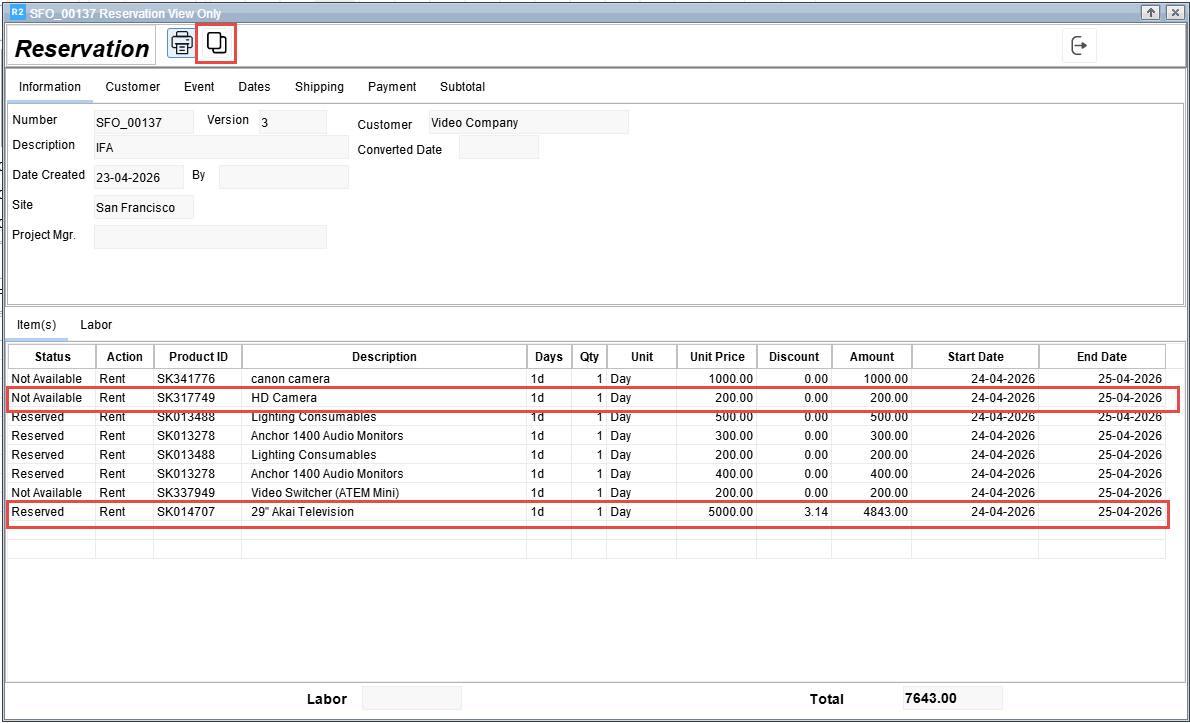
-
Open the latest version of the order (or a different target order).
-
Select a cell in the item or labor grid.
-
Press Ctrl+V or select the Paste icon

The system inserts the lines into the order in a modifiable state.
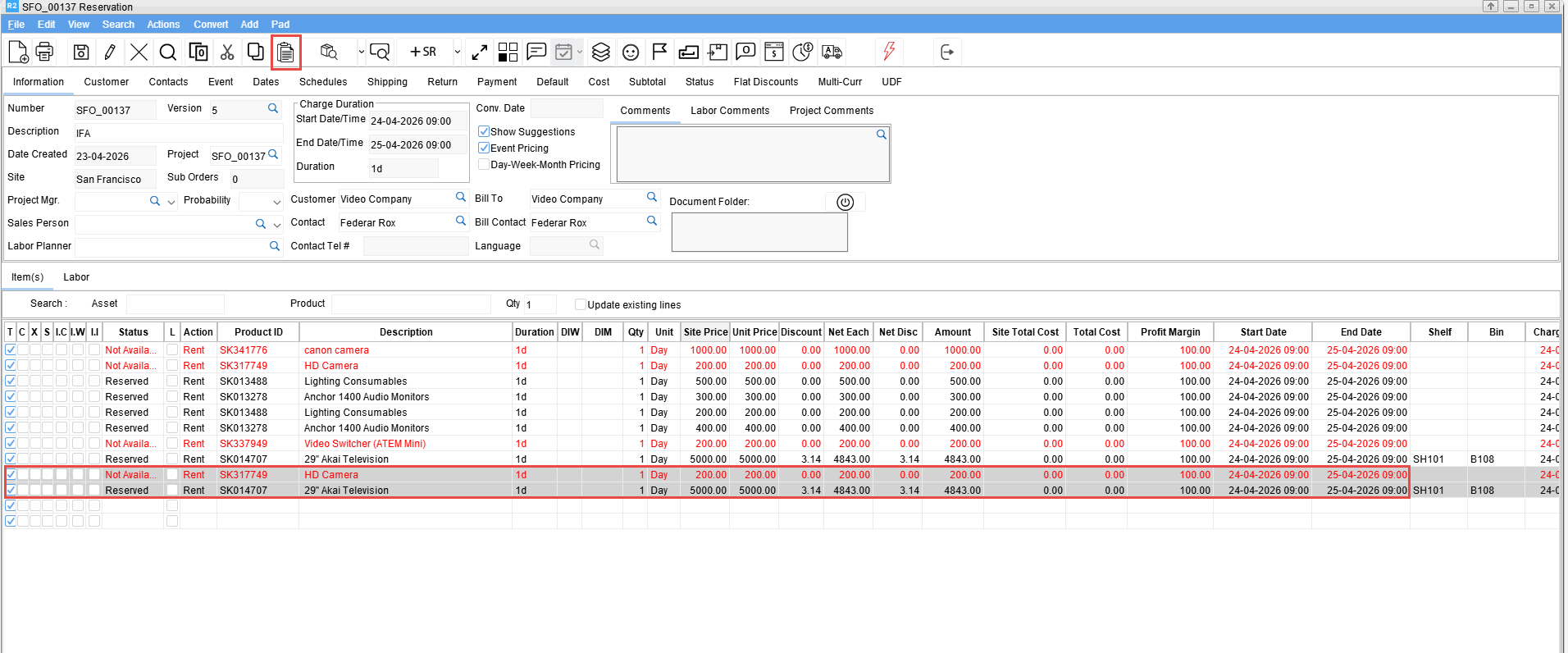
-
Select Save.
The original order remains unchanged until you save the pasted data in the target version.
Copy lines to an external application
You can export grid data to applications like Excel for reporting or external tracking.
-
Open the Previous Version of the order.
-
Select the item or labor lines.
-
Press Ctrl+C or Ctrl+Shift+C.
-
Open the external application (such as Excel or Notepad).
-
Press Ctrl+V to paste the visible grid data.
Interface and Security
-
Interface Changes: The Labor button is replaced by a Labor tab next to the Items tab. To exit the version screen, use the Exit (X) icon at the top-right.
-
Customization: If the Older Version screen was previously customized, you must redo the customization to display the new Exit, Copy, and Labor elements.
-
Security: Any security rights previously applied to the legacy Close or Labor buttons must be reconfigured for the new interface elements.