
Prerequisites
-
Select the Maintenance module > Items tab.
-
Create a Serial Item [JBL REFLECT] receive 4 Qty of Assets [JBL REFLECT#01], [JBL REFLECT#02], [JBL REFLECT#03], and [JBL REFLECT#04].
-
Save and Exit the Maintenance module.
Sample Workflow
-
Select the Account module. The Account window is displayed.
-
Tag a Company [JBL] and create a Rental Reservation Order [ORD-995] for 2 days duration.
-
Search and add the Serial Item [JBL REFLECT] with 2 Qty. Click the Fill And Ship All icon to fill and ship the Items.
-
Select the View menu > Return Order option.
-
Select the Asset [JBL REFLECT#01] and click the Missing button. The Asset [JBL REFLECT#01] Status is modified to Missing.
-
Select the Asset [JBL REFLECT#02] and click the Lost button. The Remarks window is displayed.
-
Enter the Remarks "The Asset [JBL REFLECT#02] is marked as Lost."
-
Close the Return Order window. The Order [ORD-995] comprises of Items in Missing and Lost Statuses, as shown in Figure 1.0.
Figure 1.0 Order [ORD-995] comprises of Items in Missing and Lost Statuses

-
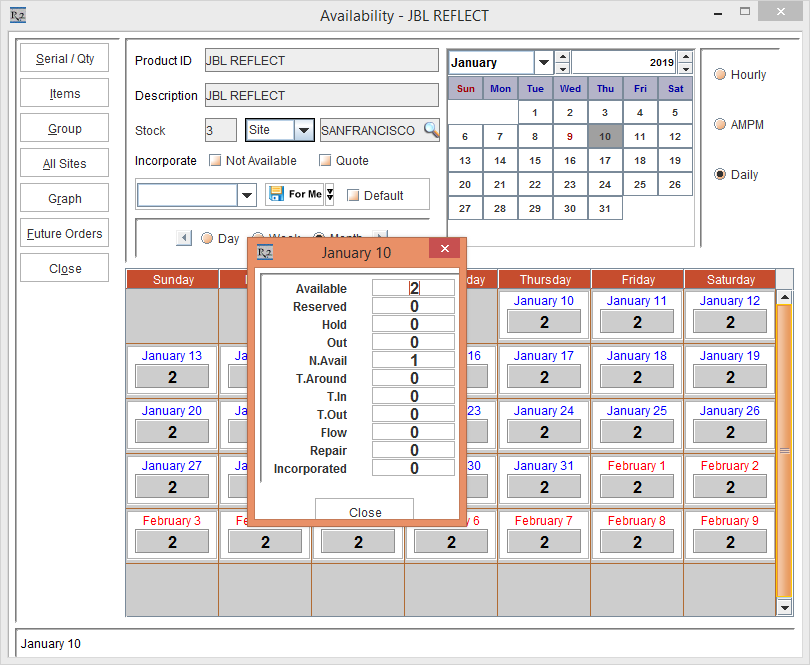
Select the Serial Item [JBL REFLECT] line and click the Availability icon. The Availability is displayed, as shown in Figure 1.1.
Figure 1.1 Serial Item [JBL REFLECT] Availability
-
Save and Exit the Order [ORD-995].
-
Select the Physical Inventory module > New icon. The Physical Inventory window is displayed.
-
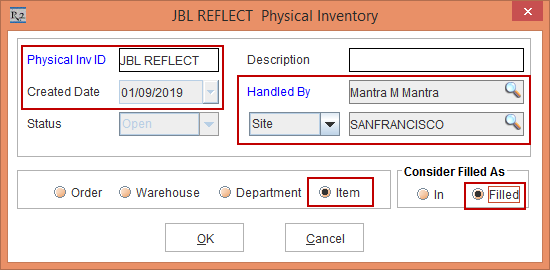
Enter the Physical Inv ID [JBL REFLECT].
-
Select the Handled By [MANTRA], Site [SANFRANCISCO], the Item radio button, and the Filled radio button within the Consider Filled As section, as shown in Figure 1.2.
NOTE: The Consider Filled As section in the Physical Inventory window will not be displayed, if the Order radio button is selected.
Figure 1.2 Physical Inventory window with Physical Inv ID [JBL REFLECT]
-
Click OK. The Search Items window is displayed.
-
Search and tag the Serial Items [JBL REFLECT].
-
Click OK. The system displays a prompt with the message "R2_00602:Do you want to Start Physical Inventory?" with Yes and No buttons.
-
Click Yes. The JBL REFLECT Physical Inventory window is displayed with the Assets [JBL REFLECT#03] and [JBL REFLECT#04] that are in the Status [In], as shown in Figure 1.3.
Figure 1.3 JBL REFLECT Physical Inventory window with the Assets that are in the Status [In] and not present in the Order [ORD-995]

-
In the JBL REFLECT Physical Inventory window, click the Start icon.
-
Click the Discrepancy icon. The Discrepancy window is displayed with Assets [JBL REFLECT#03] and [JBL REFLECT#04] that are in the Status [In] and are not present in the Order [ORD-995] with the Discr. Qty column displaying as 1 Qty each of them. The Missing and Lost Asset [JBL REFLECT#01] [JBL REFLECT#02] lines are excluded from the Discrepancy window, as shown in Figure 1.4.
Figure 1.4 Discrepancy window for the Serial Items

-
Exit the Discrepancy window.
-
In the JBL REFLECT Physical Inventory window, click the Scan Item icon. The Scan Items window is displayed.
-
Scan the Missing Asset [JBL REFLECT#01] with 1 Qty and the Lost Asset [JBL REFLECT#02] with 1 Qty. The Scan Items window Status bar message is displayed as "Scanned Successfully" for the respective scans.
-
Close the Scan Items window.
-
In the JBL REFLECT Physical Inventory window, click the Discrepancy icon.
-
The Discrepancy window is displayed appending with the scanned Missing Asset [JBL REFLECT#01] and the Lost Asset [JBL REFLECT#02] with the Current Status as Missing and Lost along with the Scanned Status [In] and the Discr.Qty as 0 respectively, as shown in Figure 1.5.
Figure 1.5 Discrepancy window appended with the scanned Missing Asset [JBL REFLECT#01] and the Lost Asset [JBL REFLECT#02]

-
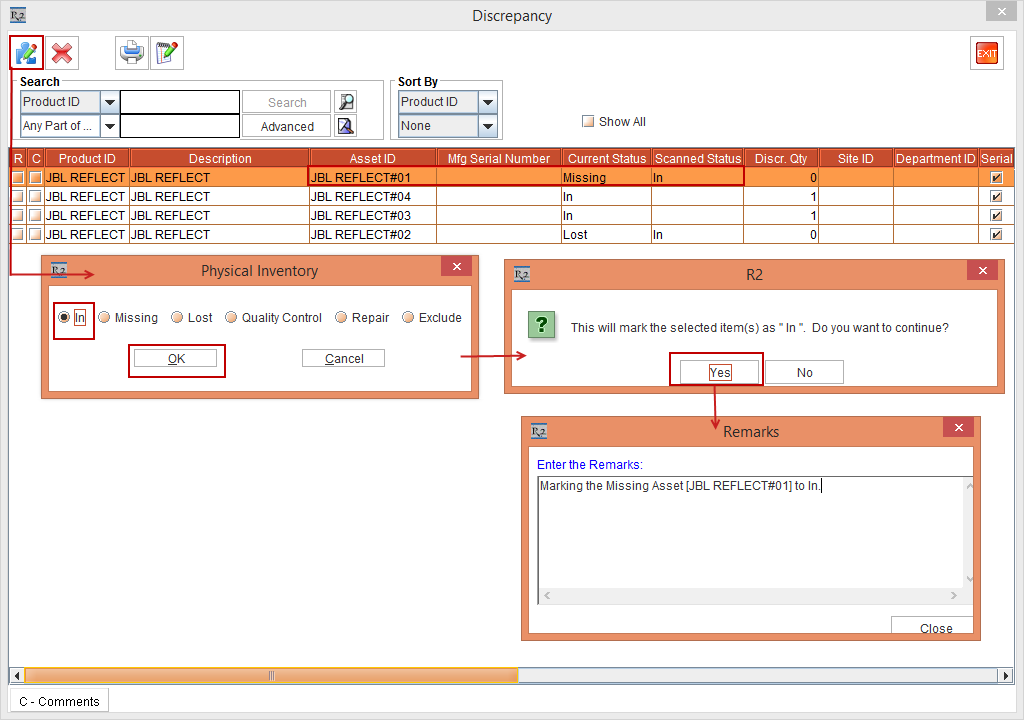
Select the Missing Asset [JBL REFLECT#01] line and click the Adjust icon. The system displays the Physical Inventory dialog box with the In, Missing, Lost, Quality Control, Repair, and Exclude radio buttons, as shown in Figure 1.6.
-
Select the In radio button and click OK. The system displays a prompt with the message "This will mark the selected item(s) as "In". Do you want to continue?" with Yes and No buttons, as shown in Figure 1.6.
-
Click Yes. The system displays the Remarks window. Enter the Comments "Marking the Missing Asset [JBL REFLECT#01] to In" as shown in Figure 1.6.
Figure 1.6 Marking the Missing Asset to In by entering the Comments in the Remarks window
-
Click Close.
-
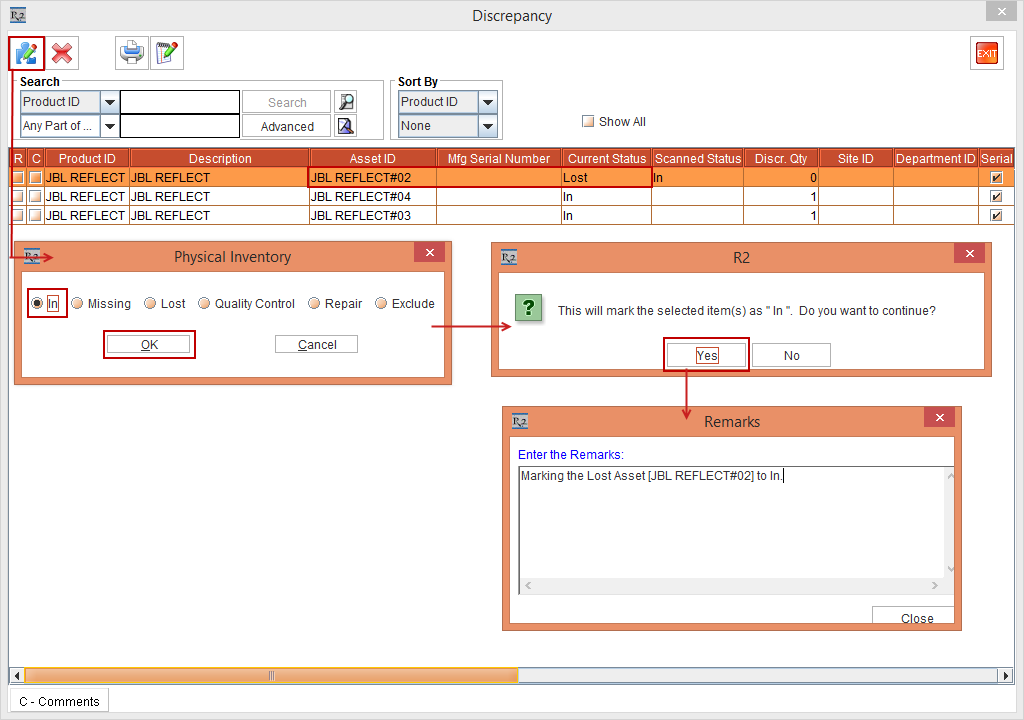
Similarly, select the Lost Asset [JBL REFLECT#02] line and click the Adjust icon. The system displays the Physical Inventory dialog box with the In, Missing, Lost, Quality Control, Repair, and Exclude radio buttons, as shown in Figure 1.7.
-
Select the In radio button and click OK. The system displays a prompt with the message "This will mark the selected item(s) as "in". Do you want to continue?" with Yes and No buttons, as shown in Figure 1.7.
-
Click Yes. The system displays the Remarks window. Enter the Comments "Marking the Lost Asset [JBL REFLECT#02] to In" as shown in Figure 1.7.
Figure 1.7 Marking the Lost Asset to In by entering the Comments in the Remarks window
-
Click Close.
-
Select the In Asset [JBL REFLECT#03] line and click the Adjust icon. The system displays the Physical Inventory dialog box with the In, Missing, Lost, Quality Control, Repair, and Exclude radio buttons, as shown in Figure 1.8.
-
Select the Missing radio button and click OK. The system displays a prompt with the message "This will mark the selected item(s) as "Missing". Do you want to continue?" with Yes and No buttons, as shown in Figure 1.8.
-
Click Yes. The system displays the Remarks window. Enter the Comments "Marking the In Asset [JBL REFLECT#03] to Missing" as shown in Figure 1.8.
Figure 1.8 Marking the In Asset to Missing by entering the Comments in the Remarks window

-
Click Close.
-
Select the In Asset [JBL REFLECT#04] line and click the Adjust icon. The system displays the Physical Inventory dialog box with the In, Missing, Lost, Quality Control, Repair, and Exclude radio buttons, as shown in Figure 1.9.
-
Select the Lost radio button and click OK. The system displays a prompt with the message "This will mark the selected item(s) as "Lost". Do you want to continue?" with Yes and No buttons, as shown in Figure 1.9.
-
Click Yes. The system displays the Remarks window. Enter the Comments "Marking the In Asset [JBL REFLECT#04] to Lost" as shown in Figure 1.9.
Figure 1.9 Marking the In Asset to Lost by entering the Comments in the Remarks window

-
Click Close.
-
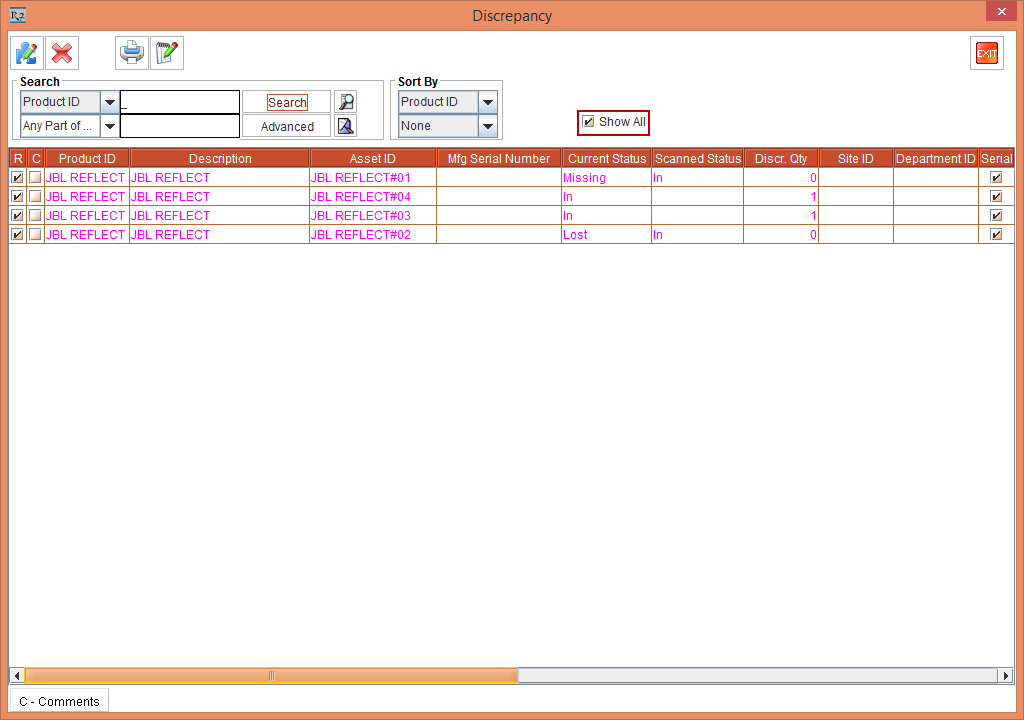
In the Discrepancy window, select the Show All check box and perform a blank search. All the Adjusted Asset lines [JBL REFLECT#01], [JBL REFLECT#02], [JBL REFLECT#03], and [JBL REFLECT#04] are displayed, as shown in the Figure 1.10.
Figure 1.10 Discrepancy window displaying the Adjusted Asset lines
-
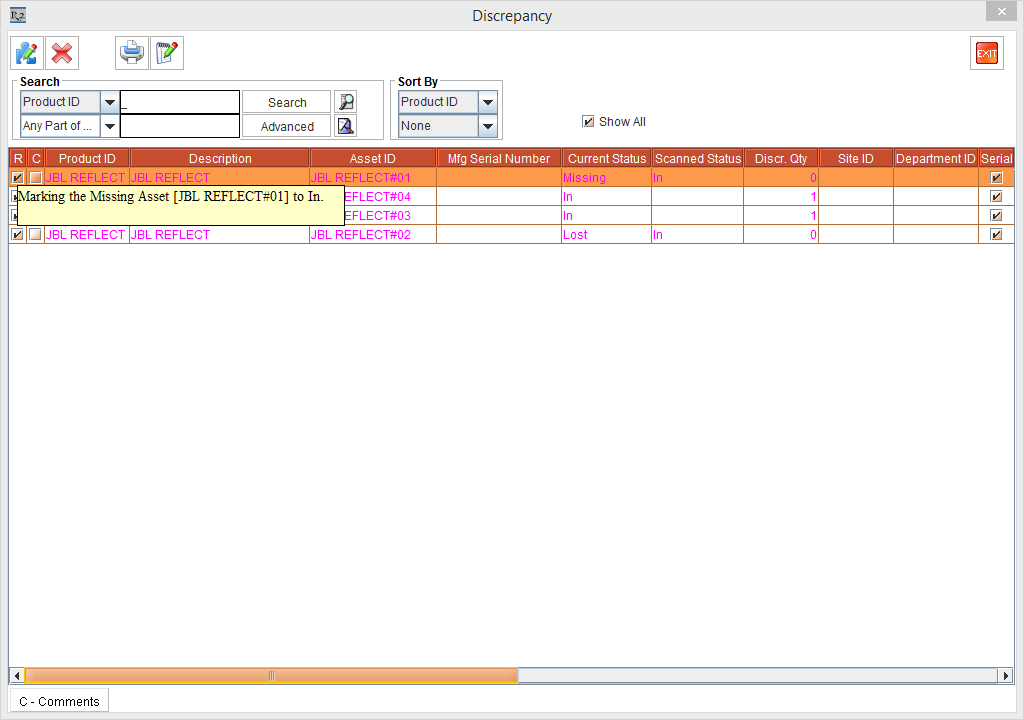
The captured Remarks provided while adjusting the Assets can be viewed by clicking the Remarks [R] column. Select the Asset [JBL REFLECT#01] line and click the Remarks [R] column. A Tooltip is displayed with the Comments "Marking the Missing Asset [JBL REFLECT#01] to In." entered while marking the Missing Asset [JBL REFLECT#01] to In status, as shown in Figure 1.11.
NOTE: If the Remarks are entered, the check box in the Remarks [R] column is displayed as selected.
Figure 1.11 Tool Tip in the Remarks [R] column displayed
-
Exit the Discrepancy window.
-
Click the Complete icon in the JBL REFLECT Physical Inventory window.
-
The system displays a prompt with the message "R2_00601: This completes Taking Physical Inventory, are you Sure?" with Yes and No buttons.
-
Click Yes.
-
Exit the JBL REFLECT Physical Inventory window.
-
Select the Account module > Search Orders button > Search Orders window is displayed.
-
Search and open the Order [ORD-995]. The Serial Item [JBL REFLECT] Status that was in Missing and Lost is now modified to Returned, as shown in Figure 1.12.
Figure 1.12 Serial Item [JBL REFLECT] Status in Missing and Lost is now modified to Returned

-
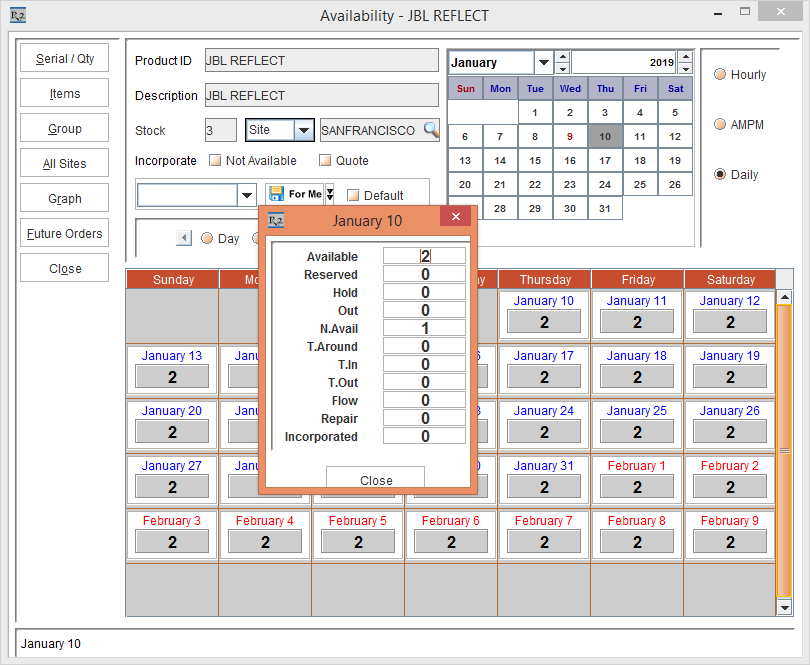
Select the Serial Item [JBL REFLECT] line and click the Availability icon. The Availability is displayed, as shown in Figure 1.13.
Figure 1.13 Serial Item [JBL REFLECT] Availability
-
Close the Availability window.
-
Select the Search menu > Items window. The Search Items window is displayed.
-
Search for the Serial Item [JBL REFLECT].
-
Edit the Serial Item [JBL REFLECT] and click the History button. The Stock Change History window is displayed.
-
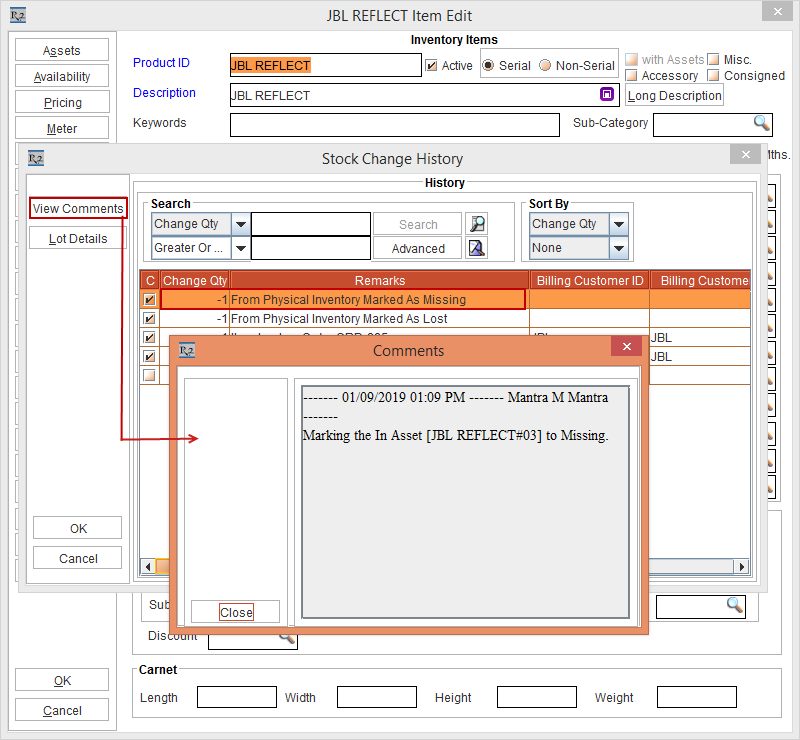
Select the line with the Remarks [From Physical Inventory Marked As Missing] and click the View Comments button. The Comments window is displayed with the Comments "Marking the In Asset [JBL REFLECT#03] to Missing," as shown in Figure 1.14.
Figure 1.14 Serial Item [JBL REFLECT] Edit > History button > Stock Change History window > View Comments button > Comments
-
Close the Comments window and Click OK.
-
Click the Assets button.
-
The Serial Items window is displayed.
-
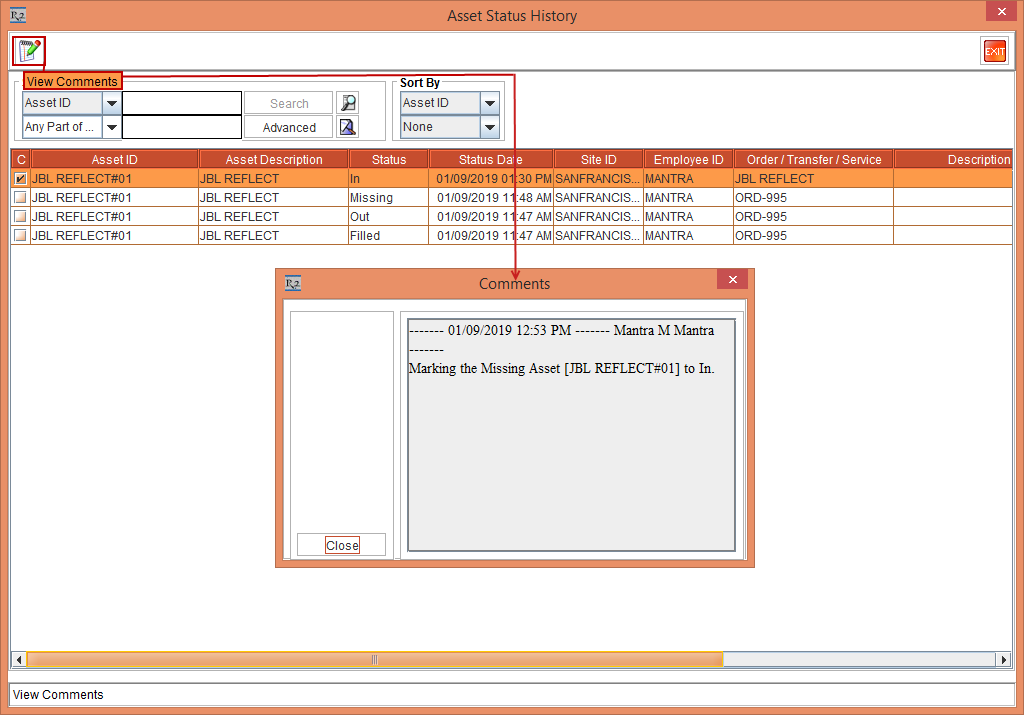
Select the Asset [JBL REFLECT#01] line and click the Status History icon. The Asset Status History window for Asset [JBL REFLECT#01] is displayed.
-
Select the Assets [JBL REFLECT#01] with In Status and click the View Comments icon. The Comments window is displayed with the Comments "Marking the Missing [JBL REFLECT#01] to In." as shown in Figure 1.15.
Figure 1.15 Asset Status History window for Asset [JBL REFLECT#01]
-
Close the Comments window.
-
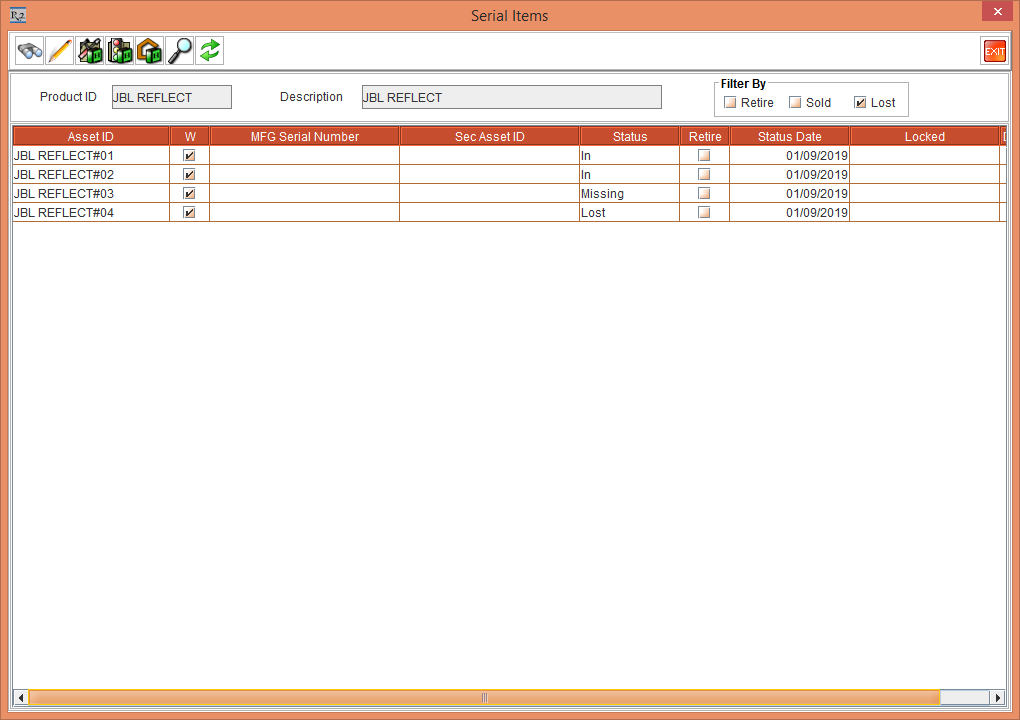
Select the Lost check box and click the Refresh button. The Assets [JBL REFLECT#01] and [JBL REFLECT#02] with the In Status and the Assets [JBL REFLECT#03] and [JBL REFLECT#04] with the Missing and Lost Statuses are displayed respectively, as shown in Figure 1.16.
Figure 1.16 Serial Items window with the Assets displayed as In, Missing, and Lost Statuses
-
Edit the Asset [JBL REFLECT#03] and click the Comments button. The Comments window is displayed with the Comments "Marking the In Asset [JBL REFLECT#03] to Missing," as shown in Figure 1.17.
Figure 1.17 Asset [JBL REFLECT#03] Edit > Comments button > Comments window

-
Exit the Comments window and Click OK in the Serial Item [JBL REFLECT] Edit window.