In R2, while viewing item availability in Availability window, you can incorporate and display item quantity that are currently not available on Orders or are added to Quotes. This feature can be effectively used for taking decision on required stock, by viewing the effective availability of the Rental Items by incorporating the item lines on Quote Orders, and the Not Available Item lines which are present in Orders of statuses Reservation, Contract, Sign-Off and Invoiced.
In Availability Window, you can use the options 'Not Available', 'Quote' Refer Fig 1.0 for illustration) for incorporating the details of Items in Quote Orders and Not Available Lines. For more details refer the below illustrations.
Fig 1.0
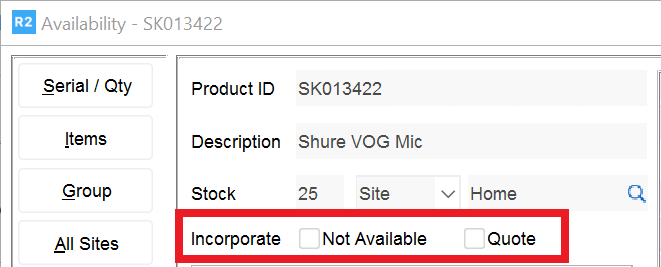
Illustration - 1 (Viewing Details of Item Stock Which is Not Available)
-
Create a serial item [LDK800] and receive 5 assets of the item.
-
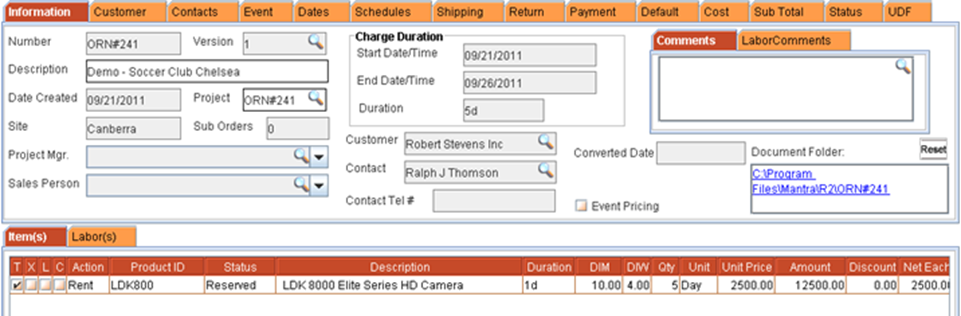
Create a reservation Order [ORD#241] starting from 21-Sep-2011 to 26-Sep- 2011. Add 5 quantities of the item in the order.
System displays the item line with status as 'Reserved', as required stock is available to satisfy the order. Refer Fig 2.0 for illustration.
Fig 2.0
-
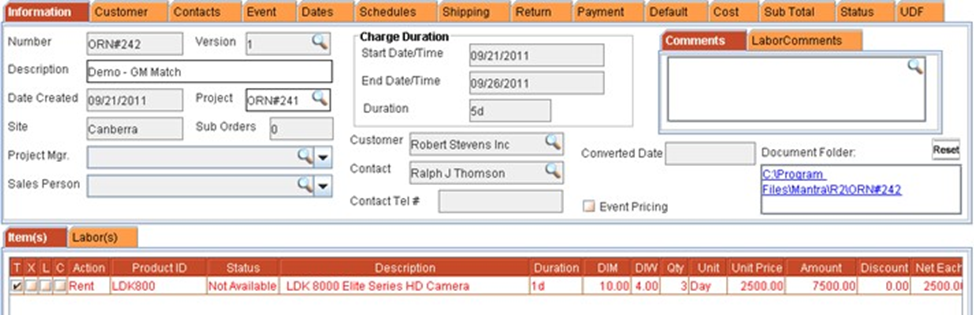
Create another Reservation Order [ORD#242] starting from 21-Sep-2011 to 26- Sep-2011. Add 3 quantities of the item in the order.
System displays the item line with status as 'Not Available'. Refer Fig 2.1 for illustration.
Fig 2.1
-
Highlight the Item line and view the availability.
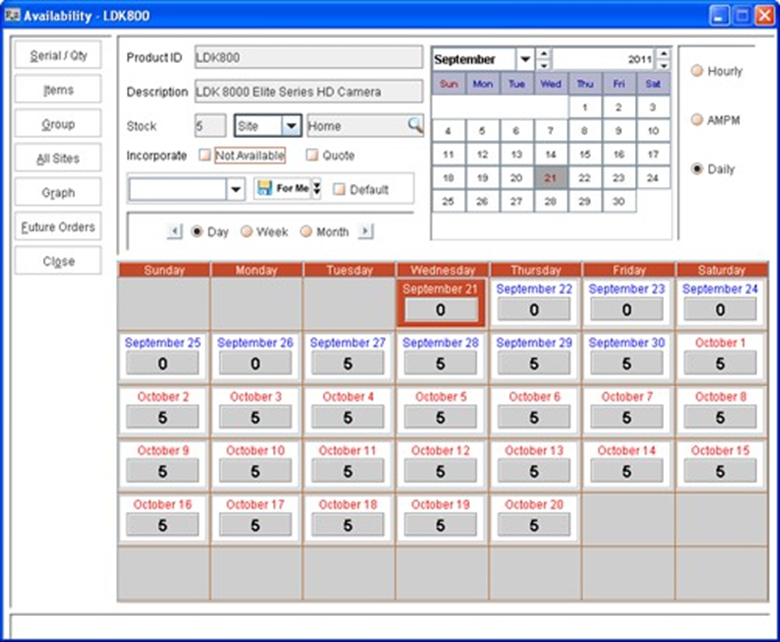
On accessing the Availability window, by default system will display only the details of available item quantity in the Availability window. With reference to usage of item [LDK800], the availability window will be displayed as shown in Fig 2.2.
Fig 2.2
Note : You can customize the default status of the options by creating User views. See User Views in Availability window for more information.
As you can see that, the availability value for the Item for the duration 21-Sep-2011 to 26-Sep- 2011 is displayed as 0, as all the assets are reserved on orders.
-
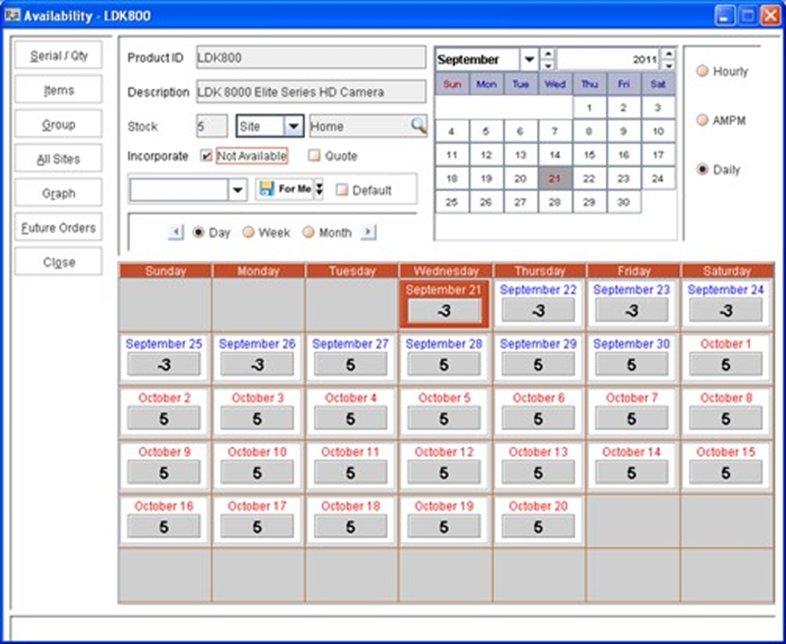
Select the Not-available check box present. On selecting the Not Available check box, system will update the availability displayed by deducting the quantity of the item present as Not Available within Orders from its total quantity. Refer Fig 2.3 for illustration.
Fig 2.3
-
On selecting Not Available check box, If there are no items in stock but are required to fulfill an existing order then the availability quantity will be displayed as a negative value.
-
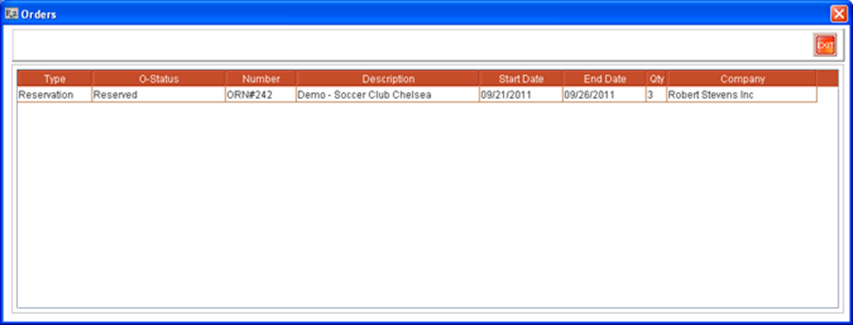
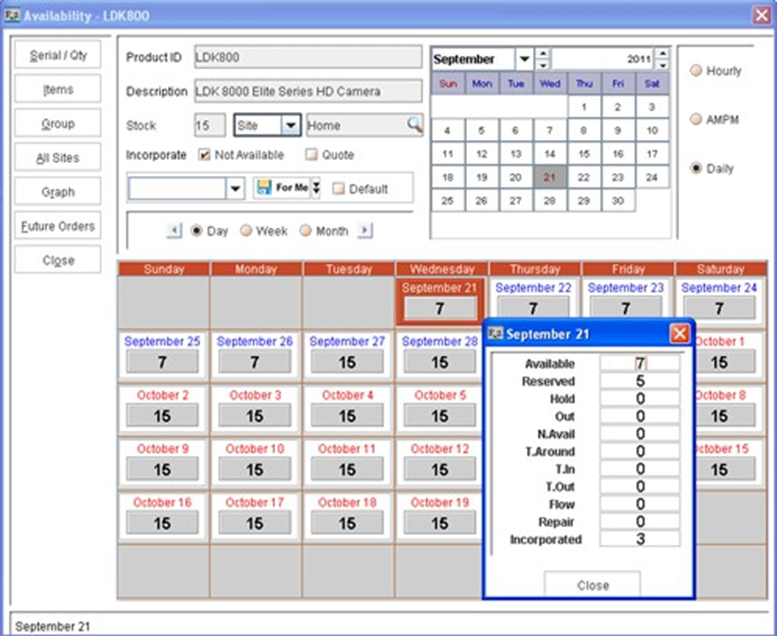
On viewing the distribution of Item stock availability ( by clicking the availability displayed for a day), system will display the total item stock which is currently in not available status in the Incorporated field. Refer Fig 2.4 for illustration. Upon clicking the quantity displayed in the Incorporated field, system will display the list of orders in which the item is in 'Not Available' status. Refer Fig 2.5 for illustration.
Fig 2.4
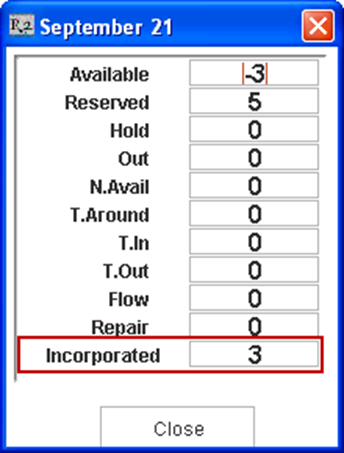
Fig 2.5
-
On receiving additional stock of items, the received stock quantity will be added to the currently available quantity. However, no changes would be made to the valued displayed in Incorporated field.
For example, with reference to the above scenario, on receiving additional stock of 10 assets, the available quantity will be displayed as 7 (Received stock (10) + Current Availability(-3). Refer Fig 2.5 for illustration. Further to on viewing Availability distribution, Available quantity will be displayed as 7, Reserved Quantity as 5 and Incorporated Quantity as 3. Refer Fig 2.6 for illustration.
Fig 2.6
Note : Unlike Reserved, Hold and other status lines, the incorporate statuses (Not-available and Quote) will not be reflected in the availability, unless the Order is saved.
Illustration - 2 (Viewing details of Item Quantity added in Quote Orders)
-
Create a serial item [BARCLD3]and receive 5 assets of the item.
-
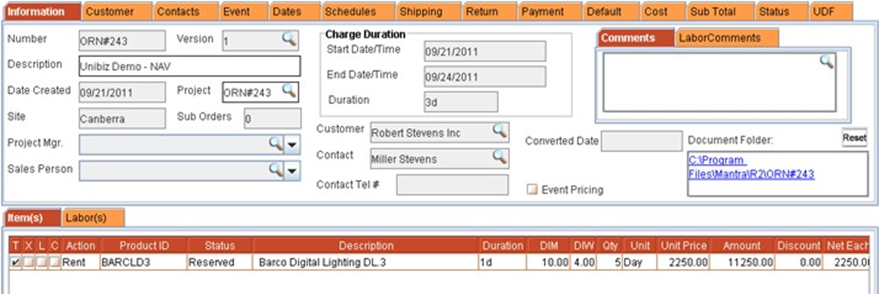
Create a Reservation Order[ORN#243] starting from 21-Sep-2011 to 24-Sep- 2011. Add 5 quantities of the item in the order.
System displays the item line with status as 'Reserved', as required stock is available to satisfy the order. Refer Fig 3.0 for illustration.
Fig 3.0
-
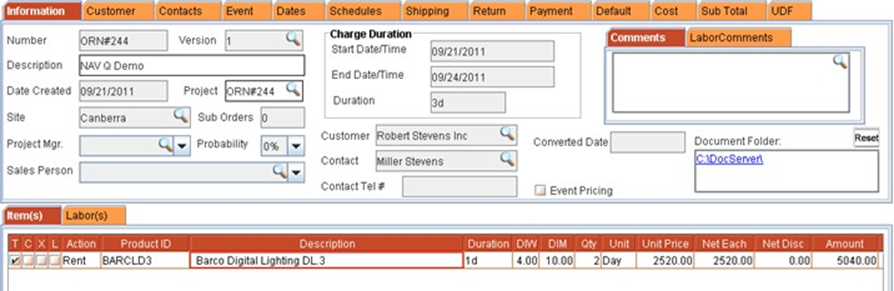
Create a Quote Order [ORD#244] starting from 21-Sep-2011 to 24-Sep-2011. Add 2 quantities of the item in the Quote Order.
Fig 3.1
-
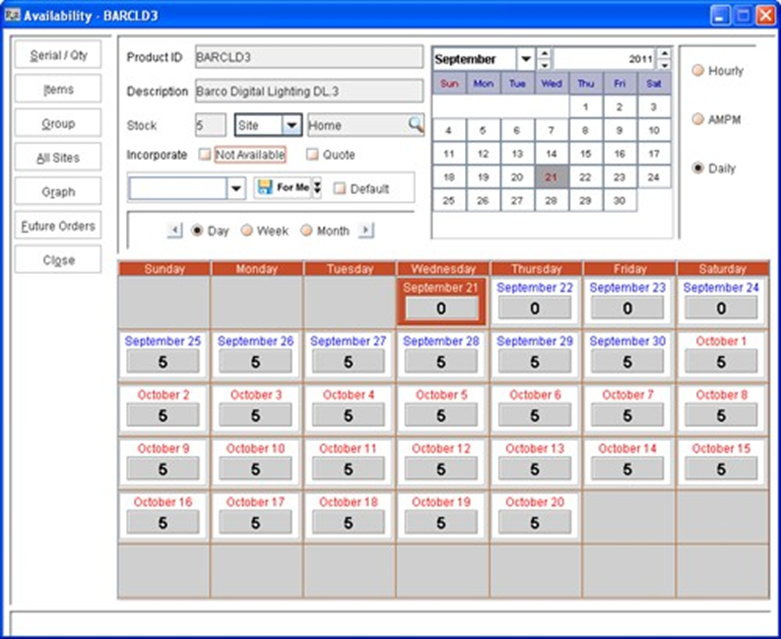
View the availability of the item.
Fig 3.2
-
The available stock for item for the duration 21-Sep-2011 to 24-Sep-2011 will be displayed as 0, as all the available stock is reserved on order[ORD#243]
-
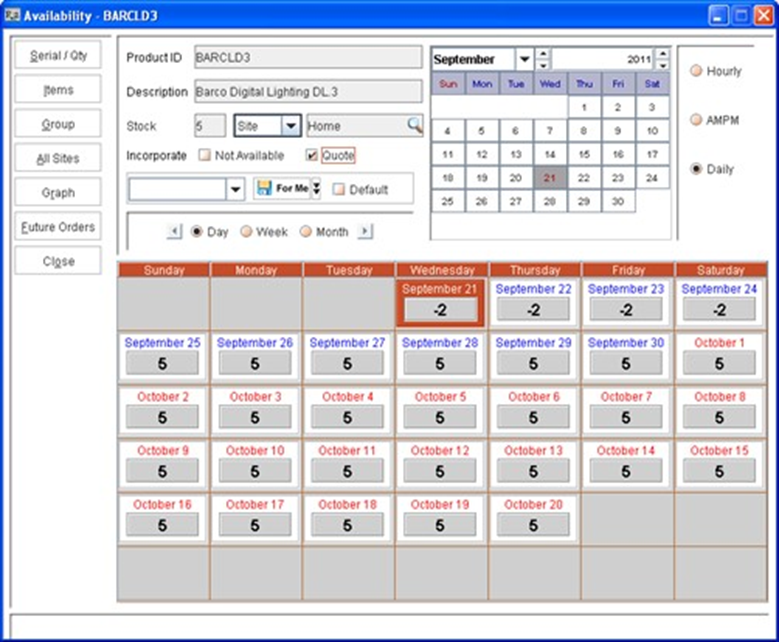
Select the Quote check box.
The availability window will be now refreshed to display the total stock of items which is currently added in Quote Orders. Refer Fig 3.3 for illustration.
Fig 3.3
-
On selecting Quote check box, If there are no items in stock but are required to fulfil an existing Quote order then the availability quantity will be displayed as a negative value.
-
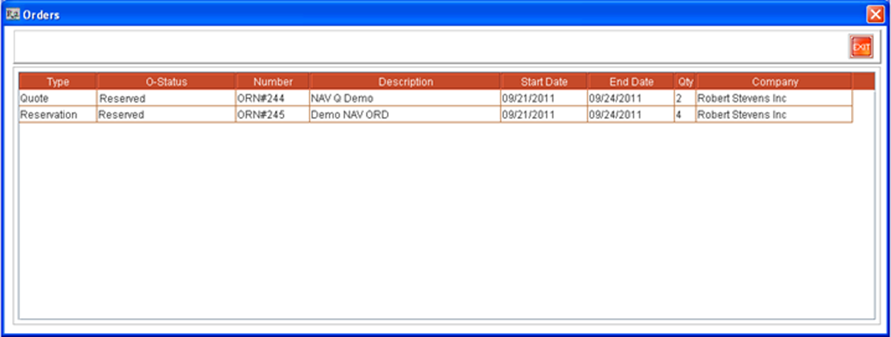
On viewing the distribution of Item stock availability ( by clicking the availability displayed for a day), system will display the total quantity of items which are present in Quote Orders in the Incorporated field. Refer Fig 3.4 for illustration. Further to, on clicking the quantity displayed in the Incorporated field, system will display the list of orders in which the item is in 'Not Available' status. Refer Fig 3.5 for illustration.
Note : Unlike Reserved, Hold and other status lines, the incorporate statuses (Not-available and Quote) will not be reflected in the availability, unless the Order is saved.
Fig 3.4
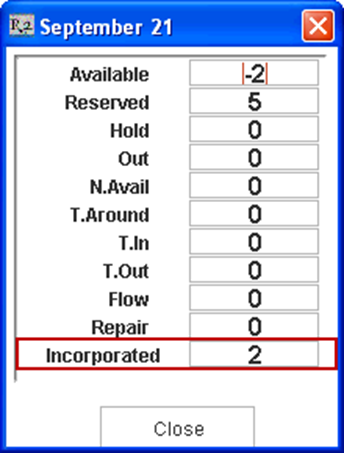
Fig 3.5
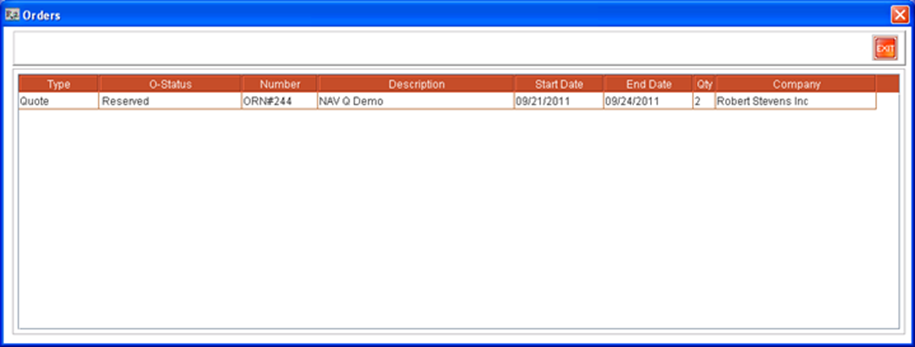
Illustration - 3 (Viewing details of Not-Available Item Stock and Item Stock Present in Quote Orders)
Note : This illustration is given as continuation to Illustration 2.
-
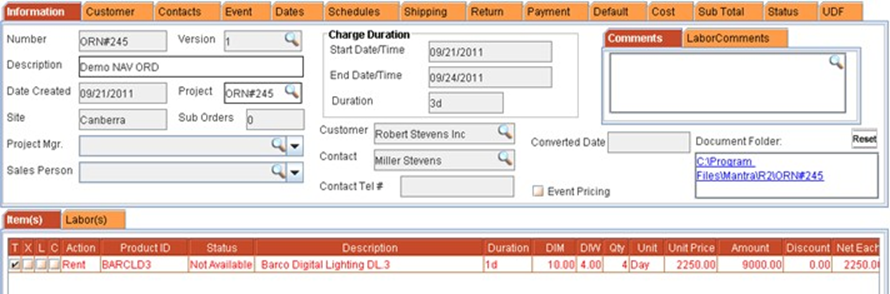
Create a Reservation Order [ORD#245], add the item[BARCLD3] of 4 quantity. System displays the item line with status as ' Not Available' as shown in Fig 4.0
Fig 4.0
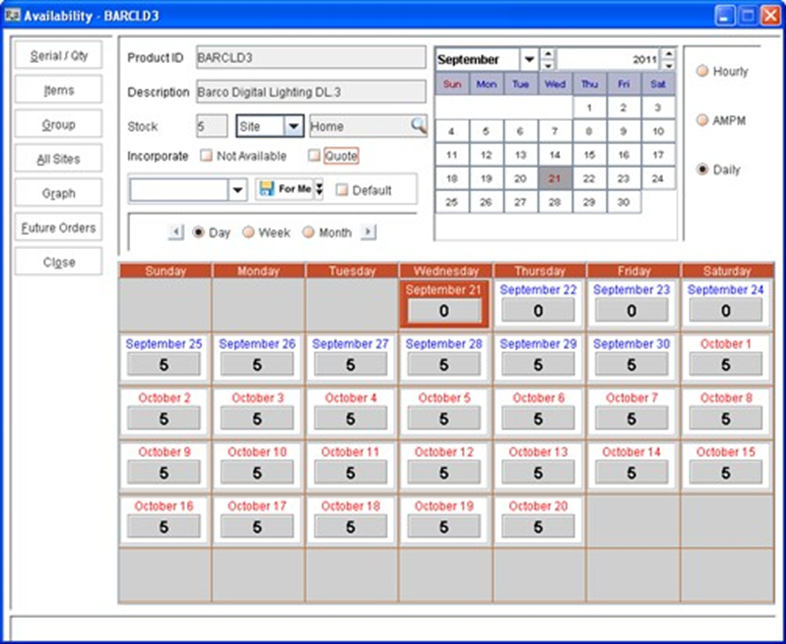
Invoke availability window and verify the availability of the Item between the duration 21-Sep-2011 to 24-Sep-2011. The availability will be displayed as 0, as all the assets of the item are reserved on the order [ORD#243] (Refer Fig 3.0 of Illustration - 2)
Fig 4.1
-
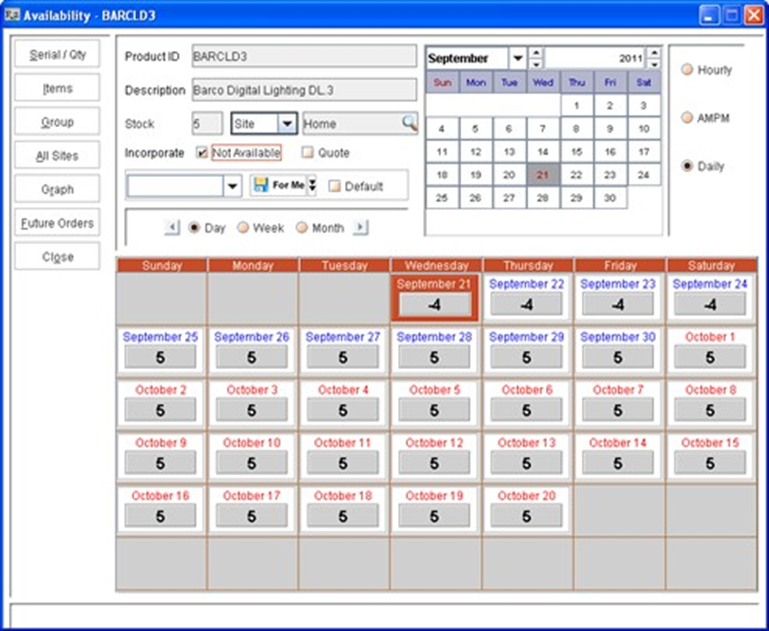
Select the Not Available check box. The Availability window will be now refreshed to incorporate the total item quantity in not available status. Refer Fig 4.2 for illustration.
In this scenario, total quantity of item quantity in 'Not Available' status will be 4 (Refer Fig 4.0)
Fig 4.2
-
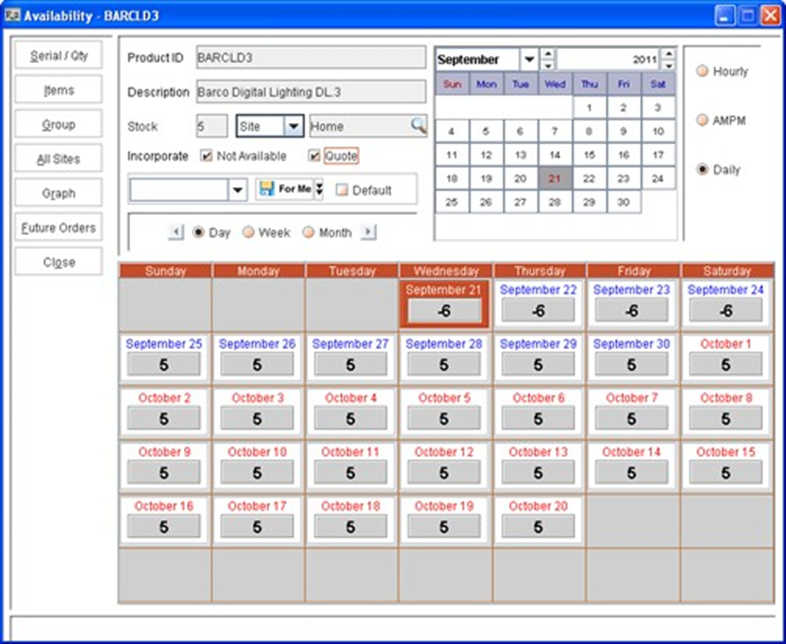
Select the Quote check box. The availability window will be now refreshed to incorporate the total quantity of item which is present in Quote Orders.
In this scenario, total quantity of item quantity in Quote Orders: 2 (Refer Fig 3.1 of Illustration - 2)
Fig 4.3
-
While viewing availability with the Not Available and Quote check boxes selected, the availability for a day will be displayed as [Total Stock of Items (5) - (Total Not Available Quantity + Total Item Quantity on Quote Orders].
-
On viewing the distribution of Item stock availability ( by clicking the availability displayed for a day), system will display Total stock of items which are present in Quote Orders+ Total Quantity of Item which is Not Available status in the Incorporated field. Refer Fig 4.4 for illustration. Further to, on clicking the quantity displayed in the Incorporated field, system will display the list of Quote Orders and orders in which the item is in 'Not Available' status. Refer Fig 4.5 for illustration.
Note : Unlike Reserved, Hold and other status lines, the incorporate statuses (Not-available and Quote) will not be reflected in the availability, unless the Order is saved.
Fig 4.4
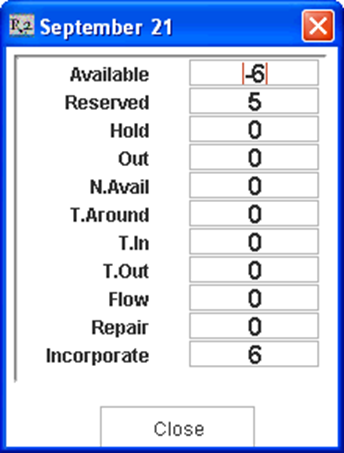
Fig 4.5