
-
Create an Order [ORDER#1].
-
Add a Not Available Item [LED37TV] of 4 quantities to the Order [ORDER#1]. The Item Status will be Not Available.
-
Right-click the Item line > Assign > Sub-Rental > User Assign > Create New Purchase Order. A Sub Rental Purchase Order [PO#1] is created with [LED37TV] added to it.
-
Select the Item [LED37TV] item line and click the Vendor Barcodes icon. The Vendor Barcodes dialog box is displayed.
-
Type the barcode ID in the Barcode field and press ENTER. The entered Barcode ID is displayed in the grid in the Vendor Barcodes dialog box, as shown in Figure 1.1.
Figure 1.1 Adding Vendor Barcodes Using Vendor Barcodes Dialog Box
.png?cb=a4d24a9347b1c576604172e6784858c3)
Notes:
While assigning Barcodes in the Sub Rental PO, Barcodes can be assigned only for the Ordered quantity.
An added Vendor Barcode can be modified by selecting it in the Grid and selecting Overwrite radio button. Then enter new Barcode ID in the Barcode field and press ENTER. The Vendor Barcode gets updated.
If a Vendor Barcode ID is modified from linked Purchase Order after it is used for filling in the Rental Order, then the Vendor Barcode ID gets modified in the Purchase Order alone. The Rental Order retains the earlier entered Vendor Barcode used while filling the Asset.
An added Vendor Barcode can be deleted by selecting it in the Grid and clicking the Delete icon. A Barcode in S-Filled, S-Out or S-Return Status cannot be deleted, on trying to delete, the system displays an error message "Unable to delete: Used in Order".
The CID 44111 can be used in 4400000UI for printing Vendor Barcode of Assets while generating Sub-Rent Purchase Order print.
-
Click the Save & Exit icon. The entered Vendor Barcodes gets saved and system closes the Vendor Barcodes dialog box.
-
Release the Sub Rental Purchase Order [PO#1] and exit. The Item Status of [LED37TV] in the Order [ORDER#1] is updated to S-Assign.
-
Click View > Fill Order. The Fill Order window is displayed.
-
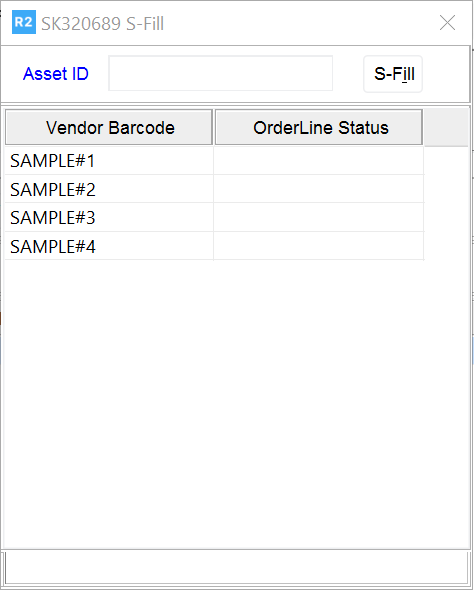
Select the Item quantity line and click S-Fill/T-Fill button. The Sub/Transfer Fill dialog box is displayed. The list of Vendor Barcodes provided for the Item in the Sub Rental PO is displayed in the Sub/Transfer Fill dialog box, as shown in Figure 1.2.
Figure 1.2 Sub/Transfer Fill Dialog Box
-
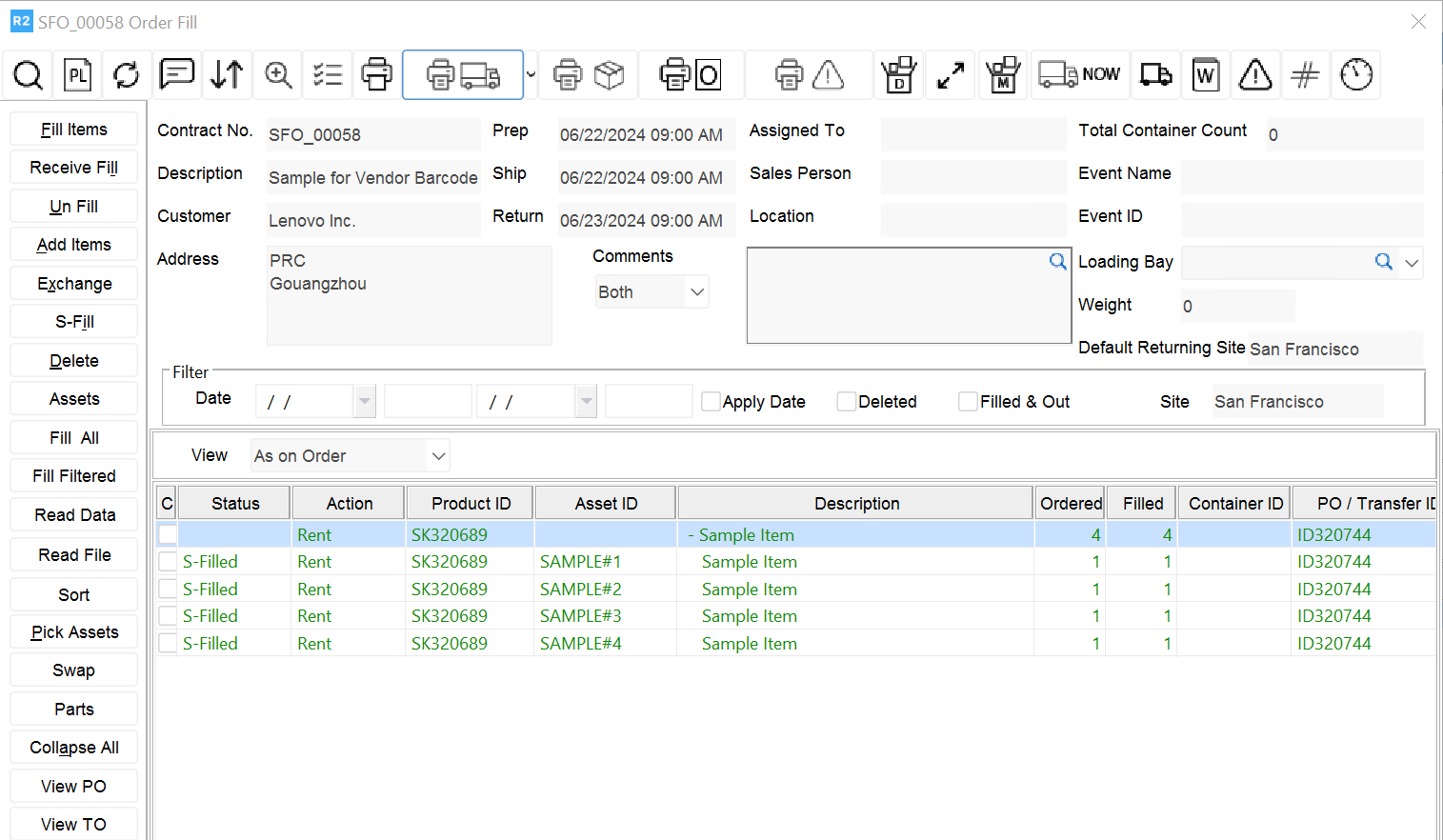
Select any of the Assets to be filled by double-clicking on their Vendor Barcodes displayed and click OK. The selected Assets are filled in the Order and will have their Vendor Barcode displayed against them in Asset ID column, as shown in Figure 1.3.
Figure 1.3 Chosen Asset Identified by its Vendor Barcode is Filled
Assigning Barcode While Filling the Asset on the Order
Barcodes can be provided while filling Assets on the Order by directly keying-in the Vendor Barcode in the Asset No field in the Sub/Transfer Fill dialog box. When a Vendor Barcode is keyed in which is not present in the linked Purchase order then:
-
If Vendor Barcodes are not assigned fully for the ordered quantity in the linked Purchase Order - the Asset gets filled by the keyed-in Barcode and the same is updated in Vendor Barcodes dialog box of the linked Sub Rent PO.
-
If When Barcodes are fully assigned in the linked Purchase Order - a prompt message "Barcodes are fully assigned for the ordered quantity on the PO. This Asset will not be added to PO. Do you want to S-Fill this Asset?" with Yes and No options is displayed.
-
On clicking Yes the system fills the Asset by the keyed-in Barcode without affecting the Vendor Barcodes in the linked Sub Rent PO.
-
On clicking No the keyed-in Barcode is cleared in the Asset No. field.