
What are Custom Dates?
Custom Dates allow you to pre-define specific date ranges that can be used to filter data, instead of relying on the standard date selection options. This feature provides more flexibility when setting date criteria for various tasks, reports, or rules.
Example: Filtering Data
You can use Custom Dates to filter data based on a defined date range. For example, you might want to search for Planning Orders in R2 Labor that fall within the current month. By using a Custom Date, you can easily set this range without manually selecting dates each time.
Login to Labor > Navigate to Main Menu > Go to Manage > Custom Dates.
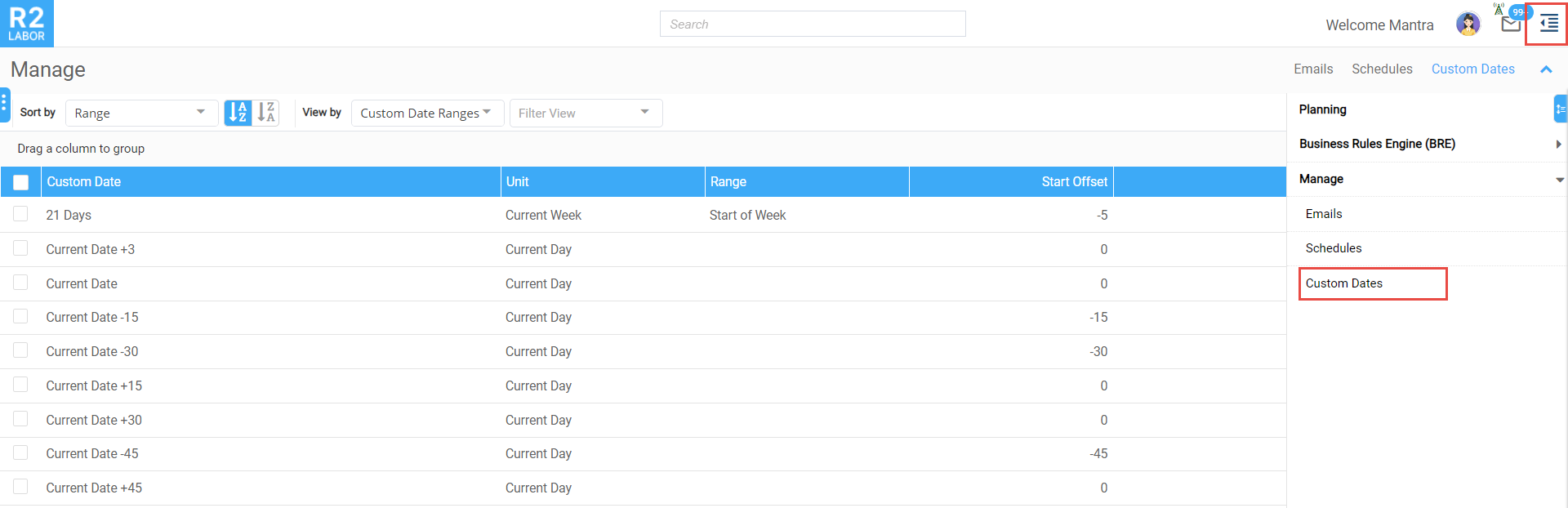
The Custom Dates screen is displayed.
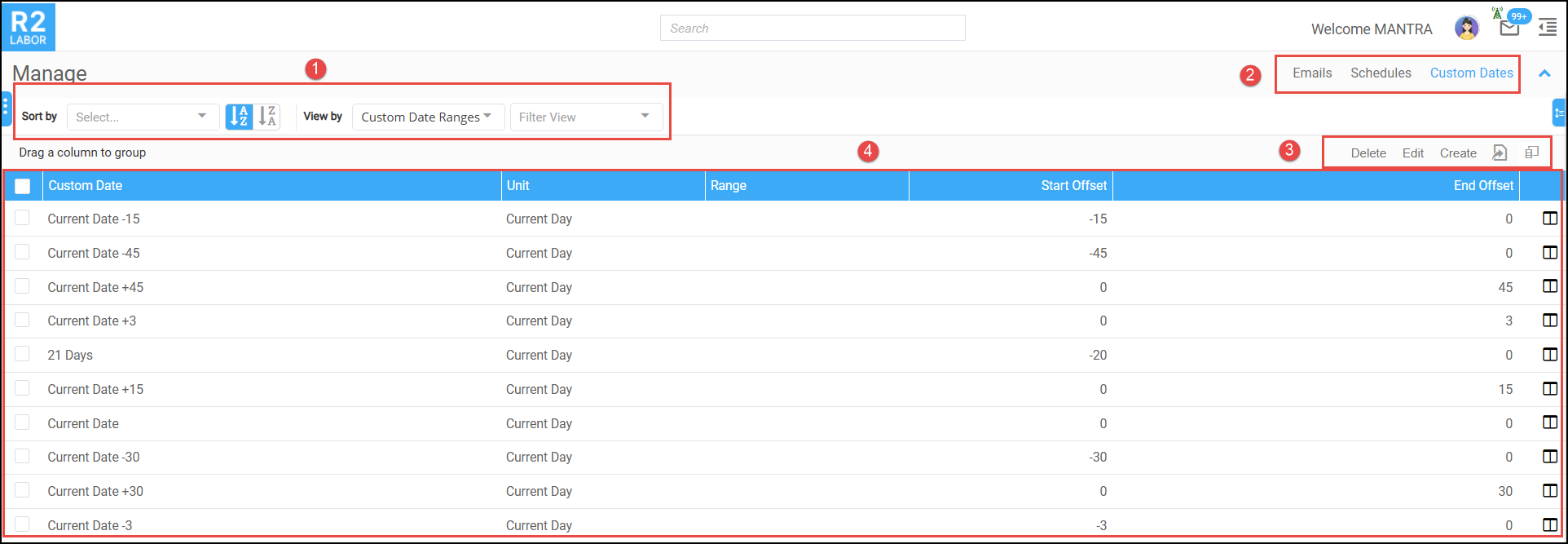
1. Sort and Search
-
Sort by: Sorts Custom Date list according to selected criteria such as (Sort by Range, End Offset, Start Offset, Unit, Range)
-
View by: By default it is Custom Date Ranges.
2. Quick Access:
-
Emails: Allows you to quickly access to configure and manage email templates, recipients, and scheduling of automatic email notifications.
-
Schedules: Allows you to easily configure, view, and modify time-based schedules for rule execution.
-
Custom Dates : Allows you to quick access to configure special dates.
3. Manage Operations
-
Create: To create new Custom Date select Create, click here to know how to create?
-
Edit: To Edit any existing Custom Date and edit the required values.
-
Delete: To Delete any Custom Date select any one from list and click on Delete
4. List Header details
-
Custom Dates: The name you have given to the custom date range.
-
Unit: This shows the time period used for the selected date range. For example, it could be:
-
Current Day
-
Current Week
-
Current Month
-
Current Year
It helps define the scope of the date range.
-
-
Range: This column shows the actual date range that is set based on the unit you’ve selected (e.g., from the start to the end of the current month).
-
Start Offset: The start offset indicates a specific date to begin the calculation. It can be a positive (+) or negative (-) value to adjust the start date before or after the chosen unit's start.
-
End Offset: The end offset indicates the end date for the calculation. Like the start offset, it can be a positive (+) or negative (-) value, adjusting the end date either before or after the selected range.
Creating Custom Dates

To Create/ Edit the Custom Dates Enter the following Details
-
Description: Description or name given for Custom Date.
-
Unit: Choose the level for which you need to create the custom date. Available units are Current Day, Current Week, Current Month, and Current Year.
If you set Unit as Current day the date will not have range
-
Range: Choose the range for the selected unit. The dropdown displays based on the level you chose for Unit. For ex: If you select Unit as Current Week then Range will be Current Day of Week, Start of Week, End of Week or Full Week.
-
Start Offset: This specifies the starting day to consider date calculations for the given range, this can be positive or negative value.
-
End Offset: This specifies the ending day to conclude the date calculation for the given range.
-
Offset Unit: This is a non-editable field, and it displays the offset unit based on the unit selected.
-
Preview: This provides the exact dates based on the unit, range, start and end offset.
Example to show how Start Offset is used to calculate Date Range

-
Select Unit as ‘Current Day’ and Start Offset as -5
-
Then Date range displayed from [Current day - Start Offset value]
-
If your current date is 05/10/2024 and Offset value is -5 then date then it displays range as From 08/18/2024 12:00 AM to 10/05/2024 11:59 PM
Example to show how End Offset is used to calculate Date Range

-
Select Unit as ‘Current Month’ and End Offset a 5
-
Then Date Range displayed from [Current Month +(Range)+End Offset value]
-
If your Unit is ‘Current Month’ October i.e. 10th month
-
Then if you set Range as ‘Start of Month’ then date is calculated from Start of the month ie 10/01/2024 AM to end of 5 months ie 03/05/2025 PM
-
Preview is displayed as: From 10/01/2024 12:00 AM to 03/05/2025 11:59 PM