
In the Documents tab of an Opportunity in R2 CRM you can upload, view, download, and delete documents related to a specific opportunity.
One key aspect is uploading and maintaining all necessary documents related to the Opportunity—these may include technical, functional, legal, financial, educational, and compliance-related documents.
The Documents tab in the Opportunity window in CRM helps you upload, access, and manage all such documents in one place.
Key Features
-
Upload one or more documents
-
Download any document listed.
-
Delete documents.
-
Filter and sort documents by name, type, size, added by, or upload date.
How to Upload a File?
-
Open the Opportunity and add General Info.
-
Go to the Documents tab.
-
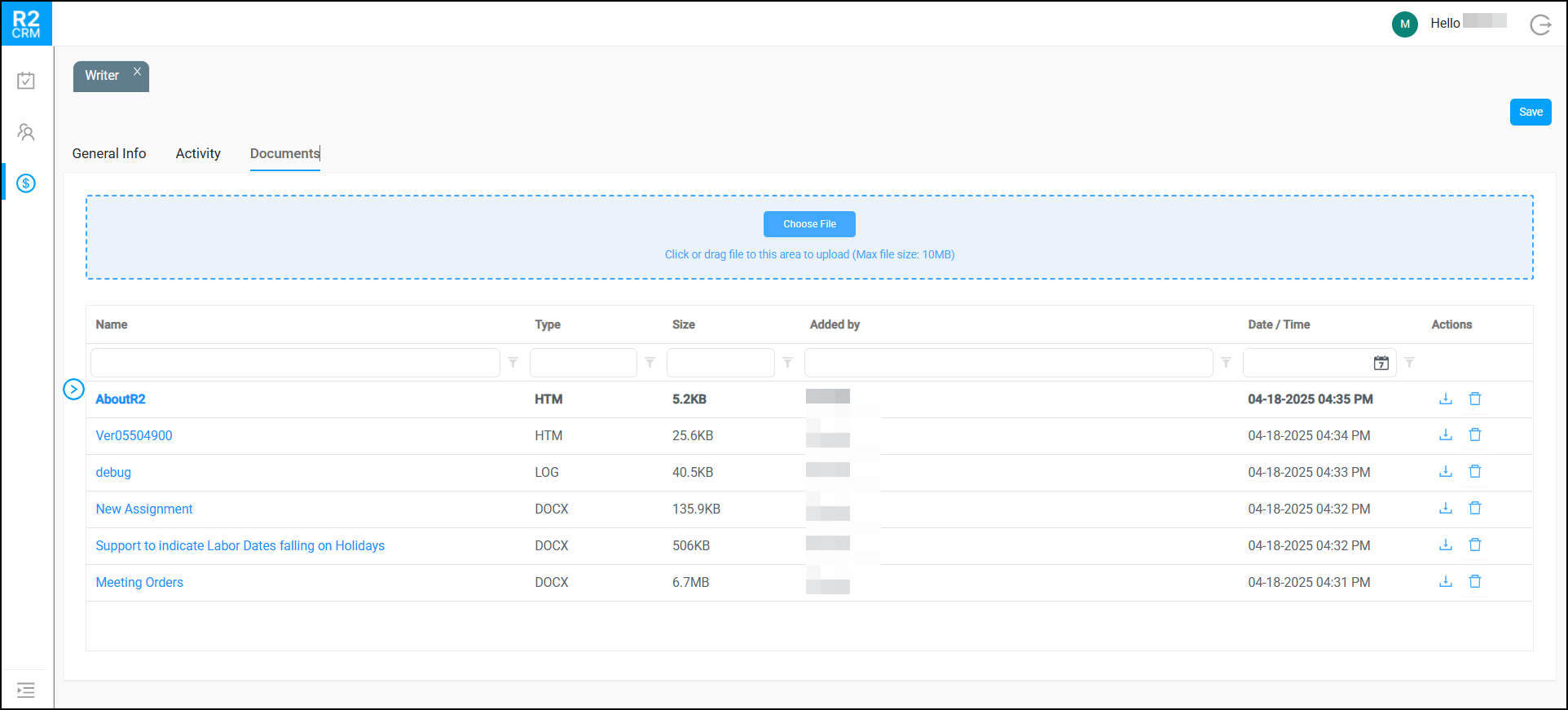
To upload files, Drag and drop the file into the blue upload area or click the Choose File button to select files manually from your computer.
-
By default CRM limits the file size to 10MB. However it can be configured for higher size limit*. To configure contact UBS Support or Professional Services team.
-
-
The file will appear in the list below once uploaded.
*The maximum allowed configurable size limit is 200MB.
-
Attempting to upload files larger than maximum limit set, the system will display an error as shown below.
-20250422-114955.png?cb=515bce6dfe80487a30aab9230a77d6e9)
Uploaded File Information
Each uploaded file shows the following:
|
Field |
Description |
|---|---|
|
Name |
Name of the file |
|
Type |
File type (e.g., DOCX, HTM, LOG) |
|
Size |
File size |
|
Added by |
User who uploaded the file |
|
Date/Time |
When the file was uploaded |
|
Actions |
Download: Click to save a file to your computer or Delete: Click to remove a file |
How to Search and Filter
Each column header has a small filter icon and search box:
-
Enter a keyword or value to narrow down results.
-
Use the calendar icon under "Date/Time" to search by upload date.
-
Click column headers to sort in ascending/descending order.
Important Note:
-
If you upload a file with the same name more than once, the system will automatically rename it with a number suffix.
-
Always check file size and type before uploading.