Content was last updated in 01.03.03-07
Revision History
Version No.
|
Reference No.
|
Changes
|
|
01.03.03-07 |
R2-4787 |
Gauge Widgets Percentage for Missing Assets |
Support has been provided for the Gauge Widgets % for Missing Assets by Product/Category/Sub-Category/Department for a selected Site in the R2 Labor application > Operations section, as shown in Figure 1.0.
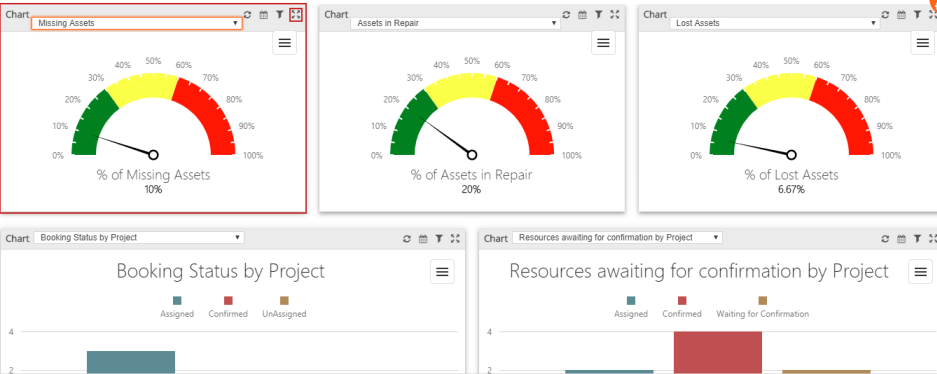
The details are explained in the sample workflow given below:
Sample workflow
-
Log into the R2 Labor application.
-
Select the Operations section.
-
The Gauge Widgets % for Missing Assets is displayed, as shown in Figure 1.0.
-
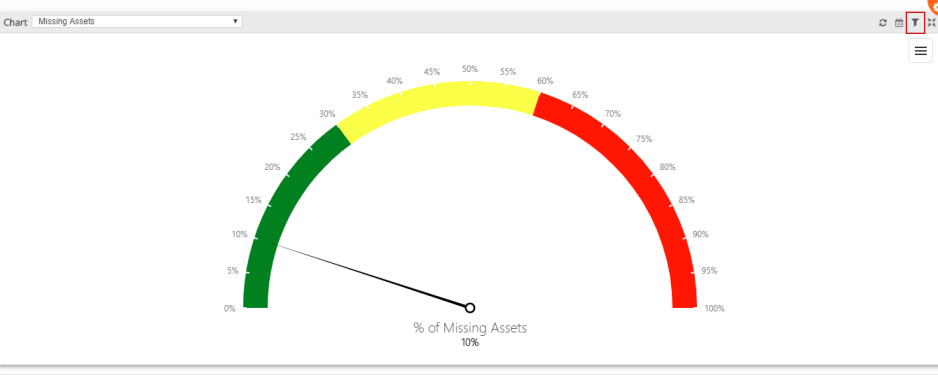
Select the Maximize button. The maximized view of the Gauge Widgets % for Missing Assets is displayed, as shown Figure 1.1
-
Click the Filter button, as shown in Figure 1.1.
-
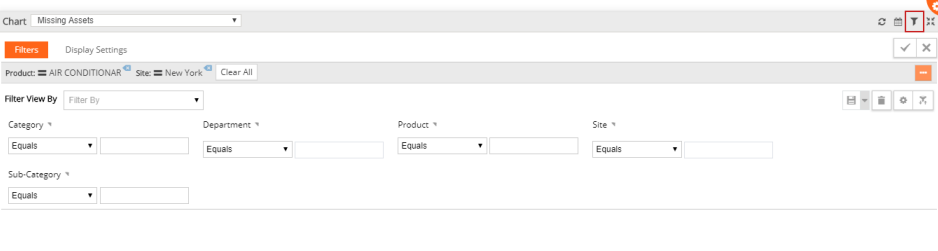
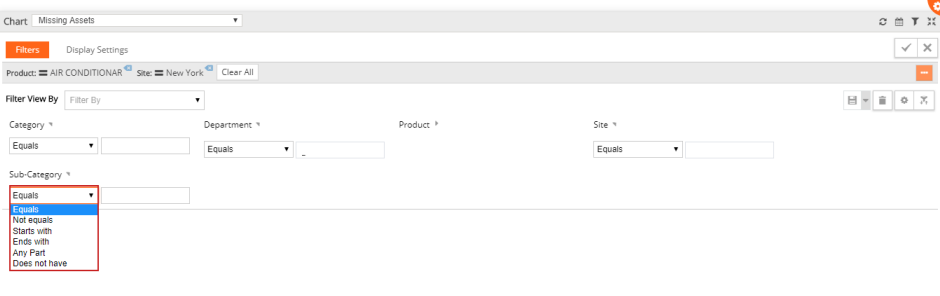
The Missing Assets Filter screen with the Filters drop-downs Category, Department, Product, Site, and Sub-Category are displayed, as shown in Figure 1.2.
-
The filter options such as Equals, Not equals, Starts with, Ends with, Any Part, and Does not have are included in each of the Filters drop-downs Category, Department, Product, Site, and Sub-Category, as shown in Figure 1.3.
-
Enter the Filter View By [Filter#1] and select the Product filter [AIR CONDITIONER] Site filter [Equals] and enter the Site [Los Angeles]. The filter is applied and is displayed, as shown in Figure 1.3.
-
Click the Apply button. The Gauge Widgets % for Missing Assets is displayed, as shown in Figure 1.4.
-
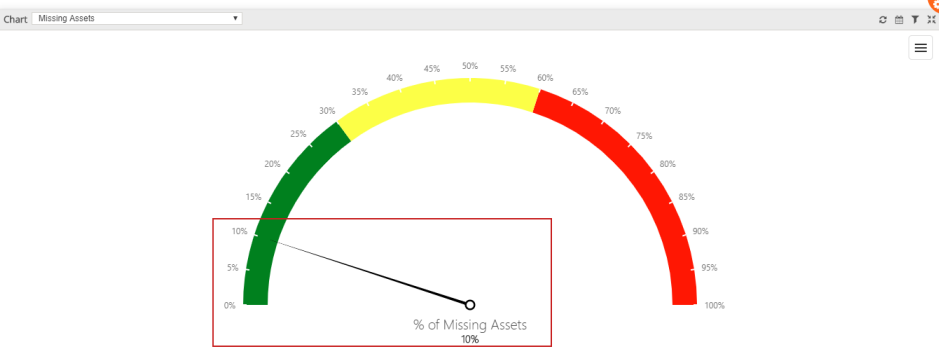
The Gauge Widgets % for Missing Assets displays 10% of Missing Assets, as shown in Figure 1.4.