
Content was last updated in 06.01.04-00
Revision History
Version No.
|
Reference No.
|
Changes
|
|
06.01.04-00 |
R2-14935 |
Send message to multiple resources for multiple booking lines |
|
NA |
NA |
Introduction to sending message to the resource |
Labor Planner cam send the message to multiple crews about their availability, skills, billing-rates, reference documents. etc. Similarly, the crew can respond with their answers, questions and clarifications.
You can access from:
-
Planning Order > Booking line > Booking line header > Send Message
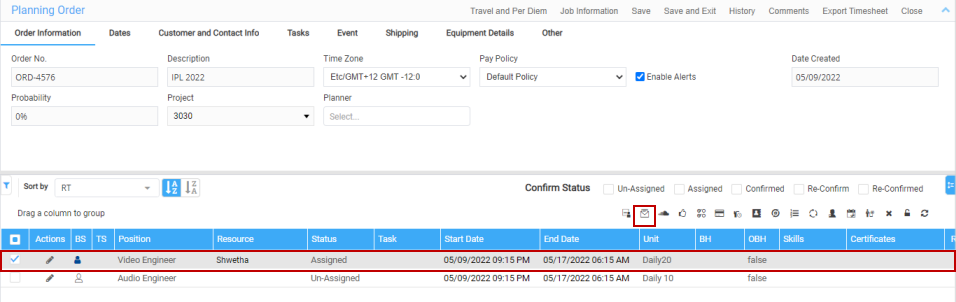
-
Planning Order > Booking line > right click > Send Message
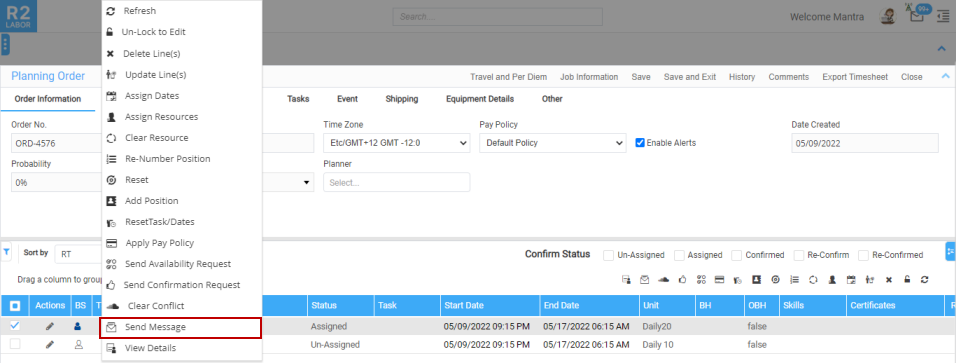
-
Planning Order > Booking line > Actions > Send Message
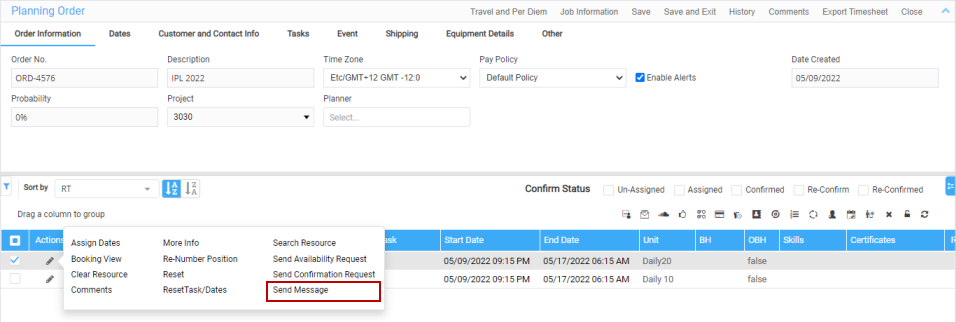
-
Search Order > Communicate > Resource line > Send Message

-
Whiteboard > Booking date > Send Message
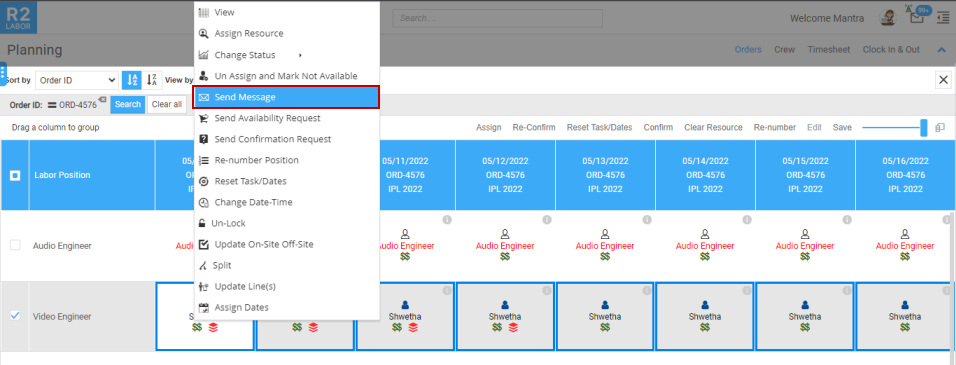
-
Graphical Scheduler > Order section > Right click > Send Message
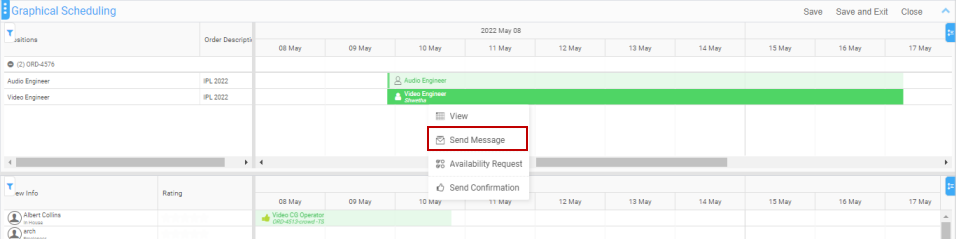
How to send message to the resource?
Before you begin,
-
Ensure the labor positions are added to the Order.
Workflow
-
Open the Order in Planning Order.
-
Select the Booking lines and click the Send Message icon. You can select multiple booking lines as well.
-
Or From Graphical Scheduling / Whiteboard, go to the Send Message option.
-
-
Send Message window displays. Click Expand to view the full window.
-
Fill in the following details in the window.
-
To: The contact email of the recipient.
-
Subject: Add an appropriate subject line to the message.
-
Attachment: Upload the required attachment (if any) for the message.
-
Template: Chose the ‘Template’ you want to use, from the drop-down list
-
Language: If dealing with multi-language system, you can select the language from the drop-down.
-
-
Draft the message in the textbox.
-
You can switch between ‘Preview’ and ‘Edit’ Mode.
-
In the ‘Custom Message’ you can switch between ‘Rich Text’ and ‘Plain Text’ modes.
-
-
Click Send button.
-
Save the order. The message will be sent to the recipient.
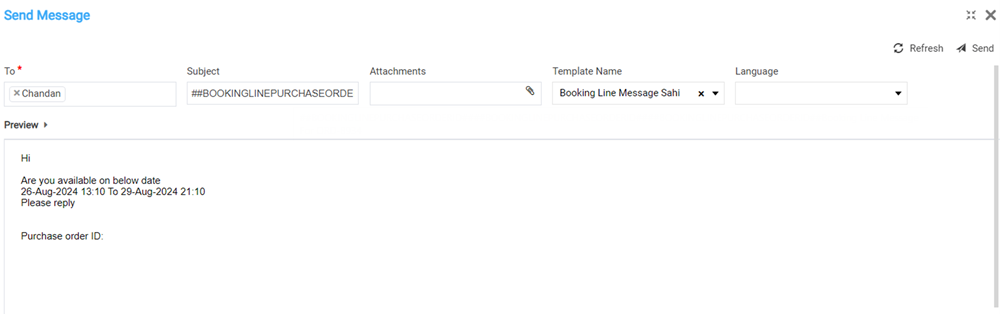
You can tag multiple resource also and a preview of the request is displayed.
An e-mail will be triggered to the tagged recipients. Upon the resource response, you will receive the e-mail of their response and the e-mail sits in the mail box in application as shown below.
