
You can Ship the items that are prepped/filled using this app.
Features of Ship Operation
-
Tap on individual items and Ship them
-
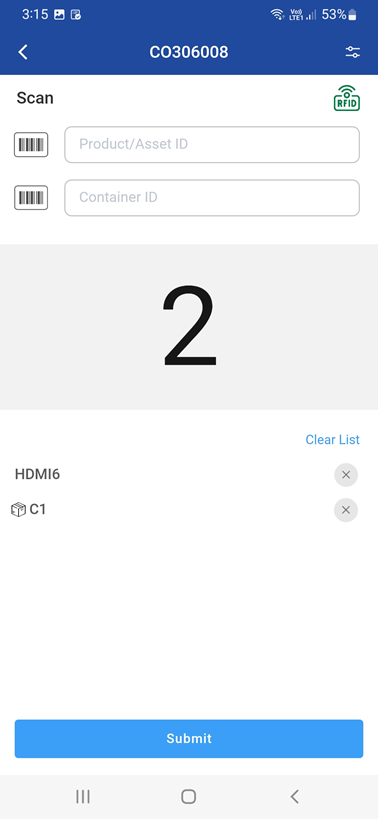
Scan (barcode) item IDs and submit them to ship.
-
Scan the container Id to ship all items associated/mapped with the container.
-
View items of set of departments by applying department filter and ship within filtered list of department items
-
View the order info and comments from the schedule
Workflow
-
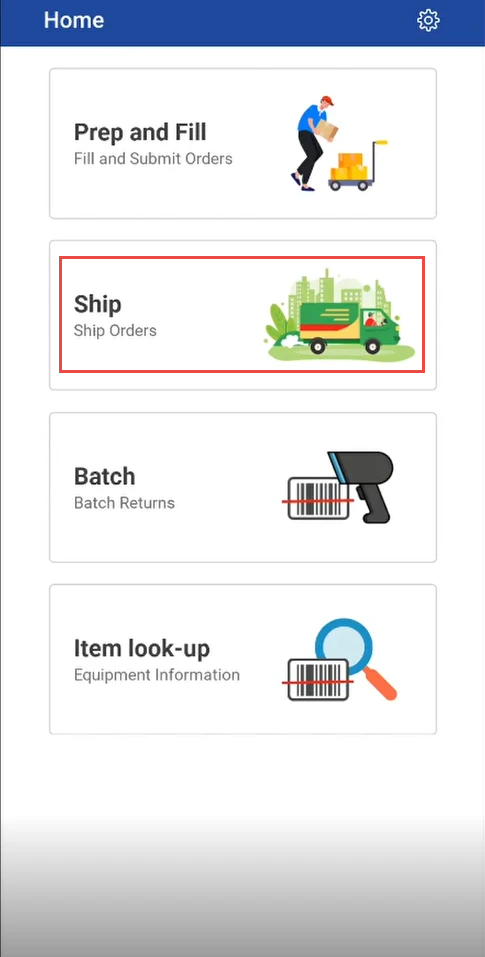
Click on Ship
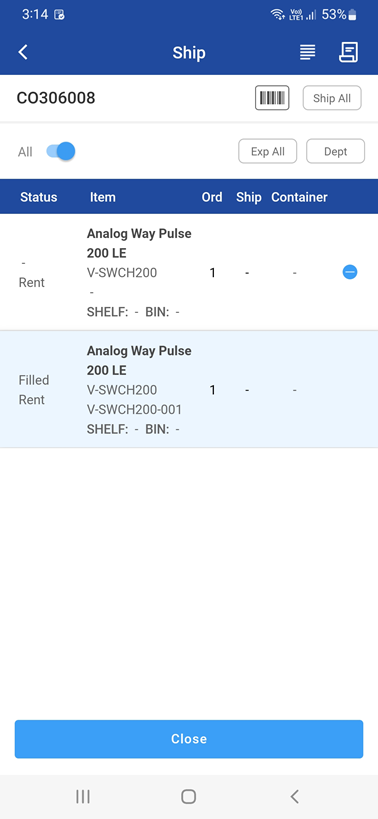
Shipping list is displayed
-
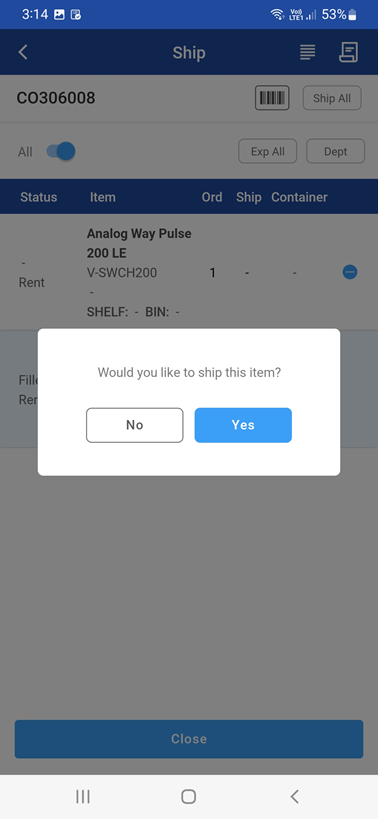
Tap any order item to ship, select yes if you wish to ship the item
-
You can scan or enter Asset ID to ship the items.
-
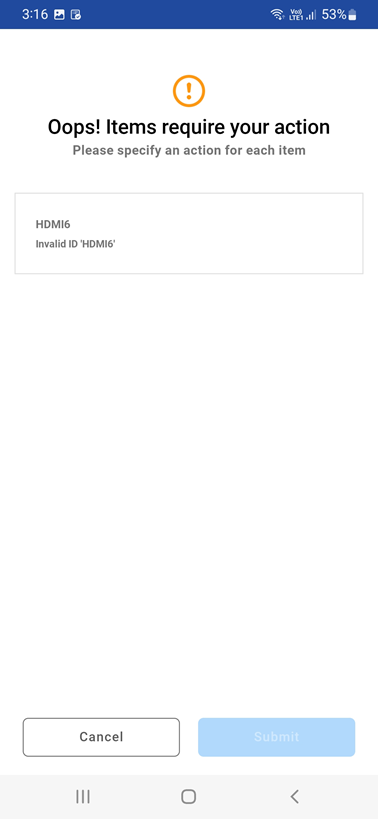
If Item not available in the list, the error is displayed as shown below
From the Ship Order screen you can also generate a document called Delivery Receipt.
To generate one, please click on the icon.