
The Notification bar in the dashboard shows the number of unread messages, requests, and/or approvals.

The app displays following three type of information on the notification page. All the unread items on each page are displayed in Bold.
-
Messages: These are notification messages sent to the Crew and are for information only. See Sample message.
-
Requests: These are availability requests sent to the Crew by the Labor Planner or Project Manager,asking for a acceptance/rejection. See how to accept/reject an availability request.
-
Approvals: These are confirmation requests sent by Labor Planner or Project Manager, in response to your acceptance/rejection of requests. See how to accept/reject an confirmation request.
In all the above screens, when you tap the Archive button, the app moves the message to archive directly, without any subsequent confirmation.

|

|

|
Read and Respond to Notification message
Since these are only FYI type of message, you can either Archive the message by tapping the button, or respond by a detailed message. See how.

'Accept' or 'Decline' a Availability Request
Each 'Availability Request' can be viewed from within the app independently, and has a Available/ Unavailable button.

-
Tap on Available button if you want to accept to the Availability Request.
-
Tap on Unavailable button if you want to decline to the Availability Request.
-
Tap on Archive button to move this Availability Request into archives.
-
Tap Send Message to respond to this Availability Request through a proper message.
To know how to Send this notification message... click here.
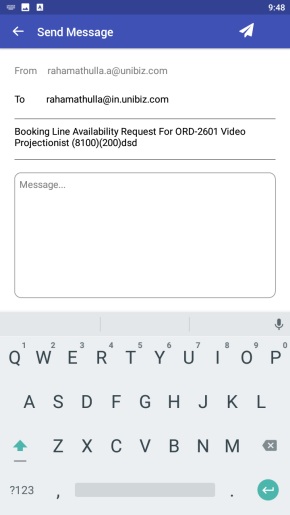
The Crew can also by tapping on the 'Send Message' button on the Availability/ Confirmation request or Notification Message screen. This will open a reply dialog window, where Crew can type-in the response. (See Figure 1.6).
Type the message in the message box and tap the Send Icon.
'Accept' or 'Decline' a Confirmation Request
Each 'Confirmation Request' can be viewed from within the app independently and has a Available/ Unavailable button.
The crew can click on either of these buttons to respond to any Confirmation Request.

-
Tap on Available button if you want to accept to the Confirmation Request.
-
Tap on Unavailable button if you want to decline to the Confirmation Request.
-
Tap on Archive button to move this Confirmation Request into archives.
-
Tap Send Message to respond to this Confirmation Request through a proper message.
To know how to Send this notification message... click here.
The Crew can also by tapping on the 'Send Message' button on the Availability/ Confirmation request or Notification Message screen. This will open a reply dialog window, where Crew can type-in the response. (See Figure 1.6).
Type the message in the message box and tap the Send Icon.
Archive a message or notification
For this feature to work properly the Show Archives flag should be enabled in settings.
To archive any message or notification, open it and tap the 'Archive' button.
if the Show Archives flag is enabled, then the item is tagged is Archived and remains in the same screen. See Figure 8.0
if the Show Archives flag is not enabled, then though the item is tagged is Archived, it gets removed/hidden from the same screen.
Sender’s avatars in notification page
The app shows sender's avatar for all the three type of notifications — Messages, Availability Requests, and Confirmation Approvals.
-
Notifications tab to show sender initials (first letter from First Name + Last Name) for each alert/notification.
-
If both First Name and Last Name are blank, then first letter of E-mail ID should be considered.
-
If either First or Last Name is blank, then first letter of respective fields should be considered.
-
If all the fields (First Name, Last Name, and E-mail ID) are not available, the app should show an empty user icon (gender neutral).
Sender information may not be available in R2Labor instance Older than 06.01.02-00. In such case the App does not show any initials or icon in avatar.

|

|