
Bookings & Requests is your central hub for managing all requests, ongoing jobs, and upcoming jobs. It provides a consolidated list, allowing you to view and filter items by categories.
Access points
You can access the Bookings & Requests feature in the following ways:
-
Dashboard >

-
Dashboard > Requests > View All: Shows all the requests you've received so far.
-
Dashboard > Current > View All: Displays all ongoing jobs.
-
Dashboard > Upcoming > View All: Lists all the jobs scheduled for future.
Bookings & Requests screen
-
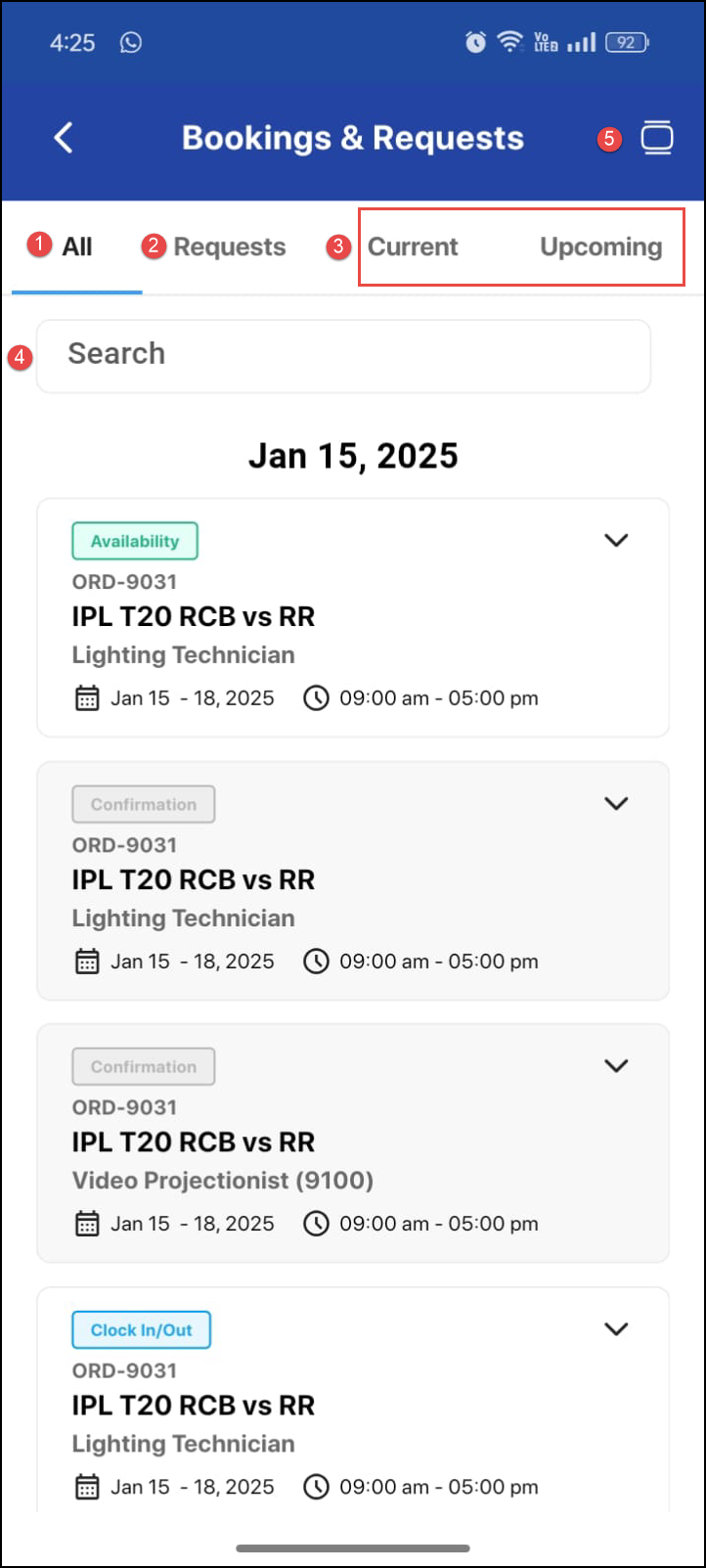
All: Shows all requests, including ongoing and upcoming jobs. You can search and sort by job date (ascending/descending) or filter by Request, Current, or Upcoming. Default sort is ascending by booking line date.
-
Click on any order to see full details and perform required action.
-
Search & Filter: Use the search bar to find a specific request. Click the filter icon to sort the jobs by date in Ascending/Descending. By default the list is shown in ascending order by booking line date.
-
Click Down Arrow to expand to see specific request or job’s full address.
-
-
Requests: Shows both responded and open requests (availability and confirmation).
-
Responded requests are grayed out, but you can still tap to view the details.
-
Search & Filter: Use the search bar to find a specific request. Click the filter icon to sort the jobs by date in Ascending/Descending. By default the list is shown in ascending order by booking line date.
-
Open requests are clickable, allowing you to view job details and respond.
-
-
Jobs:
-
Current: Lists all ongoing jobs. Tap any job to view its details. If a job is active, you'll see options to Clock in/Clock out.
-
Search & Filter: Use the search bar to find a specific request. Click the filter icon to sort the jobs by date in Ascending/Descending. By default the list is shown in ascending order by booking line date.
-
-
Upcoming: Shows all future scheduled jobs. Tap any job to view its details.
-
Search & Filter: Use the search bar to find a specific request. Click the filter icon to sort the jobs by dates in Ascending/Descending. By default the list is shown in ascending order by booking line date.
-
-
-
Search & Filter:
-
Use the search bar to find a specific request.
-
Click the filter icon to refine your search:
-
Sort by Date (Ascending/Descending): Organize results by date in your preferred order.
-
View Options:
-
All: Displays all requests (both open and responded).
-
Open: Filters only un-responded/open requests.
-
Responded: Filters only responded requests.
-
-
-
-
Expand/Collapse: Click

Color Coding for Easy Identification
As illustrated in Figure 1.0, each job is assigned a color code for quick identification, allowing you to easily determine the type of request you’ve received and whether or not you’ve responded.
-
Green: Indicates an availability request that is still pending response.
-
Orange: Represents a confirmation request that has yet to be confirmed.
-
Greyed: Shows that the request (either availability or confirmation) has already been addressed.