
Pre-requisites
-
Select the Account module.
-
Create an Order [ORD#109].
-
Add an Item [MOTO G 5] with Asset ID [MOTOG5#2] as shown in Figure 2.0.
-
Save and exit the Order.
Workflow
-
Login to Asset Manager app.
-
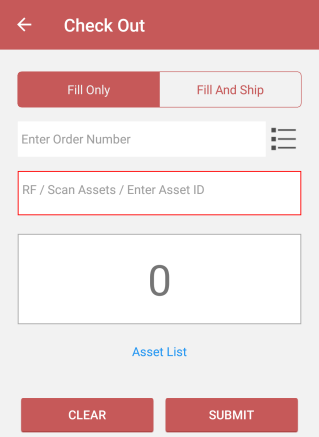
Select the Check Out button.
-
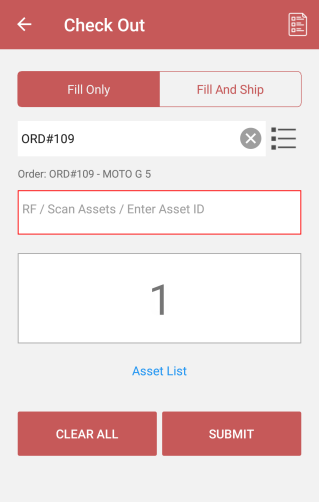
Enter the Order Number > enter asset ID/ scan the asset > and click the Submit button.
You can also select multiple assets to fill. Know more?
-
Click the to view generated batch log details.
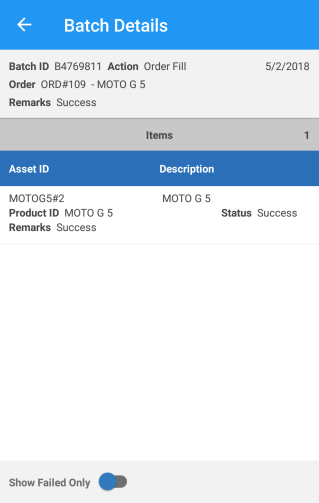
Turn On the Show Failed Only toggle button to see the return failed log details.
-
Exit the Asset Manager App.
-
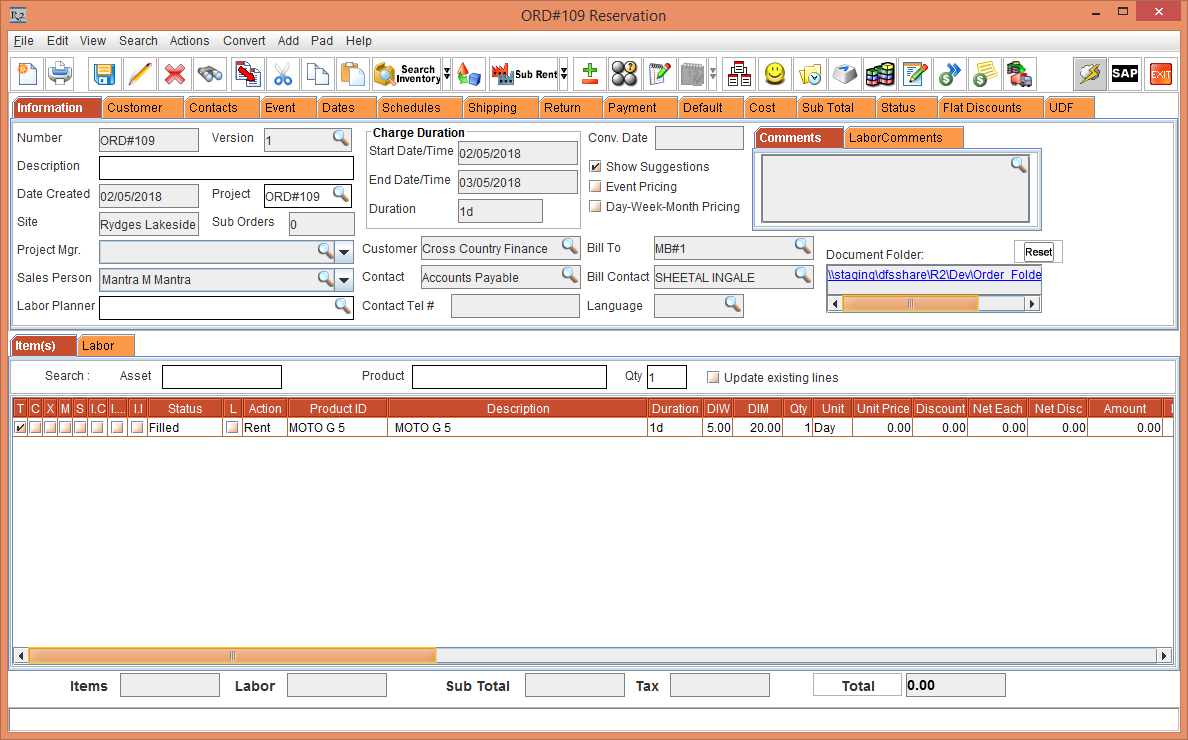
Open the Order [ORDER#109] > the Status of Item [MOTO G 5] gets changed to Filled.
If your logged Site is different from Order ID site, System does not fill and ship the assets, throws an exception “Assets is not in current location.” i.e., Users cant fill orders on another site.