
Overview
LaborMate enables crew members to log their hours directly on-site using mobile clock-in and clock-out features. The system synchronizes these actions based on the status of the related timesheet line, facilitating automated
payroll calculation and reducing manual entry errors.
Planners can also optimize administrative workflows by using the Copy Planned Hours to Actual Hours action to batch-update actual hours with pre-scheduled hours for all eligible timesheet records. Before modifying any records, the system requires a manual validation step to prevent accidental data overwrites.
Clocking In and Clocking Out
Your ability to log hours in LaborMate depends directly on the configuration state of your timesheet line. Crew members can successfully record timestamp activities only when the related timesheet line remains in one of the following authorized states:
-
New
-
Rejected
To clock in and out for a new timesheet line
When a timesheet line is in the New status, the system completely automates the time calculation workflow upon
recording synchronization.
-
Open the LaborMate application on your device.
-
On the home dashboard, select the required job from your active list.
.png?cb=c70be42fa88b10f1308a3e250cf7bec4)
-
Select Clock In. The app captures your precise start timestamp.
.png?cb=e3a78b38bc66cbf984214d68a919cb5d)
-
Complete your assigned workflow or scheduled site tasks.
-
Select Clock Out to end the shift recording.
.png?cb=4db2e6bbe5f07c70f4df66ada6edda80)
Following this action, the system immediately updates the matching timesheet line with the following synchronized metrics:
-
Actual In Time
-
Actual Out Time
-
Actual Hours
Based on the calculated Actual Hours, LaborMate automatically recalculates the overall line Duration and total
transaction Amount.
To clock in and out for a rejected timesheet line
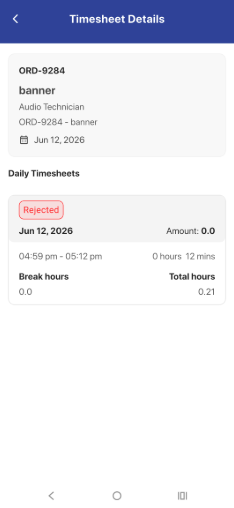
If a coordinator or manager marks a timesheet line as Rejected , crew members can still perform work-hour entries for compliance and auditing purposes, though the backend processing handles the information differently.
-
Open the LaborMate application on your device.
-
On the job selection screen, select the rejected job entry.
-
Select Clock In to initiate the shift log.
-
Complete your assigned site work.
-
Select Clock Out to finish the shift log.
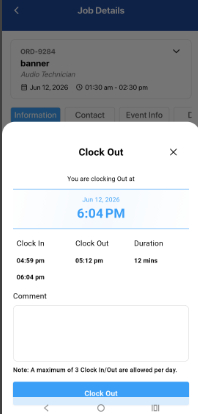
While the application records and timestamps the local clock-in and clock-out activities on a rejected line, the system does not synchronize the captured time metrics directly to the active timesheet line.
Restricted Timesheet Statuses
To preserve data integrity during payroll, billing, and auditing intervals, LaborMate locks time tracking actions for lines undergoing active review or finalization. Crew members cannot select clock buttons or modify records if a timesheet line resides in any of the following restricted statuses:
-
Pending Approval
-
Need Info
-
Approved
-
Paid & Closed
-
Any custom User-defined statuses set up by system administrators.
When a user attempts an invalid time-tracking action on a restricted line, LaborMate displays a standard alert
message instructing the crew member to contact their regional or organizational operations coordinator.
Status and Sync Matrix
The following table summarizes the system behavior, field modifications, and external process impacts based on
timesheet configuration states.
|
Timesheet Line Status |
Clock Action Allowed? |
Timesheet Synchronization State |
Automatic Recalculations triggered |
|
New |
Yes |
Fully Synchronized (Updates In/Out times and Actual Hours) |
Duration, Amount |
|
Rejected |
Yes |
Locally Recorded (No sync or push to active timesheet line) |
None |
|
Pending Approval |
No |
Locked |
None |
|
Need Info |
No |
Locked |
None |
|
Approved |
No |
Locked |
None |
|
Paid & Closed |
No |
Locked |
None |
-
Crew members can perform a maximum of three clock-in and clock-out cycles per day within the LaborMate application. If your shift sequence requires additional entries, please contact your operations coordinator.
-
Existing approval, payroll, ledger import, and export processes remain completely unaffected by this component.