
Using this option, security for Site can be set for a particular employee.
To set a Site Policy
-
Click Site Policy in the Security main window.
-
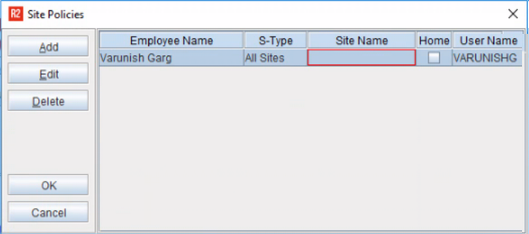
The Site Policies window will be displayed with all the existing Site Policies records.
-
Click Add to display the Site Policy window.
-
E-Type: Allows the user to select either the employee or the position occupied by the employee in the company.
-
Employee Name: Allows the user to select the name of the employee. This employee will have the access to the site as per the access level set.
-
S-Type: Allows the user to select the type of site like – All Sites, Site, Sub-Region and Region.
-
Site Name: Allows the user to select the name of the site.
-
Home: Select this checkbox, if the selected site is the home site for the selected employee.
-
Depending upon whether it is Site, Sub-region, or Region selected in 'S-type', the system accordingly displays in 'Site Name' to select
The 'Site Name' and 'Home' fields are disabled if 'All Site' was selected in the 'S-type'
-
Select Employee or Position from the E-Type drop-down.
-
Click the importable button in the Employee Name field to display the Employee window. Select an employee from the list displayed here. (This is a mandatory field)
-
Select the S-Type from the drop-down.
-
Click the importable button in the Site Name field to display the Sites window. Select a site from the list displayed in this window. This is a mandatory field if the Home check box is not selected or if S-Type is not equal to All Sites.
-
A site policies record will be added in the Site Policies window.
-
Existing Site Policies can be edited and deleted from the system using the Edit and Delete buttons in this window.
-