
For the purpose of periodically servicing or inspecting equipment, R2 Maintenance Groups can be used in conjunction with the Service module.
From the Account screen, go to Search → Items
.png?cb=2e6adf4f7e7693fec861b5798391405e)
At the item search screen, search for an item. Once you’ve found the item, highlight it and click on the edit 
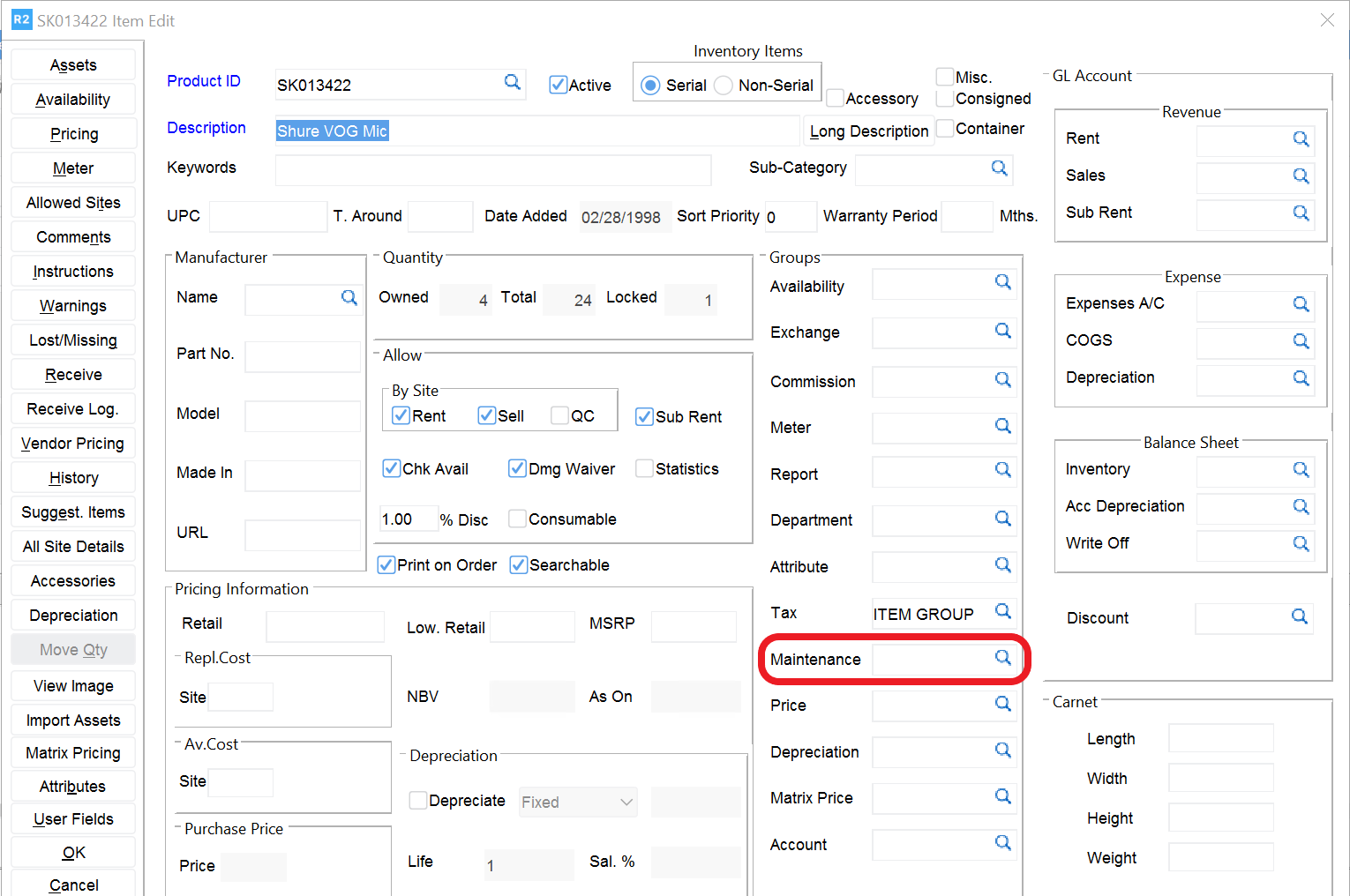
From the Maintenance Group window click on the Add button:
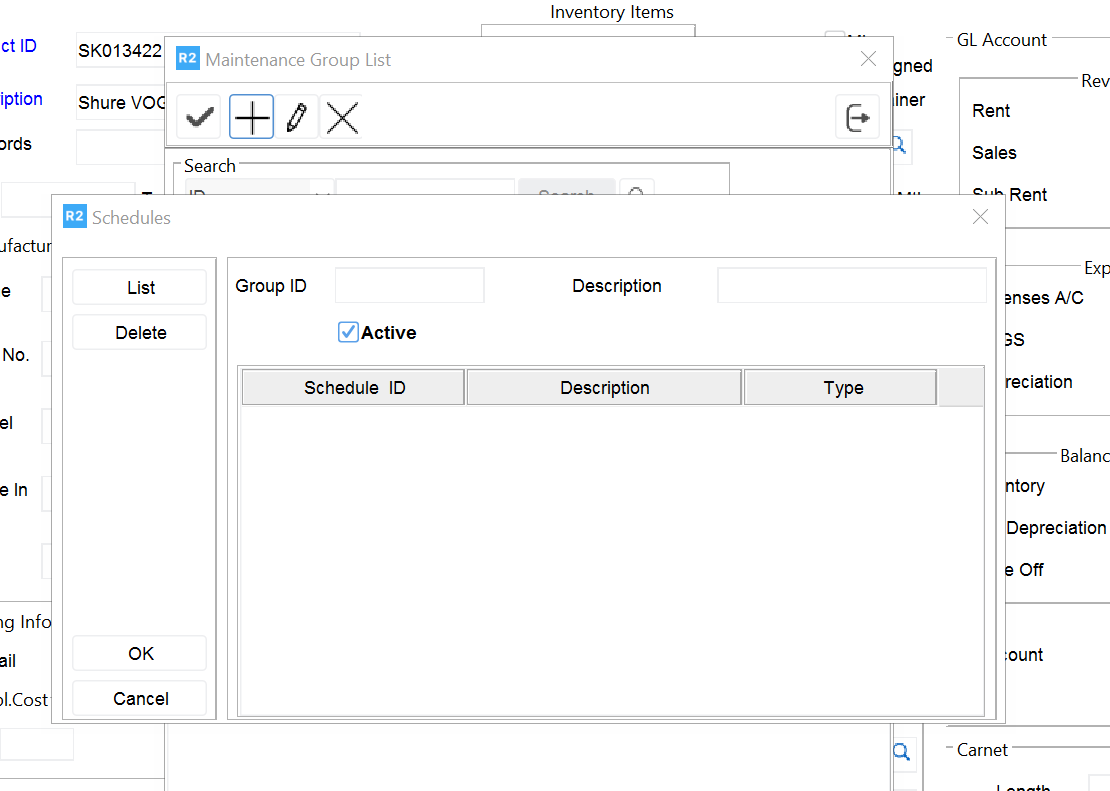
Enter a Group ID and a Description for your new maintenance group.
Click on the List button;
From the Schedule List window click on Add:
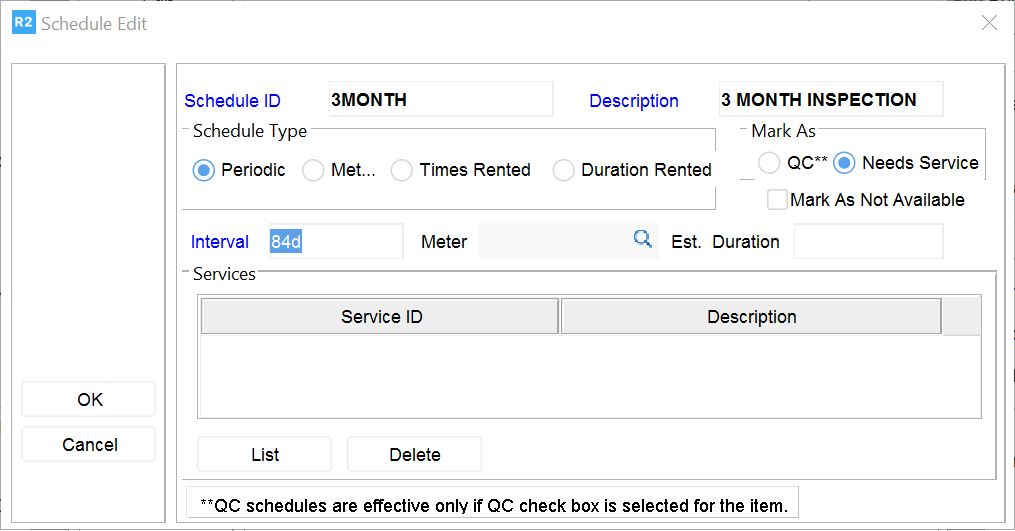
In the Schedule Edit window, add the type of maintenance metric you want your item to be tracked by. In the example above, it is setup to remind you that the equipment should be inspected every three (3) months. See last page of this document for details.
There are also options to be reminded based on a meter reading, the number of times the item has rented and the total duration it has been on rent for.
When finished click on OK. You’ll be returned to the Schedule List. Double-click on each schedule you want to add to your Maintenance group. They will turn blue as they are tagged.
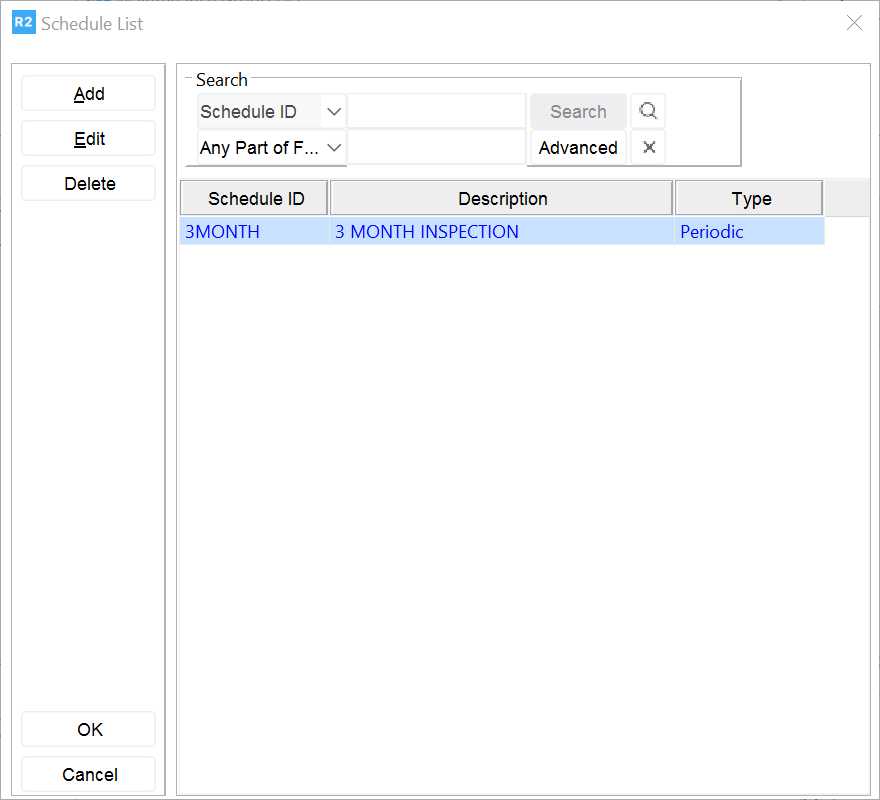
The text on tagged items turns blue when selected.
Click on the OK button to be returned to your Maintenance group and you’ll see the schedules you’ve added tagged to your group:
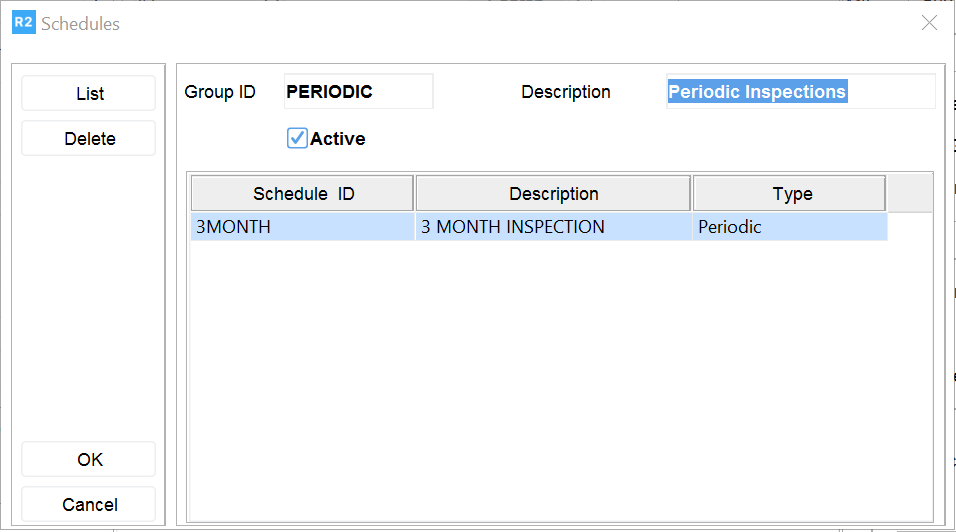
Click on OK to save the Maintenance group.
Double-click on the maintenance group to tag it to your item. Introduction
When Type is Periodic, Assets can be scheduled for Maintenance based on the interval between one service to another. Asset will be marked as Needs Service, if the below condition is true.
|
[Current System Date - Asset Received Date] - [Value entered in the Interval field X Number of Service tickets created for the Asset till Date] is Greater than or Equal to [ Value entered in the Interval field] |
|---|
When Type is Times Rented, Assets can be scheduled for Maintenance based on number of times an Asset has been rented on Orders, from one service to another. Asset will be marked as Needs Service based on the calculation below:
|
[Number of times the Asset has been rented till Date **] - [Value in the Interval field X Number of Service tickets created for the Asset till Date] is Greater than or Equal to [ Value entered in the Interval field] *Each time the asset is dispatched and returned on an Order, the Asset will be considered as Rented once. Assets having status as Out will be considered. |
|---|
When Type is Duration Rented,Assets can be scheduled for Maintenance based on duration for which it was rented on an Orders, from one service to another. Asset will be marked as Needs Service based on the calculation below:
|
[Total Duration for which the Asset was rented on Orders] - [Value in the Interval field X Number of Service tickets created for the Asset till Date] is Greater than or Equal to [ Value entered in the Interval field] *The duration of the Asset is nothing but the number of days the Asset has been used on Orders. That is the difference between Prep Date and Return Date of the Asset on the Orders. |
|---|
If Return date of the Order line is in future,
Then It will consider till today (Current Date - Prep Date)
Set the Interval value in the Interval field by which the Item has to be marked for service.
Note : In Case of selecting Schedule Type as Meter: While using Maintenance Schedule in conjunction with the Meter Group to flag item for "Need Service", the Meter definition tagged for the Meter should be tagged for the Maintenance Schedule also.