
Content was last updated in 06.23.09-00
Revision History
Settings for Multi-Currency feature is a Three Step process:
-
Define Currency Code List
-
Defining the Currency Conversion rates
-
Defining Base, Site, and Transaction Currencies.
Define Currency Code List
-
Click on Currency Code List button.
-
The Currency Code List dialog box will be displayed the list of currency codes currently selected.
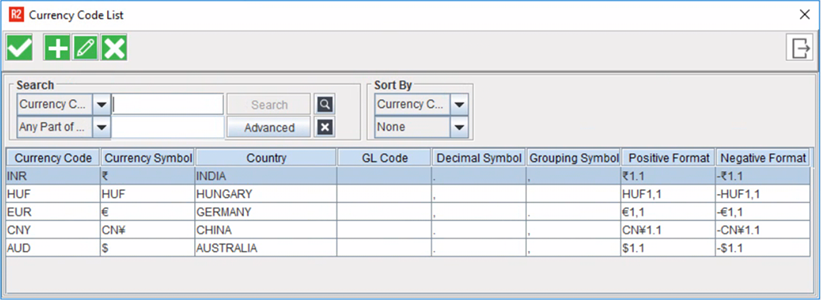
Currency Code List dialog box
-
Click Add icon to display Currency Details dialog box.
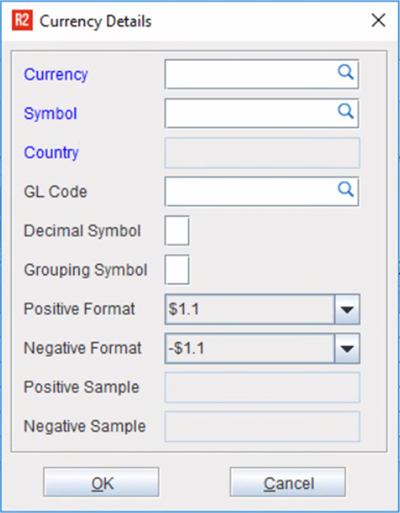
Currency Details dialog box.
In Currency Details dialog box, you can select Currency Code, Currency Symbol, GL Code and Decimal Places for the Currency
-
Click on the Importable button the Code field to display the Currency Codes dialog box.
-
The Currency Codes dialog box will be displayed with already defined currency codes. (See Add Currency Code)
You can add new Currency code to the list by clicking on the Add button
-
Double Click on a currency code to select. The selected Currency Code will be displayed in the Currency Details Dialog box.
-
Click on the importable button available in the Symbol field to open the Windows Character Map, where in you can select a Symbol for the Currency Code. ( Select and Copy a Symbol, Paste in the Symbol field)
-
Click OK, the newly added Currency Code will be displayed in the Currency code List Dialog box.
Define Currency Conversion Rates
-
Click on Currency Conversion Setup Button.
-
The Currency Conversion Table dialog box will be displayed with existing definitions.
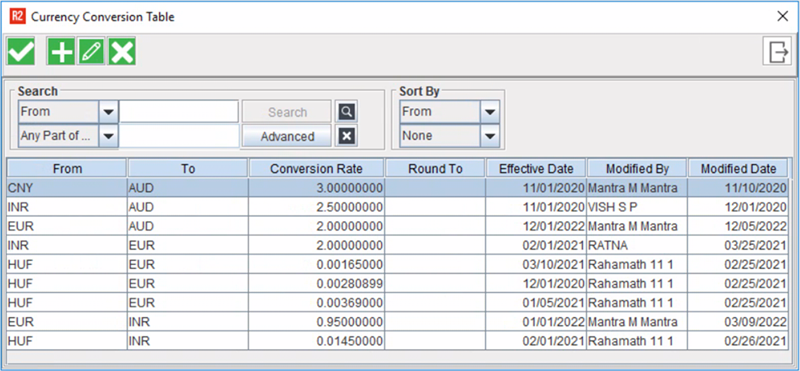
Currency Conversion Table dialog box
-
Click Add icon to display Currency Conversion Details dialog box
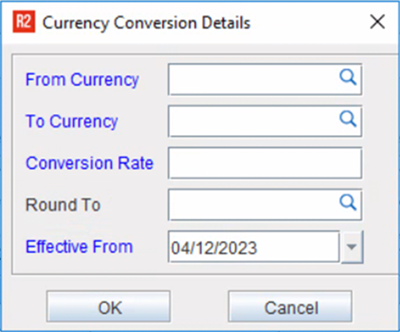
Currency Conversion Details dialog box
The fields From Currency, To Currency Conversion Rate, Effective From are mandatory input fields in Currency Conversion Details dialog box.
-
Select the From Currency and the To Currency in the respective fields by clicking on the importable button.
On defining conversion rate, if the rate is only defined as one-way conversion, system automatically calculates the reverse conversion rate as 1/conversion rate defined.
For example: If a conversion is defined as USD (US Dollar) èSGD (Singapore Dollar) as 3.0, then the conversion rate for SGD èUSD will be considered as 1/3.0.
-
Enter the rate of conversion in the Conversion Rate field.
-
Click on the Round To importable button to display the Price Rounding Configuration Setup.
-
Enter a date in the Effective From drop-down to define the date from which the currency conversion factor has to be implemented. (By default current system date will be displayed as the Effective Date, which can be modified).
-
Click OK to save and add the Currency Conversion definition.
Conversion Rates Applicable to All types of Order:
-
While calculating transaction currency amount from site currency amount or vice versa, system will always consider the conversion rate defined for site currency to transaction currency.
-
If conversion rate for site currency to transaction currency is not defined then system will consider the conversion rate defined for transaction currency to site currency.
-
While calculating site currency amount from base currency amount or vice versa, system will always consider the conversion rate defined for site currency to base currency.
-
If conversion rate for site currency to base currency is not defined then system will consider the conversion rate defined for base currency to site currency.
Conversion Rates Applicable to All types of Invoices:
While re-calculating invoice amounts based on the conversion rates edited, system will consider the conversion rates as below :
-
While calculating site currency amount from transaction currency amount, system will always consider the conversion rate defined for transaction currency to site currency.
-
If conversion rate for transaction currency to site currency is not defined then system will consider the conversion rate defined for site currency to transaction currency.
-
While calculating base currency amount from site currency amount, system will always consider the conversion rate defined for site currency to base currency.