
Assets
The Assets feature within Maintenance module is used to search and modify the details of the individual Serial Items (Assets) like Asset's home site, pricing details, purchase details etc., You can also view more details of the asset like what was the last order that the asset was used, any damages in asset, and more.
Asset search window
To access the asset search window,
Go to Maintenance module.
Click Assets tab in the vertical tab panel.
Click Serial Items tab in the horizontal tab panel. The asset search area displays.
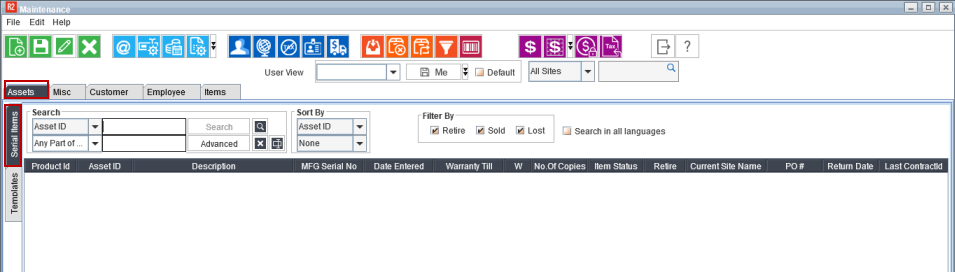
Figure 1.0: Maintenance window
Asset search window lets you to search the Assets of a Serial item based on different search criteria using different filter options.
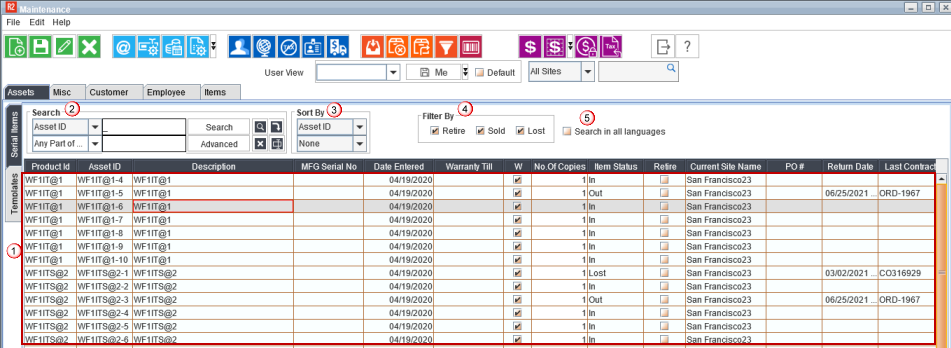
Figure 1.2: Asset search window
Asset records: Lists all the asset data based one the site selected in the site filter.
Search: To filter the asset records. You can do a drill-down search to filter out a particular type of record. You can filter the records by applying various criteria and an Advanced search is also available which let you narrow down your search and use multiple search criteria.
Following are the search criteria fields that are available for you to filter out the asset records.
Table 1.0: Search criteria field details
Search criteria | Description |
|---|---|
Asset ID | To search the asset using the Asset ID as defined in Asset edit window |
Description | To search the asset using the Description of the Asset as defined in the Asset Edit window |
MFG Serial No. | To search assets using the Manufacturing Serial Number defined in the Asset Edit window |
Date Entered | To search assets using the Date on which the Asset was acquired/received |
Warranty Till | To search assets based on the Date till which the warranty of the Asset is valid |
W (Warranty) | To search assets based on the Warranty applied or not. Select the checkbox to search for assets which have warranty |
Item Status | To search assets based on its status. Available status options— In, Filled, Out, Repair, Lost, QC, Missing, Sold, and In Transfer |
Retire | To search assets which are marked as 'Retire' in the Asset Edit window |
Current Site Name | To search assets using the current site name as defined in Asset Edit window |
PO# | To search assets using the Purchase Order number |
Return Date | To search assets based on the Return date. Select a date from search value dropdown |
Last ContractID | To search asset using the Order ID on which the asset was last used. |
Last Contract Description | To search the asset using the Order description on which the asset was last used |
Transfer# | To search the asset using the Transfer Order number on which the asset was used |
Sec AssetID | To search assets using the Sec asset ID as defined in the Asset Edit window |
Current SiteID | To search assets using the current site ID as defined in Asset edit window |
Owner SiteID | To search assets using the owner site ID as defined in Asset edit window |
Owner Site Name | To search assets using the owner site name as defined in Asset edit window |
Use From | To search assets based on the date on which the asset is ready for service |
Model | To search assets based on the model defined in Asset edit window |
Off Rent |
|
Defining Search condition
The search condition selected determines how the values entered are used to search the asset records.. The following table describes about the search condition and its results.
Table 1.1: Defining Search condition field details
Field | Description |
|---|---|
Any Part of Field | Returns the records that match the value given to any part of the selected field type |
Start of Field | Returns the records that match with the value given in the beginning of the field type |
Whole Field | Searches the entire field for matching criteria. This displays the record, which exactly matches with the given search criteria. So while using this option, information given should be correct |
Equal | Returns the records that are equal to the value given in the search field |
Not Equal | Returns the records that are not equal to the value given in the search field |
Greater | Returns the records that are greater than the value given in the search field |
Greater or Equal | Returns the records that are greater than or equal to the value given in the search field |
Less or Equal | Returns the records that are less than or equal to the value given in the search field |
Between | Returns the records that are between the values in the first and second search fields |
Advance Searching
The Advanced button on the Asset Search window opens the Advanced Search window. It allows you to widen or narrow a search based on criteria that you input.
Click the Advance button in the search order window to display Advance Search dialog.
Select the column name by which the asset has to be searched.
Click the condition drop-down menu to select search condition.
Select the search result sort order dropdown menu.
Click Search icon.
The search results will be displayed in the Asset search window based on the search condition.

You can also add multiple conditions for search by clicking the Add icon.
Advance search - search conditions
If multiple conditions are used for searching Asset, search condition can be applied to perform the search based on all conditions or any of the conditions defined.
Match all of the following- Displays the assets that match all the conditions defined.
Match any of the following- Displays the assets that match any of the conditions defined.
Sort By: To display format for your search results.
Filtering Asset Search Results: Filters the Asset search results based on status (Retire/Sold/Lost).
To filter the search results based on the status. The following table shows you the status option available which further allows you to filter the search results.
Table 1.2: Filtering Asset Search Result options
Filter By | Description |
|---|---|
Retire | Displays the assets which are marked as 'Retire' in the Asset Edit window |
Sold | Displays the assets which are sold |
Lost | Displays the assets which are lost |
Search in all languages: If Multi-language is enabled, and if this checkbox is selected, the search is done for the description text, irrespective of the language used.
Accessing Asset Search window
Accounts > Search > Assets
Accounts > Order/Quote > Search Assets
Warehouse > Search Assets
Maintenance > Assets > Serial Items
Service > Service ticket > Asset ID
Asset edit window
To access the asset edit window,
Go to Maintenance module.
Click Assets tab in the vertical tab panel.
Click Serial Items tab in the horizontal tab panel.
Search for an asset and click the edit icon in the tool bar. The Asset edit window displays as shown in Figure 2.0.
This window provides the user with a provision to edit the asset's usage history, service history, pricing details, comments, warnings (if any), and more.
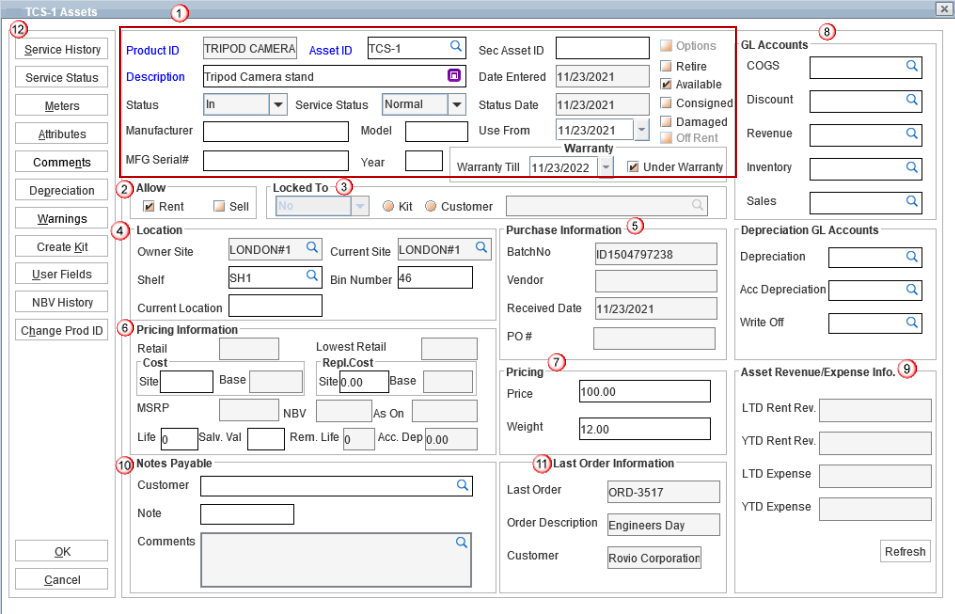
Figure 2.0: Asset edit window
General Information
This section contains the basic details of the asset like Asset ID, Product ID, Description etc.,
Product ID: The Product ID is automatically fetched and it is a non- editable field.
Description: Product Description is also automatically fetched. However, you can still the change the description if required.
Asset ID: To add additional Asset IDs in addition to the Primary Asset ID.
The Additional Asset IDs can be used in the following places:
While Filling and Returning an Asset on a Rental Reservation Order/Sale Order.
While Filling and Receiving an Asset on a Transfer Order.
While performing Physical Inventory.
Status: To select the status of the asset. Available status options — In, Filled, Out, Repair, Lost, QC, Missing, Sold, and In Transfer.
Service status: To select the service status of the asset. Available status options — Normal, Need Service, In Service, Pending Service, Suspended Service.
Manufacturer: Enter the asset manufacturer name here.
MFG serial#: Enter the manufacturing serial number.
Model: Enter the manufacturer's model name and/or number here.
Year: Provide the asset manufactured year.
Warranty: Select 'Warranty Till' date and the 'Warranty' checkbox is the asset is under the warranty period.
Use From: Provide the date on which the asset is ready for service.
You can also fill additional details such as Sec Asset ID, update the asset state whether it is retired/ damaged etc.,
Allow
This section is to allow which action can be performed on the asset. select any of the checkboxes as needed.
Rent: Determines whether the item can be rented.
Sell: Determines whether the item can be sold.
Locked To
Location
You can provide the exact site and its current location of the asset.
Owner site: Select the owner site where the asset is created.
Current site: Select the site where the asset is currently assigned.
Shelf: Provide the warehouse shelf number where the asset is placed.
Bin Number: Provide the bin number where the asset is placed.
Current Location: Select the location where the asset is currently available.
Purchase Information
You can view the following purchase details here.
Batch number
Vendor
Received Date
PO#
Pricing Information
You can provide and view all the pricing related details like cost of asset, replacement cost, MSRP etc.,
Asset weight
Mention the asset weight and price of it.
GL accounts
These are the accounts to which all the accounting details regarding the transactions made on the asset have to be sent. Select the respective account for the fields by clicking on the importable button.
Asset Revenue information
These are the accounts to which all the revenue and expenses transactions made on the asset have to be sent. Select the respective account for the fields by clicking on the importable button.
Notes payable
Last Order information
You can view the Order details on which the asset was last used.
Additional information
Service History: Displays the Asset Usage History window, which lists the details of the Order on which the Asset was used.
Service Status: Displays the Asset Status History window, which lists the current status of the Asset.
Comments: Displays the comments tagged to the Asset if any. And, you can also provide comments and attachments if required.
Warnings: Displays the warnings tagged to the Asset if any. And, you can also provide warnings against the asset if required.
Create Kit: You can create kit within the asset edit window by selecting the items and assets.
User fields: Input the values for user defined fields. Make sure to fill the mandatory fields.
NBV History: Displays the Asset NBV History window, which lists the NBV of the asset based on the latest posted depreciation batch for the asset.
Change Product ID: You can change the asset's product ID to another here.
When you try to change the Product ID for a serial asset, the system blocks the change in some cases. Also, the system explains why change is blocked.
The system checks the asset’s usage in orders, warehouse activity, and unsaved transactions. It restricts the change if the asset status is not IN or if the asset is used in an open or unsaved order. If another user is working on the order, the system identifies them and tells you to try again after the order is closed.
Common Reasons Product ID Change Is Blocked
R2 would prevent Product ID change in the following situations:
Asset is not in IN status - When the Asset’s status is anything other then IN, system will stop you from changing it’s Product ID and displays a message as “Asset status is not IN”.
Asset is Locked to Kit - When an Asset is locked to a Serial Kit Asset, system will stop you from changing it’s Product ID and displays a message as “Asset locked to Kit”.
Physical Inventory Count in progress - When there a Physical Inventory counting is progress for the selected Asset’s product, system will not proceed further and shows the message as “Physical Inventory Count in progress”.
Asset is still being used on one or more orders - This condition occurs when Asset is added by Asset ID/Serial ID and status is Reserved / Not Available on the order. R2 lists the impacting order numbers so that you can identify where the asset is currently assigned.
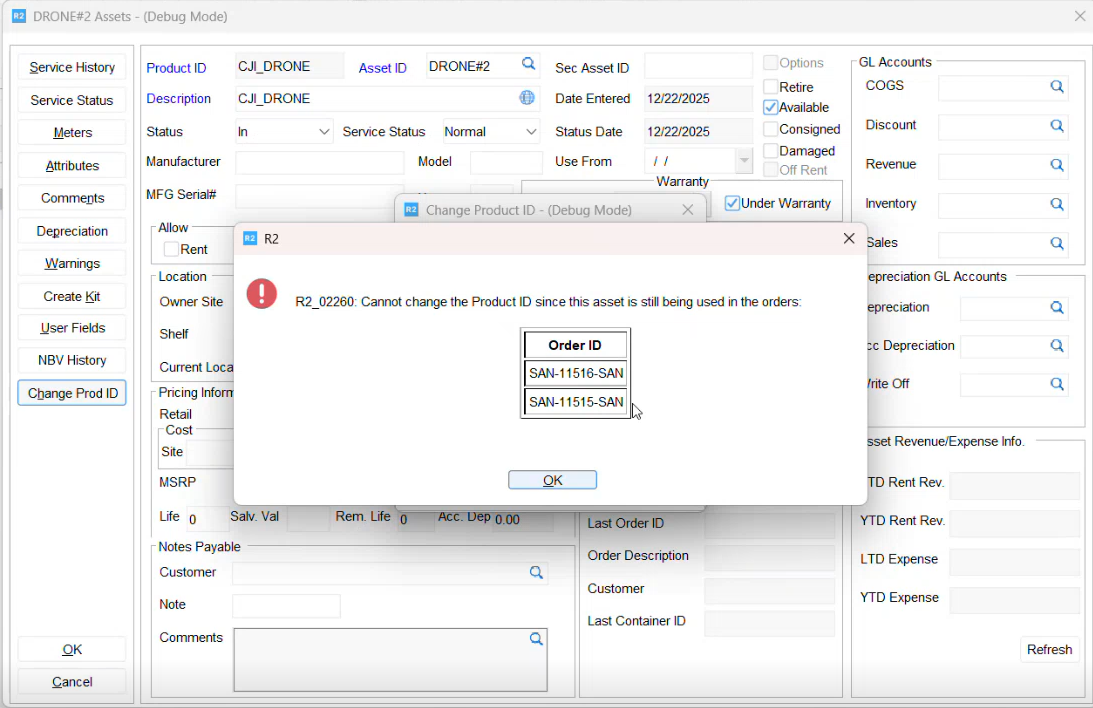
Warehouse processing is in progress - This condition occurs when the asset status is IN and was used on any of the orders and the respective orders' warehouse task(s) is kept open by some one. R2 indicates the user holding the order and advises you to contact them and retry once the order is closed.
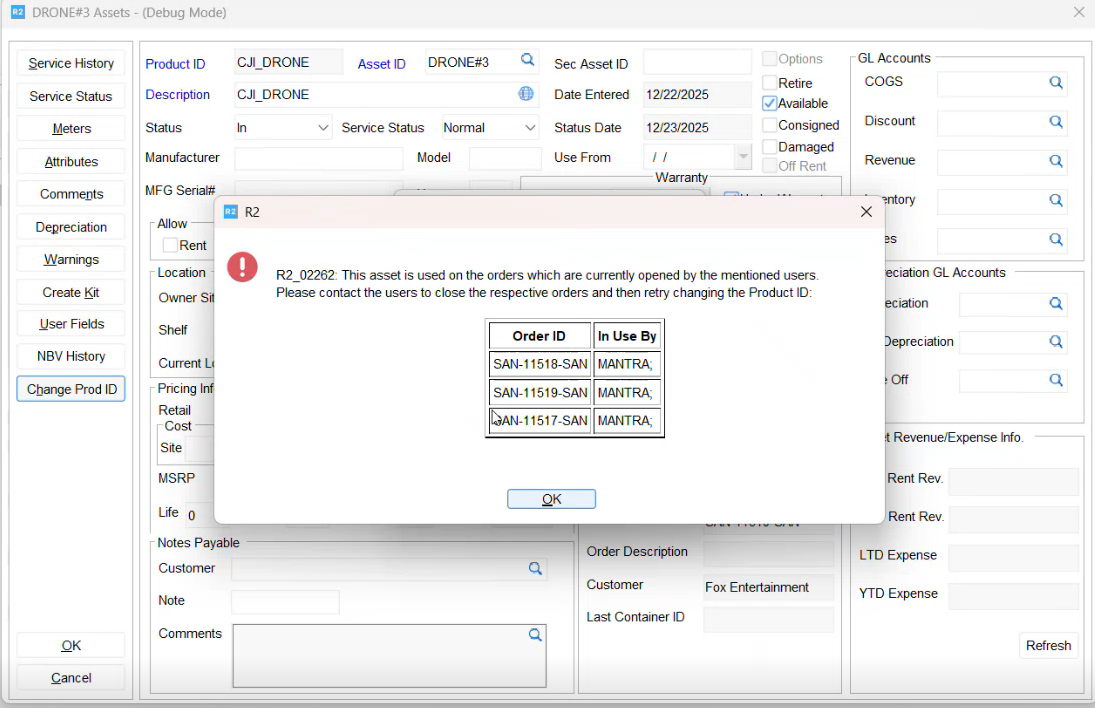
Asset is added to an order that has not been saved - If the asset was entered using the Serial/Asset ID on an Order but the order has not yet been saved, R2 blocks the change until the order is saved or the asset is removed from that order.
Note: If the asset was entered on a new order and has not yet been saved, R2 blocks the change and shows the message indicating the user names only not the order number since it would not have been assigned a number yet.
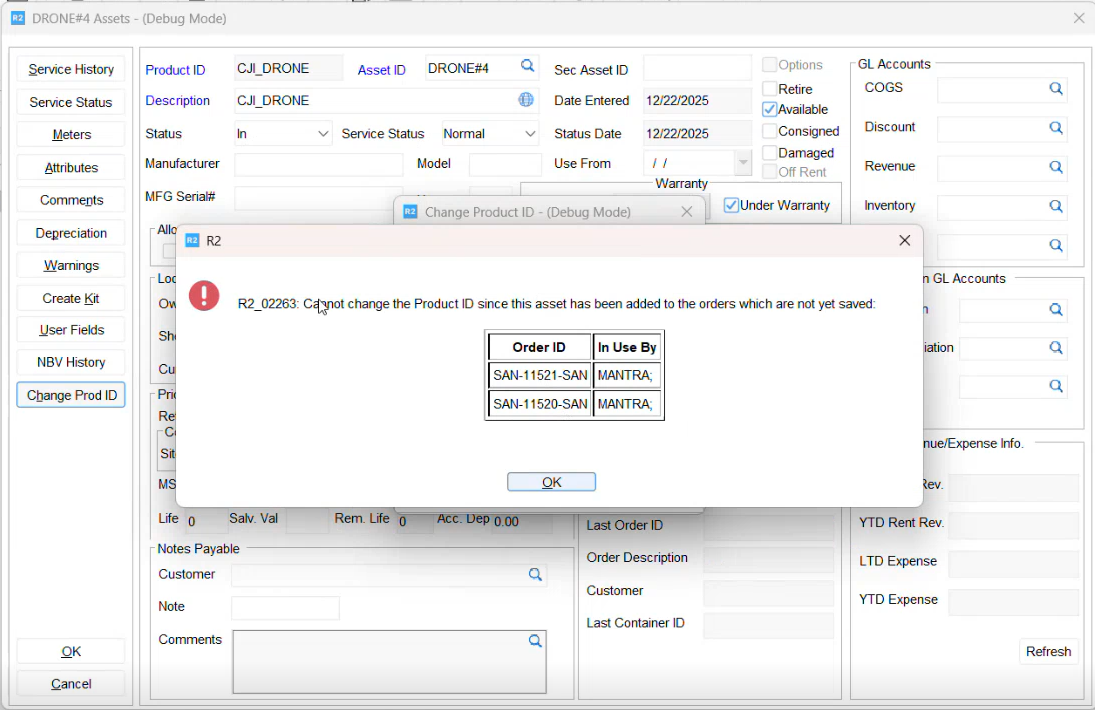
When you receive a restriction message:
Review the order numbers shown in the message.
If an “In Use By” user is listed, contact the user and ask them to close the order or complete warehouse processing.
If the message indicates the order is not saved, ensure the order is saved or remove the asset from the open transaction.
Retry the Product ID update after the related order activity is completed.
When you import assets of another product through Item Edit > Import Assets feature, the system applies the same restriction rules and displays similar messages for consistent guidance. Click here to know more on Import Assets feature.