
The Driver Profile screen allows you to create and update driver details used in Transportation and Scheduling. This screen provides a clean and easy way to maintain driver information.
Driver Profile Screen
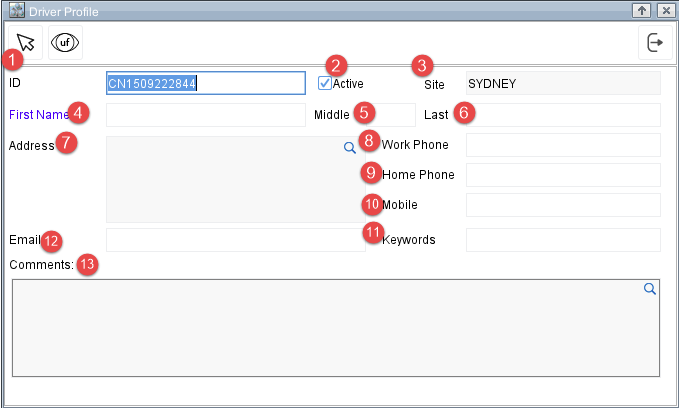
The Driver Profile screen includes the following fields:
-
ID - A unique identifier for the driver. The system generates an ID automatically, but you may replace it with your own if required.
-
Active - Indicates whether the driver is active. Activate this check box to mark the driver as available for scheduling.
-
Site - Displays the warehouse or site assigned to the driver. This field is automatically set and cannot be edited.
-
First Name -Enter the first name (Required).
-
Middle – Enter the middle name (Optional).
-
Last Name – Enter the last name (Optional).
-
Address - Enter the driver address or select an address using the magnifying glass lookup icon.
-
Work Phone – Enter the Work Phone details (Optional).
-
Home Phone – Enter the Home Phone details (Optional).
-
Mobile – Enter the Mobile Phone details (Optional).
-
Keywords - Optional tags used to identify or categorize the driver.
-
Email - Optional field for storing the driver email address.
-
Comments - Add additional details or notes related to the driver. Click the magnifying glass to open a larger comments window.
Creating a Driver
-
Click Add icon in Search Drivers screen.
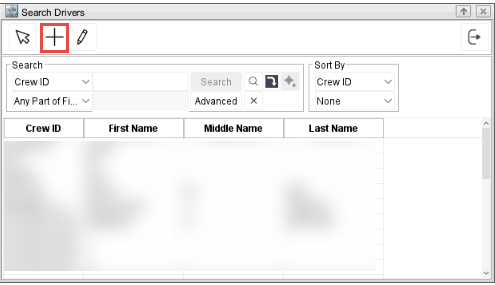
The Driver profile screen is displayed.
-
Enter the required details (ID and First Name).
-
Add optional information as needed.
-
Click OK to store the driver profile.
Editing a Driver
-
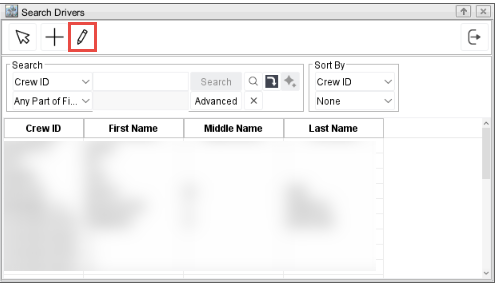
Click Edit icon in Search Drivers screen.
-
Selected driver profile is displayed in the Driver Search screen.
-
Update the fields as needed.
-
Click OK to apply changes.