
Details
The Ability to search and view the Lots which have been assigned fully to Orders has been provided. A new check box named Include fully alloted has been provided in the View / Select Lot Number dialog box, selecting which the system will display fully assigned Lots in the search results, as shown in Figure 1.0.
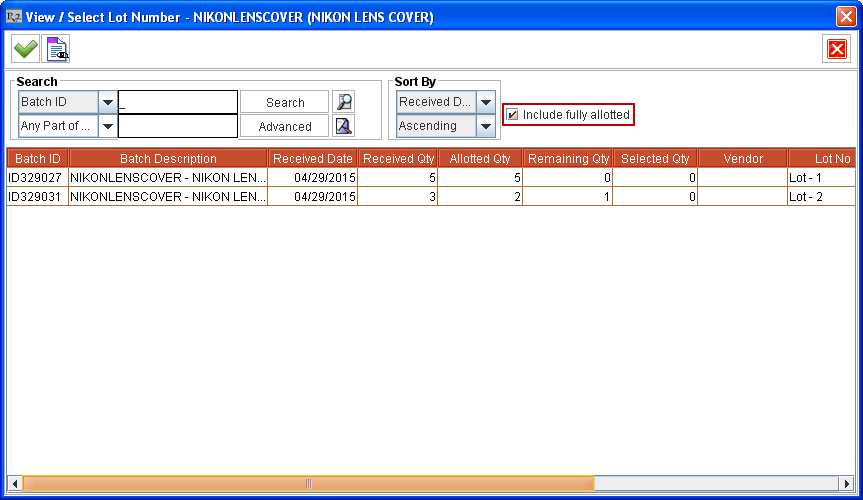
The Include fully alloted check box is visible in the View / Select Lot Number dialog box when accessed from the following places:
-
Account module > Search Inventory icon > Inventory option > Search and select a Non Serial Item > click View / Select Lot Number icon.
-
Account module > Search Inventory icon > Items option > Search and select a Non Serial Item > click View / Select Lot Number icon.
-
Warehouse module > Search Inventory icon > Inventory option > Search and select a Non Serial Item > click View / Select Lot Number icon.
-
Warehouse module > Search Inventory icon > Items option > Search and select a Non Serial Item > click View / Select Lot Number icon.
-
Service module > create new Service Ticket > Items button > Search and select a Non Serial Item > click View / Select Lot Number icon.
-
Physical Inventory module > create new Physical Inventory for Item > Search and select a Non Serial Item > click View / Select Lot Number icon.
-
Search Inventory module > Search and select a Non Serial Item > click View / Select Lot Number icon.