
-
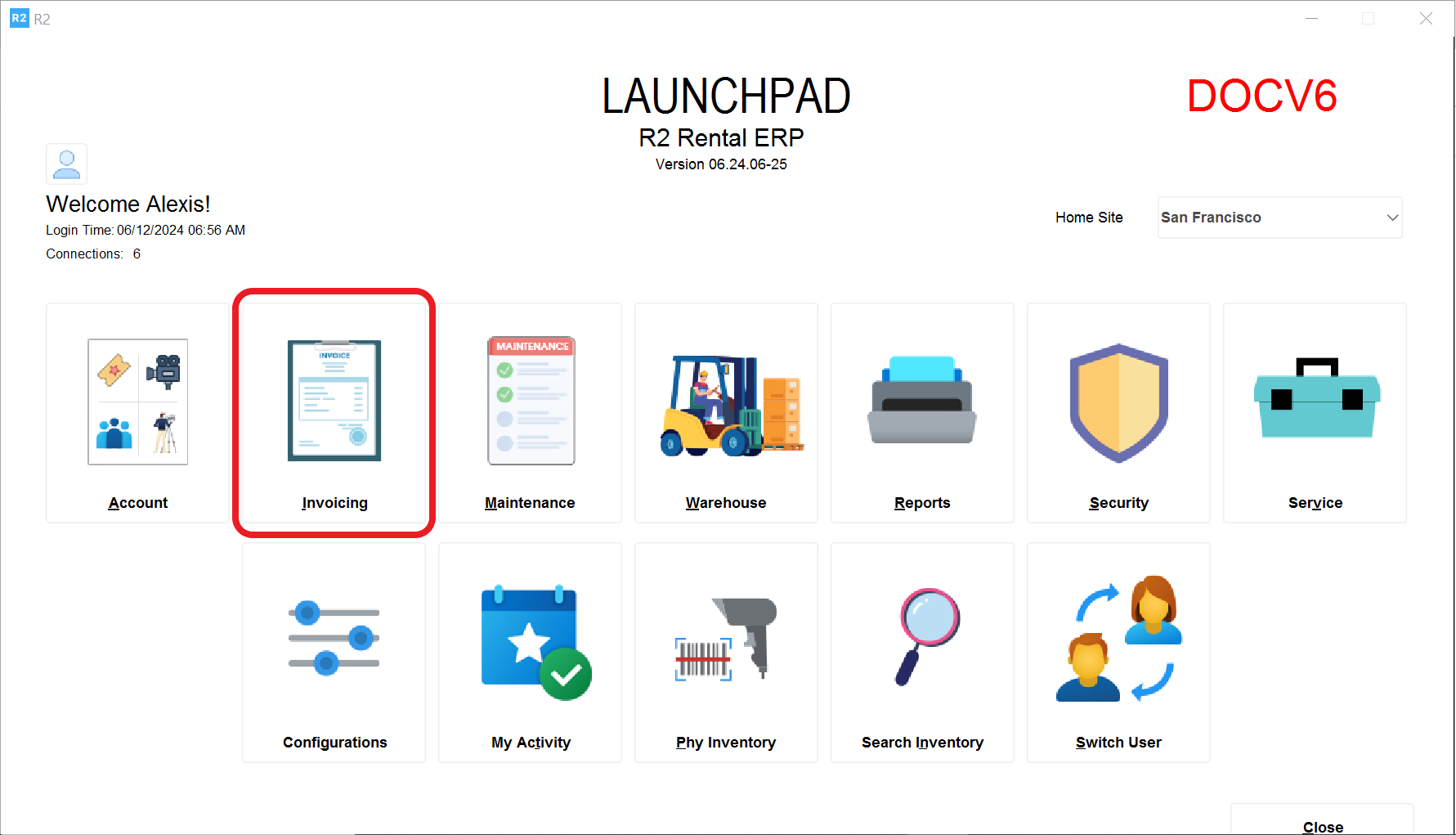
From the R2 Launch Pad, click on the Invoicing button
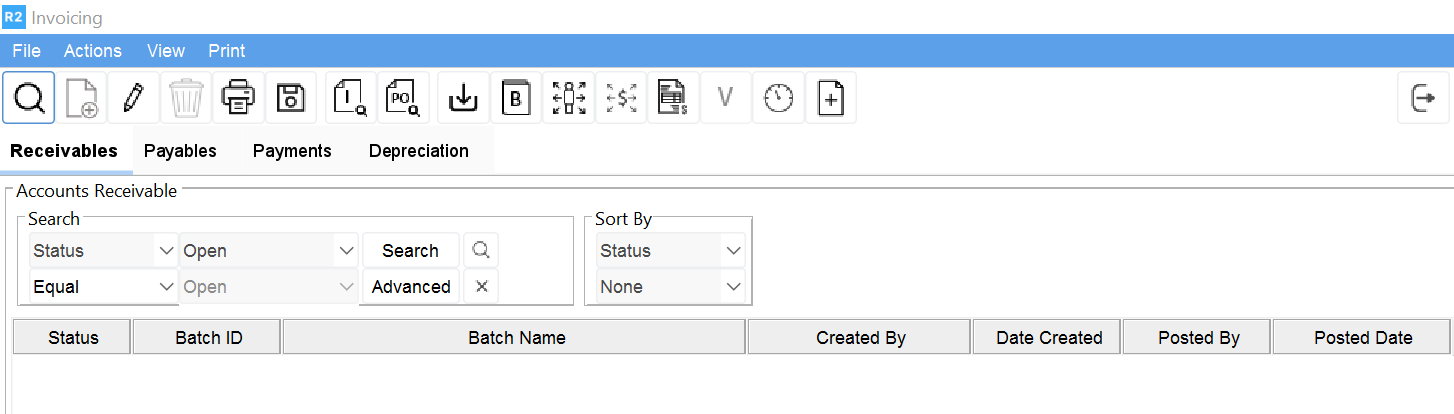
The Invoice Batch screen will open
-
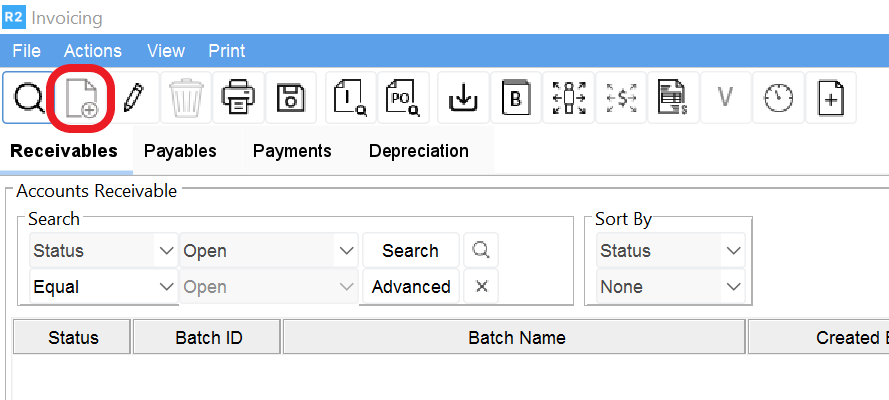
To begin a new invoice batch click on the New Icon

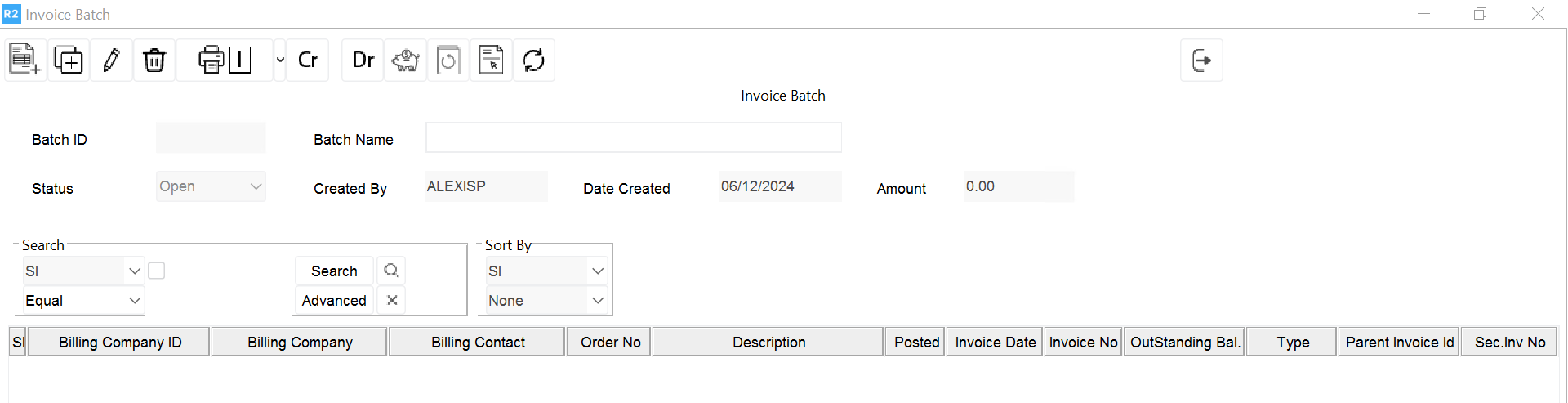
The Invoice Batch screen will open
-
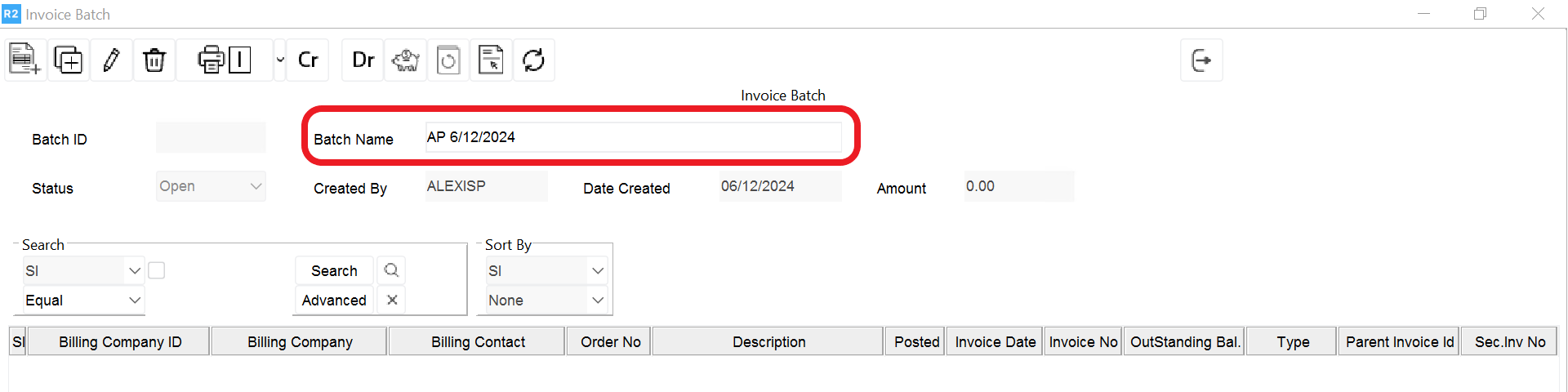
Type in the Description of the batch (usually user initials and date)
-
Click on the Add Invoice button

.png?cb=5877b2748d1142c76edb2357e5dee49e)
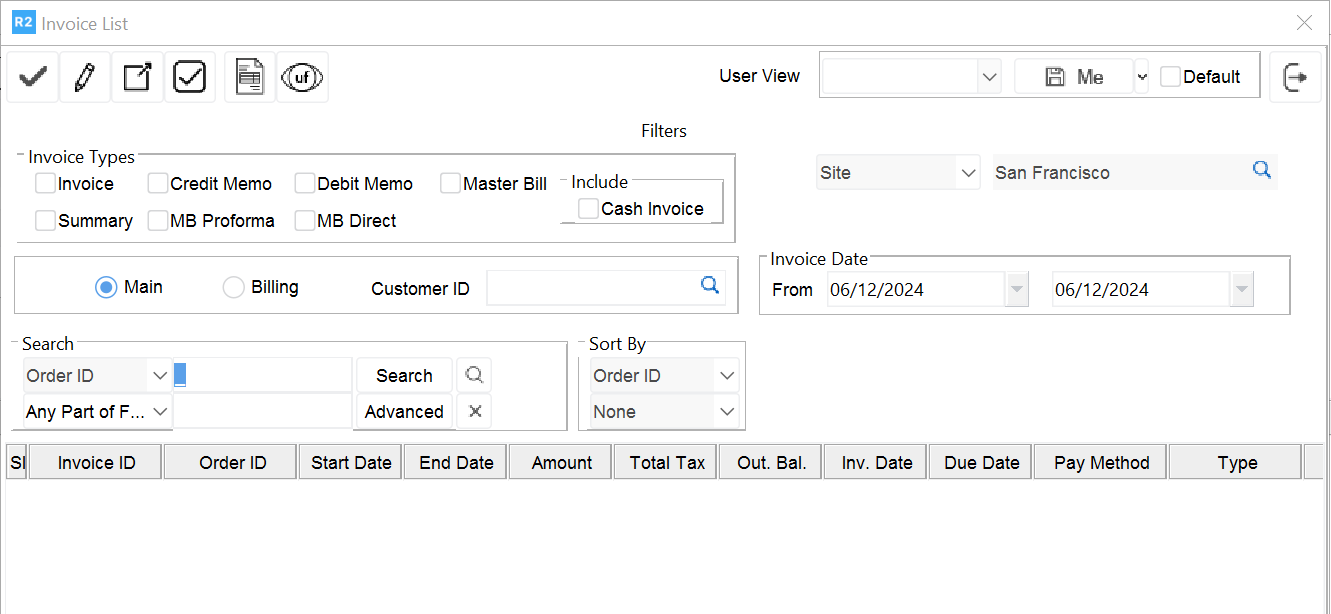
The Invoice List screen will open
-
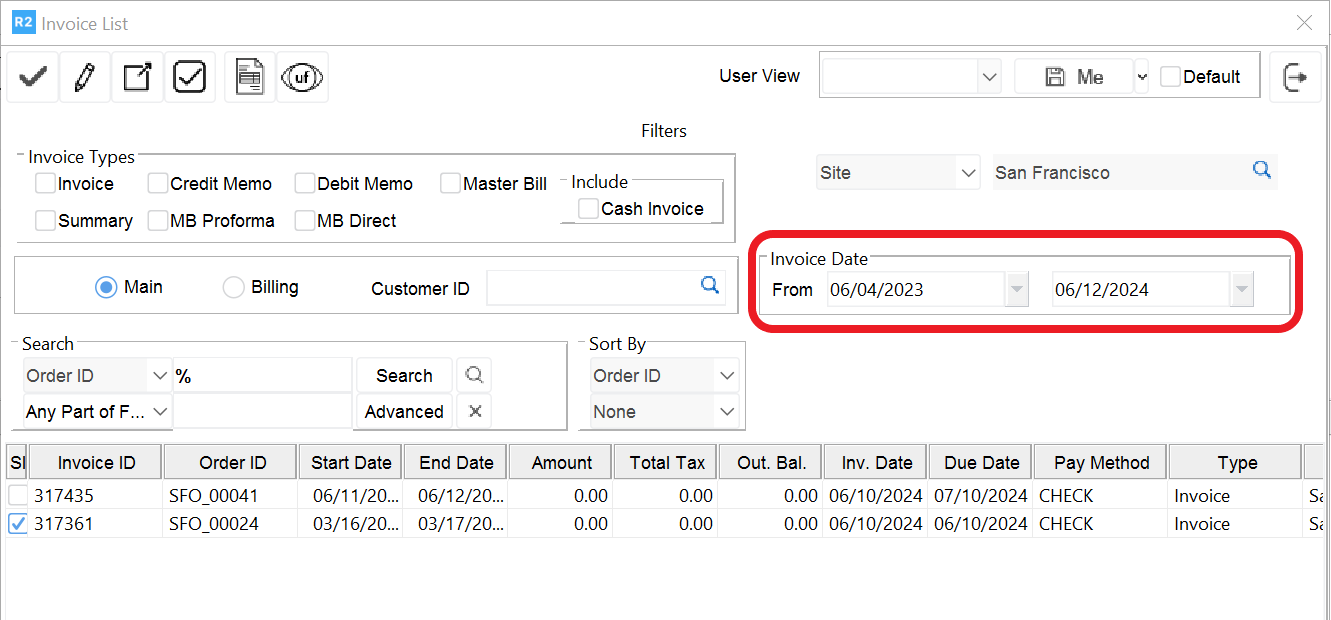
Use the “From” and “To” Date section to indicate a time from to pull invoices. Then type in “%” on the search field and click on the Search button to find the invoices
-
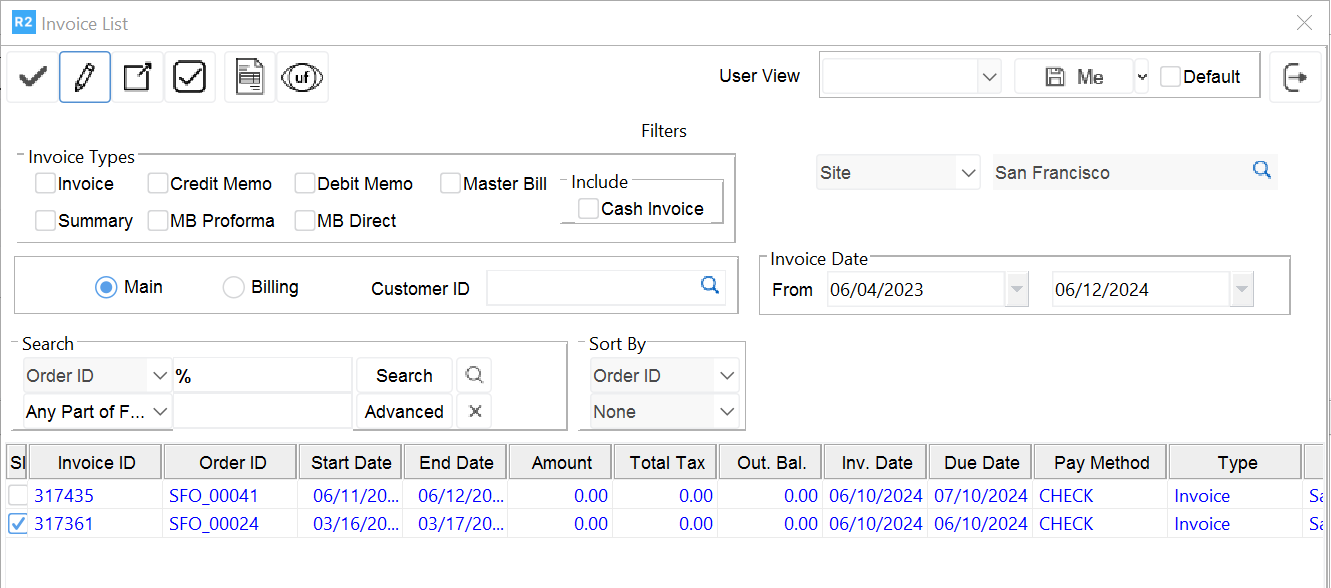
Click on the Tag All

Note: selected invoices will display on blue font
-
Click on the Select

The Invoice Batch screen will appear
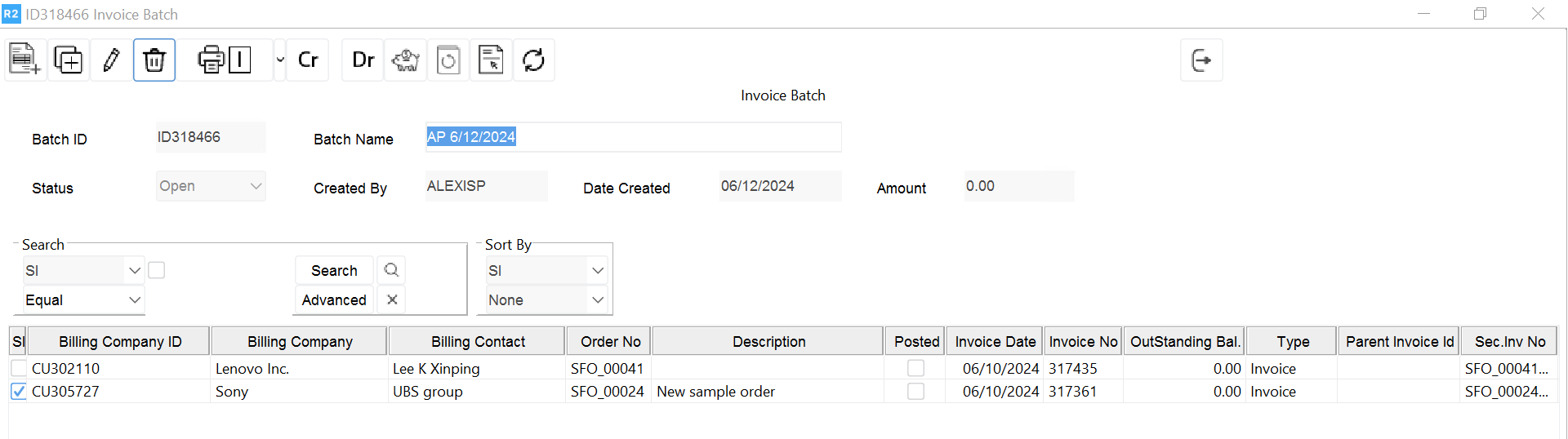
-
Click on the Exit
