
Reference No: 29487
Details
Support for the Days for the week in the Asset Usage View.
The details are explained in the sample workflow given below:
Sample Workflow
Scenario:
-
Select the Search Inventory module.
-
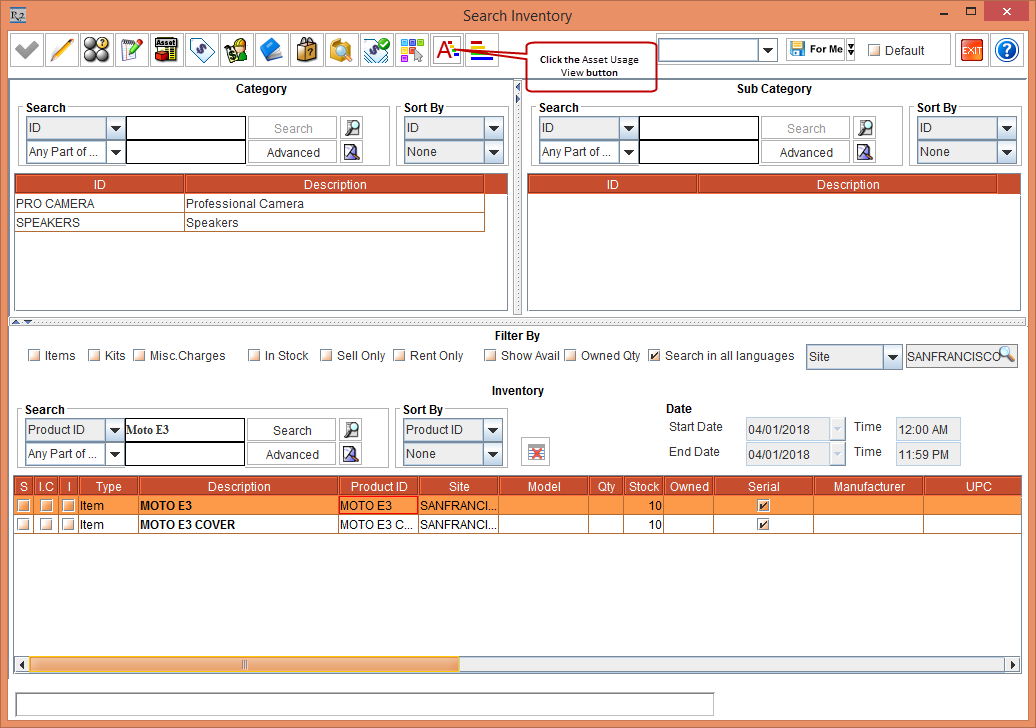
Search the Item [MOTO E3] > select the Item and click the Asset Usage View button, as shown in Figure 1.0.
-
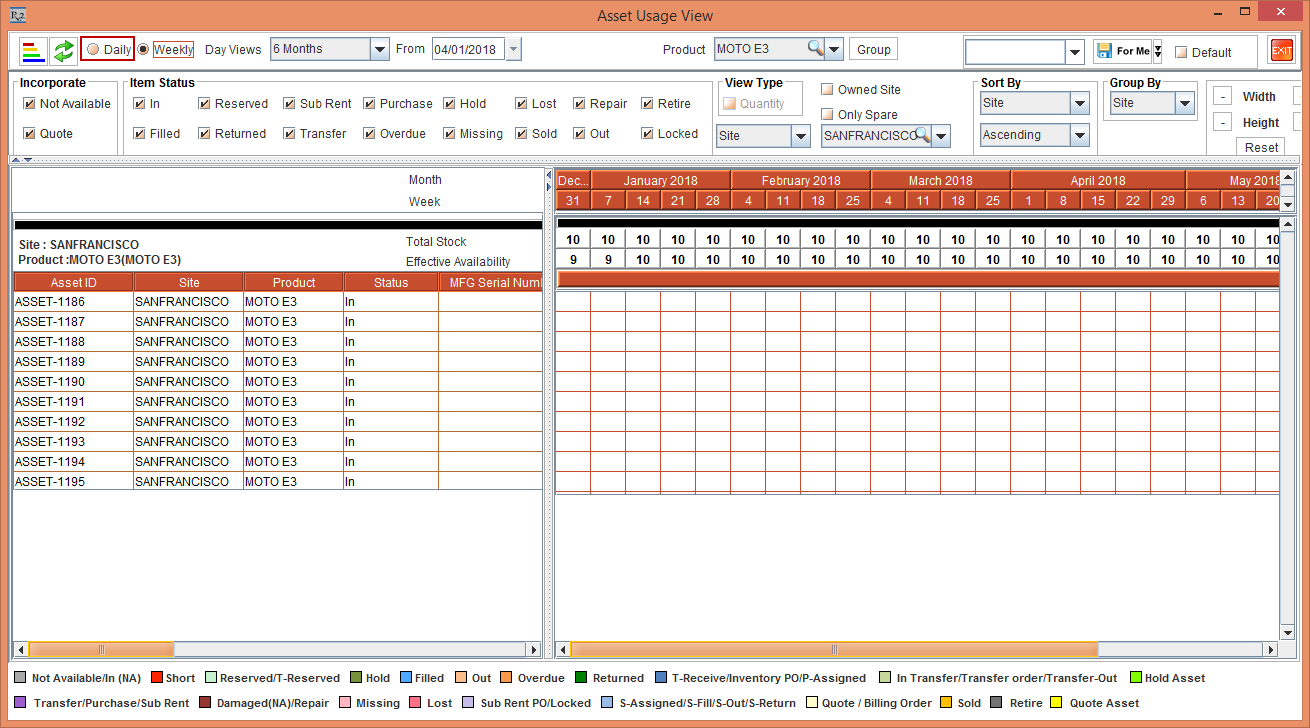
The Asset Usage View window appears, as shown in Figure 1.1
-
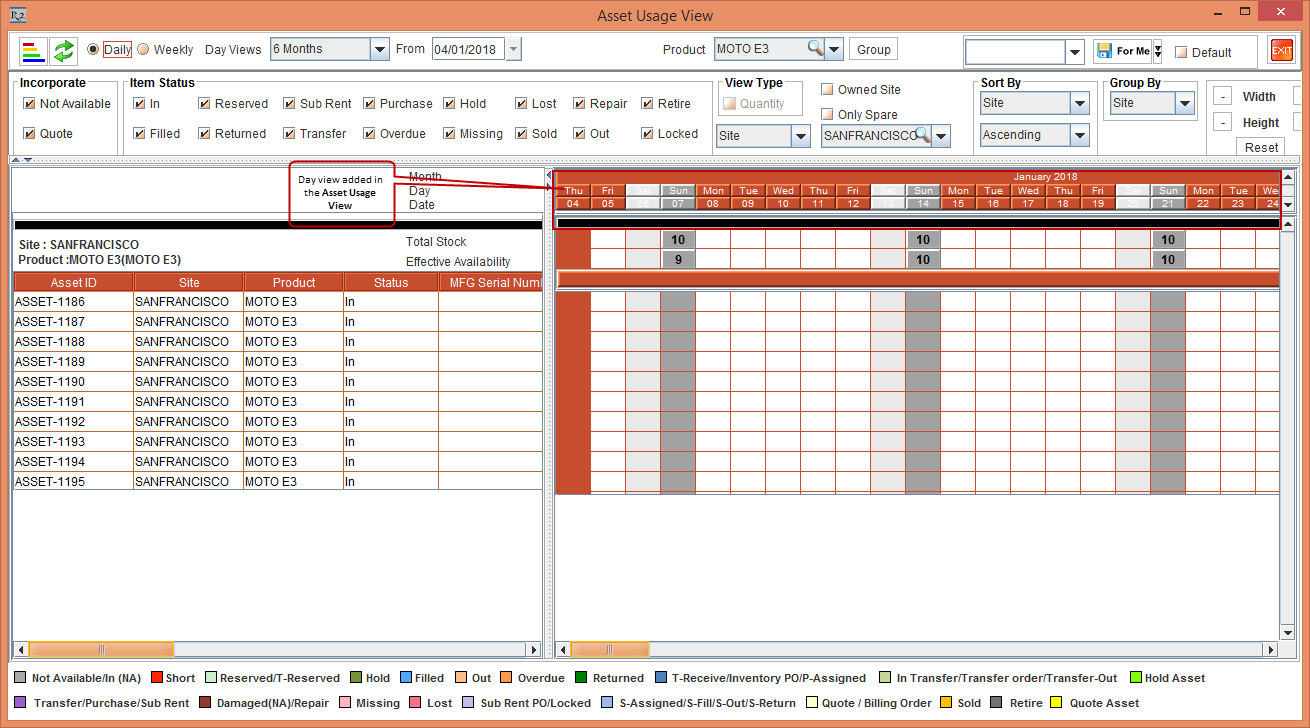
Select the Daily view in the Asset Usage View window, as shown in Figure 1.2.
-
The Day view is also been added in the following windows:
-
Equipment Usage View window after selecting Mode as Daily.
-
Search Event window after selecting Mode as Graph.
-
Search Order window after selecting Mode as Graph.